Managing product variants efficiently is essential for manufacturers dealing with multiple product configurations, such as different sizes, colors, materials, or specifications. Odoo 19 Manufacturing provides a flexible framework to handle product variants through Product Attributes, Bills of Materials (BoMs), and Manufacturing Orders. By leveraging variant-specific BoMs, component substitutions, and automated procurement rules, businesses can streamline production processes while maintaining accurate inventory tracking. Odoo's integrated Manufacturing, Inventory, and Sales applications ensure seamless coordination between customer demand and shop floor operations. With real-time visibility into stock levels, work centers, and production planning, manufacturers can reduce operational complexity and improve efficiency. This blog explores how Odoo 19 helps organizations manage product variants effectively, ensuring greater flexibility, scalability, and control throughout the manufacturing lifecycle.
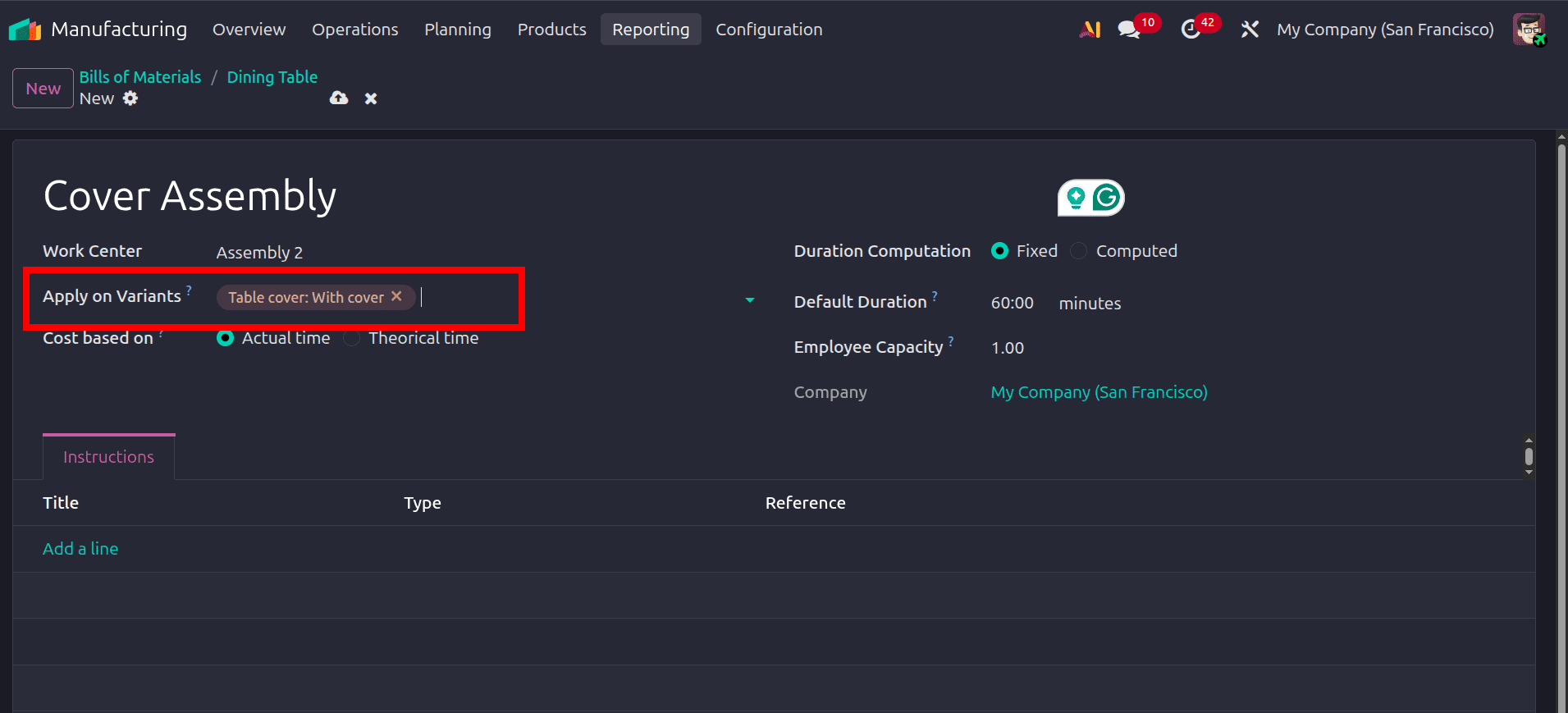
In the Product form, navigate to the Attributes & Variants tab to define the product variations that will be used during manufacturing. As shown in the screenshot, the Dining Table product includes multiple attributes such as Table Leg, Table Top, and Table Cover, each with different attribute values. Odoo 19 automatically generates product variants based on these combinations, eliminating the need to create each variant manually. The Configure option allows users to customize attribute settings and variant behavior. This approach simplifies variant management, improves inventory accuracy, and ensures that Manufacturing Orders and Bills of Materials are correctly linked to the appropriate product configuration.
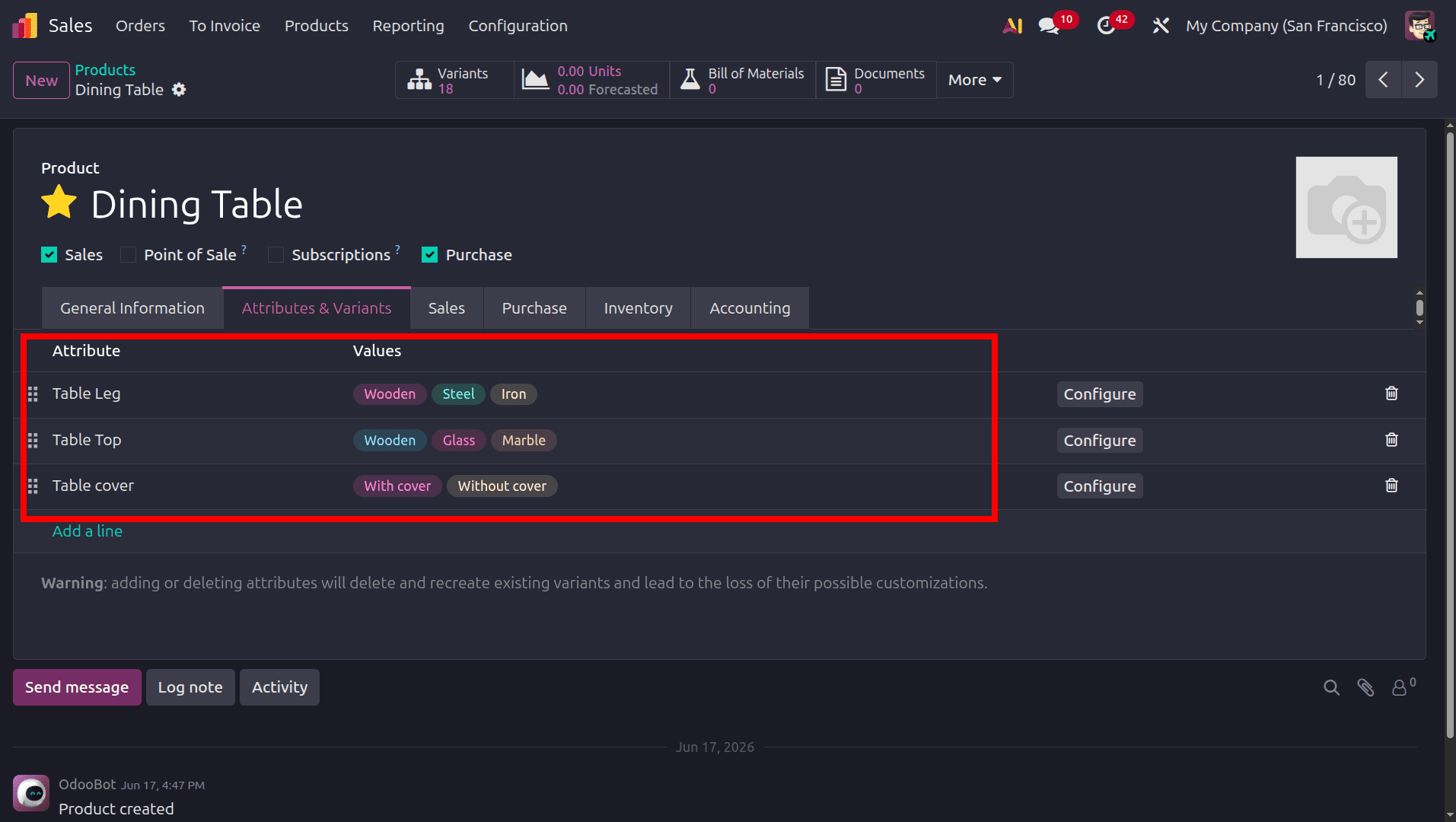
After configuring the product attributes and variants, navigate to the Manufacturing module and select Products > Bills of Materials. This menu provides access to all BoMs required for managing variant-based manufacturing. In Odoo 19, Bills of Materials define the components, operations, and work centers needed to produce a product. For products with multiple variants, Odoo allows you to create variant-specific BoMs, ensuring that the correct raw materials and manufacturing operations are applied to each product configuration. This capability helps manufacturers handle complex product variations efficiently, maintain accurate production records, and streamline the creation of Manufacturing Orders based on customer-selected product variants.
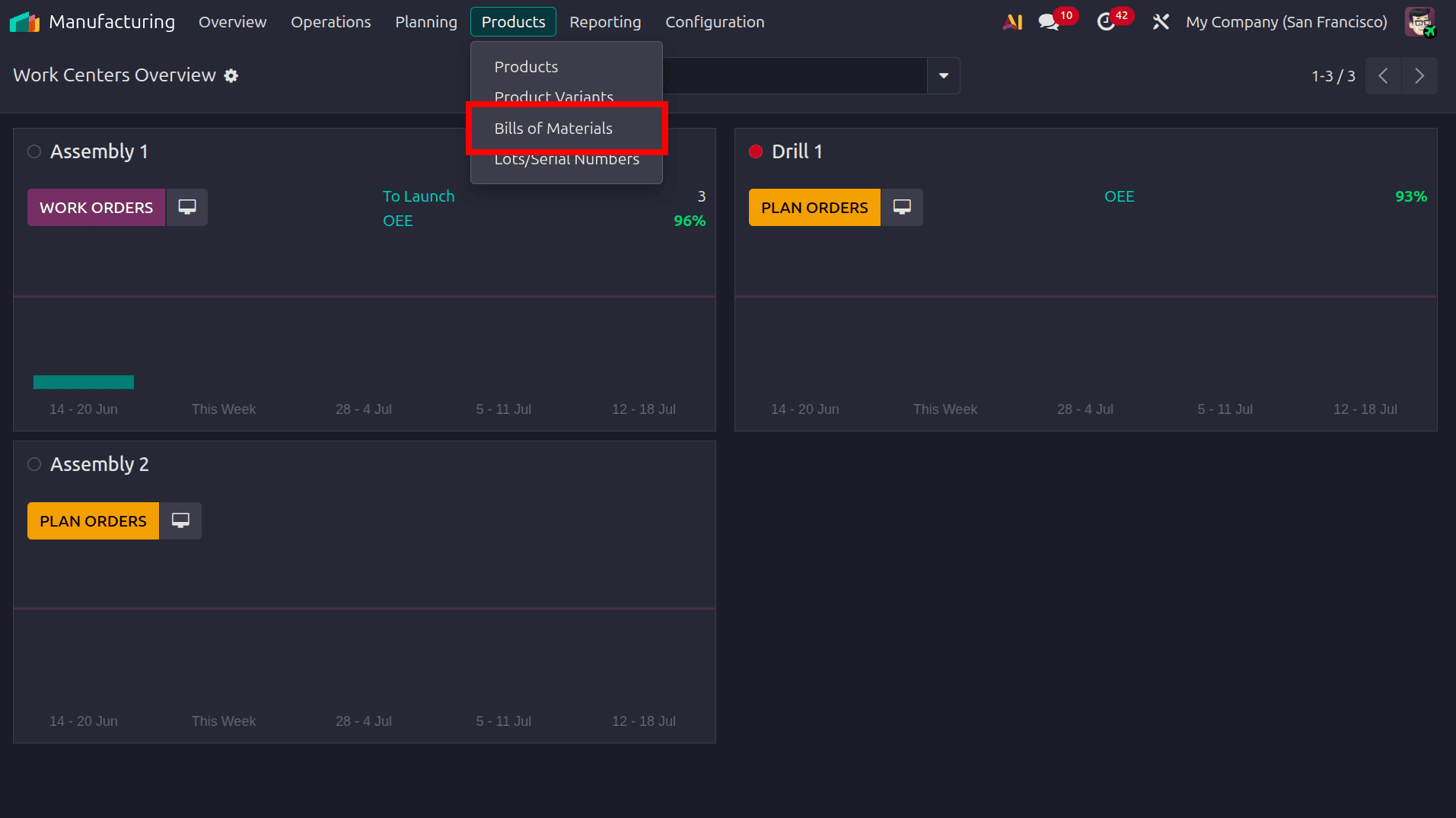
While creating the bill of material move to the Operations tab to define the manufacturing steps required for the product. In this example, the Dining Table BoM includes two operations: Table Fitting and Cover Assembly, each assigned to a specific Work Center. Odoo 19 uses these operations to generate work orders automatically when a Manufacturing Order is confirmed. The configured duration helps estimate production time and supports capacity planning across work centers. By defining operations within the BoM, manufacturers can standardize production workflows, track progress on the shop floor, monitor work center performance, and ensure that each product variant follows the correct manufacturing process.
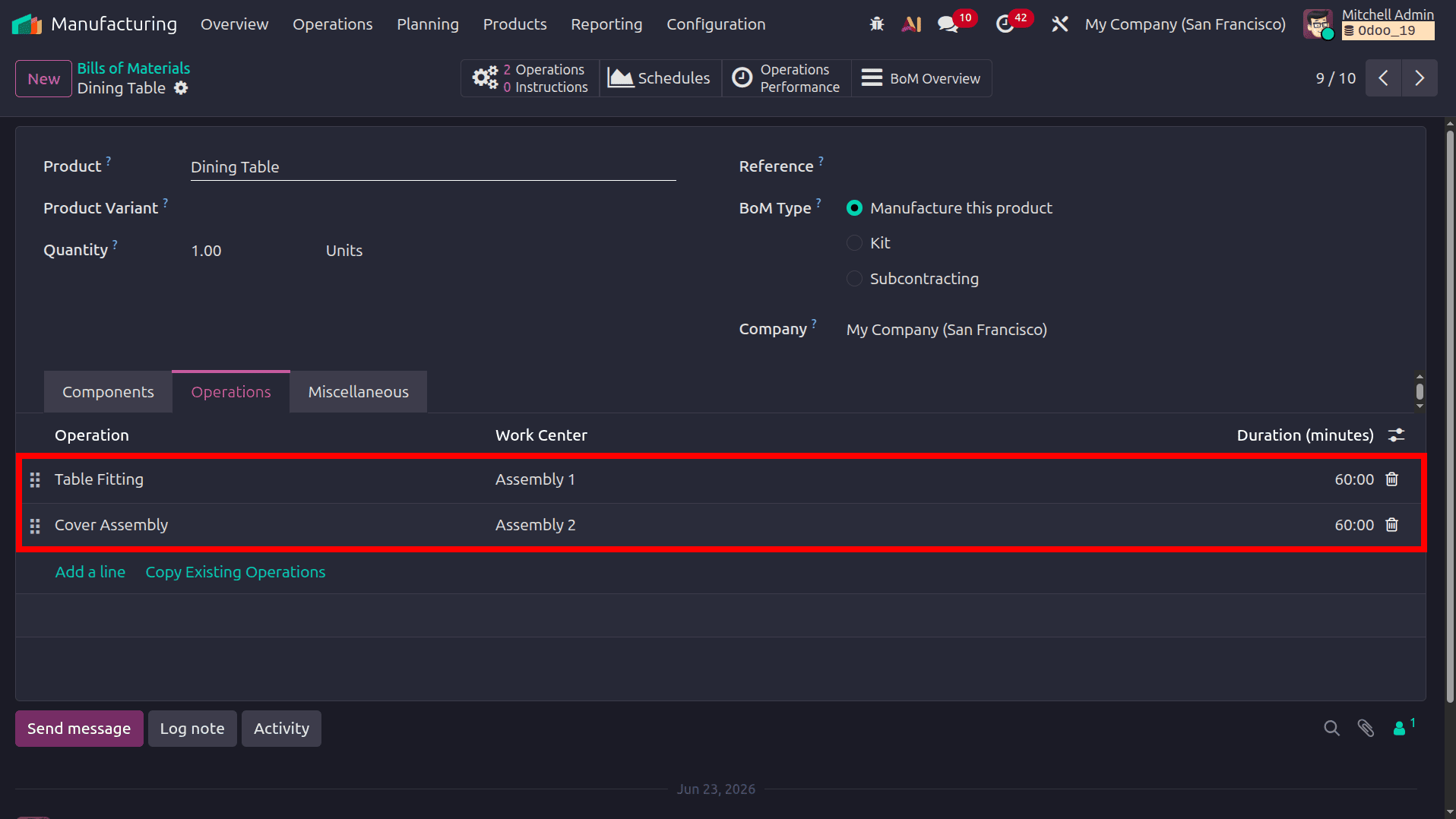
Odoo 19 allows manufacturing operations to be applied only to specific product variants, providing greater flexibility in production workflows. In the operation configuration form, the Apply on Variants field is used to define the variants for which the operation should be executed. As shown in the screenshot, the Cover Assembly operation is assigned only to the Table Cover: With Cover variant. This means the operation will be included in the manufacturing process only when a Dining Table variant with a cover is produced. For variants without a cover, Odoo automatically skips this operation.
This variant-specific operation management helps optimize production time, reduce unnecessary work orders, and ensure accurate manufacturing routing for each product configuration.
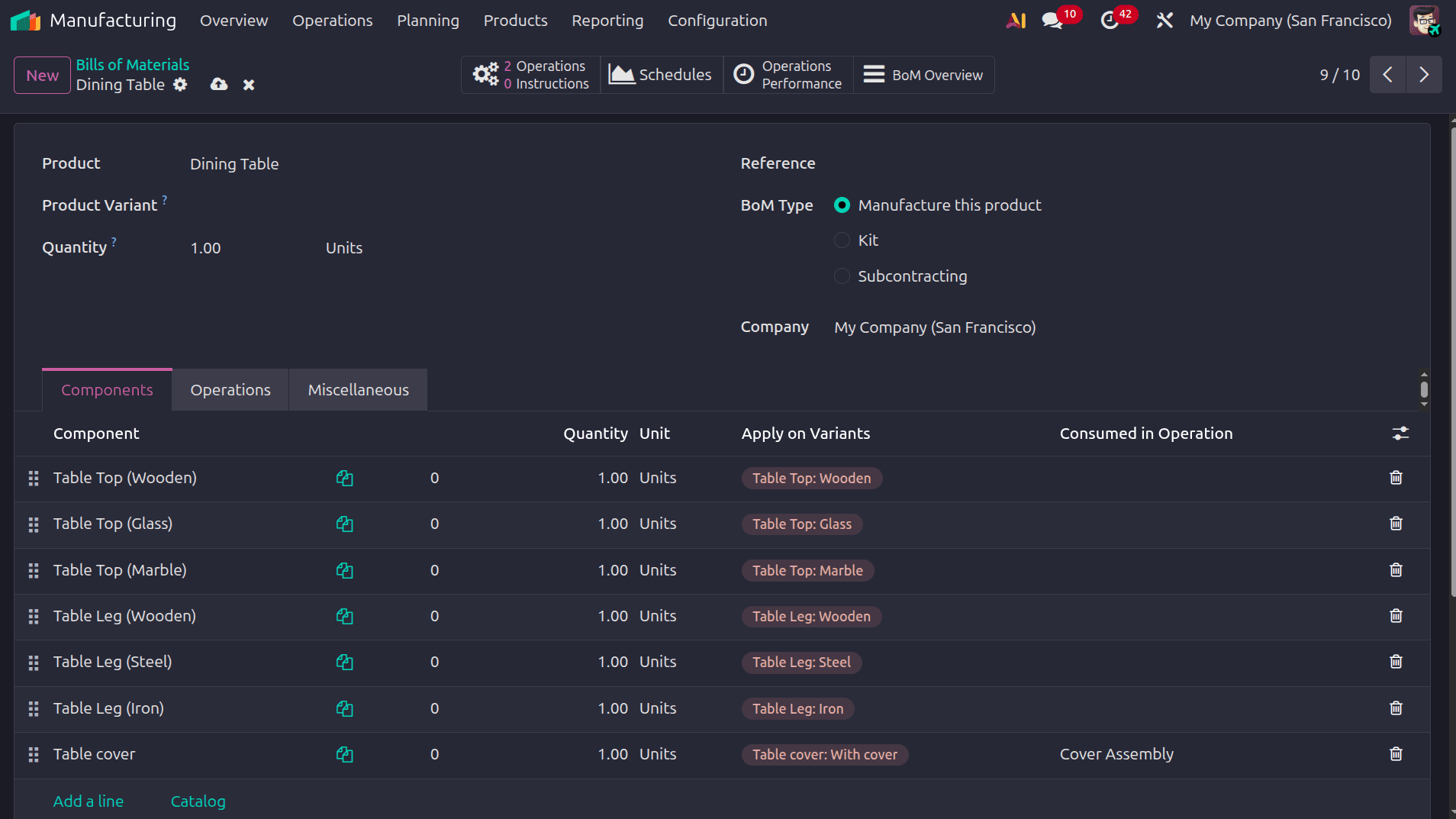
The Components tab of the Bill of Materials (BoM) defines the raw materials required to manufacture each product variant. In this example, the Dining Table product uses variant-specific components to ensure that Odoo consumes the correct materials based on the selected configuration.
- Component: Displays the raw material or subassembly required for production. Here, separate components are created for different table tops and table legs, along with an optional table cover.
- Quantity: Specifies the amount of each component needed to manufacture the finished product. In this BoM, one unit of each applicable component is required.
- Unit: Indicates the unit of measure used for the component quantity, such as Units, Kilograms, or Meters.
- Apply on Variants: Defines the product variants for which a component should be used. For example, Table Top (Wooden) is consumed only when the Table Top: Wooden variant is selected, while Table Leg (Steel) is used only for the Table Leg: Steel variant. This enables Odoo to automatically select the correct materials during manufacturing.
- Consumed in Operation: Links a component to a specific manufacturing operation. The Table Cover component is assigned to the Cover Assembly operation, meaning it will be consumed only when that operation is executed. Components without an assigned operation are generally consumed at the start of the manufacturing process.
Using variant-specific components and operation-based consumption allows Odoo 19 to create accurate Manufacturing Orders, reduce material errors, and ensure that each product variant follows the correct production workflow.
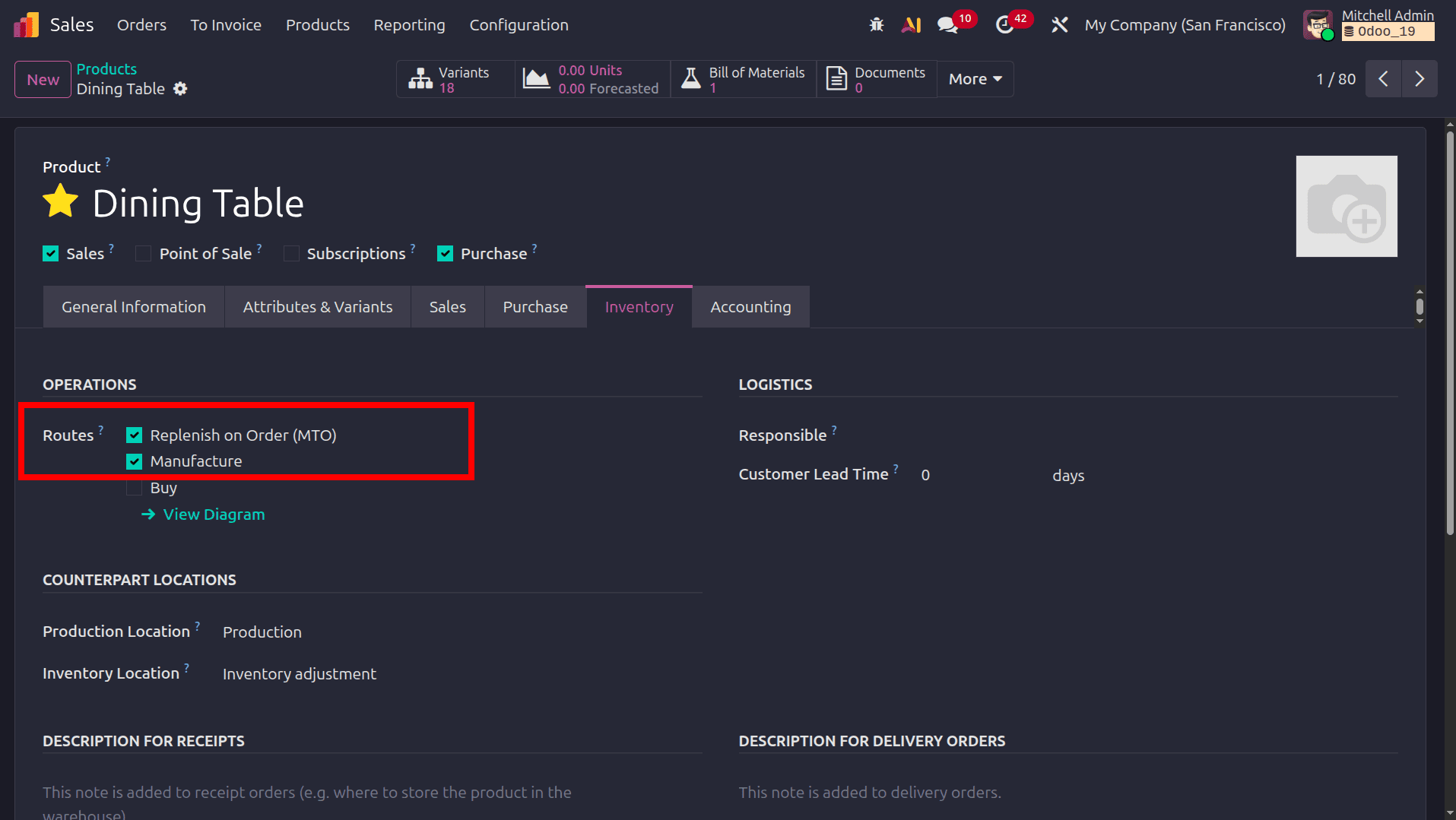
To ensure on-demand production, enable the Replenish on Order (MTO) and Manufacture routes in the product's Inventory tab. With this configuration, Odoo 19 automatically creates a Manufacturing Order whenever a Sales Order is confirmed, and insufficient stock is available. This Make-to-Order workflow prevents unnecessary inventory storage, aligns production with actual customer demand, and ensures that the required product variant is manufactured only when needed.
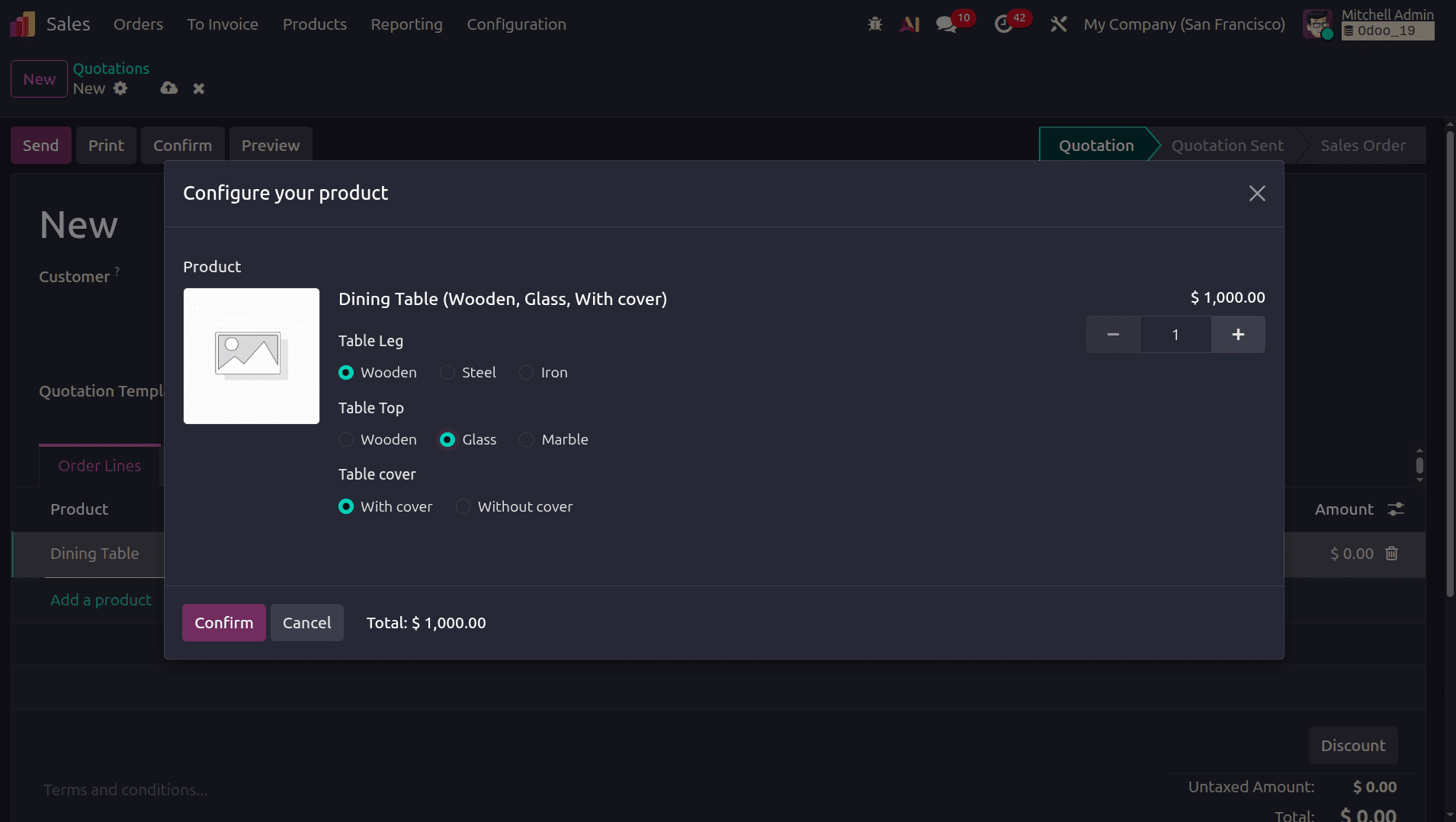
To test the variant-based manufacturing workflow, create a new Sales Order for the Dining Table product while its On Hand Quantity is zero. When adding the product to the quotation, Odoo displays the product configurator, allowing the customer-specific variant combination to be selected. In this example, the variant consists of Wooden Table Legs, a Glass Table Top, and With Cover. After confirming the Sales Order, Odoo evaluates the configured routes. Since the product is set to Replenish on Order (MTO) and Manufacture, the system automatically generates a Manufacturing Order for the selected variant, ensuring that the required components and operations are applied according to the variant-specific BoM configuration.
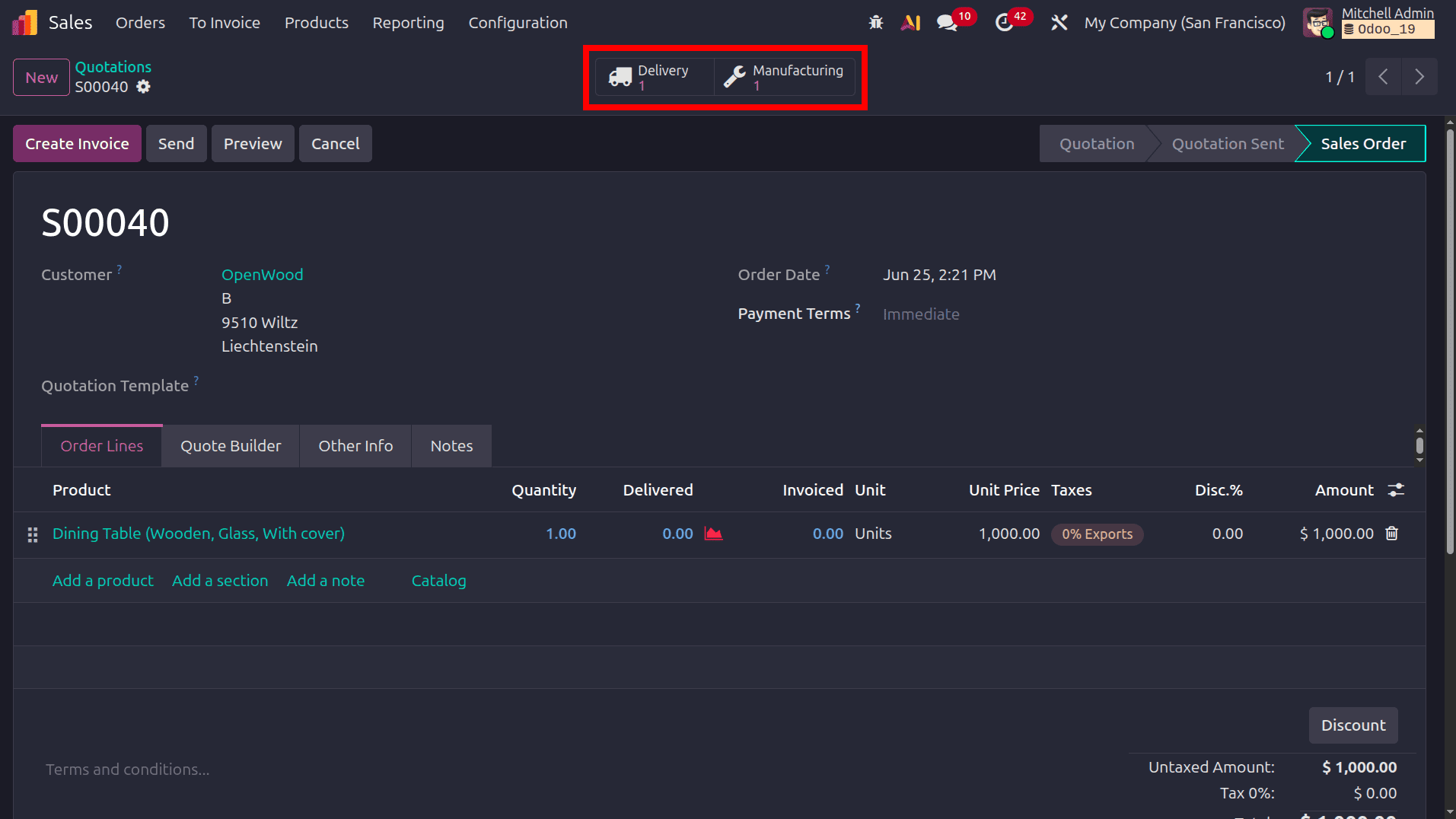
After confirming the Sales Order, Odoo 19 automatically generates the related Manufacturing Order and Delivery Order based on the configured MTO and Manufacturing routes. The corresponding smart buttons appear at the top of the Sales Order, providing quick access to the generated documents and their workflow status.
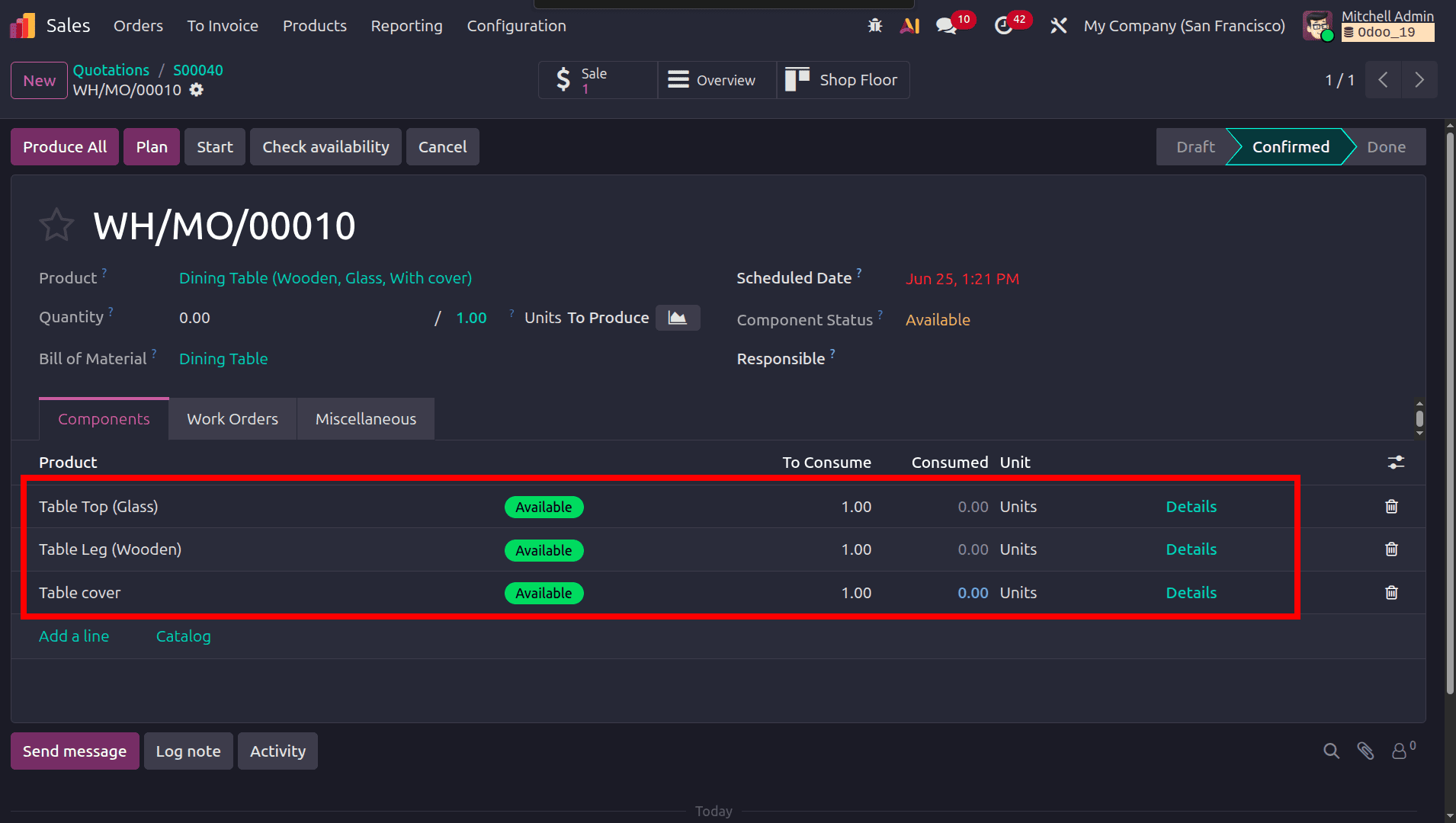
Opening the Manufacturing smart button displays the generated Manufacturing Order for the selected product variant, Dining Table (Wooden, Glass, With Cover). Odoo 19 automatically determines the required components based on the variant-specific Bill of Materials configuration. As a result, only Table Top (Glass), Table Leg (Wooden), and Table Cover are included in the Components tab. Alternative components, such as Marble or Wooden table tops, and Steel or Iron table legs, are excluded because they do not match the chosen variant attributes. This demonstrates how Odoo dynamically selects the correct raw materials for production, ensuring accurate component consumption and efficient manufacturing execution.
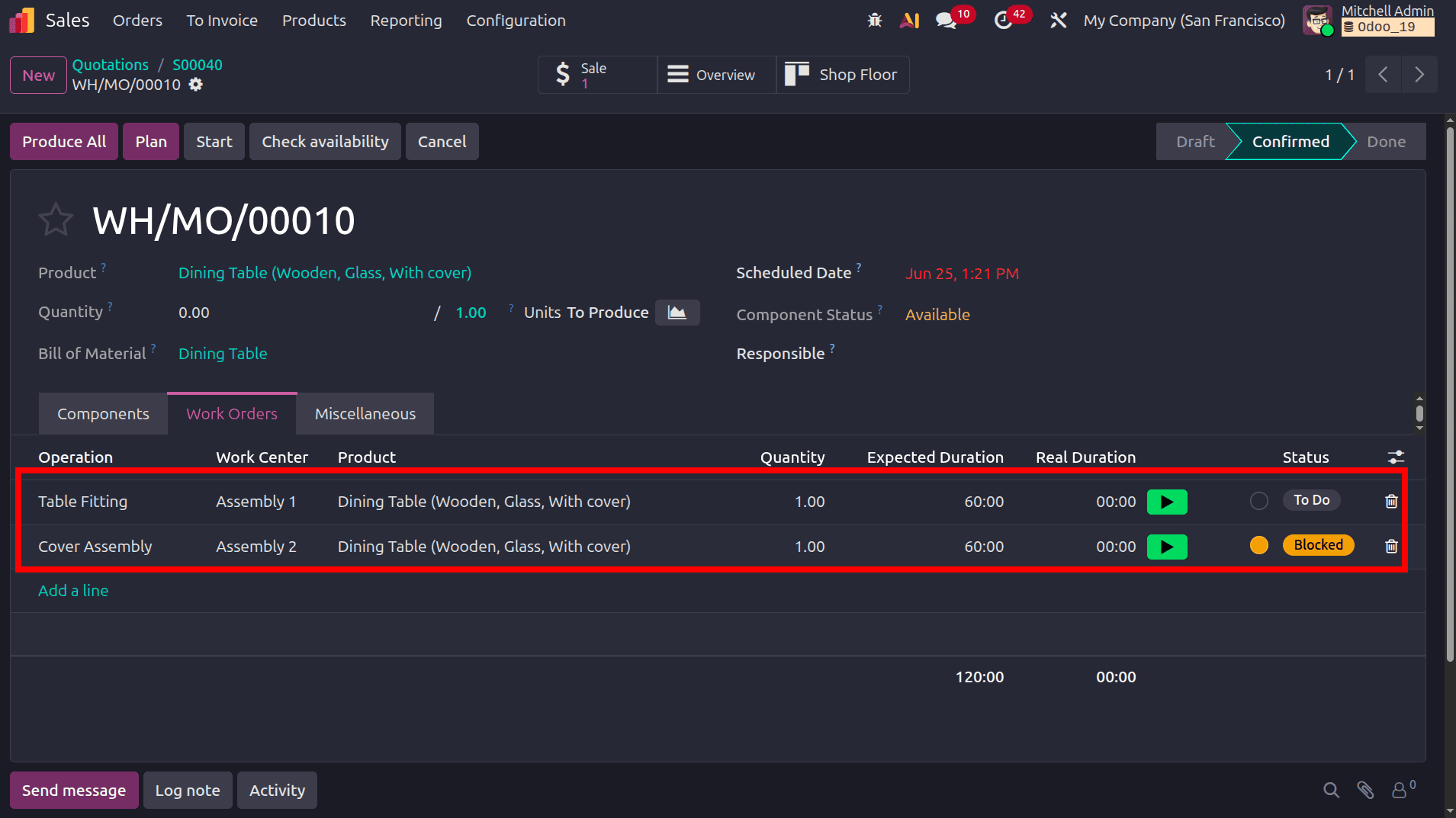
The Work Orders tab displays the manufacturing operations generated from the Bill of Materials for the selected product variant. Since the Manufacturing Order is created for Dining Table (Wooden, Glass, With Cover), Odoo includes both the Table Fitting and Cover Assembly operations. The Cover Assembly operation appears because the selected variant contains the With Cover attribute, and this operation was specifically configured to apply only to that variant. If the customer had selected Without Cover, Odoo would have excluded this operation from the Manufacturing Order. This demonstrates how Odoo 19 dynamically applies variant-specific operations, ensuring that only the required production steps are executed for each product configuration. Click the Produce All button and complete the manufacturing process of this product. Then, we can complete the delivery of the product to the customer.
The same workflow applies to all product variant combinations configured for the Dining Table. Whenever a Sales Order is confirmed for a specific variant, Odoo 19 automatically evaluates the selected attribute values and identifies the corresponding components and operations defined in the variant-specific Bill of Materials. Based on the configured Replenish on Order (MTO) and Manufacture routes, a Manufacturing Order is generated with the exact raw materials, work orders, and work centers required for that variant. Odoo then manages component consumption, operation execution, and production tracking throughout the manufacturing process. This ensures that each product variant is manufactured according to its unique specifications while maintaining accurate inventory movements, production planning, and traceability across the entire manufacturing.
Handling product variants in Odoo 19 Manufacturing enables businesses to manage complex product configurations with greater accuracy and efficiency. By combining product attributes, variant-specific Bills of Materials, and operation-based routing, Odoo automatically selects the correct components and manufacturing steps for each product variant. This streamlined approach improves production planning, reduces manual intervention, and ensures that customer-specific products are manufactured accurately while maintaining complete inventory and production traceability.
To read more about How to Manage Product Variants in Odoo 18, refer to our blog How to Manage Product Variants in Odoo 18