In order to maintain a certain level of quality, quality management entails supervising all activities. Continuous improvement, policies, control mechanisms, and quality assurance are all part of this process. A business must perform a number of quality-check processes on a product before releasing it onto the market. You may handle all of these tasks in one system by using the Odoo 19 Quality module. Installing the Quality module from the Odoo 19 Apps is the first step.
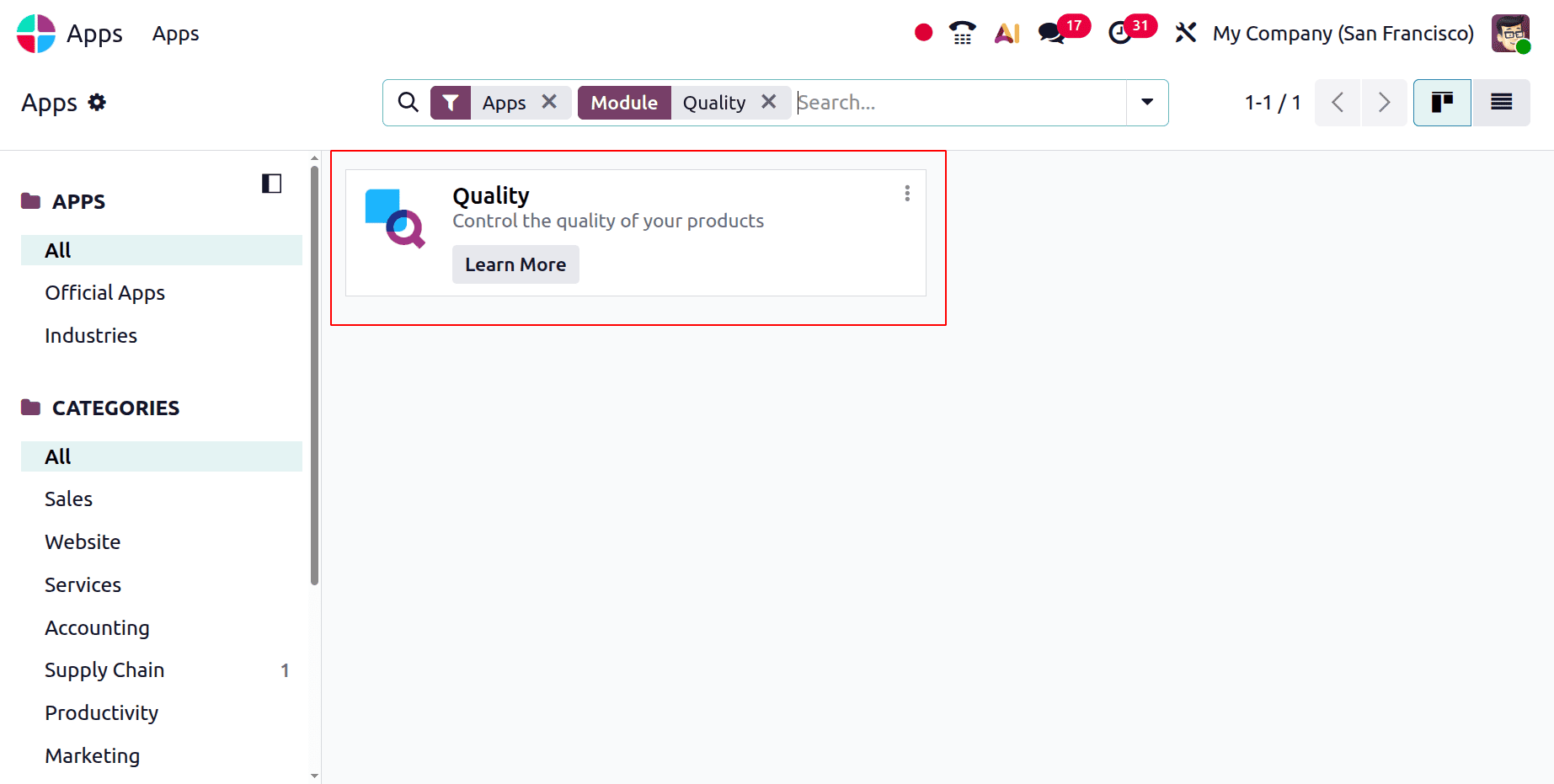
Overview of Quality
An overview of the primary quality team is displayed when you launch the Quality module. The quantity of active quality alerts and ongoing quality inspections is shown in the Quality Overview panel.
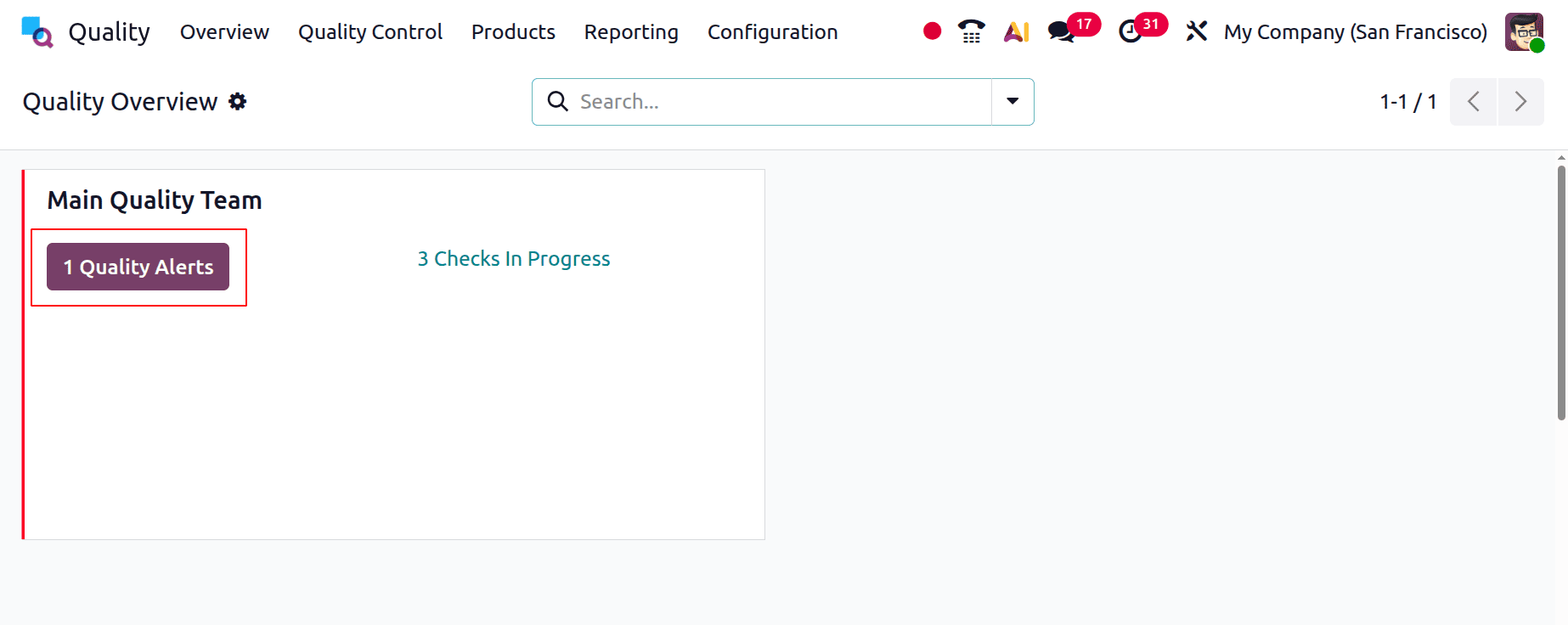
The quantity of alerts generated is displayed by a button called Quality Alerts. Users can view the generated quality alerts by clicking on them.
By selecting the Quality Alerts icon, a user can examine the specifics of each quality alert. Similarly, continuous quality checks are accessible through the Checks in Progress option. Click the three dots on the Main Quality Team's right side to view the setup.
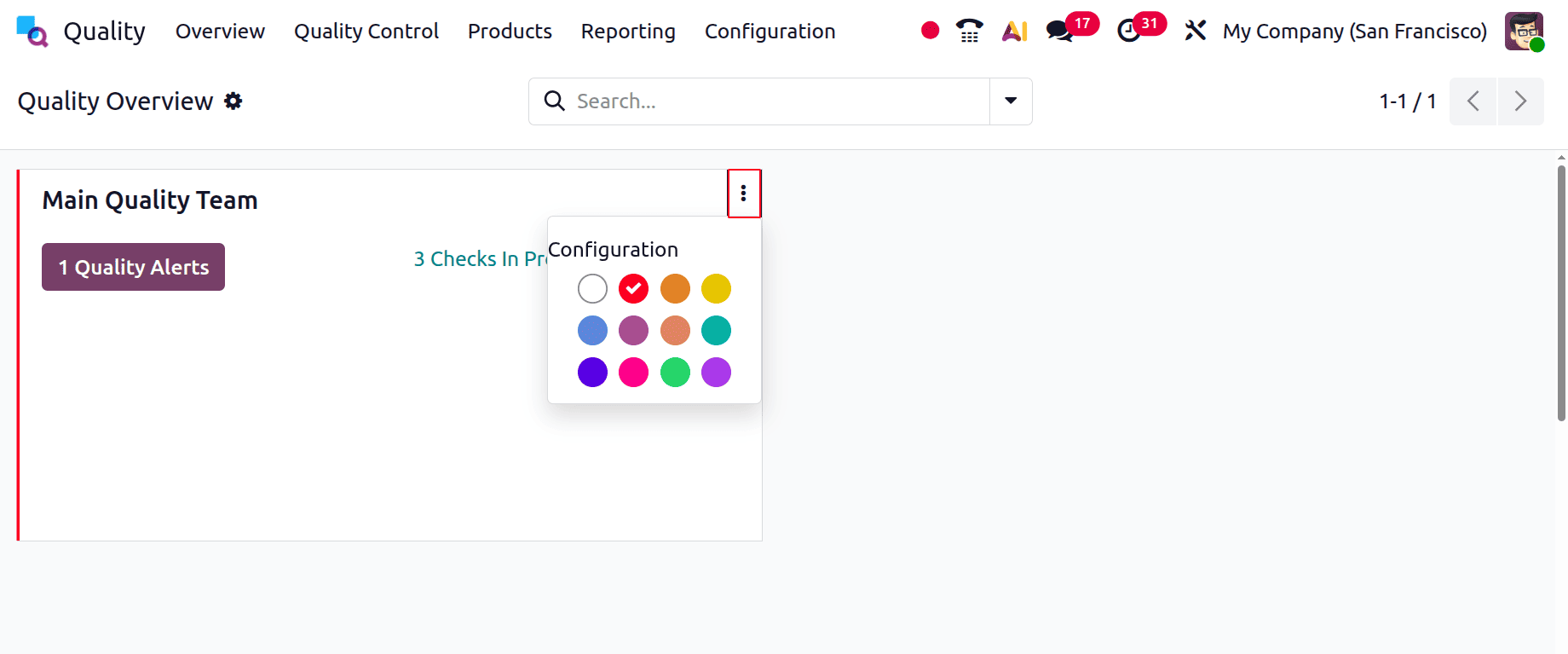
The dashboard itself then displays the quantity of ongoing quality inspections. It will take you to the quality checks when you click on it.
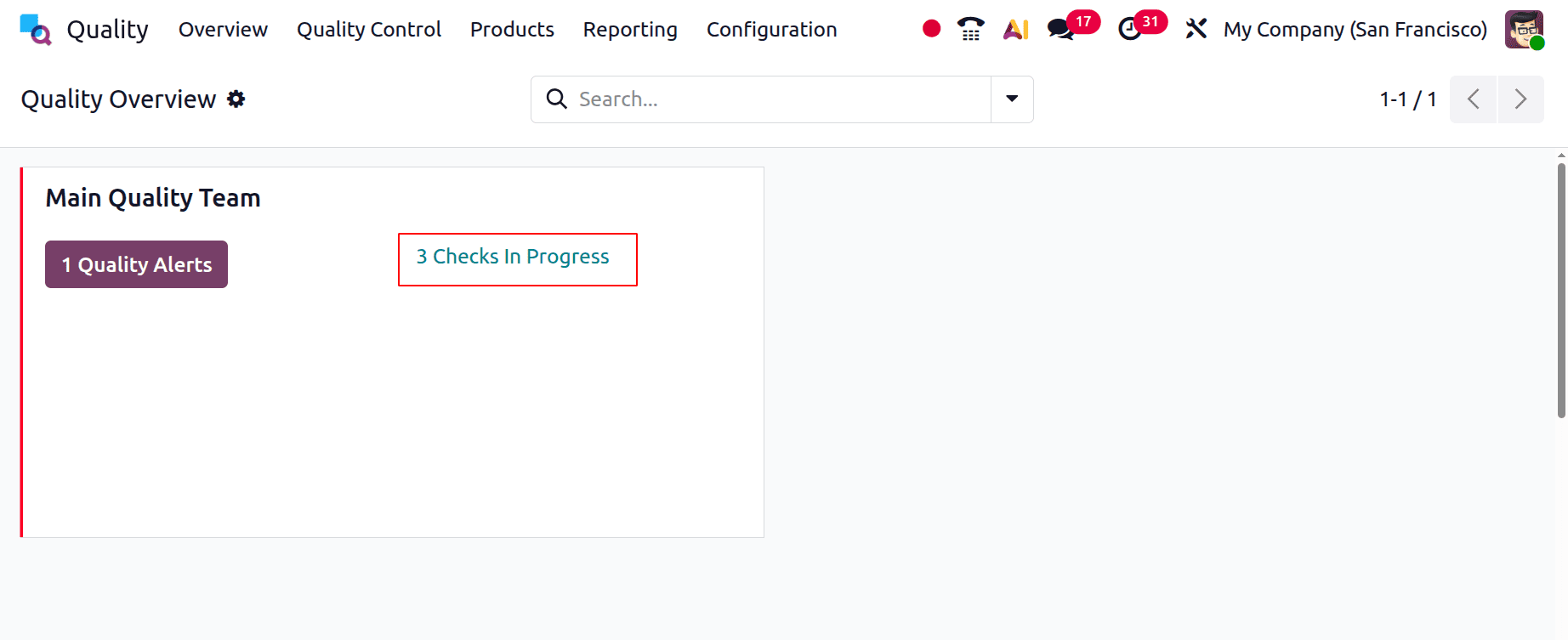
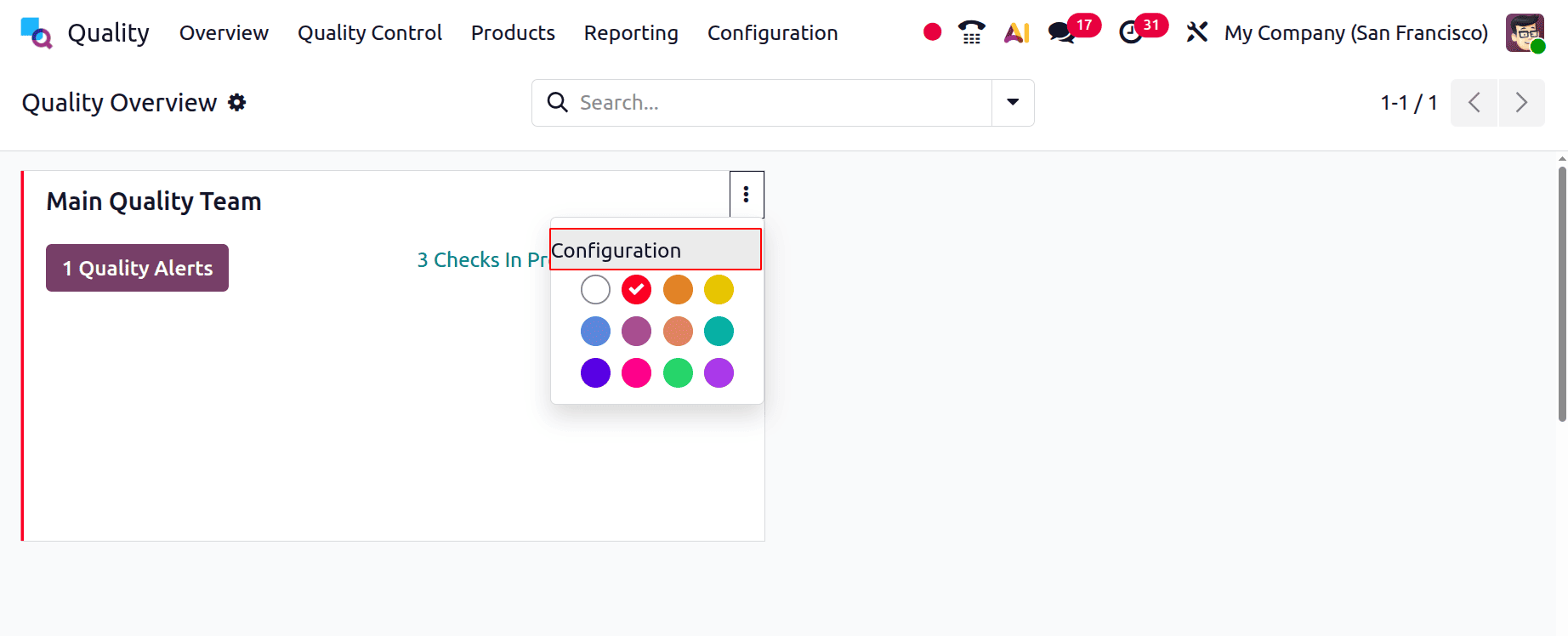
After that, the three dots display a Configuration option that opens the Quality Team creation form. Users can then select any colour to personalize the view.
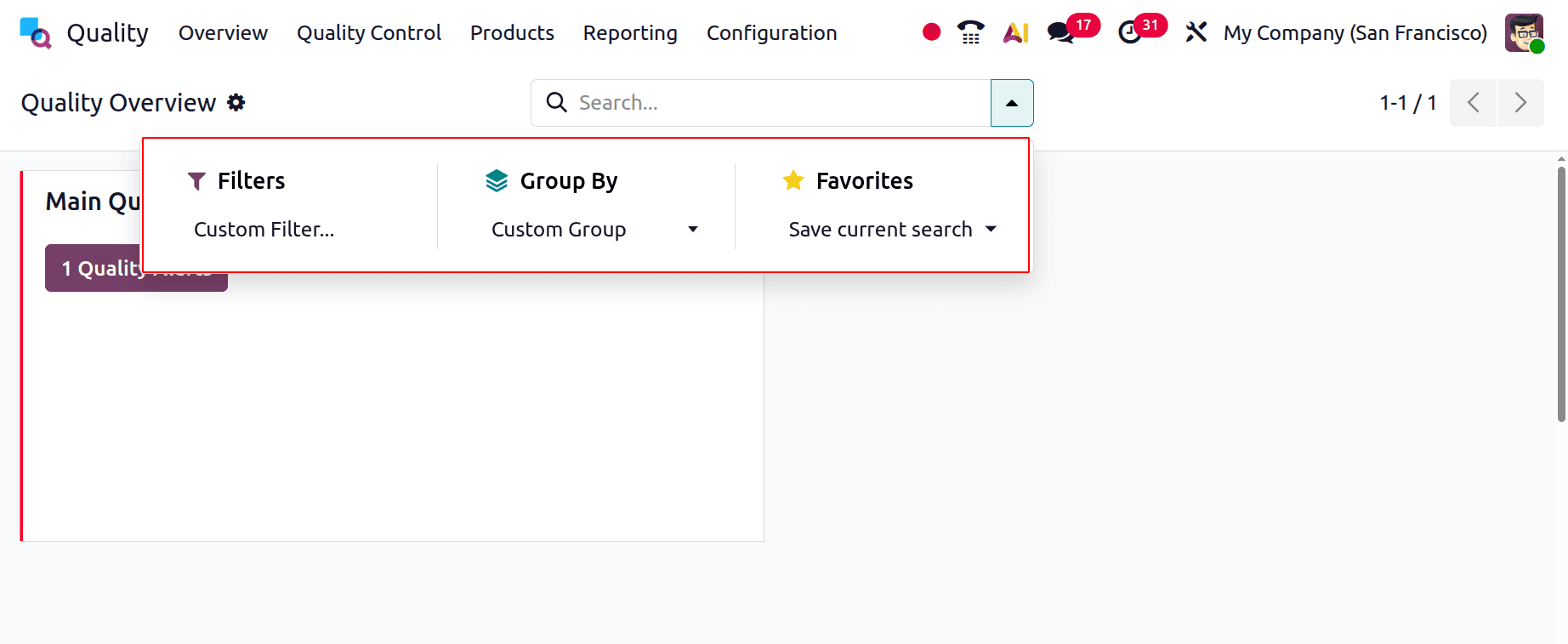
Custom Group and Custom Filters can be added by users. The search can also be saved as a favourite, as indicated below.
Quality Teams
Quality teams are essential to a company's maintenance task management in Odoo 19. Depending on your needs, you can create various teams and allocate maintenance duties appropriately. Managing the job gets simpler once these teams are established and responsible for maintenance tasks.
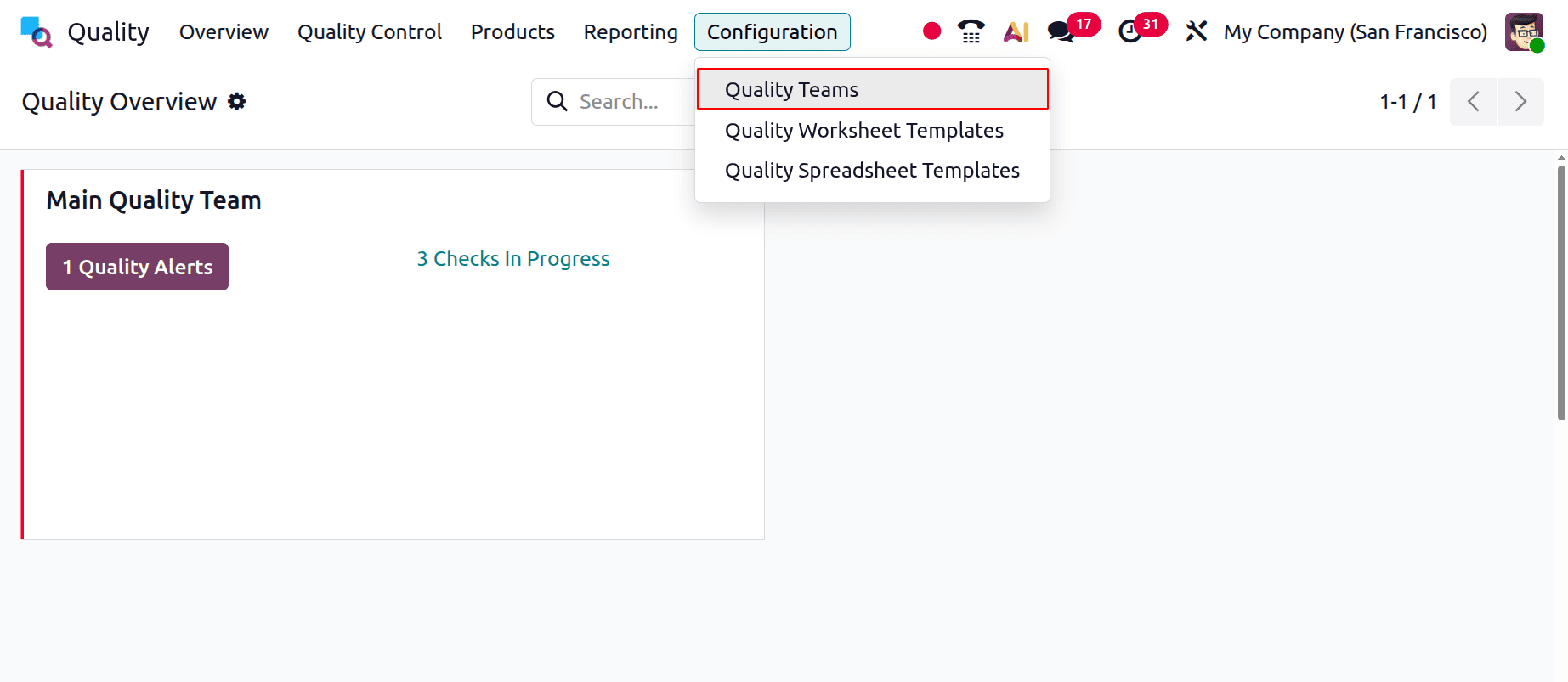
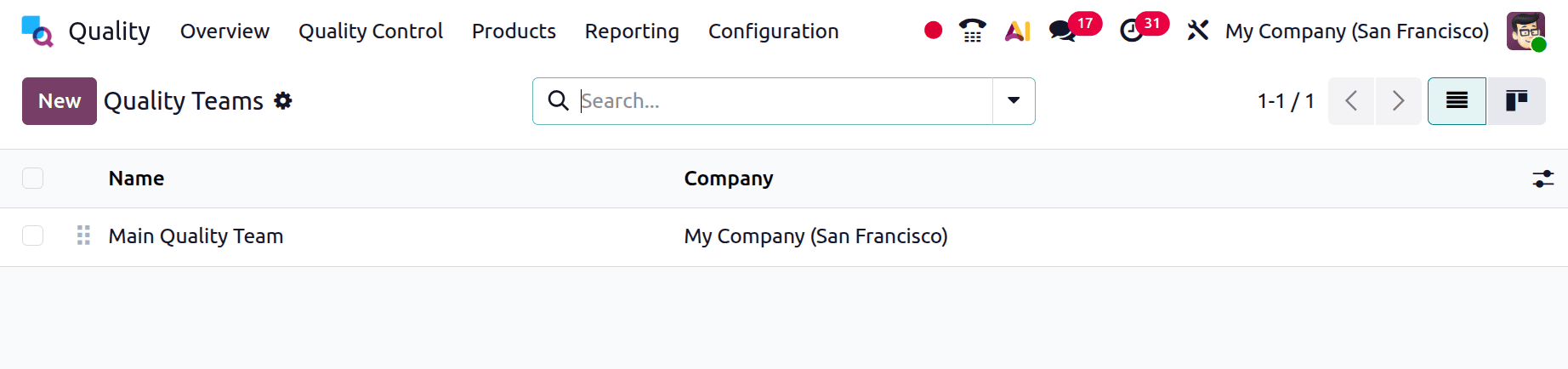
You can establish new quality teams under the Configuration tab. A list of all preset teams is displayed when the Quality Teams menu is chosen from the Configuration section. The team names and corporate information are shown individually in the Quality Teams window's List view. To see additional details, click on any team on the list. Click the New button on the Quality Teams screen to start a new team.
In the Team Name field on the open page, type the name of your quality team. The backup email address that an administrator attaches to the user's primary email address should then be entered in the Email Alias box. The primary email address will receive all emails sent with the email alias.
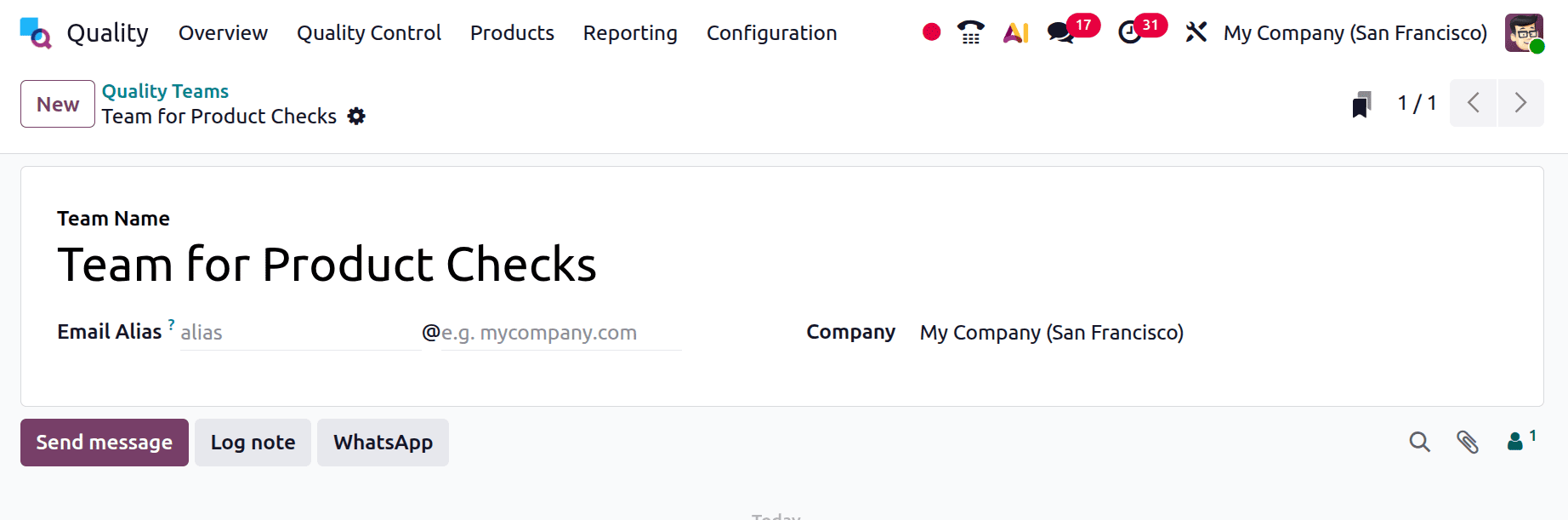
Choose the rule that permits putting a message on a document over a mail gateway in the Accept Emails option. You have the option to accept messages from workers, verified partners, and followers. Once the email accessibility has been adjusted, type your firm name in the Company area.
A new team called the Team for Product Checks was established here. Preserve the group.
All submitted information is instantly saved in Odoo 19. Click the Discard Changes button in the Quality Teams window to undo any changes. Additionally, you may start a new team straight from within the existing one by clicking the New button at the right end of the window.
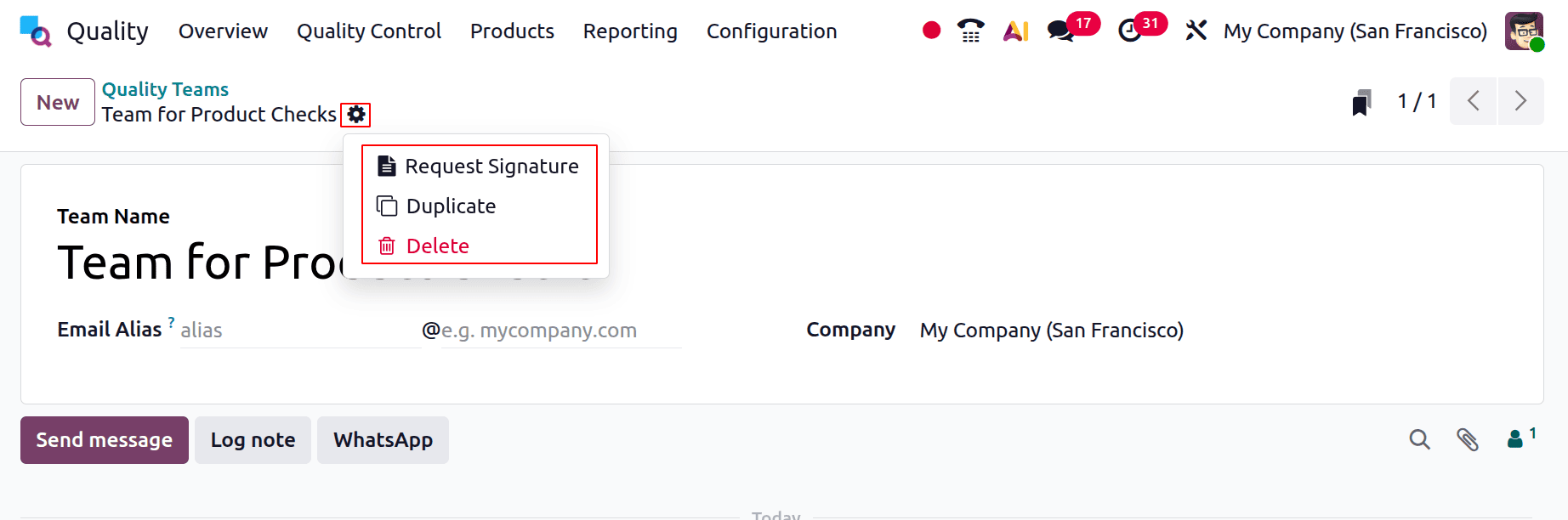
Users can duplicate or remove a quality team by selecting the Action option on the right. The existing quality team can be duplicated by choosing the Duplicate option. The chosen team will be permanently deleted if you select the Delete option from the Action menu.
Stages of Quality Alerts
A Quality Alert is a record or notice created to monitor and report quality issues or non-conformities discovered during production, inspections, or other procedures in the Odoo 19 Quality module. It allows users to investigate problems, assign corrective actions, and monitor the progress of resolution in order to ensure continuous quality improvement.
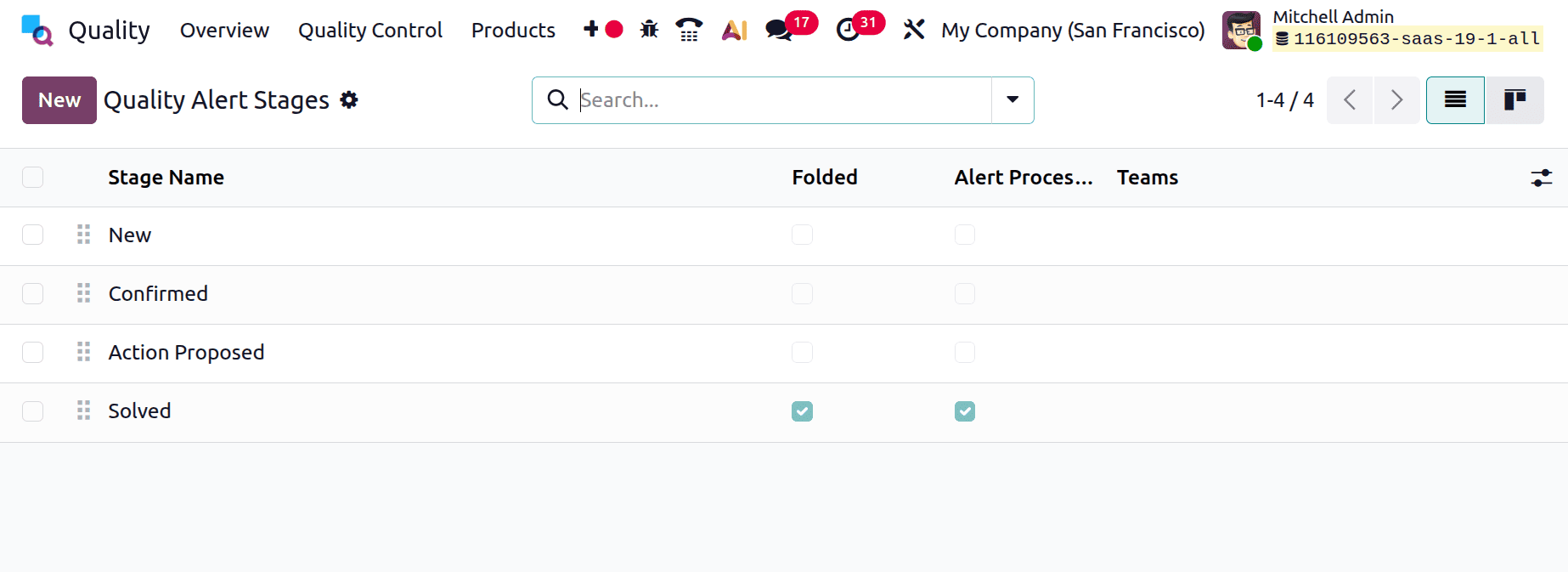
There are several stages that each quality alert can go through. This makes it simple for users to monitor changes made to the alerts. All created stages are listed in the Configuration menu, which is where you can find the Quality Alert Stages. A stage may be designated as Alert Processed if the dashboard tick indicates that it is folded. Additionally, you can designate particular teams to manage each phase.
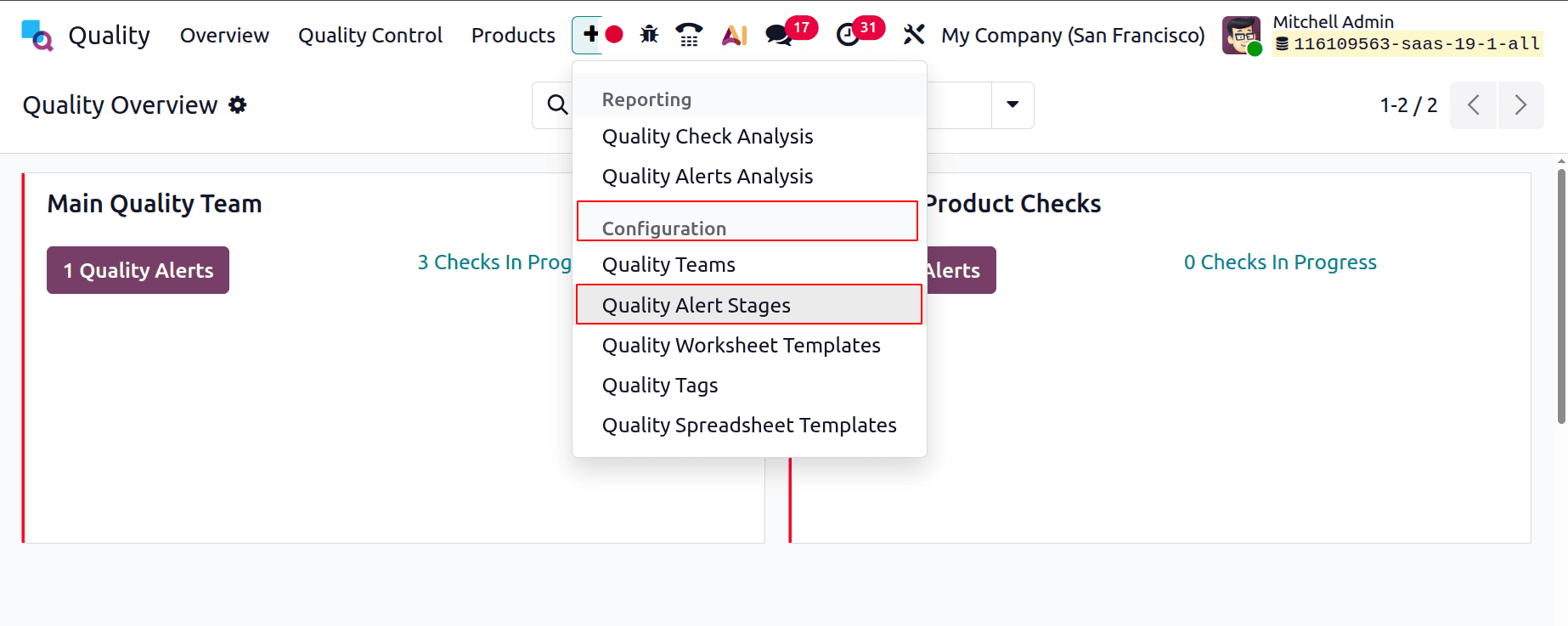
To start a new stage, click the New button. The final step in the list will be followed by a new line. If the stage has to be folded in the Kanban view, enter its name and select Folded. To indicate that this step is finished, check the Alert Processed column. Additionally, you can use the Teams box to designate a particular team.
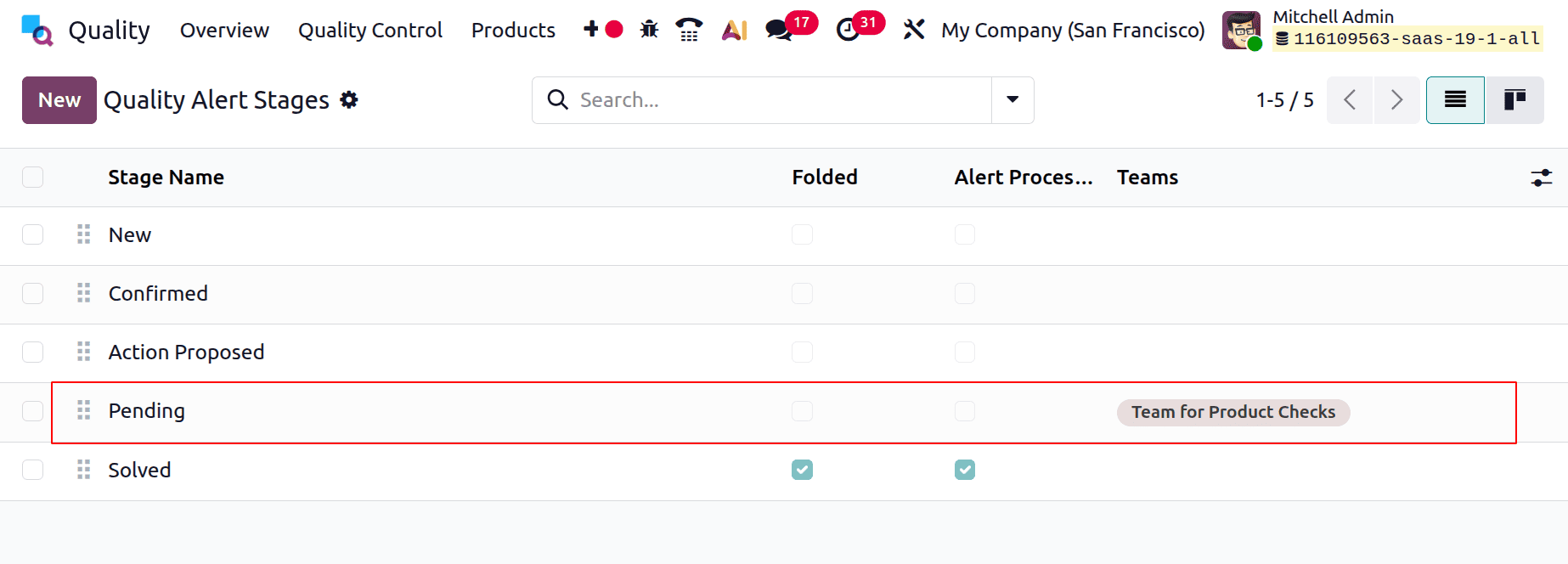
Pending is the name of the newly created stage. The stage looks to be folded inside the kanban view since the Folded option is active. The "Team for Pending Checks" was previously established as the team designated for this phase.
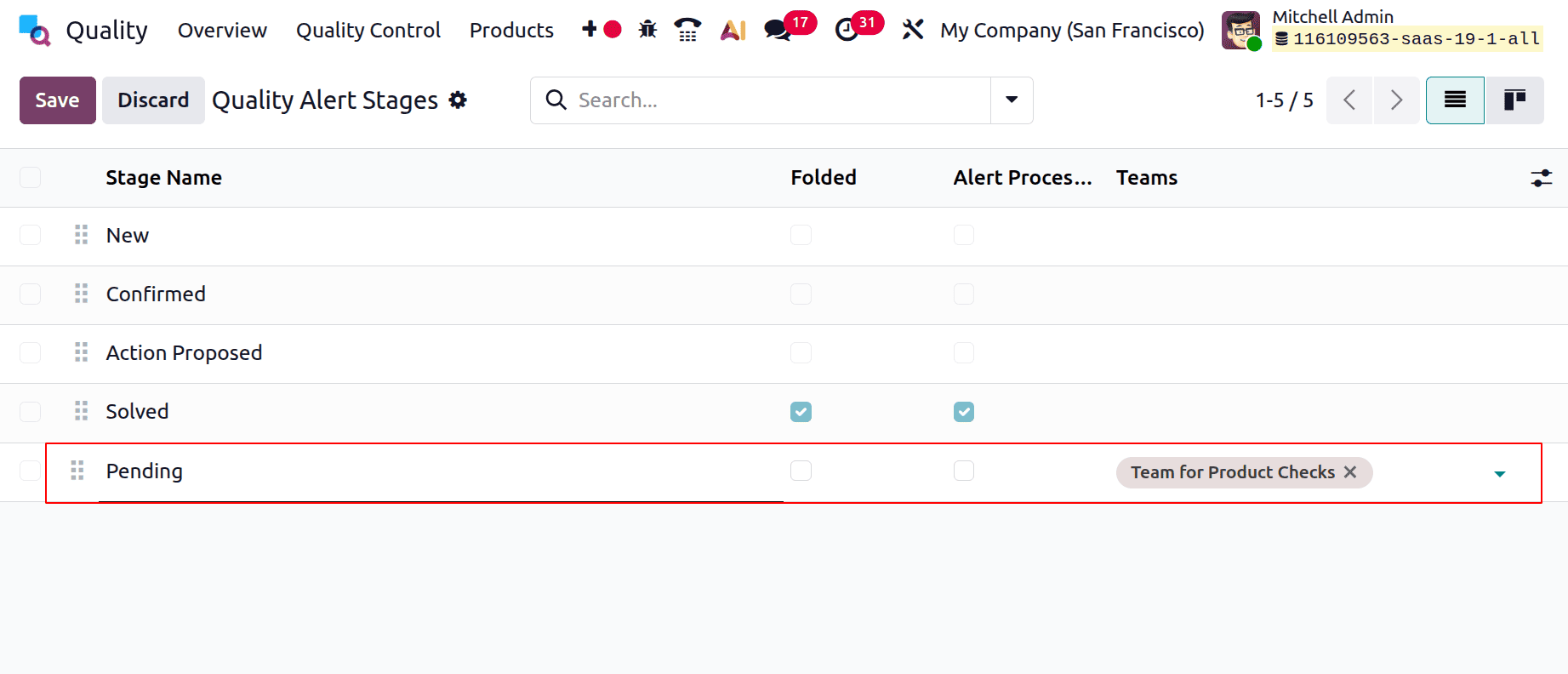
As demonstrated below, users may easily move the stage by dragging. The steps will therefore be displayed in this order within the kanban view.
Quality tags
In addition to being a helpful tool for finding chances during a search, tags can also be useful in the Quality module. This feature allows you to immediately create or review Quality Tags. Click the New button, then enter the tag name to add a new tag.
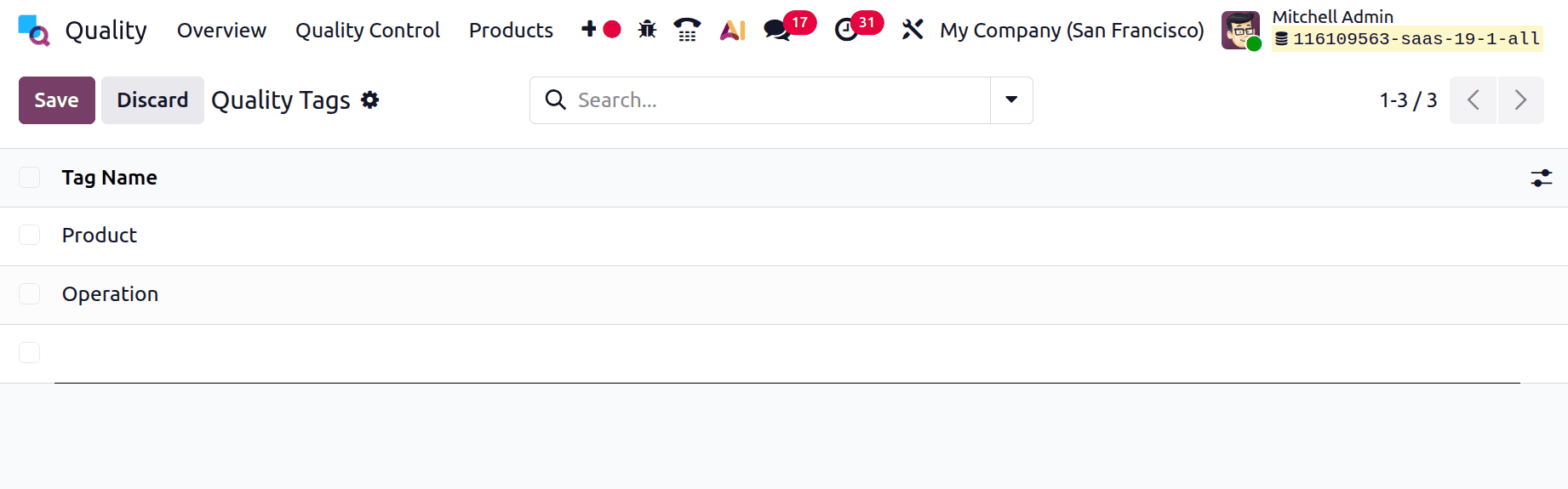
Let's see how the Odoo 19 quality module makes use of these configurations.
Odoo 19 Quality Checks with Quality Control Points
Enforcing quality standards throughout your processes is made easy with Odoo 19. We will go over the entire procedure in this guide:
To create a new Quality Control Point click on the Quality Control and choose the Quality Control Point from there first. There shows a list of previously created quality control points. To add a new one, click on the New button.
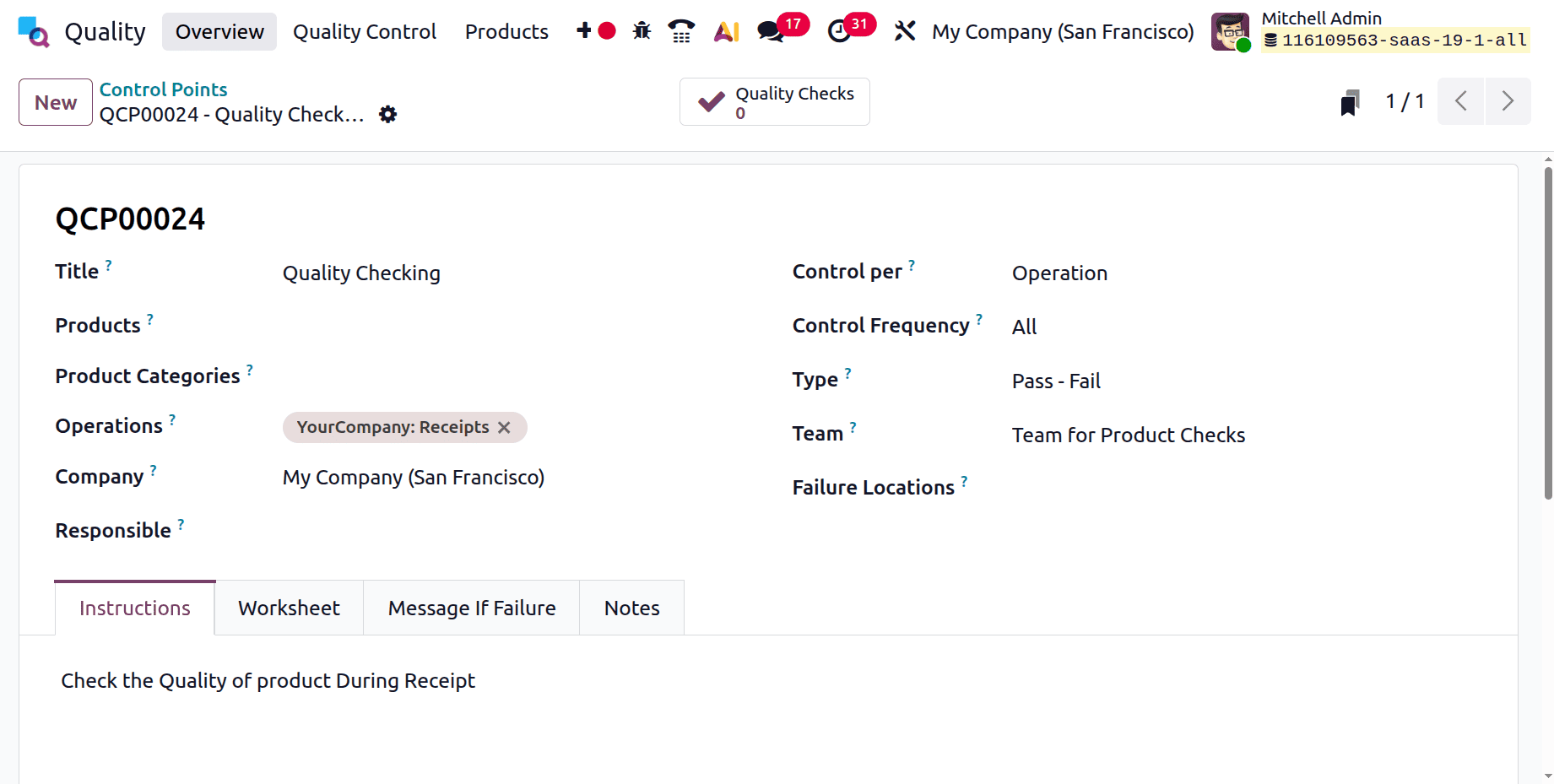
First, the user should mention the Title for the quality checking. Then mention the product, product categories, operations, company, responsible person, control per, control frequency, type, team, and failure locations.
You will specify the precise circumstances that cause the check on the new Quality Control Points form.
Title: For simple identification, give your Quality Control Points a distinctive and unambiguous title.
Products: Choose which particular products these Quality Control Points should be applied to (you can add more than one product).
Product Category: As an alternative, you can apply the Quality Control Points to a whole set of products by choosing a pertinent category.
To apply the Quality Control Points to every product for the chosen operation, you can leave both Products and Product Category empty.
Operations: Decide which operation will initiate the quality check. Delivery orders, receipts, and manufacturing are a few examples. Note: At least one operation must be chosen.
Work Order Operation: A new field will show up if you choose Manufacturing. To start the inspection at a more detailed level, you can designate a specific work order operation, such as Assembly, Testing, or Packing.
The fields that follow control the number and timing of the inspections.
Control Per: This indicates the number of quality checks generated upon the activation of the Quality Control Points:
- Product: Every distinct product in the process is checked once.
- Operation: A single check for the chosen operation as a whole.
- Quantity: A check is triggered for a sample of the items. Selecting this enables you to:
Turn on the partial transfer test and specify the sample size by entering a percentage of products.
Control Frequency: This indicates the frequency of cheque creation.
Every time the Quality Control Points requirements are satisfied, a tick is generated.
- Randomly: For a given percentage of operations, a check is generated at random. The probability % must be entered.
- Periodically: A check is made once every predetermined amount of time, such as five days, weeks, or months.
- On Demand: The user manually initiates checks.
Choose the type of quality check that will be carried out when the Quality Control Points are activated in the Type area.
Pass/Fail is a popular choice.
A Spreadsheet Template field will show up if you choose a type like Spreadsheet, forcing you to choose a pre-made high-quality worksheet template.
- Assigning Duties and Guidelines: Lastly, outline the team and the check's instructions.
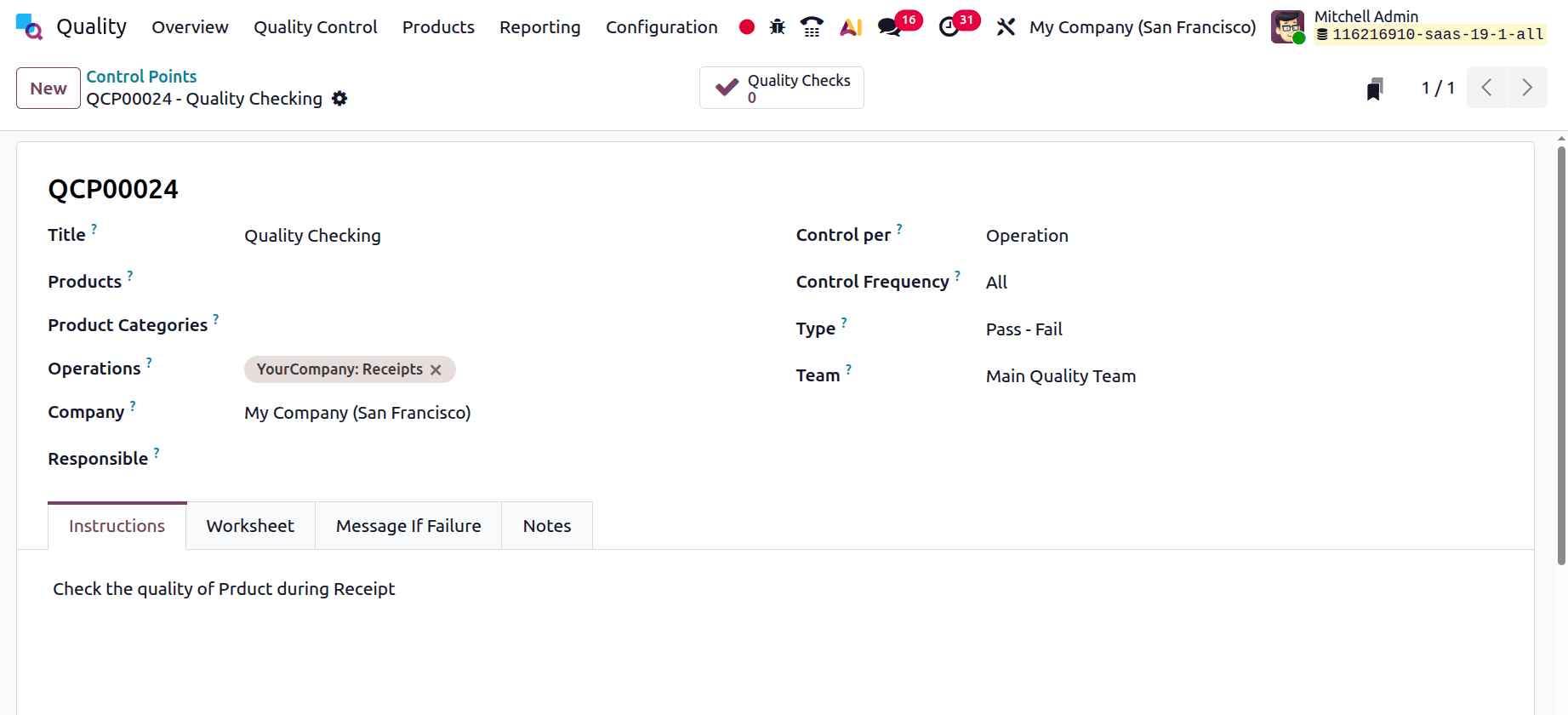
Here, the quality control point is created for the operation Receipt. Some instructions are added inside the Instruction tab.
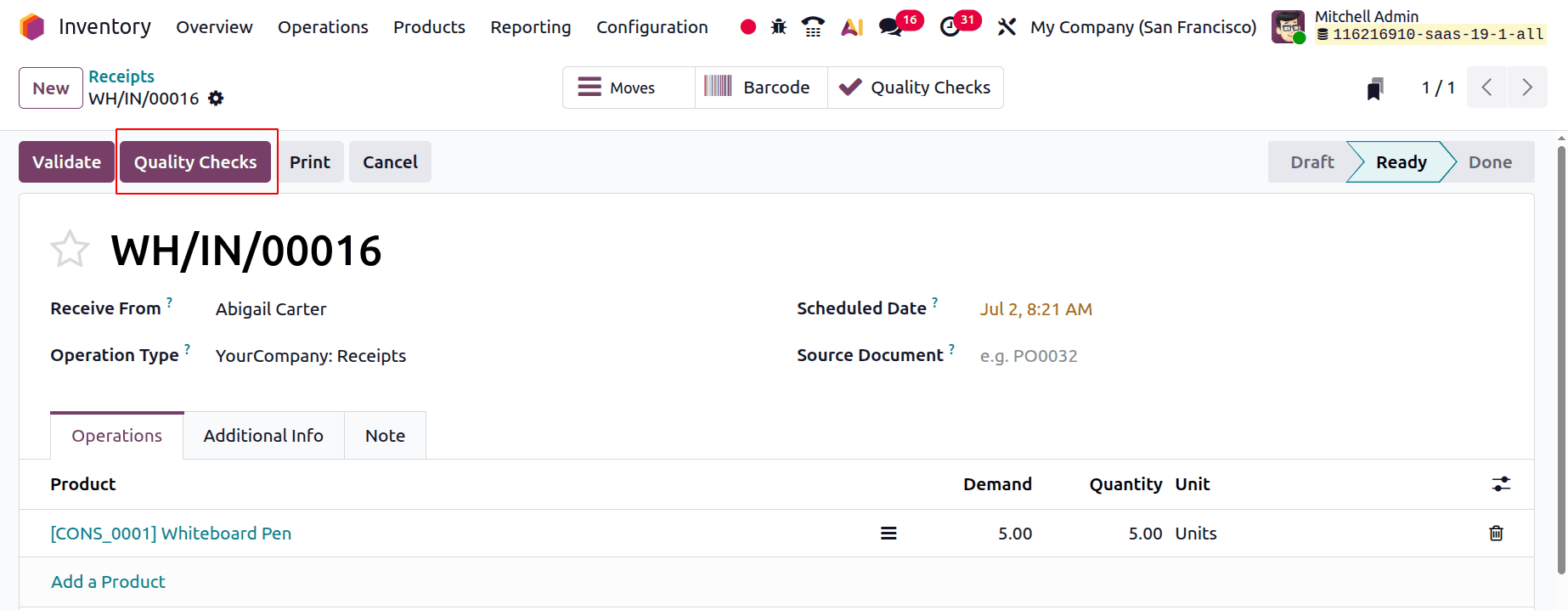
Then let's create a new receipt from the Inventory module. Here, the Quality check will show a button.
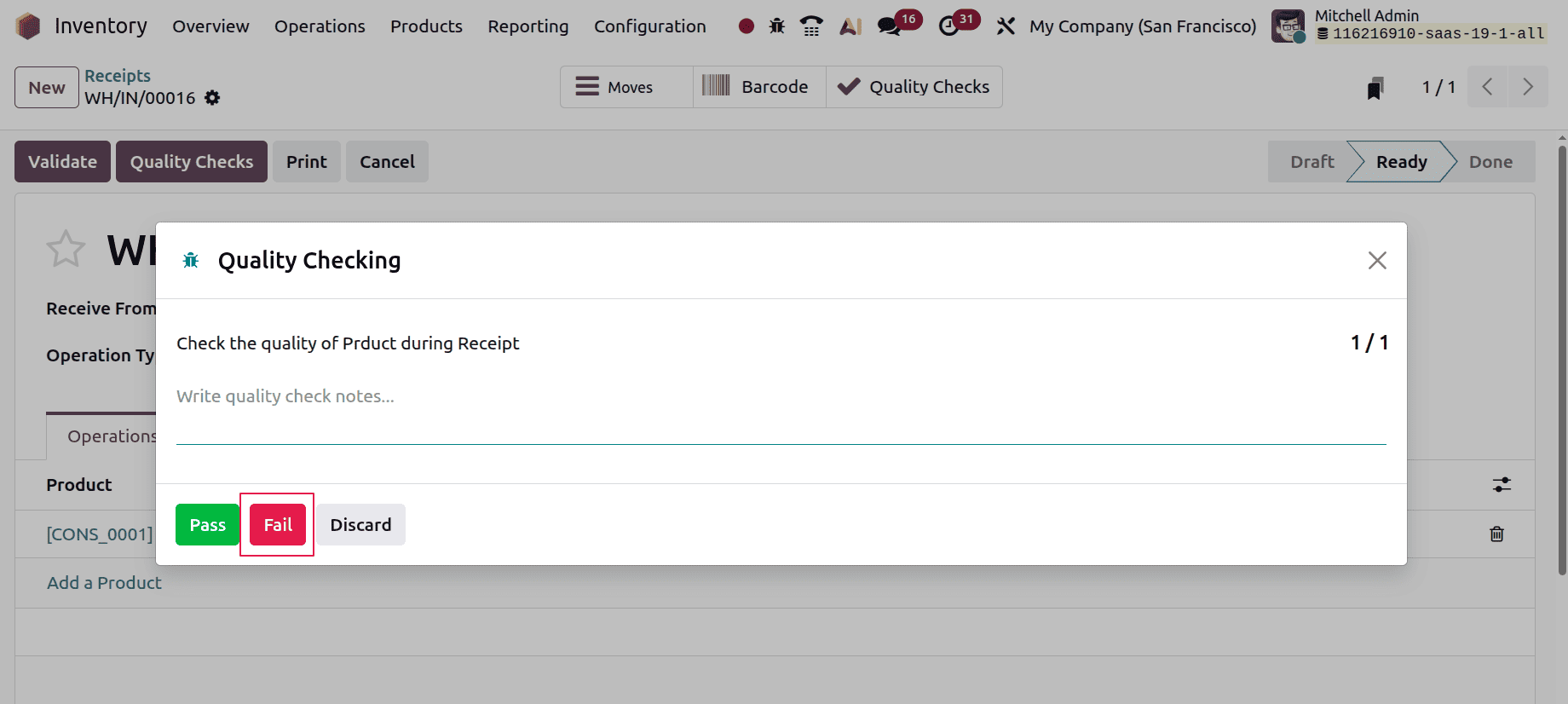
Then, if the quality checking is failed, the user can click on the Fail button. The instruction given inside the control point can be seen there.
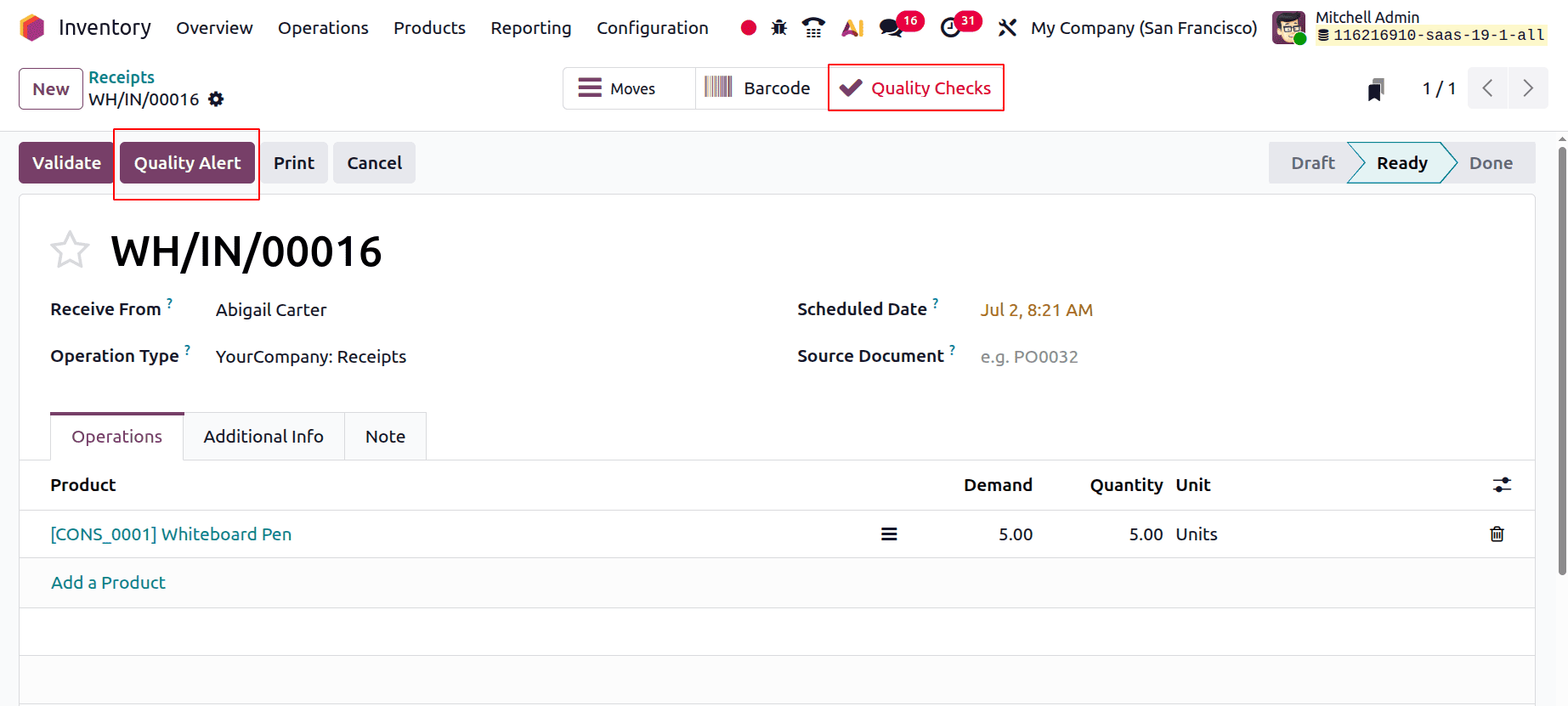
If the quality checking fails, the user needs to create a Quality Alert. For that, click on the Quality Alert button.
Need to add a title for the Quality Alert first. Then the details like Product, Product Variant, Team, and Responsible are updated automatically as shown below.
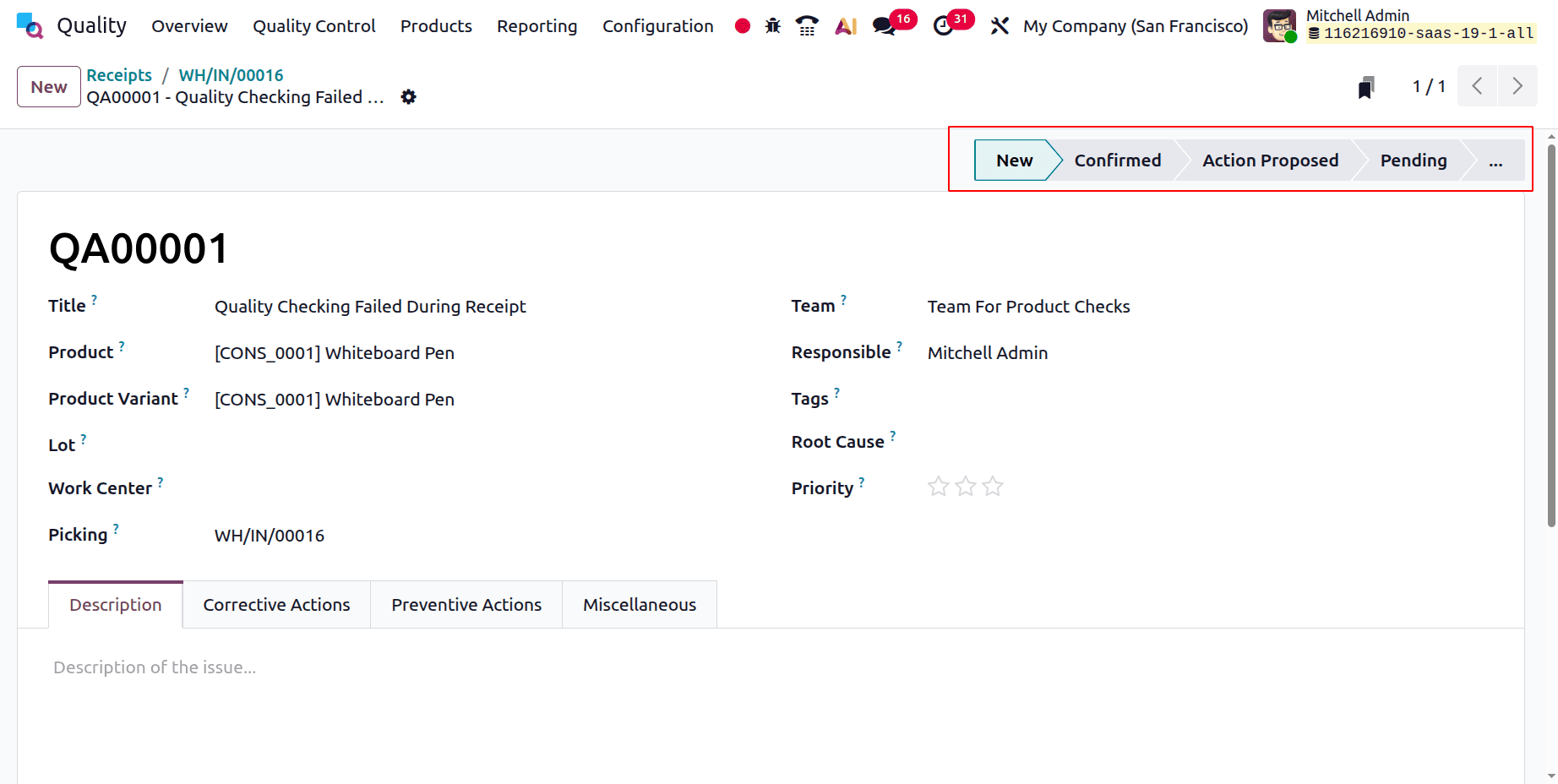
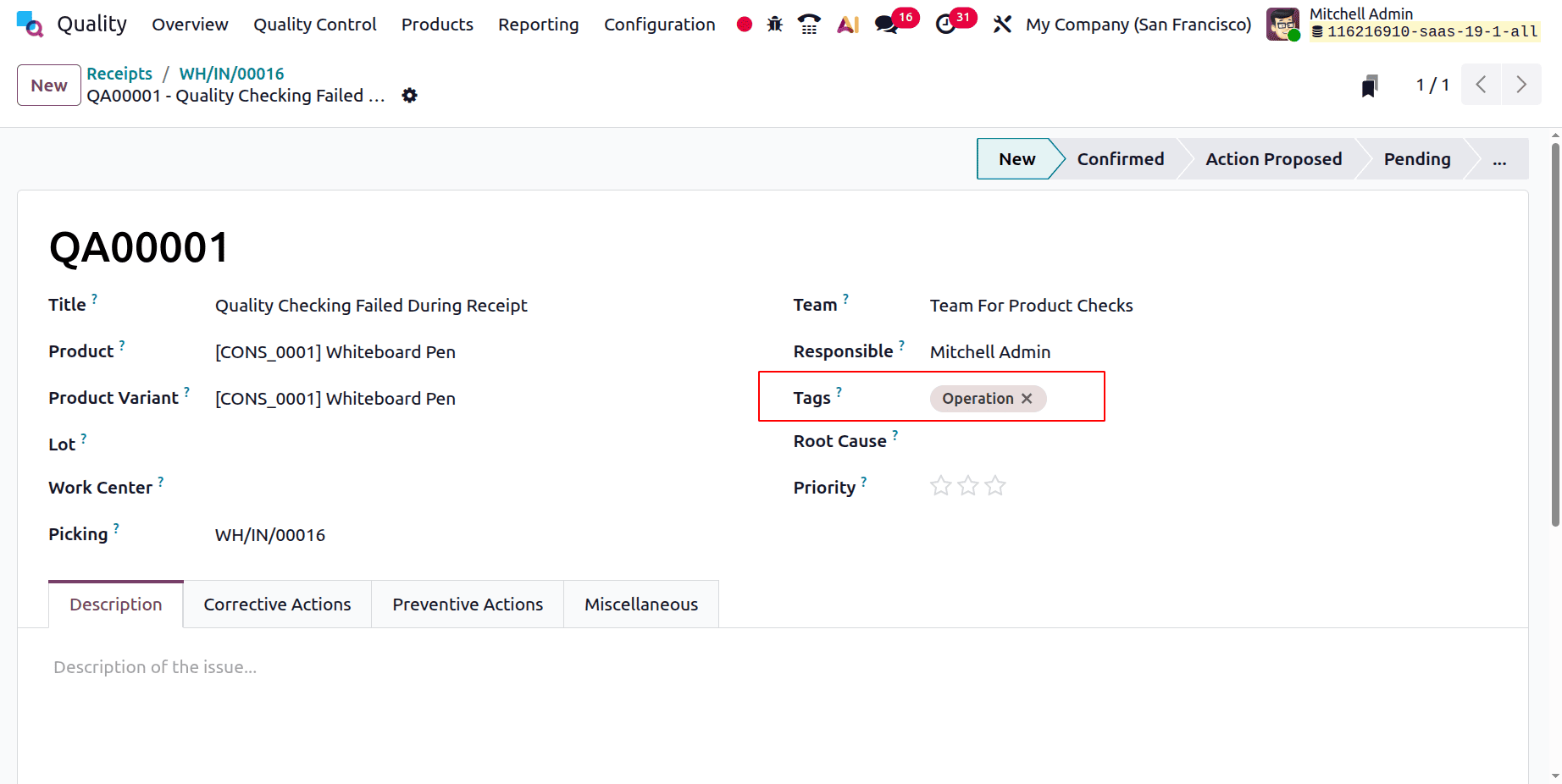
The newly added stage with the name as Pending can be shown there. Then it's possible to add the Tags inside the Quality alert as shown below.
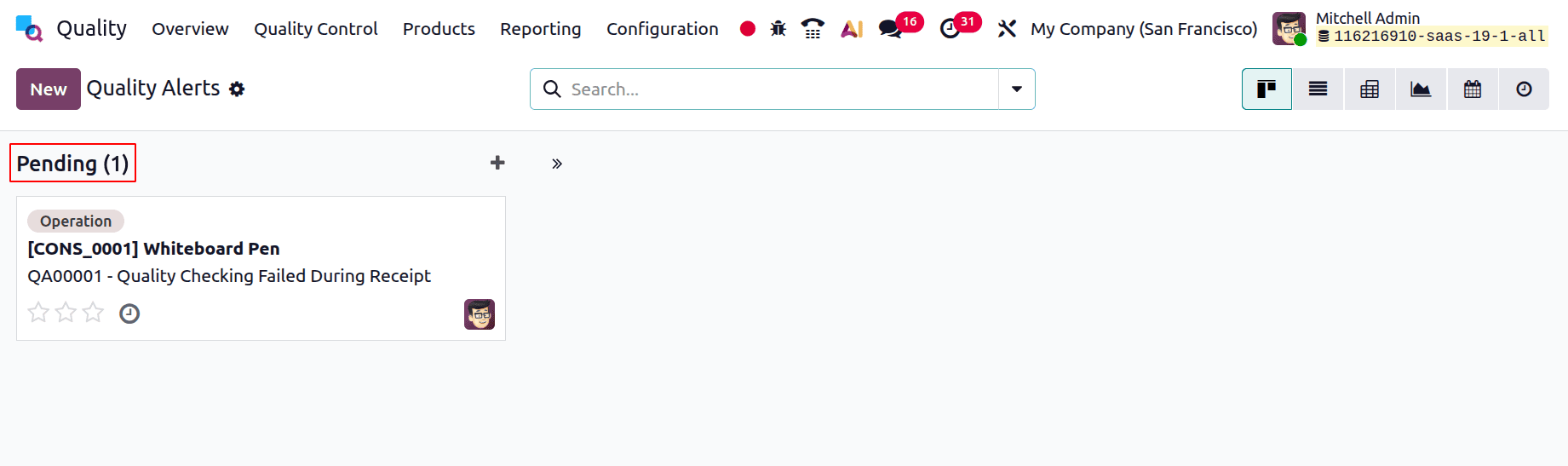
Go to Quality > Quality Control > Quality Alerts to view all of the current quality alarms. By default, alerts are displayed in a Kanban format, arranged into phases that correspond to their present review status.
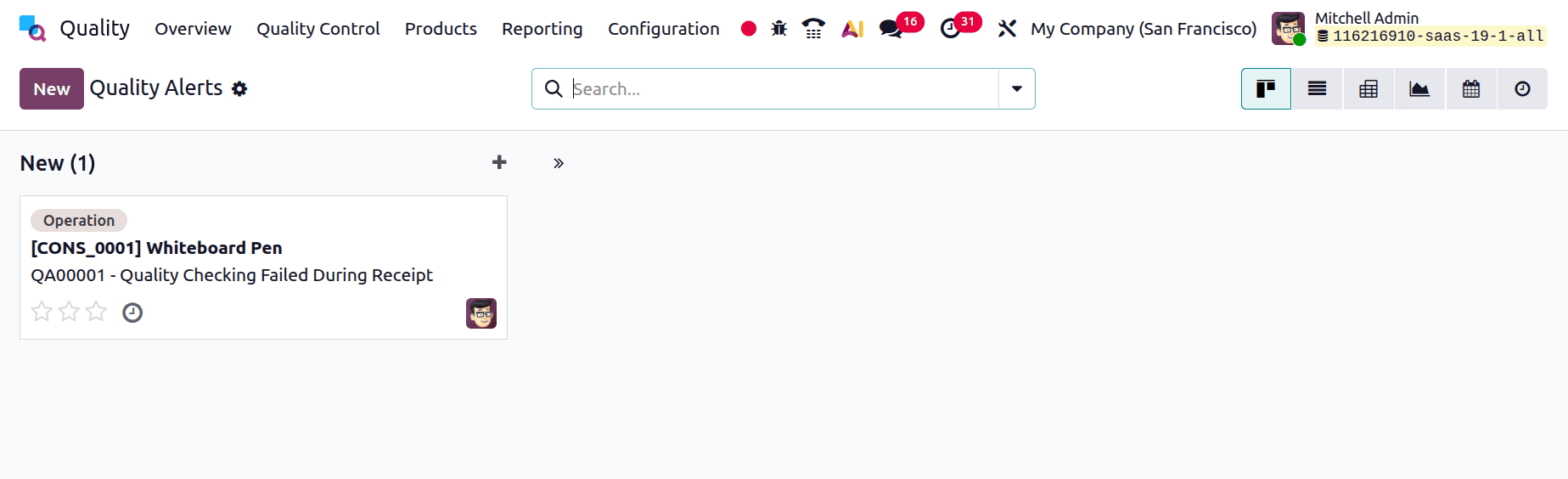
By dragging and dropping an alert into a different column, you can modify its stage. As an alternative, launch the alert and choose the relevant stage from the choices shown in the form's upper-right section.
Click the + (plus) icon next to the stage name to create a new alert directly within that stage. Put the alert in. After entering the card's title, click Add. Choose the newly generated card to open the alert and fill in the remaining details.
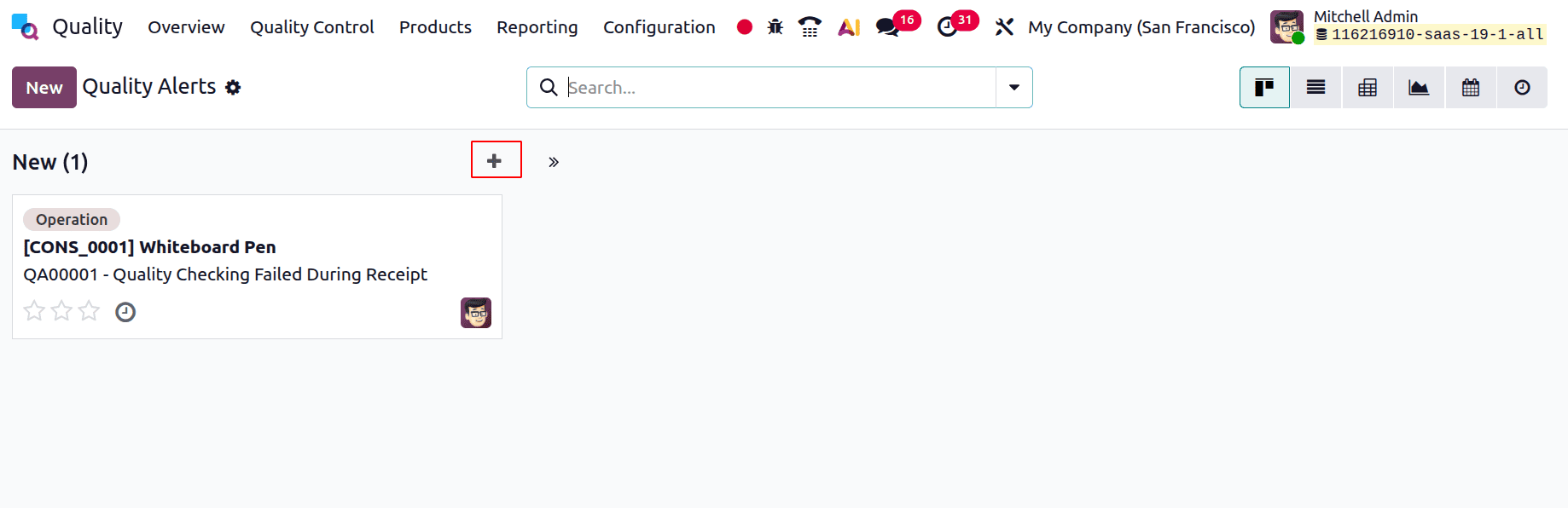
Just update the quality alerts while correcting the issue.
By consolidating teams, control points, notifications, and checks in one location, Odoo 19's Quality module streamlines the entire quality management process. Its smooth interaction with other Odoo applications aids companies in upholding standards, cutting down on mistakes, and guaranteeing constant product quality.
To read more about An Overview to Quality Module in Odoo 18, refer to our blog An Overview to Quality Module in Odoo 18.