A website's visibility and ranking on search engine results pages (SERPs) can be analyzed, evaluated, and improved with the use of SEO tools, which are platforms or software. They aid in locating areas that require optimization in order to boost organic (unpaid) traffic to a website. These tools support tasks like conducting website audits, evaluating competitors, analyzing backlinks, and researching keywords. Technical, off-page, and on-page examples of SEO, or search engine optimization, can be divided into three categories. Improving a website's ranking for specific keywords through content and code optimization is the objective of on-page SEO practices. However, the practices involved in off-page SEO are engaged in promoting the site's presence in search engine results outside of the site, such as in the case of link building. Technical SEO ensures that the structure and code of a website are easy for search engines to crawl and index.
By boosting the website's search engine ranking, Odoo SEO services can assist in getting it to appear above its competitors. It helps organizations streamline and scale their operations by managing accounting, e-commerce, point of sale, ERP, CRM, inventory, and various other business functions.
SEO Optimization and Content Optimization
Improving a website's exposure and ranking on search engines like Google is the objective of search engine optimization (SEO), a digital marketing strategy. It entails improving the content, social media sharing, URLs, images, and page loading speed of your website, among other things.
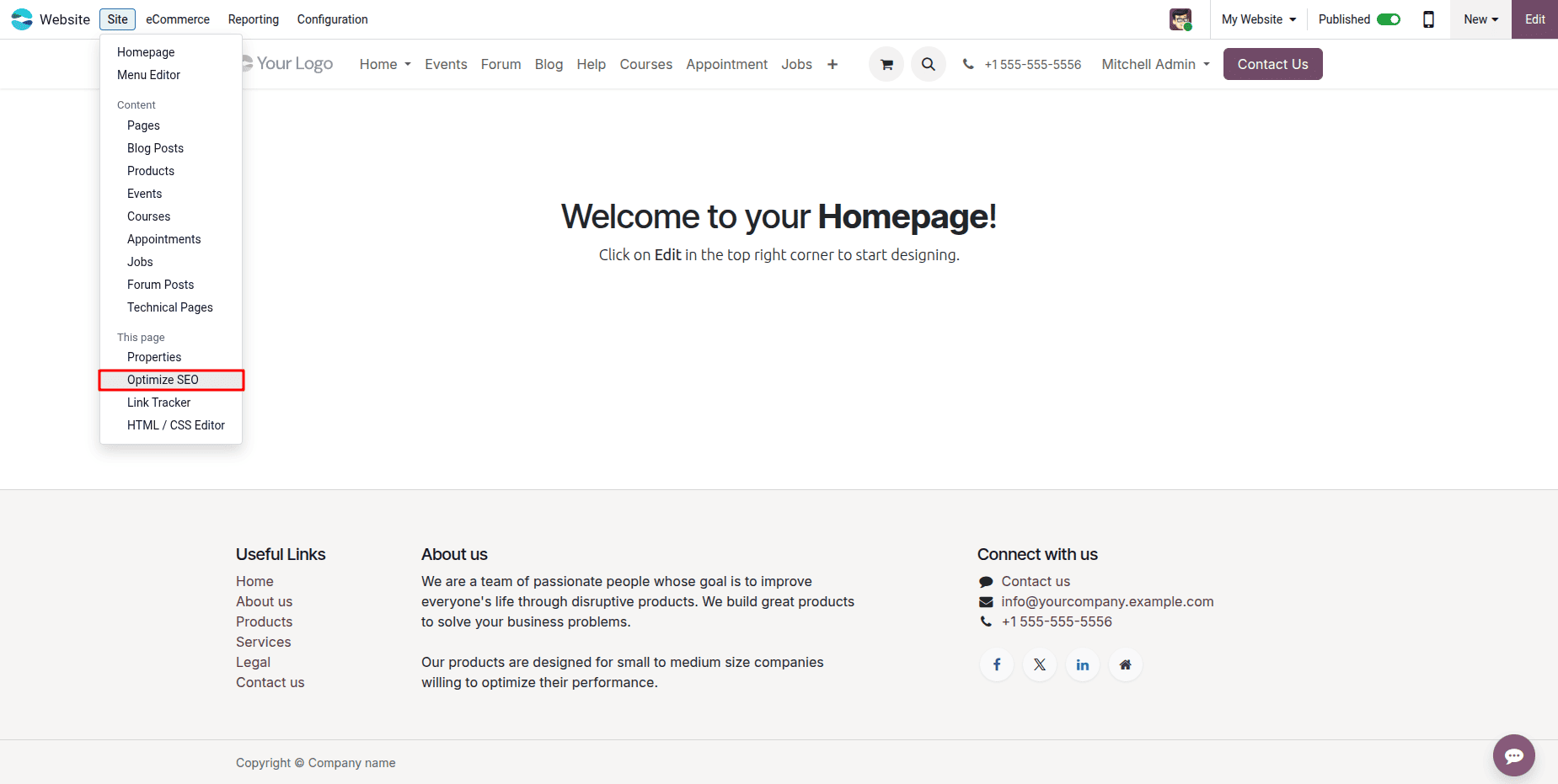
Odoo 19 provides the following SEO tools:
- Plausible Analytics
- Google Analytics
- Console Google Search
- Default Social Share Image
- Cookies Bar
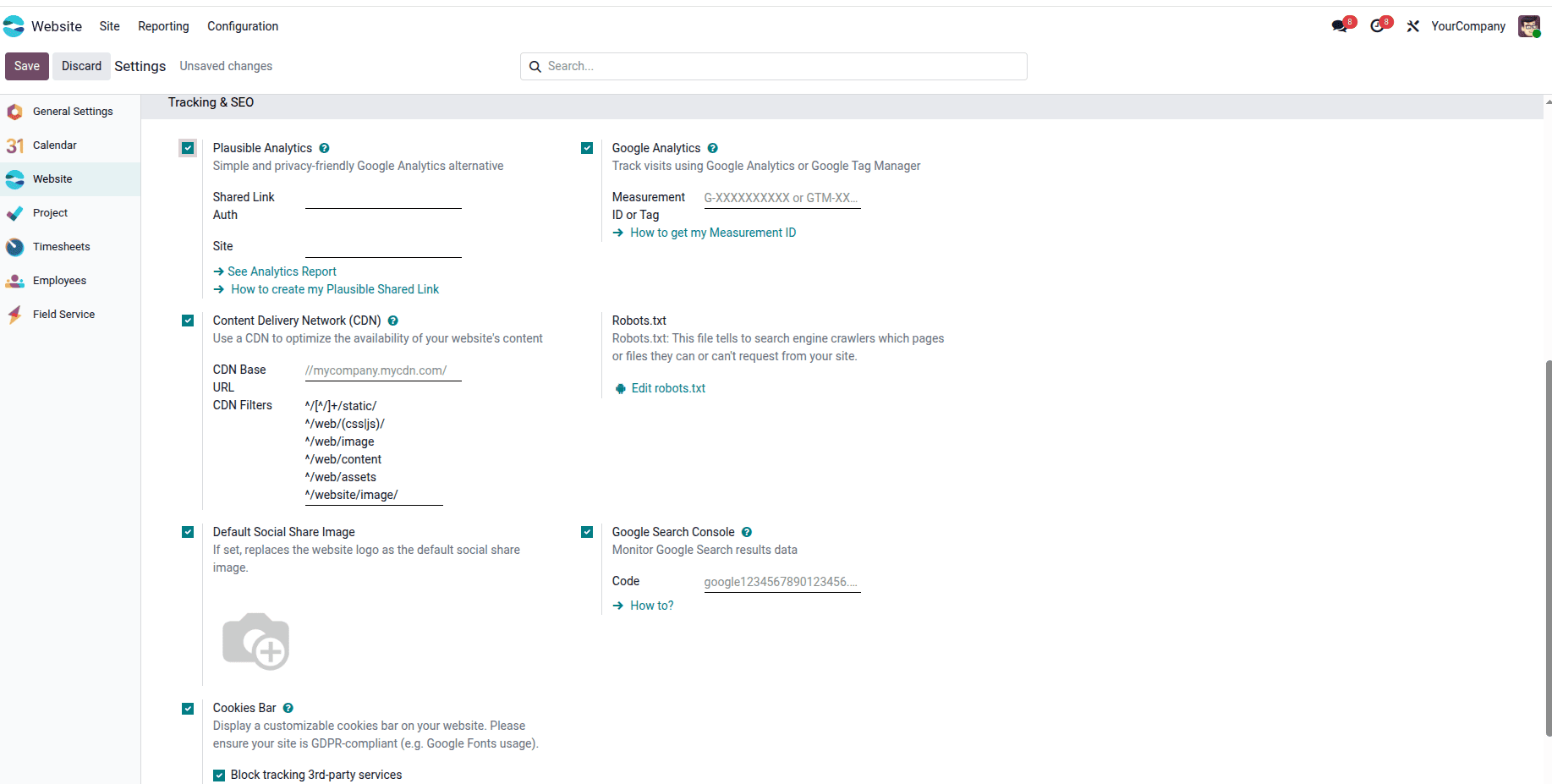
Google Analytics
Google Analytics is a web analytics tool that tracks and reports website traffic and activity. Businesses can gain more insight into their customers and be able to improve their digital strategy and marketing efforts through the data it can provide about how users engage with their website or application. Google Analytics, a tool for tracking website activity, can be linked with Odoo 19. Navigate to the Odoo Website module > Settings > Configuration.
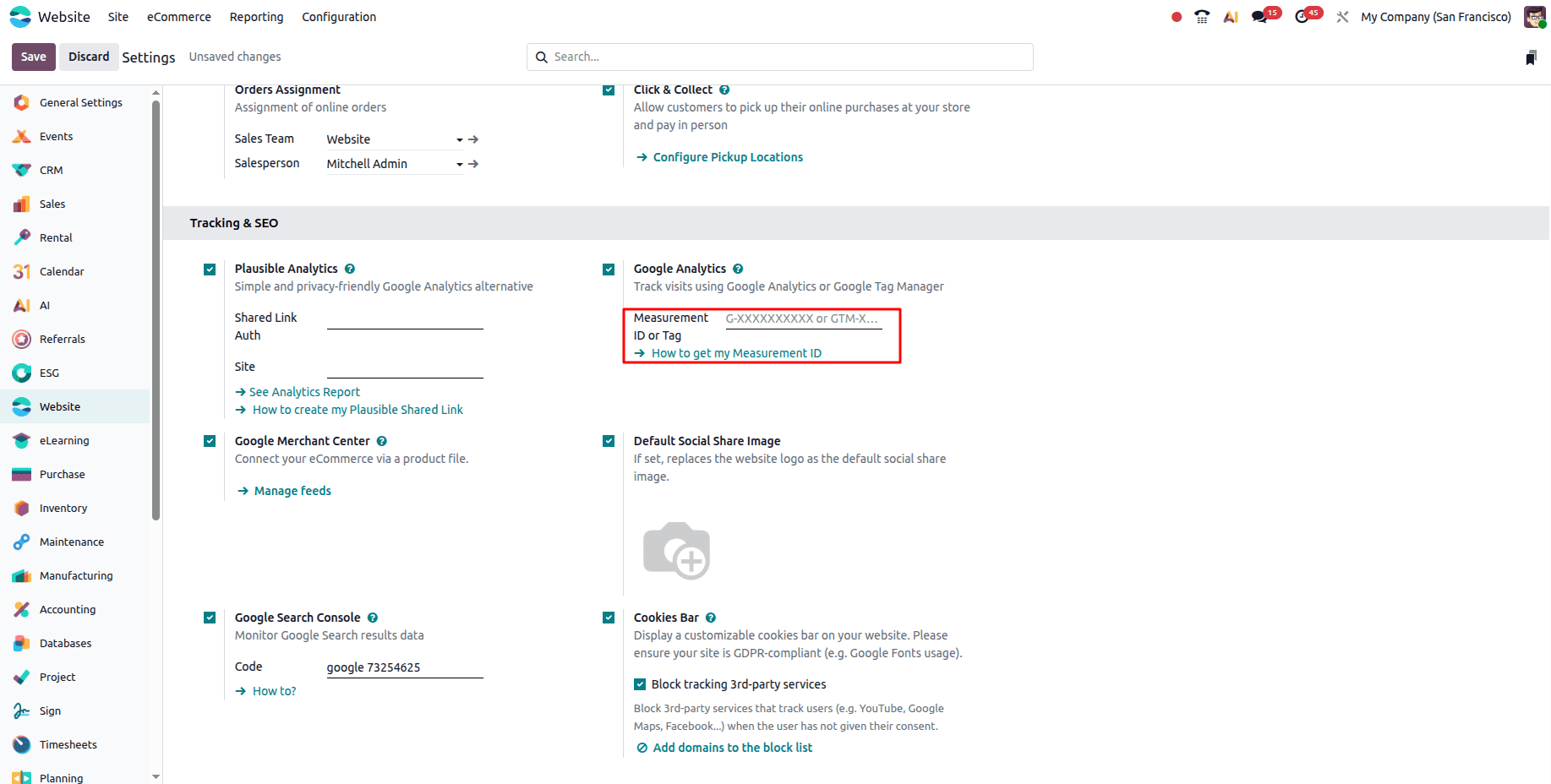
You can link your website to Google Analytics and save the modifications if you have a Measurement ID. Make a measurement ID if you don't already have one.
How to create a measurement ID
Click the "How to get my Measurement ID" link to get one if you don't already have one. This will direct you to a page where you can configure your data sharing preferences and create a new analytics account.
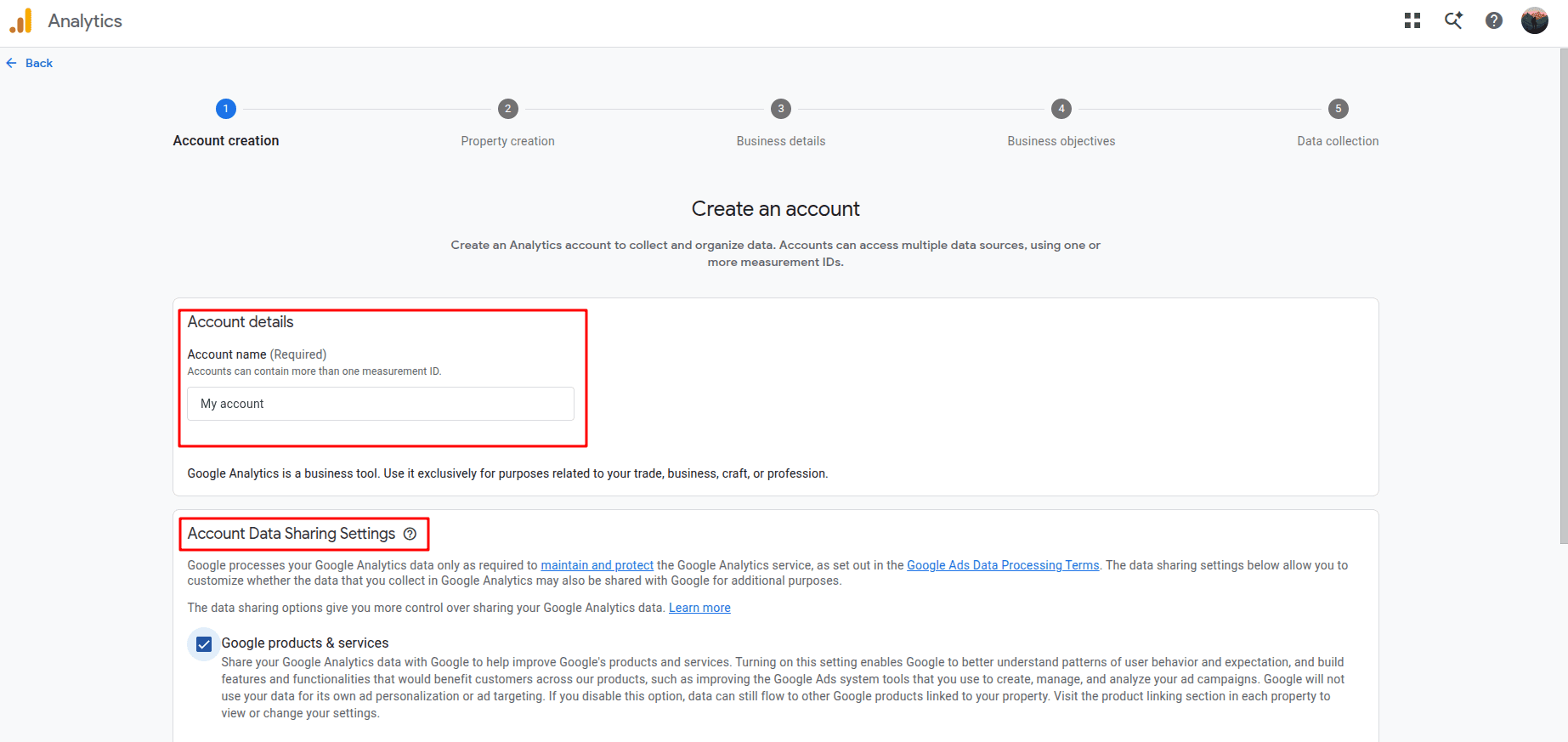
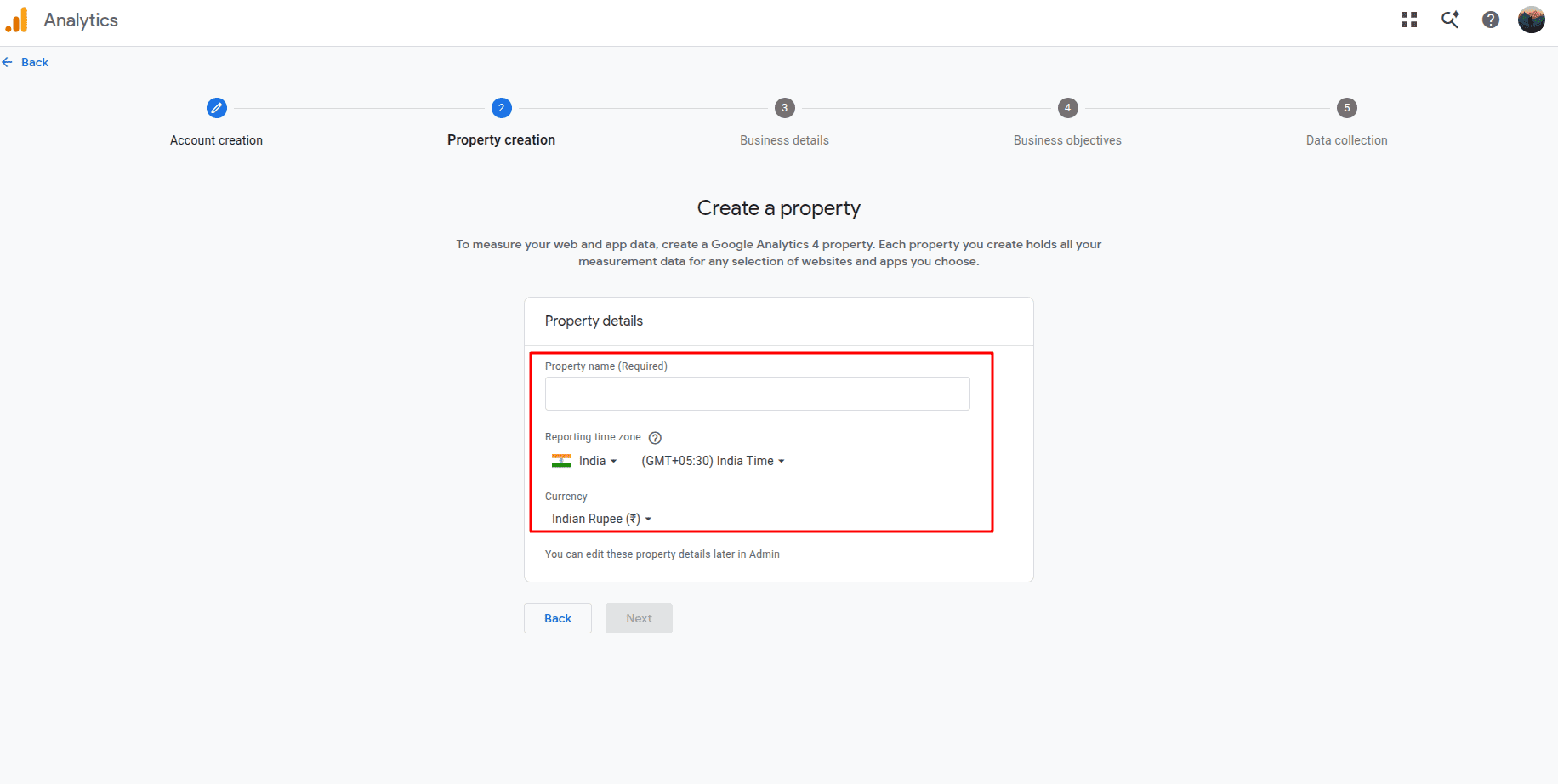
You can create a property by clicking the NEXT button. Add information about the property, such as its name, country, time zone, and currency. Click the "Next" button.
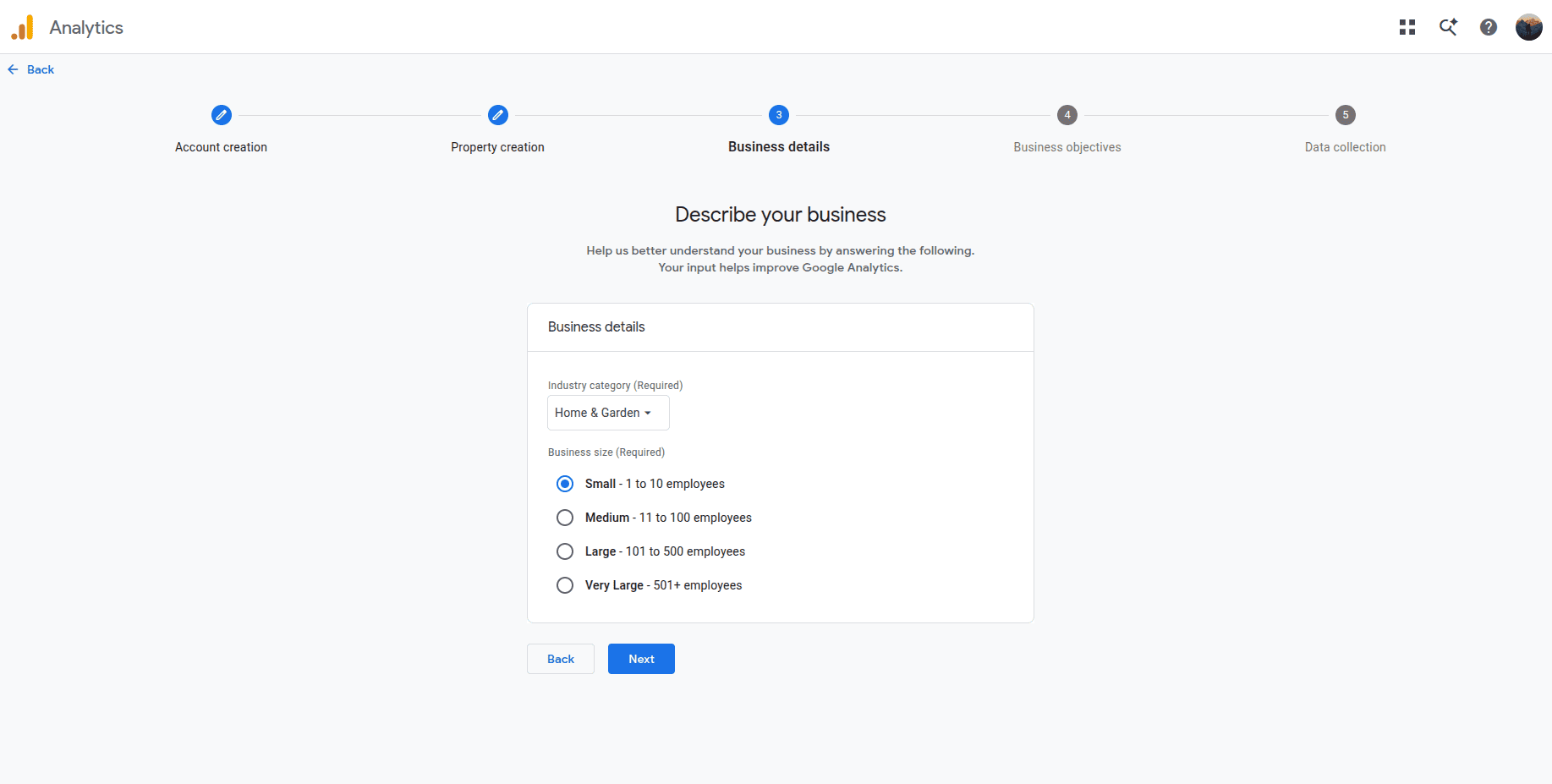
After that, you'll get a form to fill out with information about your company, including its size, number of employees, and industry.
Next, select NEXT to add a business goal.
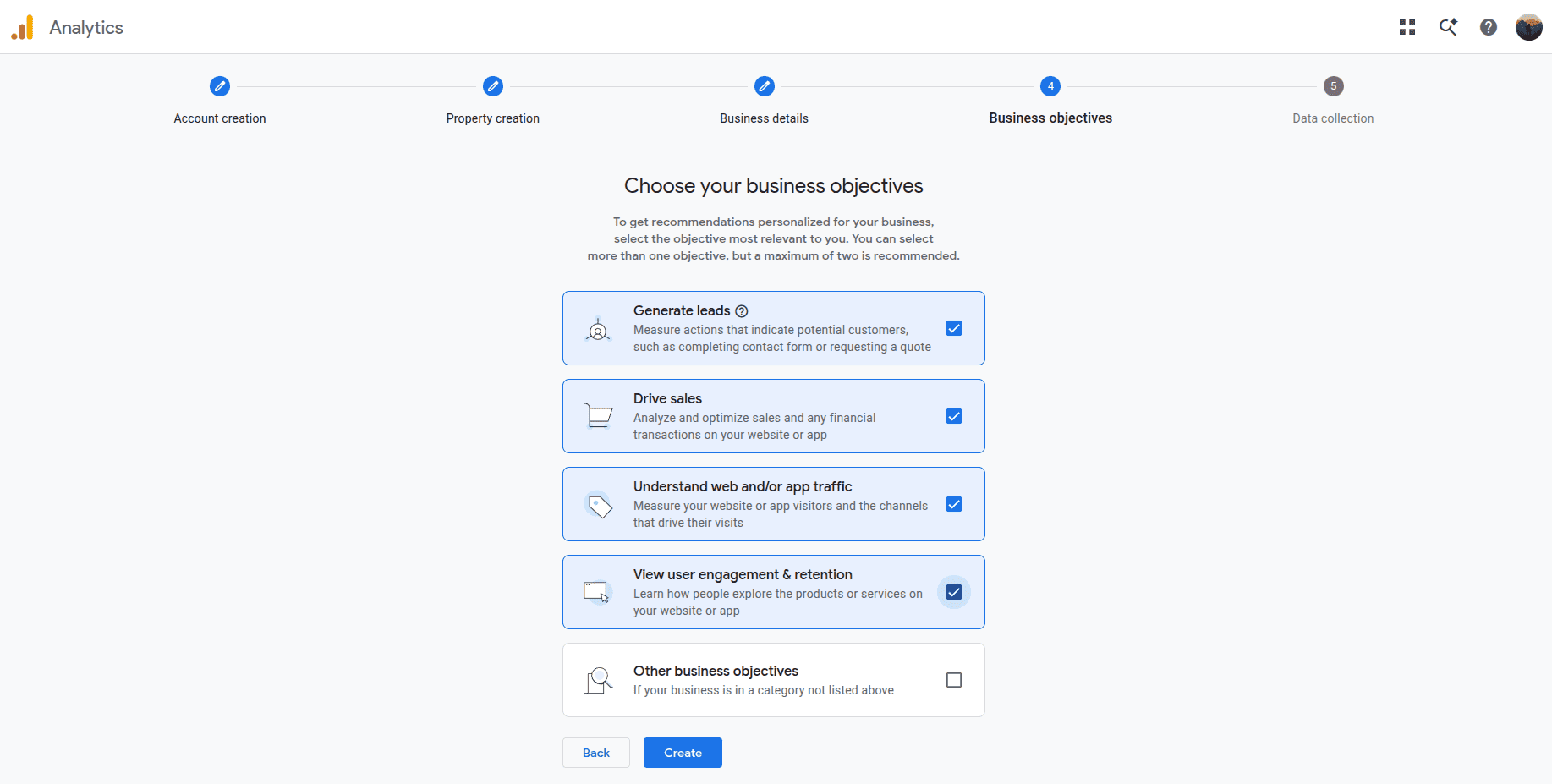
The checkboxes provide a variety of goals to help you define your company's objectives, including lead generation, financial transaction and sales analysis and optimization, and web and app traffic tracking. After you have made your decision, click "Create".
You can examine and accept the Google Analytics terms and conditions by clicking on the pop-up box.
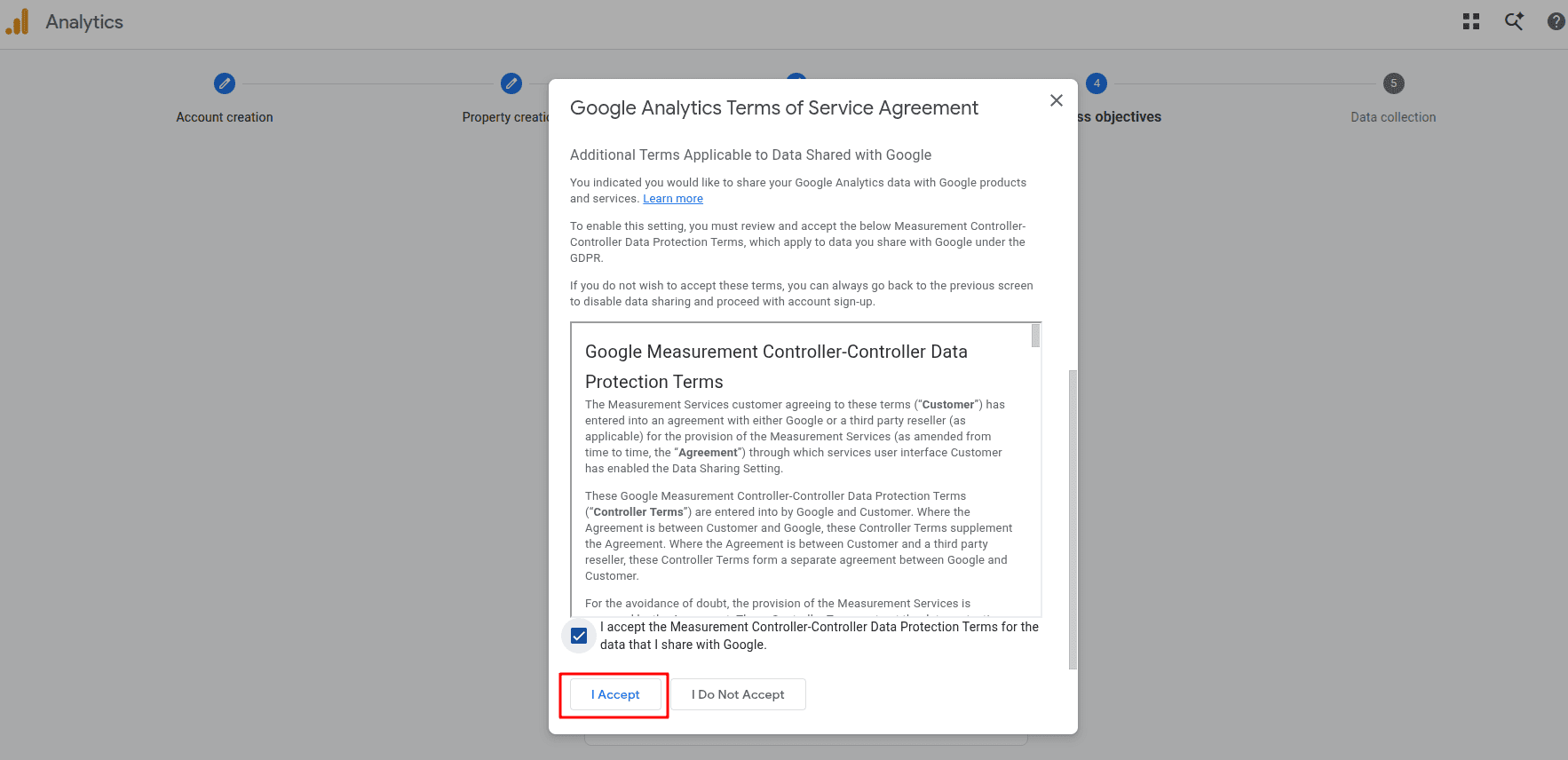
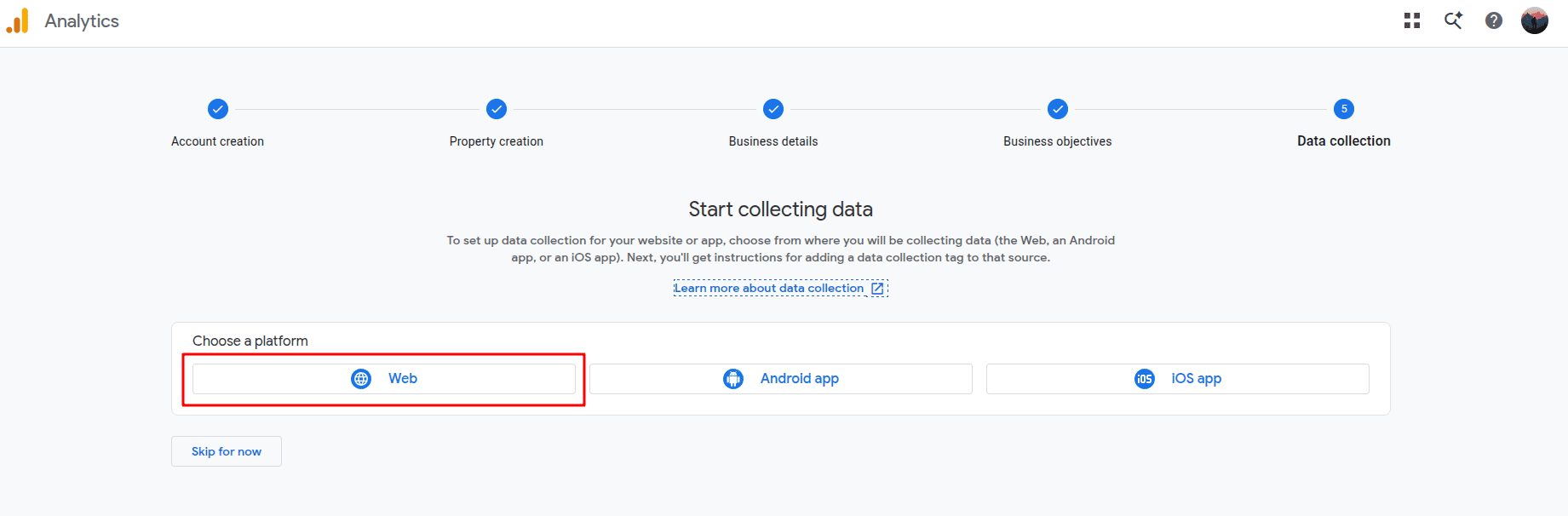
It will reroute to the "Data Collection" page upon acceptance. Configure the data stream and choose "Web" as the platform.
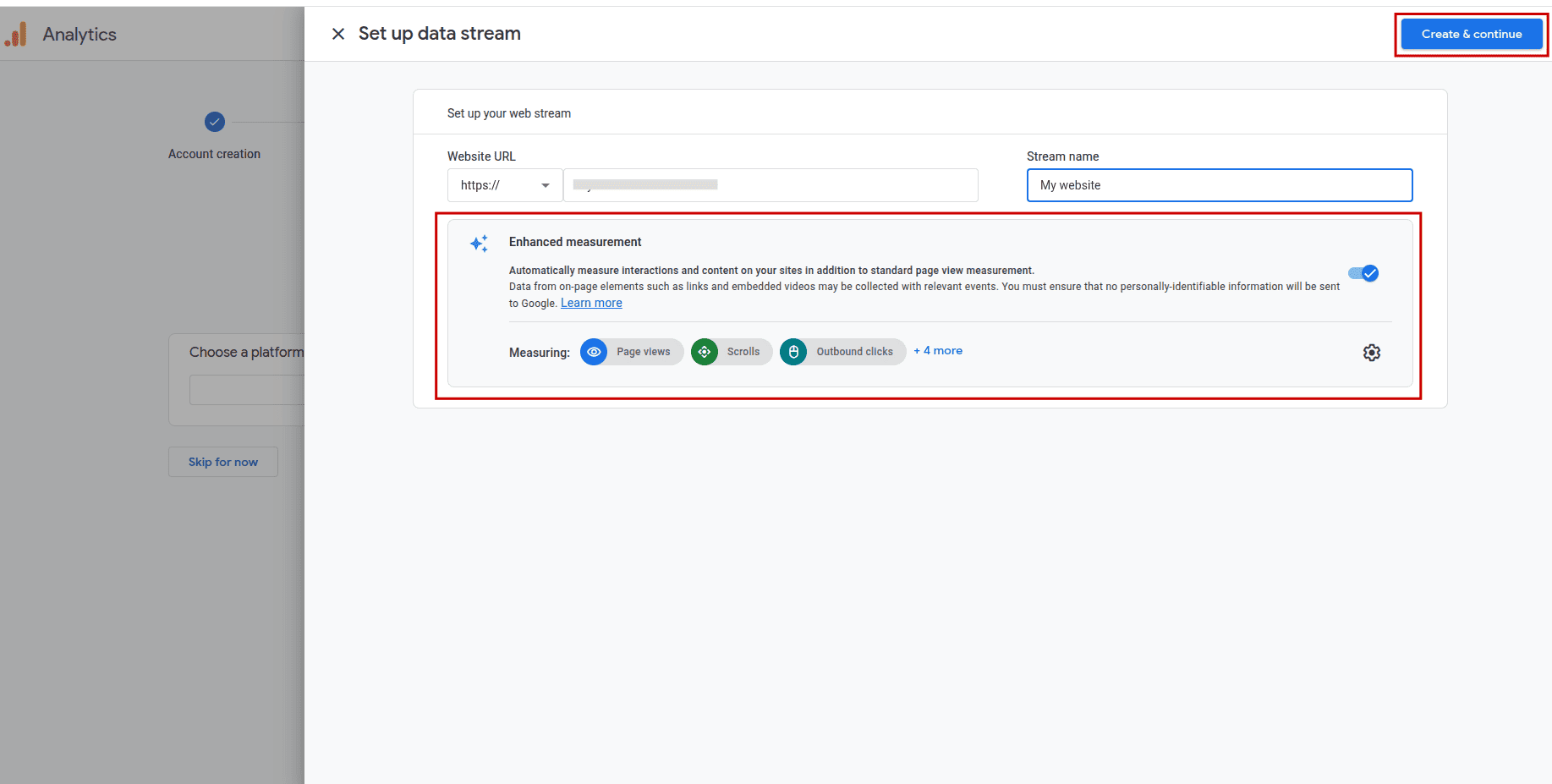
The stream name and website URL are contained in the data stream. After entering the stream name and website URL, select "Create and Continue". The next section presents an overview of the improved measurement capabilities. Google Analytics will monitor page views, scrolls, external link clicks, site searches, file downloads, video interactions, and form submissions.
The Google Analytics data collection section will incorporate the data stream after it has been configured. After 48 hours, data will start to be collected.
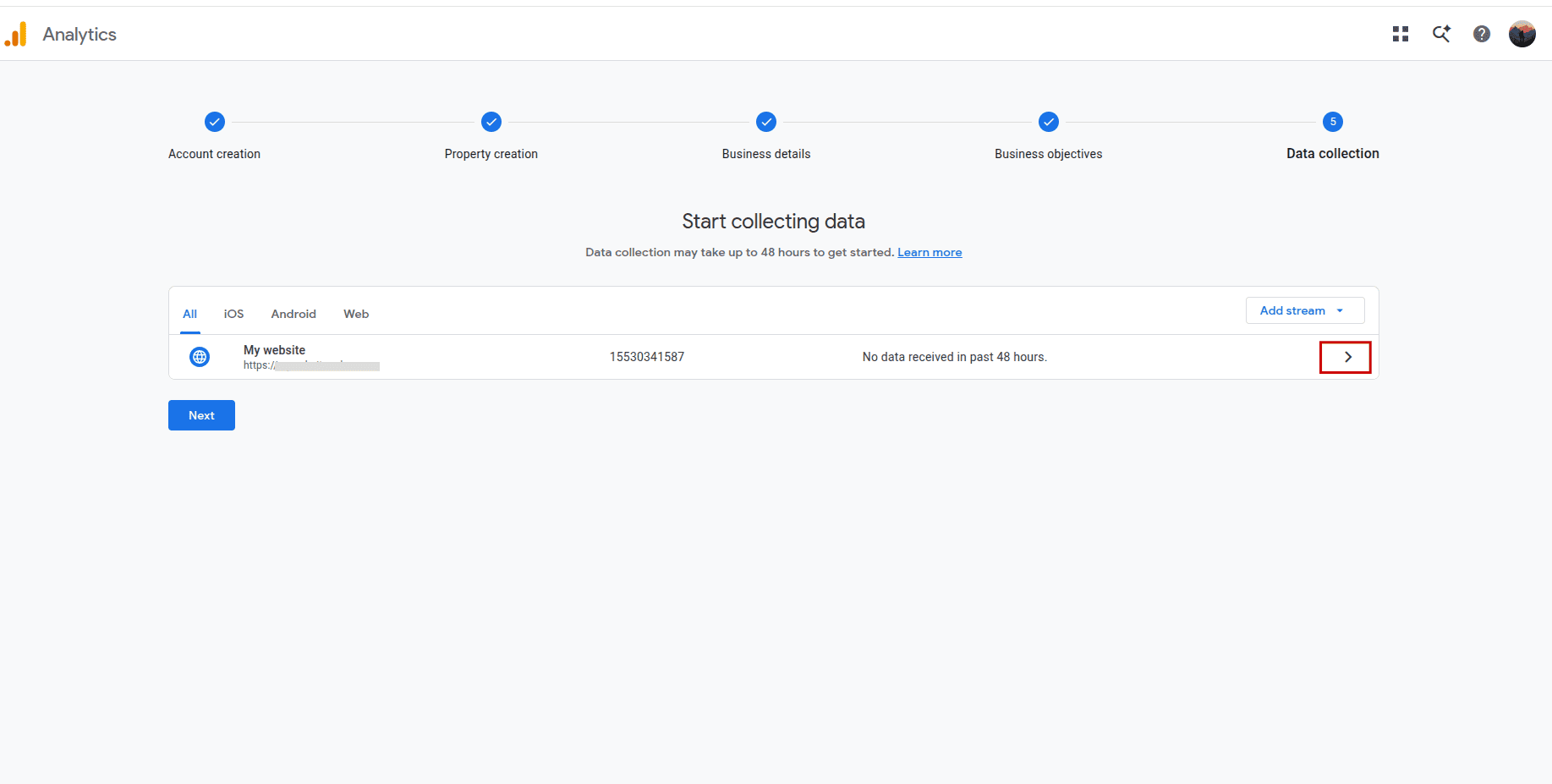
The added data stream's details can be viewed by clicking the arrow next to it. Here, you can view the Measurement ID.
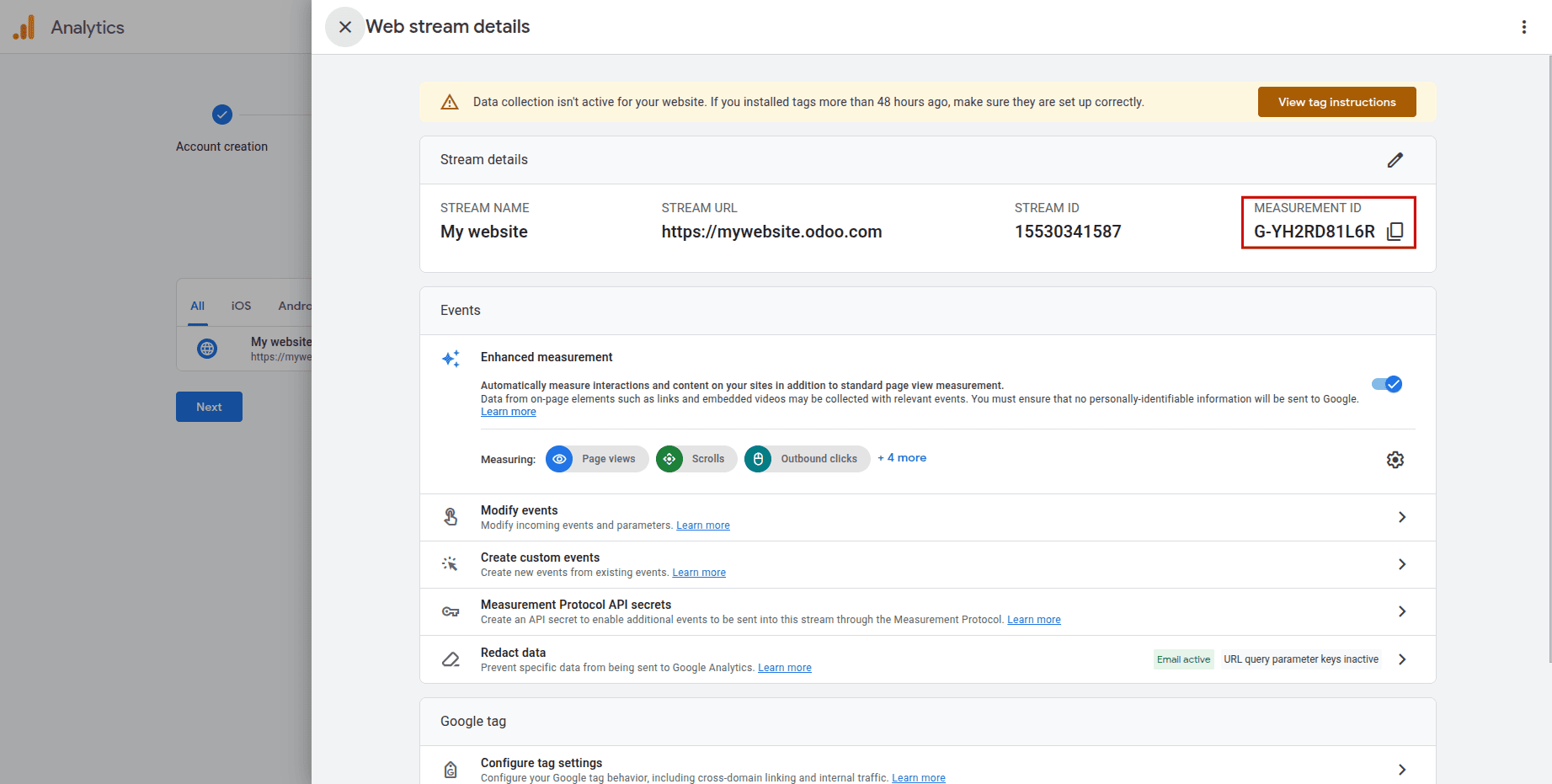
Enter the measurement ID into the configuration settings of the Odoo 19 website.
Google Tag Manager
The code injector feature in Google Tag Manager allows for easy updates to measurement codes and associated code snippets, or tags, on your website or mobile app.
Although GTM is not an analytics solution and lacks reporting capabilities, it is a data collection tool that can be used in conjunction with Google Analytics to provide deeper insights. To maximize GTM, it is advised to also set up Google Analytics.
Certain GTM tags, like those used for sophisticated eCommerce tracking, gather variables and send them to Google Analytics via data layers. Currently, Odoo does not support managing data layers. Google Tag Manager might not adhere to regional data security regulations.
Next, set up Google Tag Manager (GTM) by signing in to your GTM account and creating a new account.
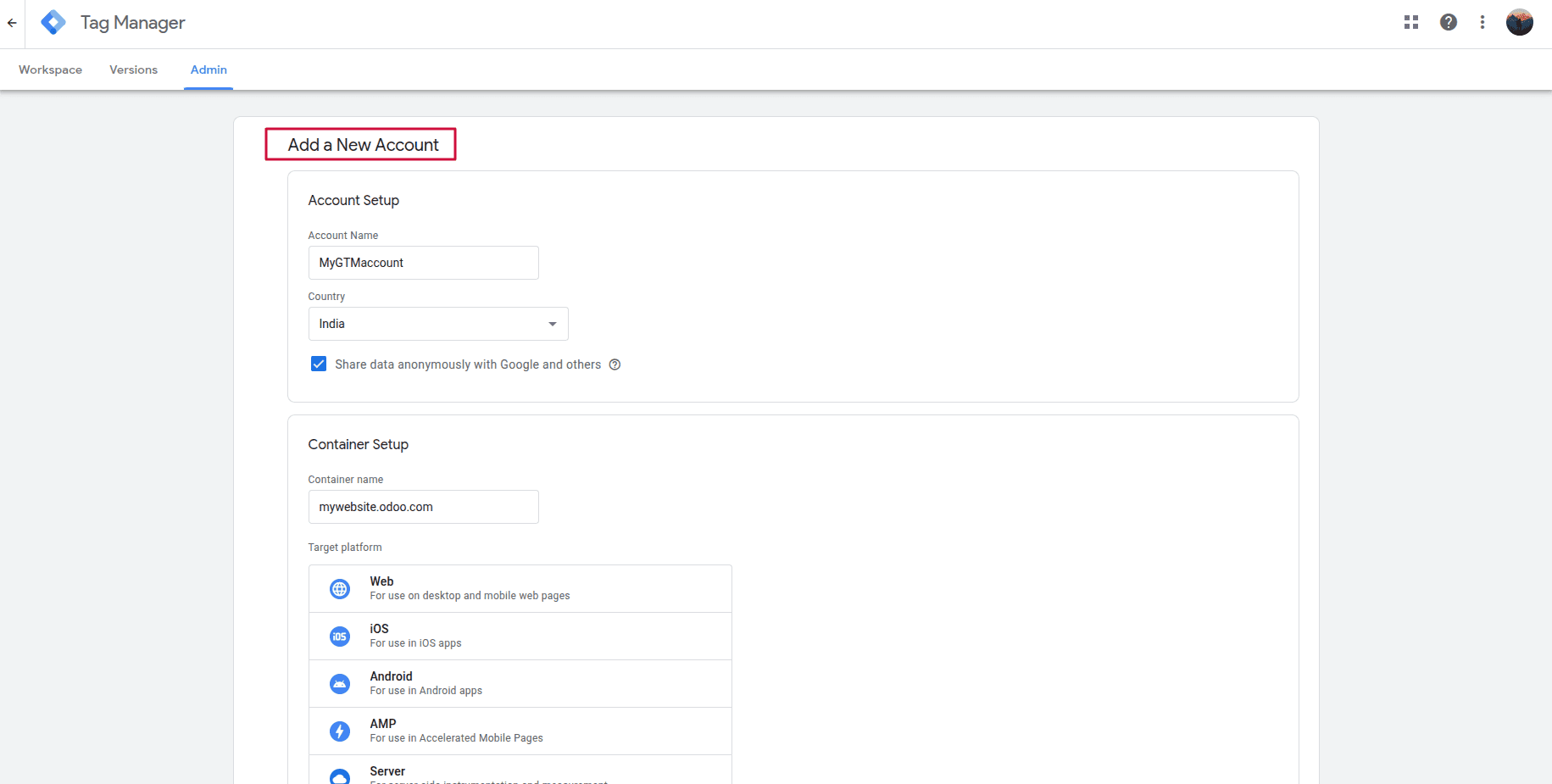
Simply enter "Account Name" and choose your country when creating an account to set up a GTM account. In the Container Setup section, provide the container name and select the appropriate target platform.
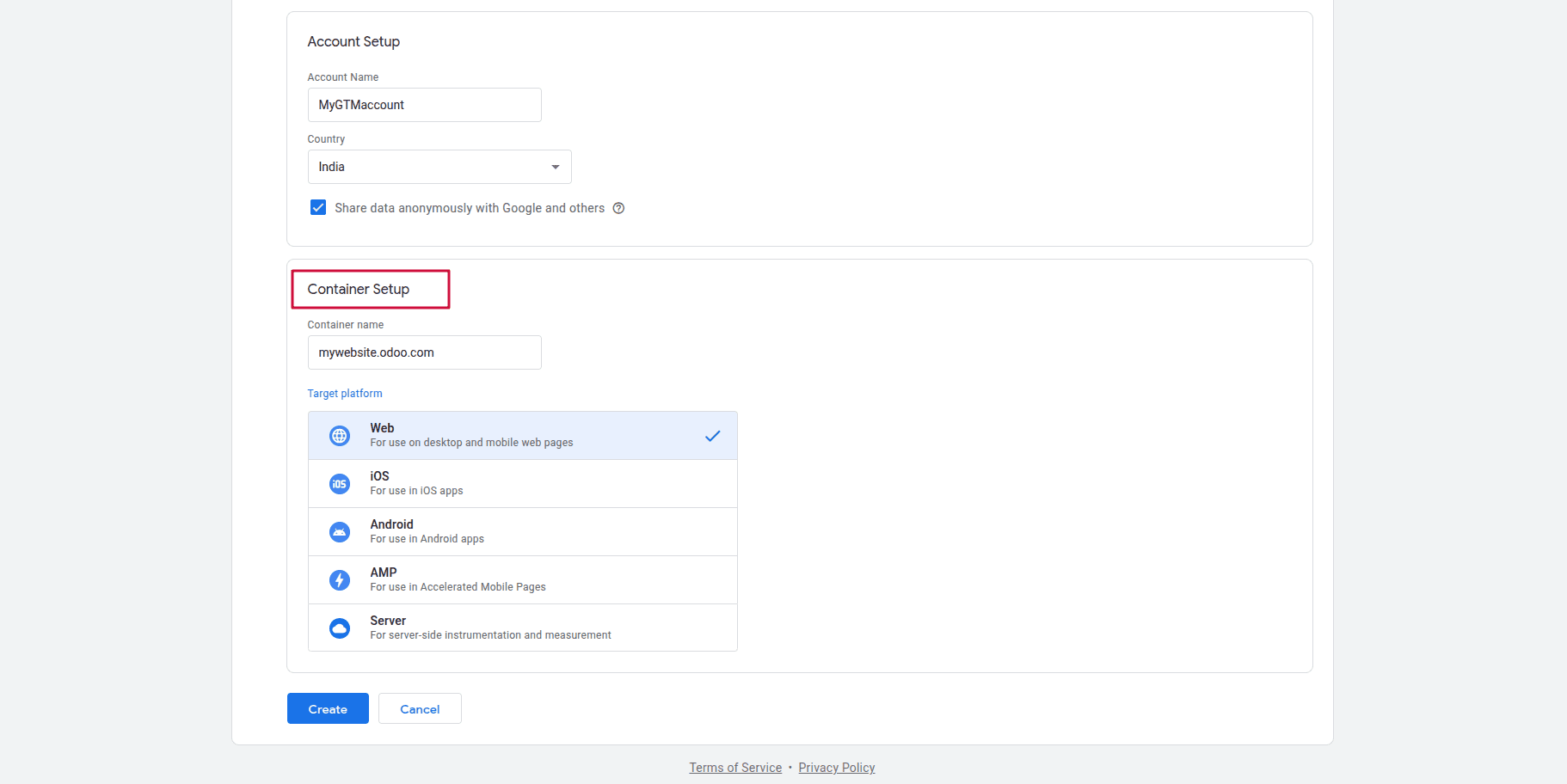
To accept the Google Tag Manager Terms of Service, select CREATE, followed by YES to confirm your acceptance.
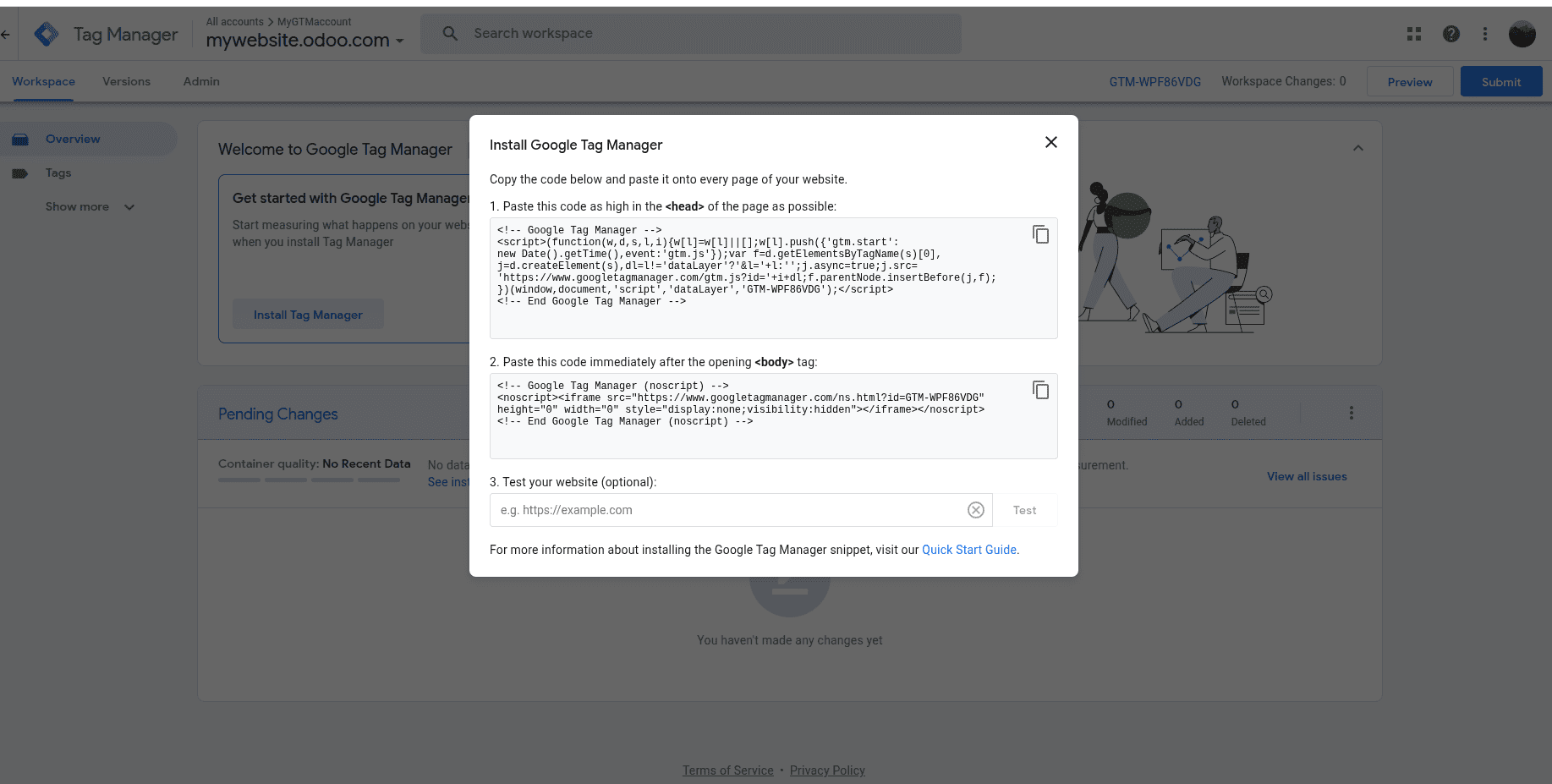
The generated code should then be copied and pasted onto each page of your website. To accomplish that, select HTML/CSS Editor from the "Site" menu after navigating to the website module.
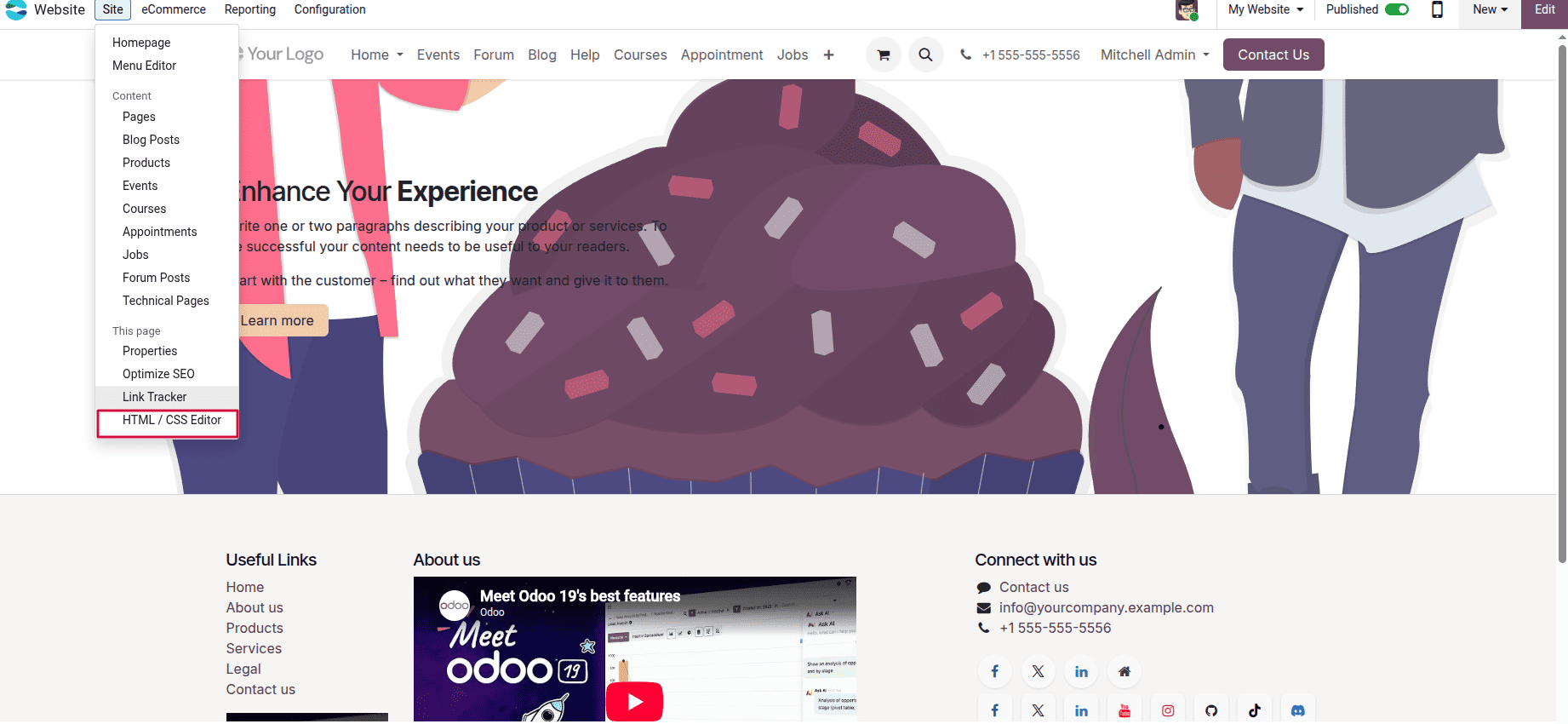
This will cause a wizard to appear with two options: one to insert code. < head> or. <body> and another to shut down the "Editor".
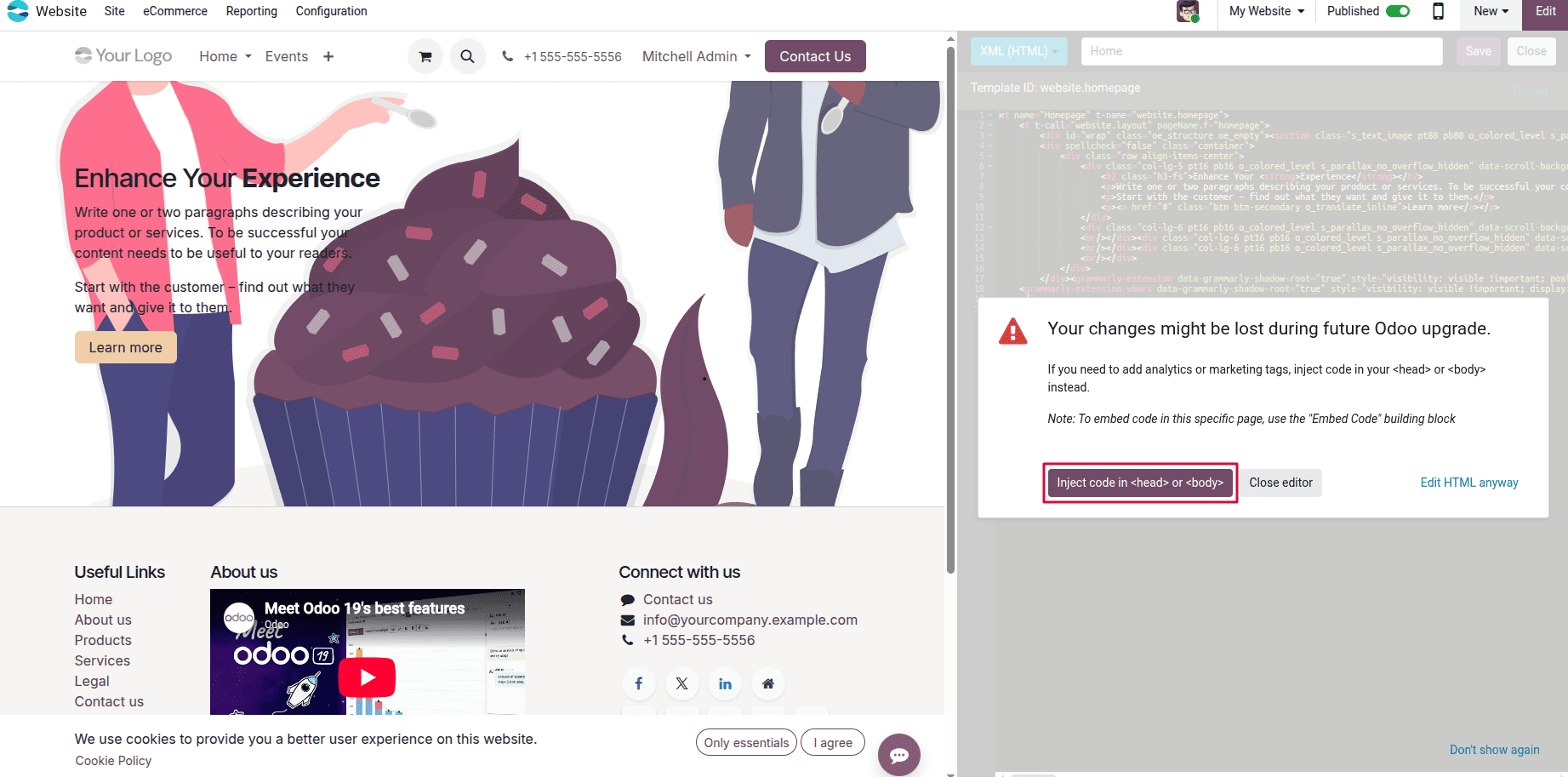
This allows you to add the required code to both the <head> and <body> sections of the website.
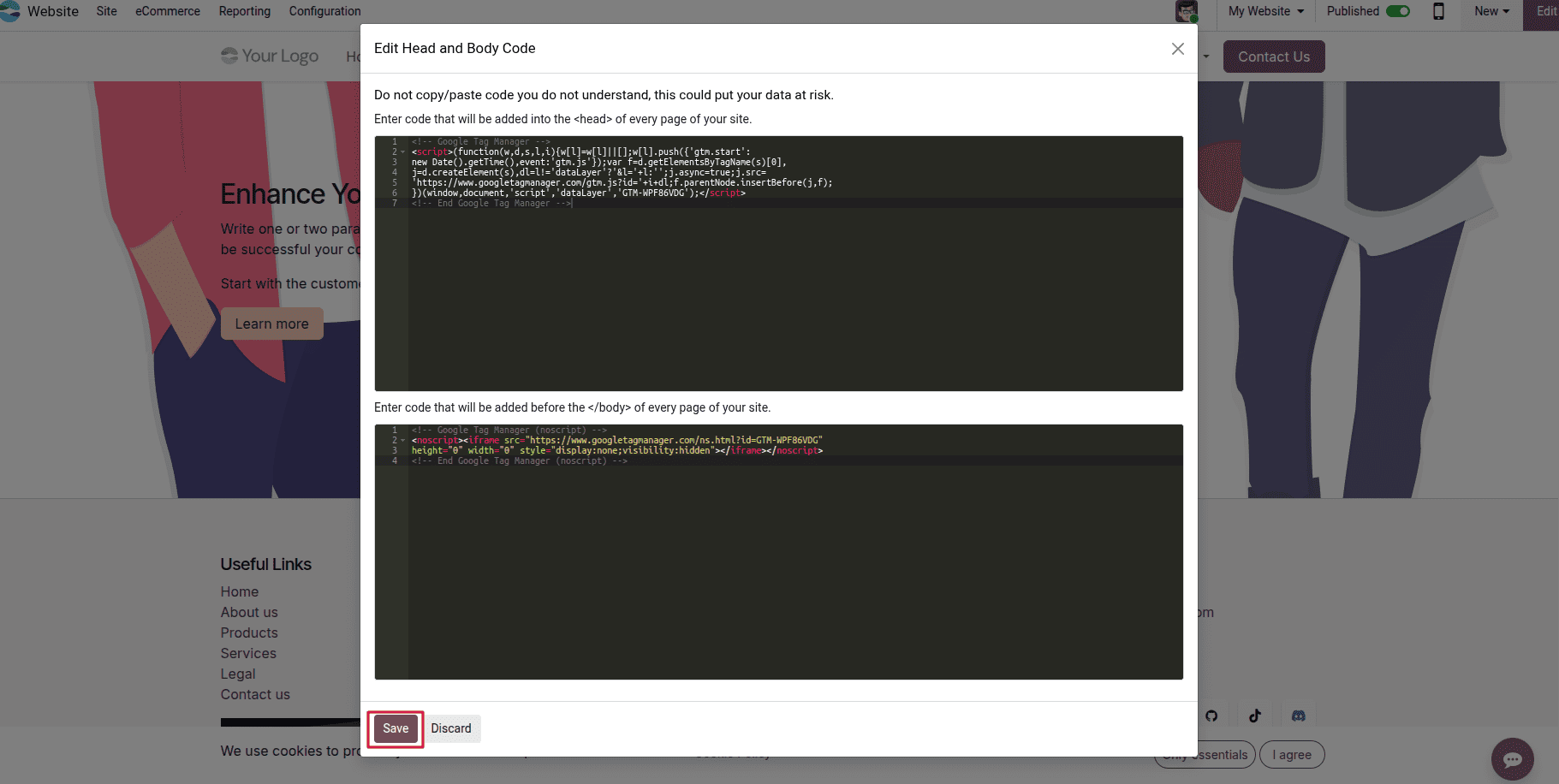
Insert the head and body tags from GTM into the appropriate head and body columns. To save the changes, click SAVE after that. Users can test it in GTM by entering the site's address in the designated field after adding this to the website.
Once Google Analytics and Google Tag Manager are successfully connected, Analytics will begin collecting data within approximately 48 hours.
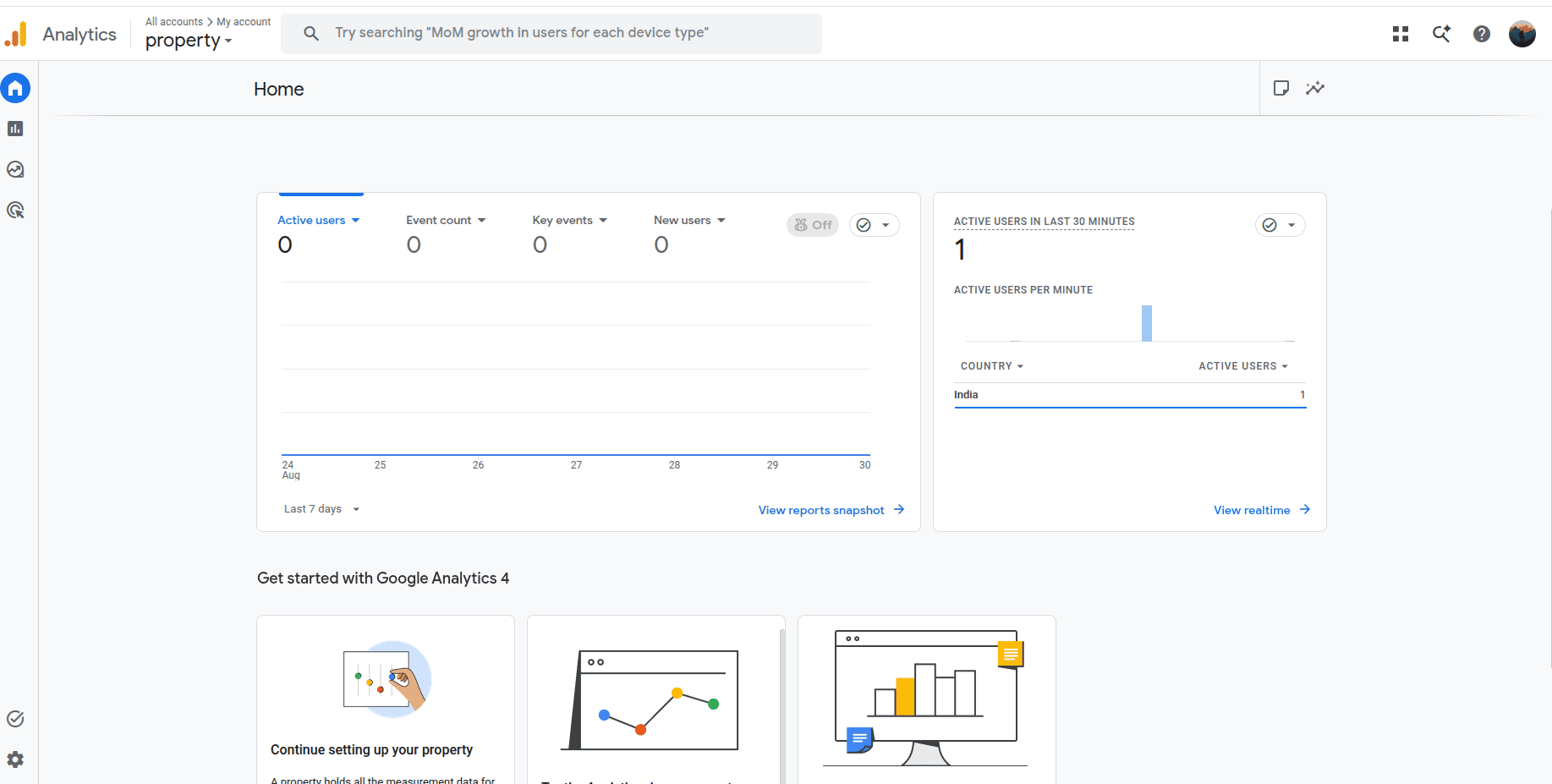
Below are some data that show the number of active users in India over the past 30 minutes. Similarly, when visitors arrive at the page, analytics will track the data.
Robots.txt
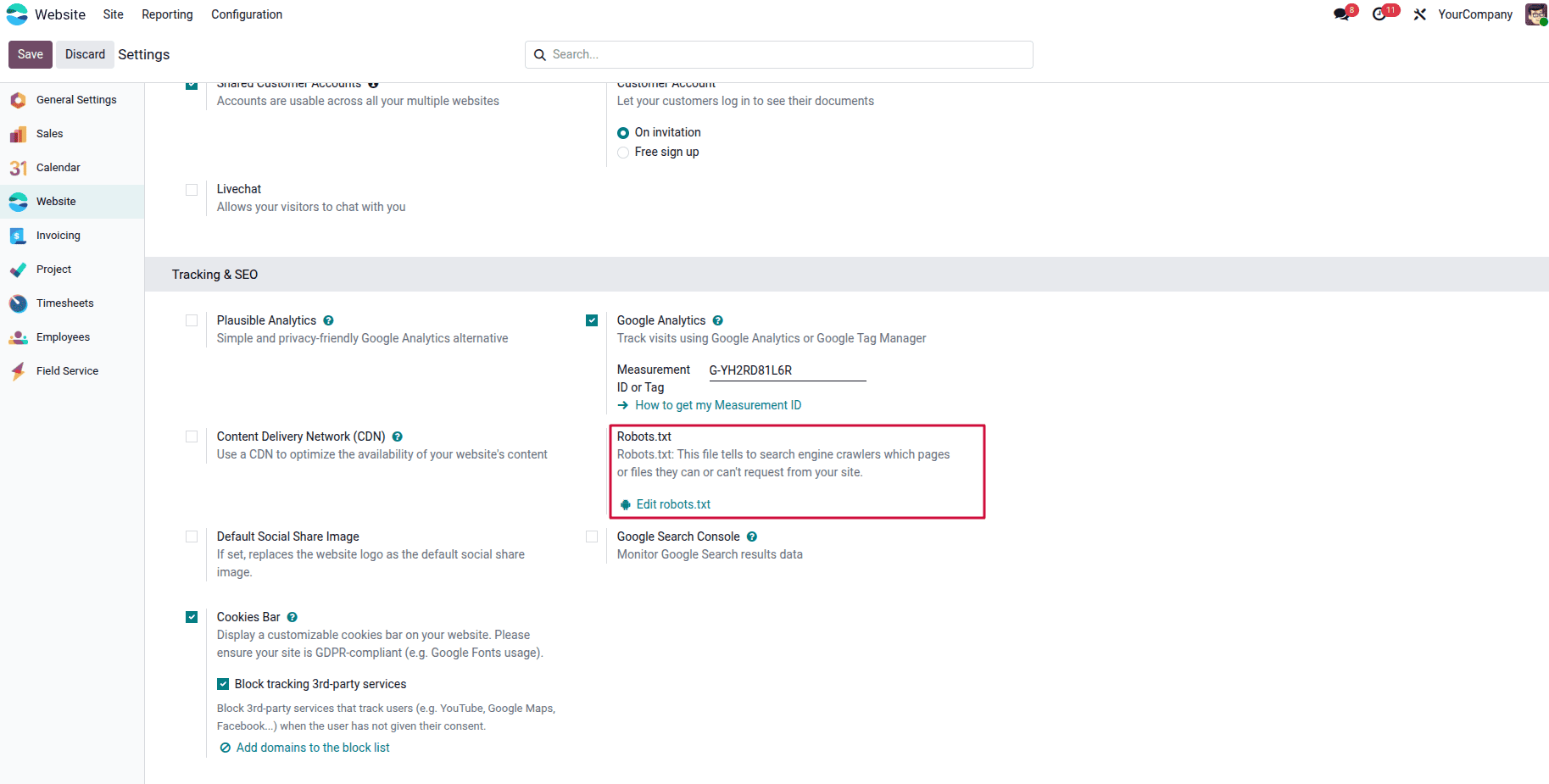
Search engine crawlers can efficiently access and index the content of your website by using the Robots.txt file to determine which URLs they are permitted to visit. This is mostly done to prevent too many requests from flooding your website. When crawling a website, search engines first look for the robots.txt file to determine which pages can be accessed and indexed. One robot is automatically generated by the Odoo .txt file, which can be accessed at 'mydatabase.odoo.com/robots.txt'.
You may control which pages on your website search engine crawlers are allowed to visit by altering a robot. text document. Click Edit Robots after navigating to Website > Configuration > Settings and scrolling to the SEO section. Add a .txt file to specify customized instructions for search engine crawlers.
Plausible
Website analytics allow website owners to keep an eye on user behaviour. It enhances websites and marketing tactics by offering insights into visitor demographics, behaviour, and interactions. You can monitor traffic to your Odoo website with Plausible Dot IO, an alternative to Google Analytics, because it is plausible. io is lightweight, user-friendly, and privacy-conscious.
Odoo offers a free, operational Plausible for Odoo Online databases that use the odoo.com name. The solution uses Plausible.io and operates on its own Plausible.io server. Your account is automatically created and configured by Odoo.
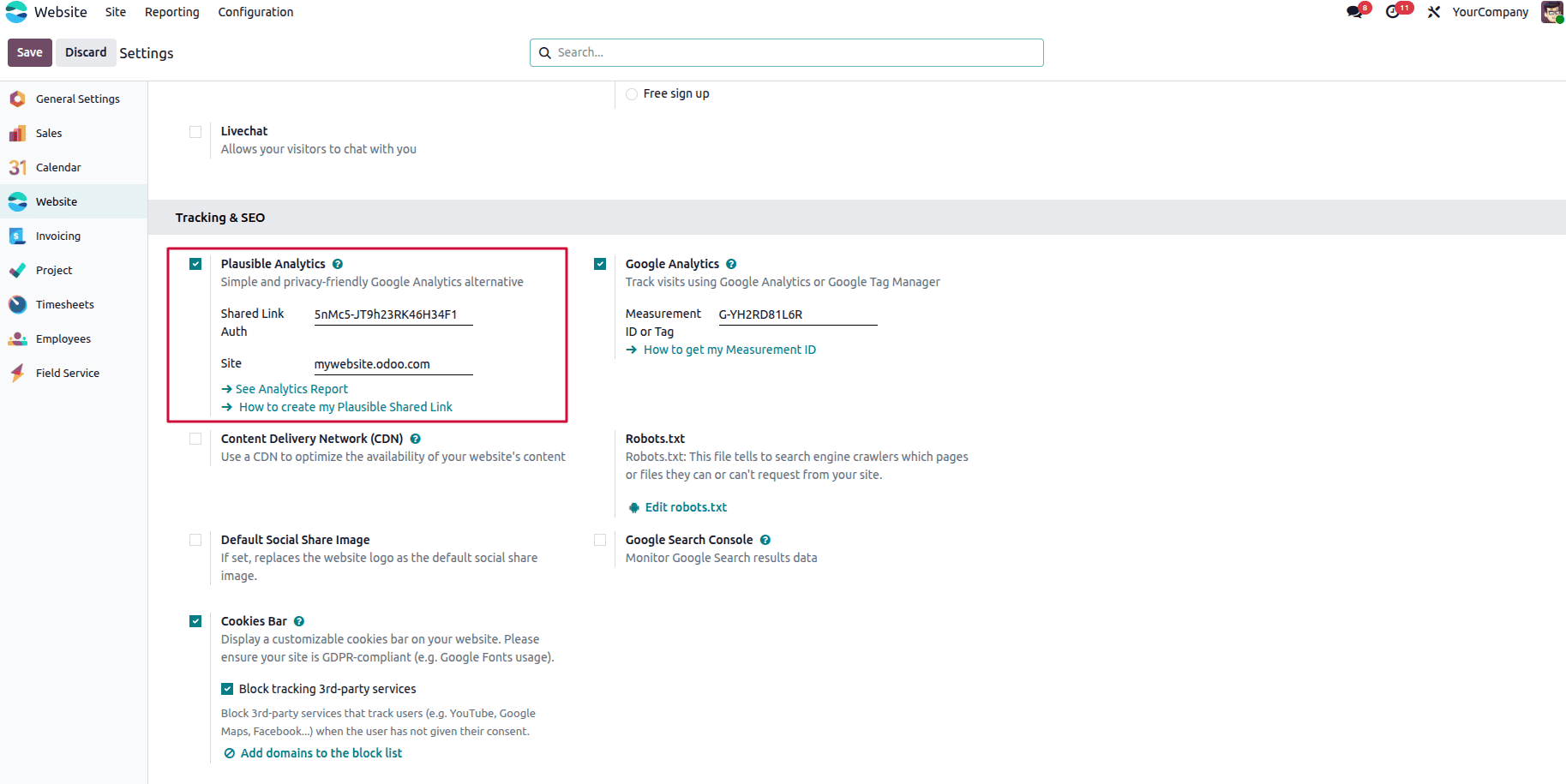
The Plausible Analytics dashboard can be accessed via Website > Reporting > Analytics and is also built into Odoo.
Console Google Search
Website owners may control and keep an eye on how their websites appear in Google Search results with Google Search Console, a free tool.
By providing insightful information about how Google views and uses your website, it improves its functionality.
To set up Google Search Console for your website, navigate to the Google Search Console platform. Next, either the domain property or the URL prefix property.
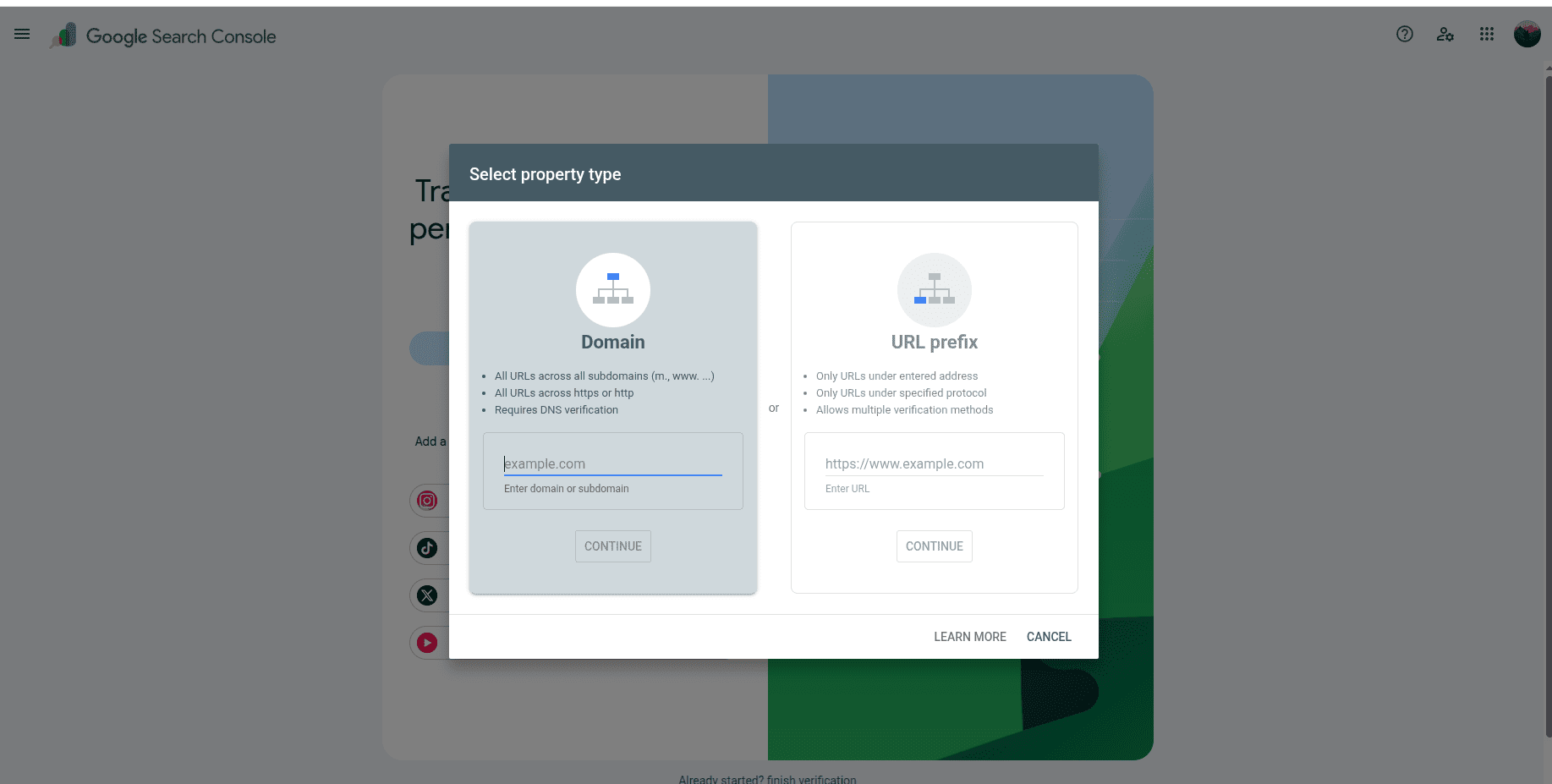
Before using Google Search Console, make sure you are the website owner. This process of verification protects Google and you both. It gives you control over how Google Search administers your website and guarantees that sensitive information is only accessible by authorized users.
The following section outlines the available options. You can complete this process using any of the five methods listed below:
- DNS record
- HTML tag
- Google Analytics monitoring code
- HTML file upload
- Google Tag Manager container
The "HTML file upload" method is what we are discussing. A pop-up window then appears, allowing you to download an HTML file containing a verification code.
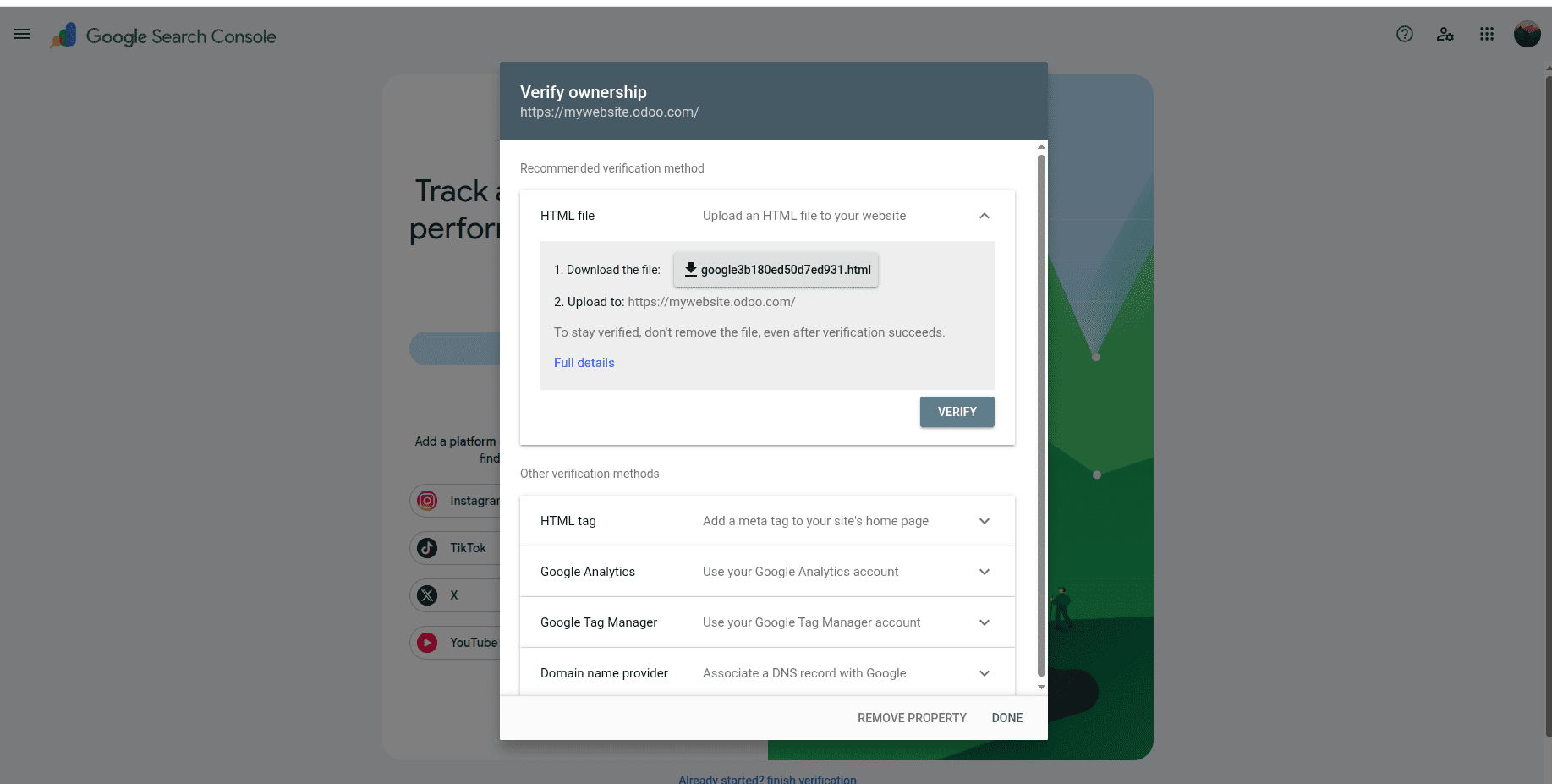
Add the produced code to the Odoo website setup settings after copying it.
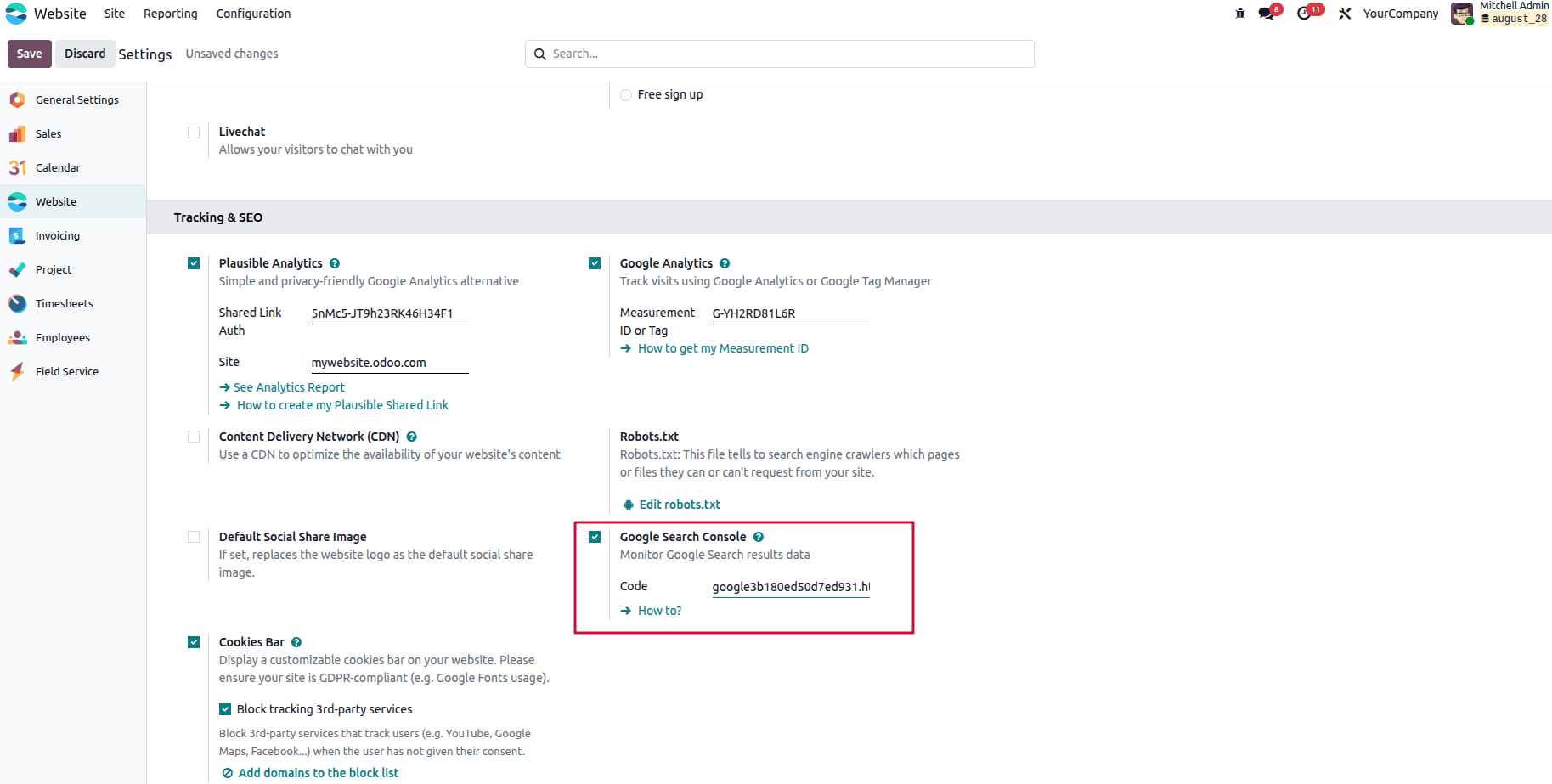
The revised data will show up on the Google Console search after the modifications have been saved and confirmed.
Content Delivery Network (CDN)
A Content distribution Network (CDN) is a distributed network of servers located across different geographical regions that delivers web content to users quickly and efficiently. The CDN ensures rapid and high-quality delivery of websites with a lot of content.
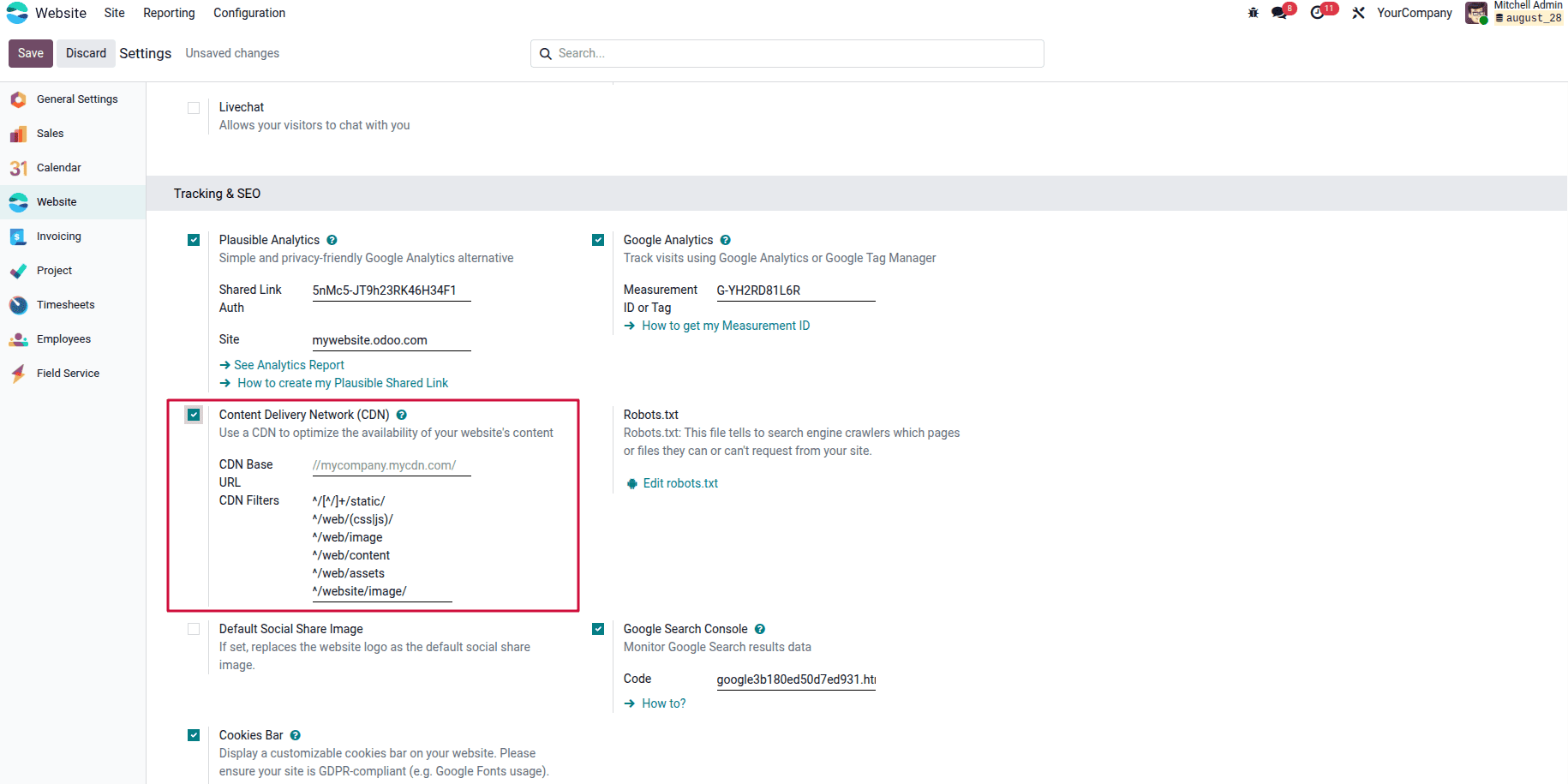
After turning on the Content Delivery Network (CDN) option, enter the Zone URL value in the Odoo Website app's CDN Base URL field in the Settings menu. This option can only be found and edited when the developer mode is turned on.
Default Social Share Image
Odoo 19's Website module settings allow you to change the Default Social Share Image. The website's logo will be displayed by default when a link is shared on social media without an image.
When sharing a web page from your site on social networks, without specifying a share image, you can use the Default Social Share Image (set by Odoo 19). To change this, go to Website > Configuration > Settings, in the SEO section, and select the image you want.
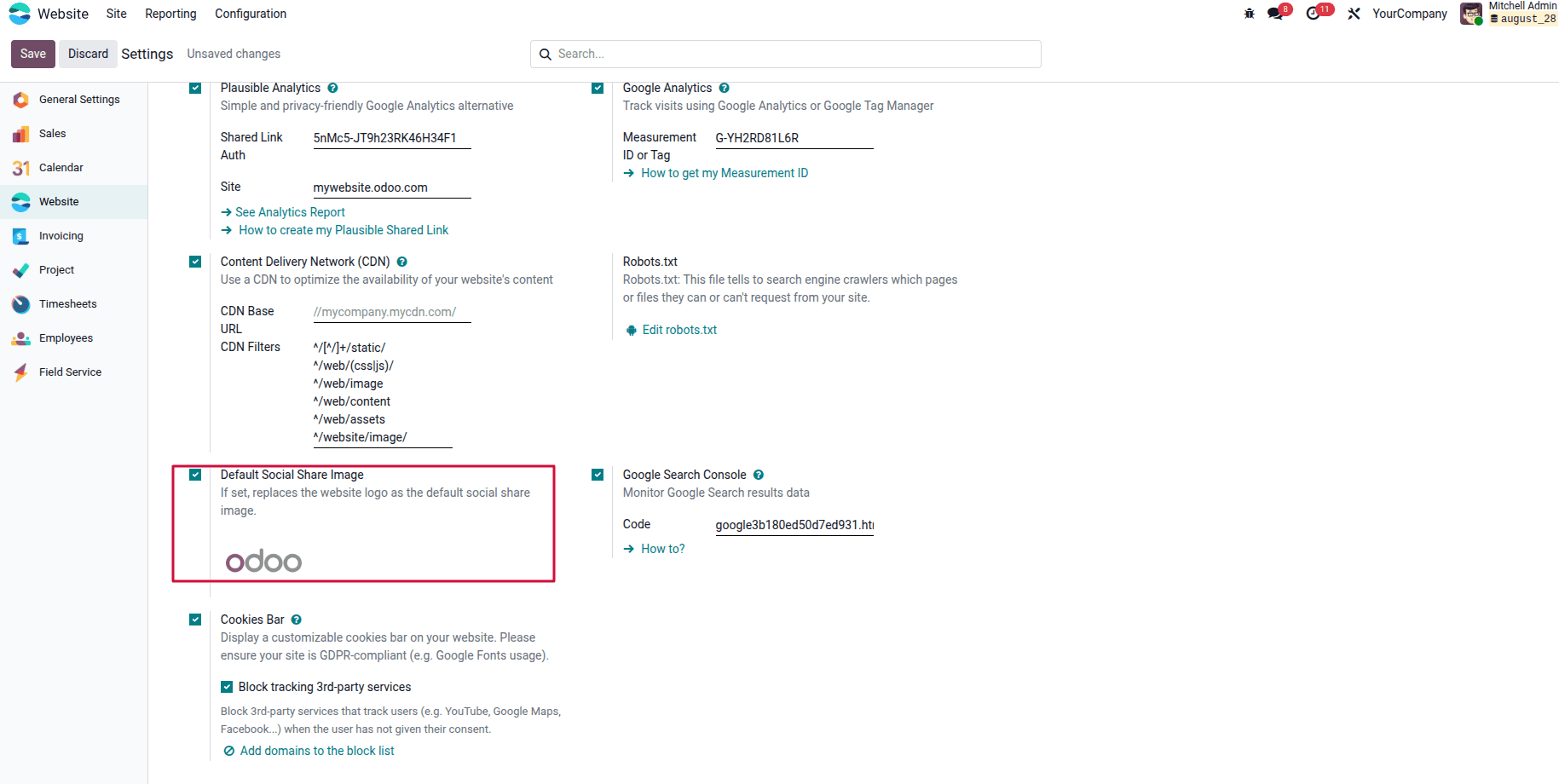
In order to maintain consistency in your branding throughout all of your social media previews, this image will be utilized as the default preview visual for all pages without a custom image.
You can also modify the default image on a per-page basis. For example, when you change your blog post or product page, be sure to update a specific image for that page and choose 'Optimize SEO' from the top menu. This lets you tailor the appearance of each page when shared, though it falls back to a default image if no custom one is specified.
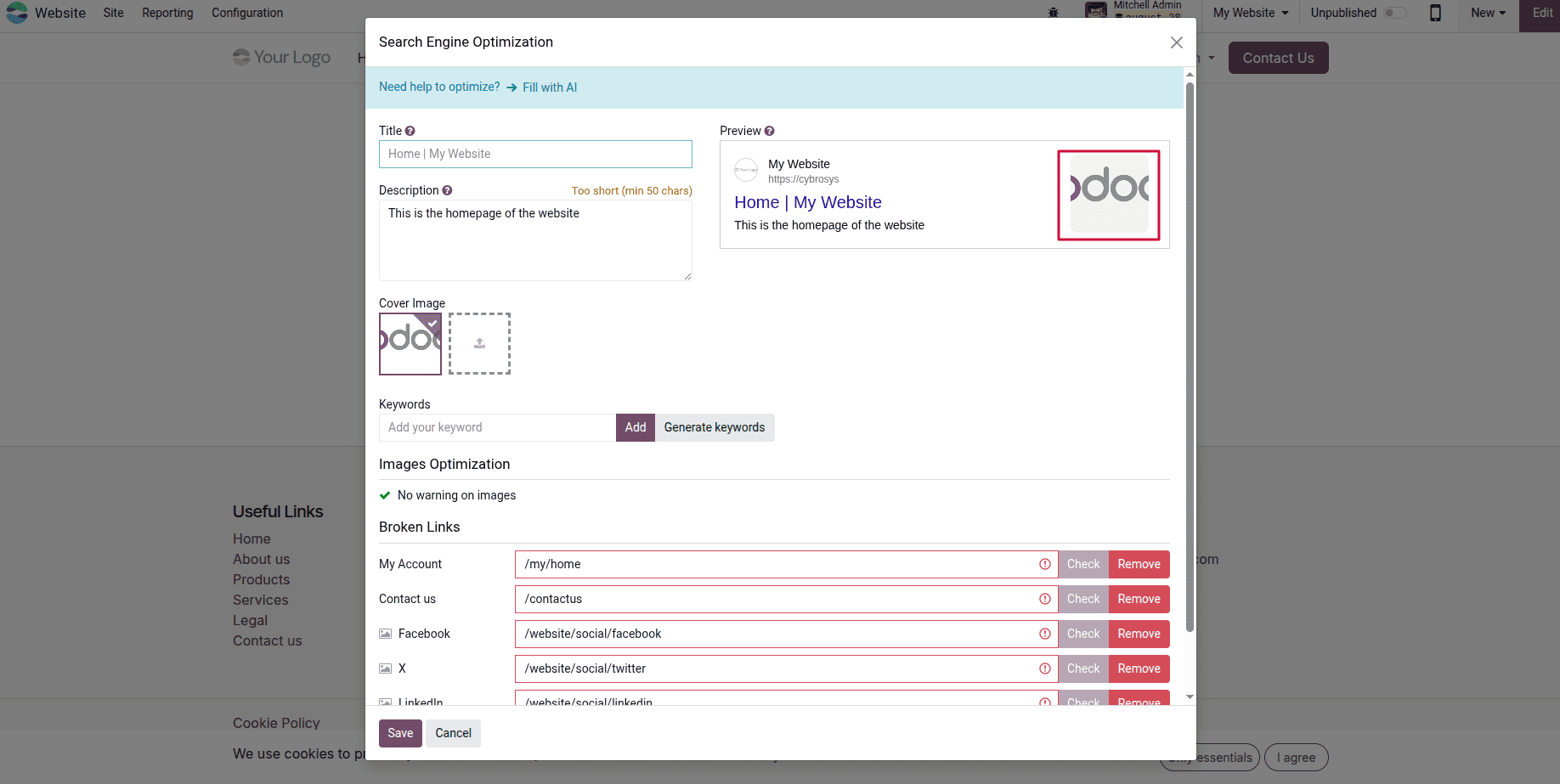
It recommended that you use images sized approximately 1200x630 pixels to make sure your social media share images appear properly. This follows Open Graph guidelines, which Facebook and LinkedIn use.
In summary, Odoo 19’s SEO tools provide a comprehensive set of user-friendly features that help businesses boost their website’s visibility and search engine rankings without requiring additional plugins.
To read more about How to Improve Odoo 18 Website Performance Using SEO Tools, refer to our blog How to Improve Odoo 18 Website Performance Using SEO Tools.