If you have used Odoo 20, you have definitely seen note fields in many places, like sales orders, products, CRM leads, and many more places. This rich text box is used to create beautifully styled content and is known as HTML field. It allows you to format everything from internal notes to product descriptions without writing a single line of code.
The HTML Field functions like a built-in word processor, which makes it easy to insert images, build tables, embed links, and apply text formatting. The interface is completely visual and easy to interact with, making it easy for anyone to design polished, engaging content. In this blog, we'll take a closer look at the HTML field features in Odoo 20, exploring their capabilities and demonstrating how they can enhance content management and streamline business communication.
What Are HTML Fields and Where Can You Find Them?
An HTML field is a special type of field in Odoo that lets you input HTML content. The HTML content can include text, images, links, styled text, tables, lists, and much more.
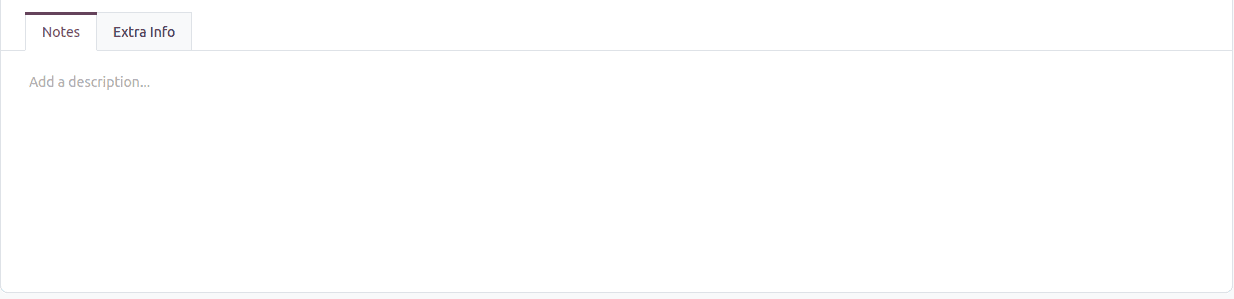
You'll find HTML fields in many places across Odoo:
- Product descriptions for your online store
- Internal notes on customer or sales records
- Email templates for marketing campaigns
- Knowledge base articles for your team
- Custom reports built with Studio
- Project task descriptions
- Website blog posts and pages
How to Format Text Like a Professional
After entering text into an HTML field in Odoo 20, you can select any portion of the content to access the formatting toolbar. This toolbar offers various styling tools to customize your text and enhance its overall appearance. Let's take a look at the available options.
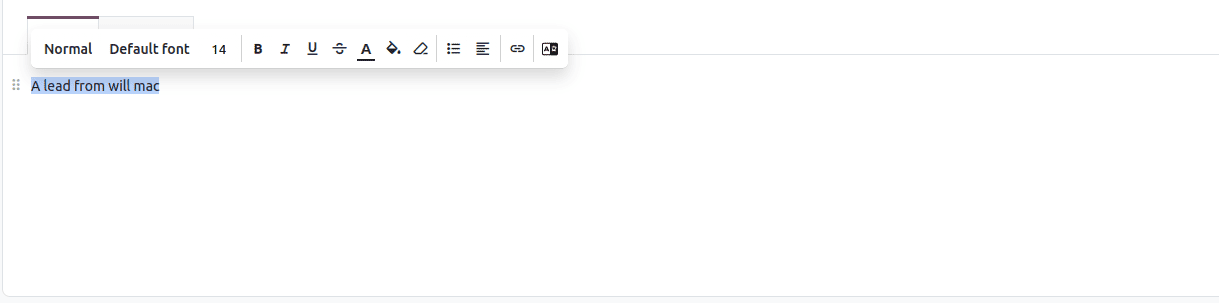
The text styling options include:
- Text Format: Format the selected text as Header, Quote, Code block, or Paragraph.
- Font: Apply fonts to the selected text.
- Bold: To make the text thicker.
- Italic: Slant text for emphasis or quotes.
- Underline: Add a line below text to highlight it.
- Strikethrough: Cross out text to show edits or changes.
- Font Color: Apply colors to the selected text.
- Background Color: Apply colors to the selected text background.
- Remove Format: Clear the current format applied to text, like font, bold, color, etc.
- Toggle List: Allows us to convert the text to a normal list or checkbox list.
- Align Text: Change the alignment of the selected line.
- Insert Link: Insert a link to the selected text.
- Translate: Translate selected text to English using Google Translate.
Working with headings and paragraph styles:
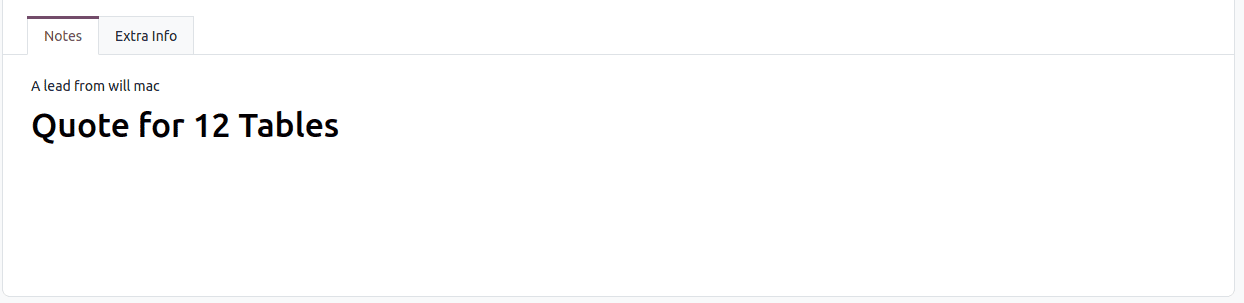
Headings help organize content and make scanning easy. Six different sizes of headings are supported in Odoo 20. The smallest is Header 6, and the largest is Header 1.
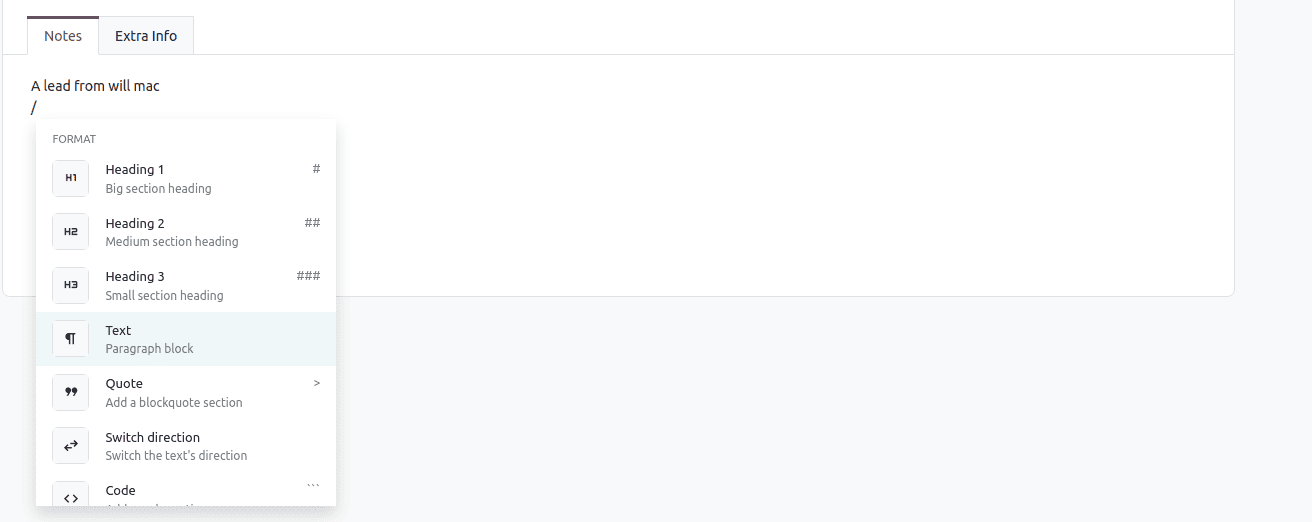
Text can be formatted in the form of regular paragraphs, code blocks, or quotation blocks as per your requirement.
Color use in your content:
Color draws attention to vital information and enhances visual appeal.
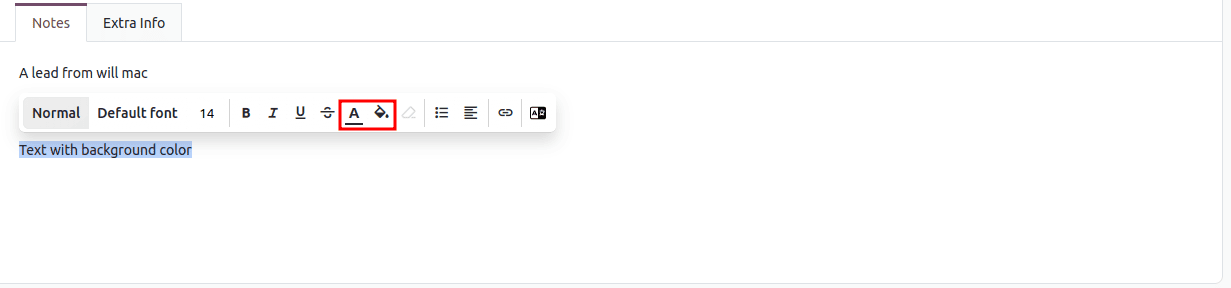
Colors for both background and text can be changed in Odoo 20.
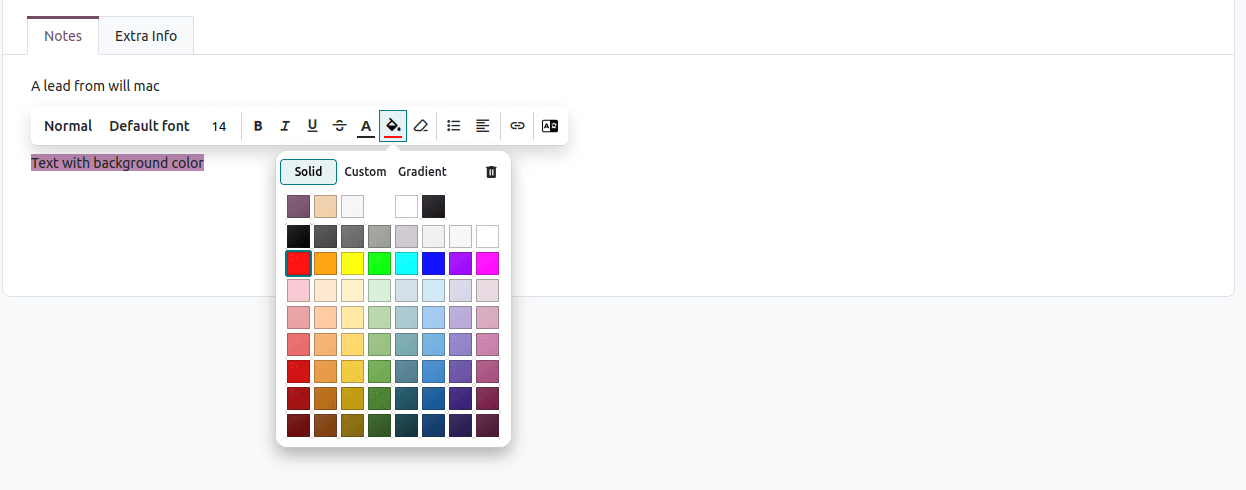
- Pick colors from the color palette
- Make your own colors through the color wheel
- Use hex codes that you know
- Create amazing gradients for a modern touch
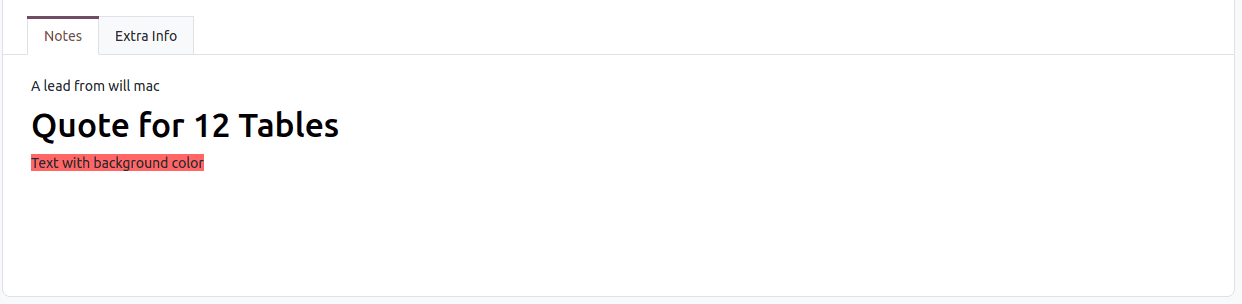
One of the notable aspects is the Gradient function. The options you can choose from include Radial Gradient (colors coming from the center) and Linear Gradient (colors coming from one direction).
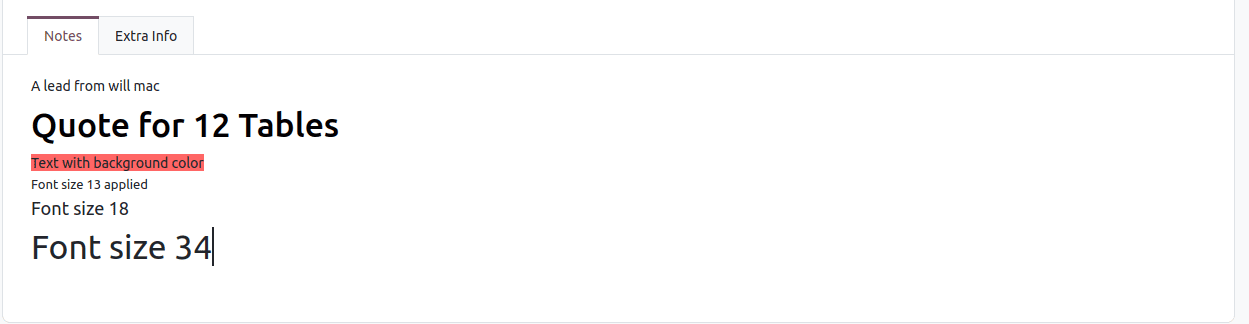
Font size:
If you want to change the font size, it is possible using the font size function.
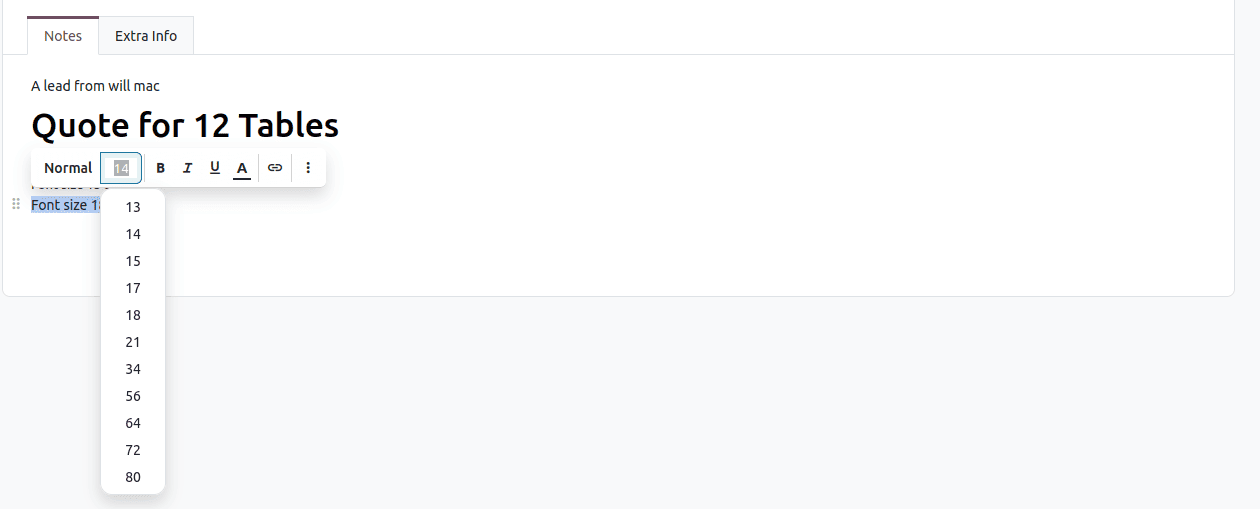
Small text is ideal for providing extra information; however, bigger text tends to attract attention easily.
Lists for Improved Information Management:
Lists play an essential role in organizing information. They break down complicated ideas into more manageable segments. There are three types of lists in Odoo 20 that have various uses.
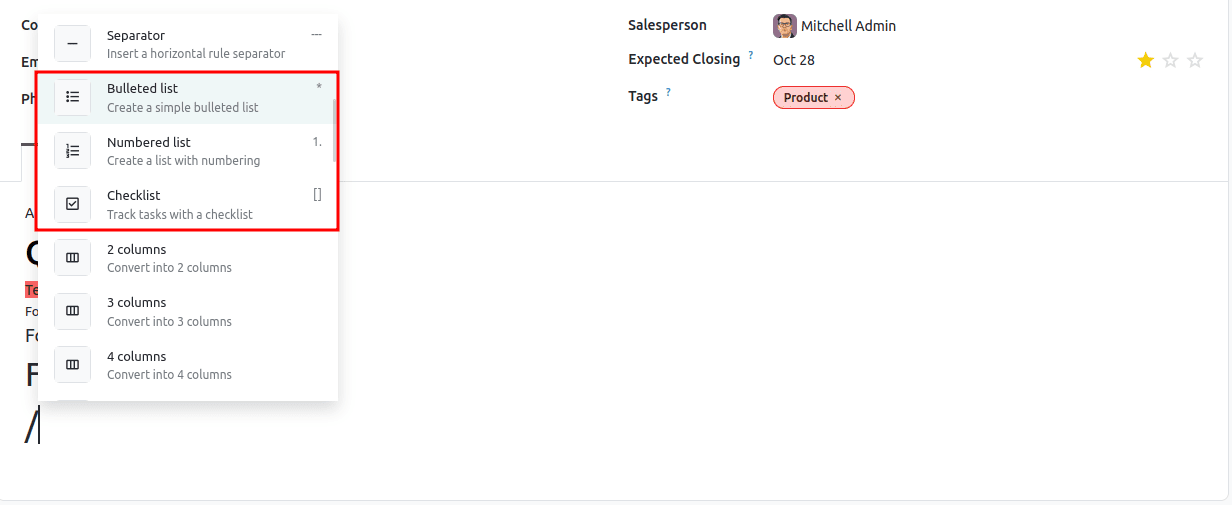
Bulleted Lists
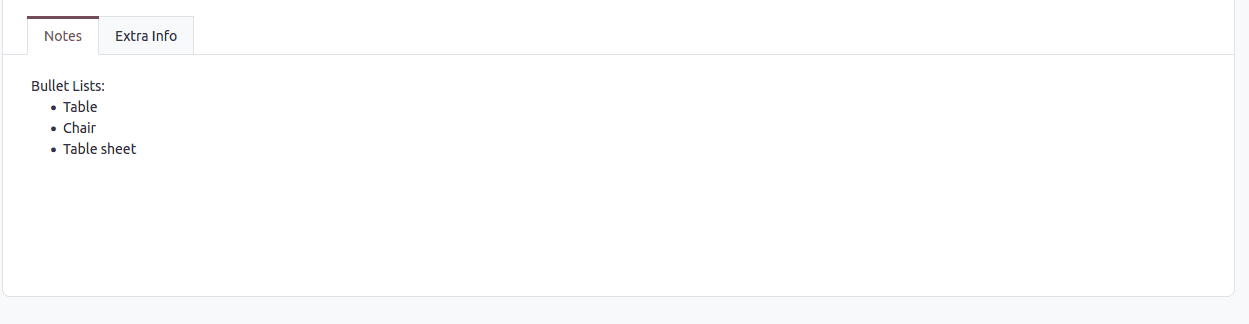
In cases where you need to group items in no specific order, you should use these lists. You may employ them when you need to summarize benefits, list features, or group equal items.
Numbered Lists
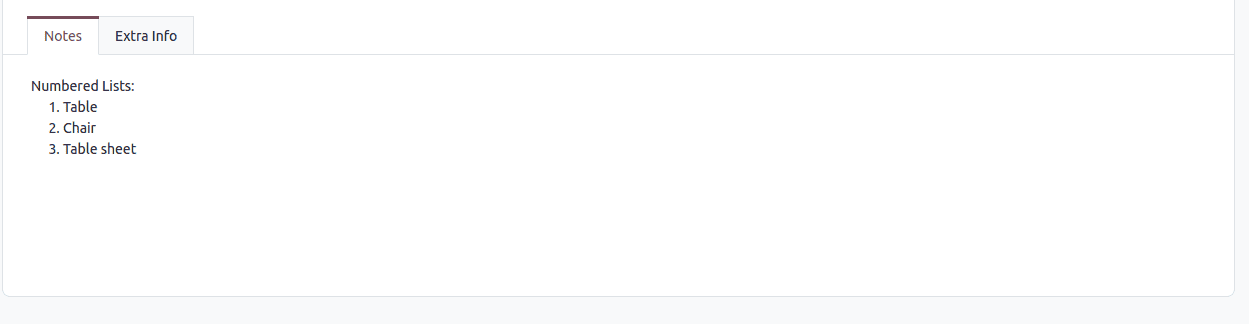
For tasks that involve order, these lists will work best. These lists can be used when providing steps in detail, ordering items, or demonstrating the process of completing something in a certain order.
Checklists
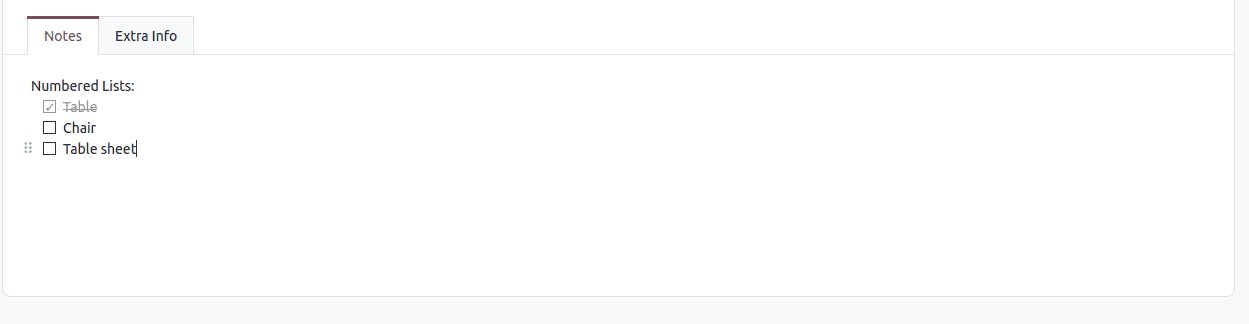
Items on such lists can be marked off after completion. The lists are very useful when listing requirements, task lists, and any case where you would like to track completion.
Time-saving ways to create items:
- Enter 1. or 1) followed by the space bar to create a numbered list immediately.
- Enter * or - followed by the space bar to create a bulleted list.
- These techniques help save time and keep you focused on writing.
Including Media and Attachments
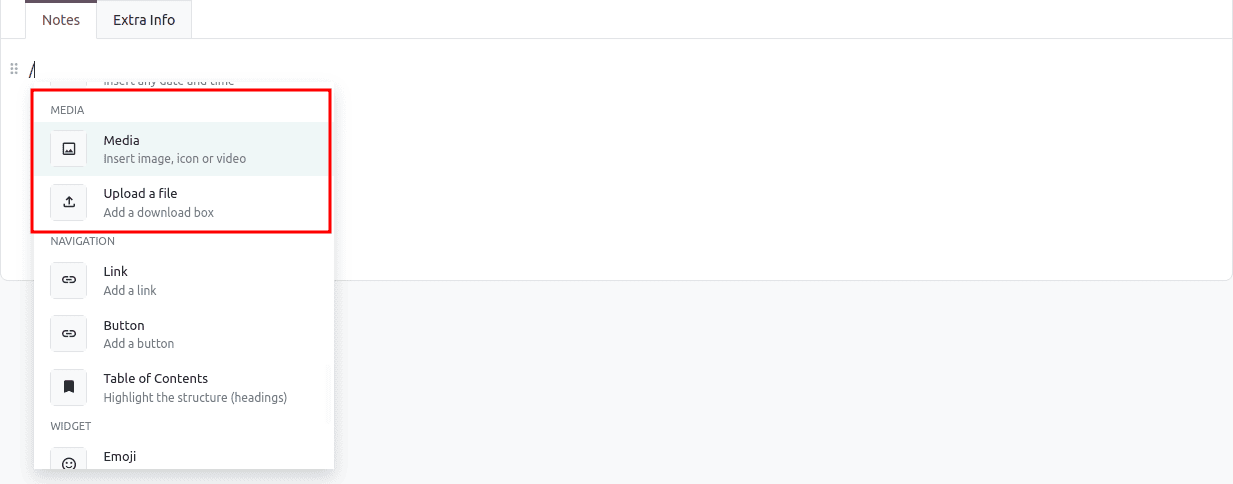
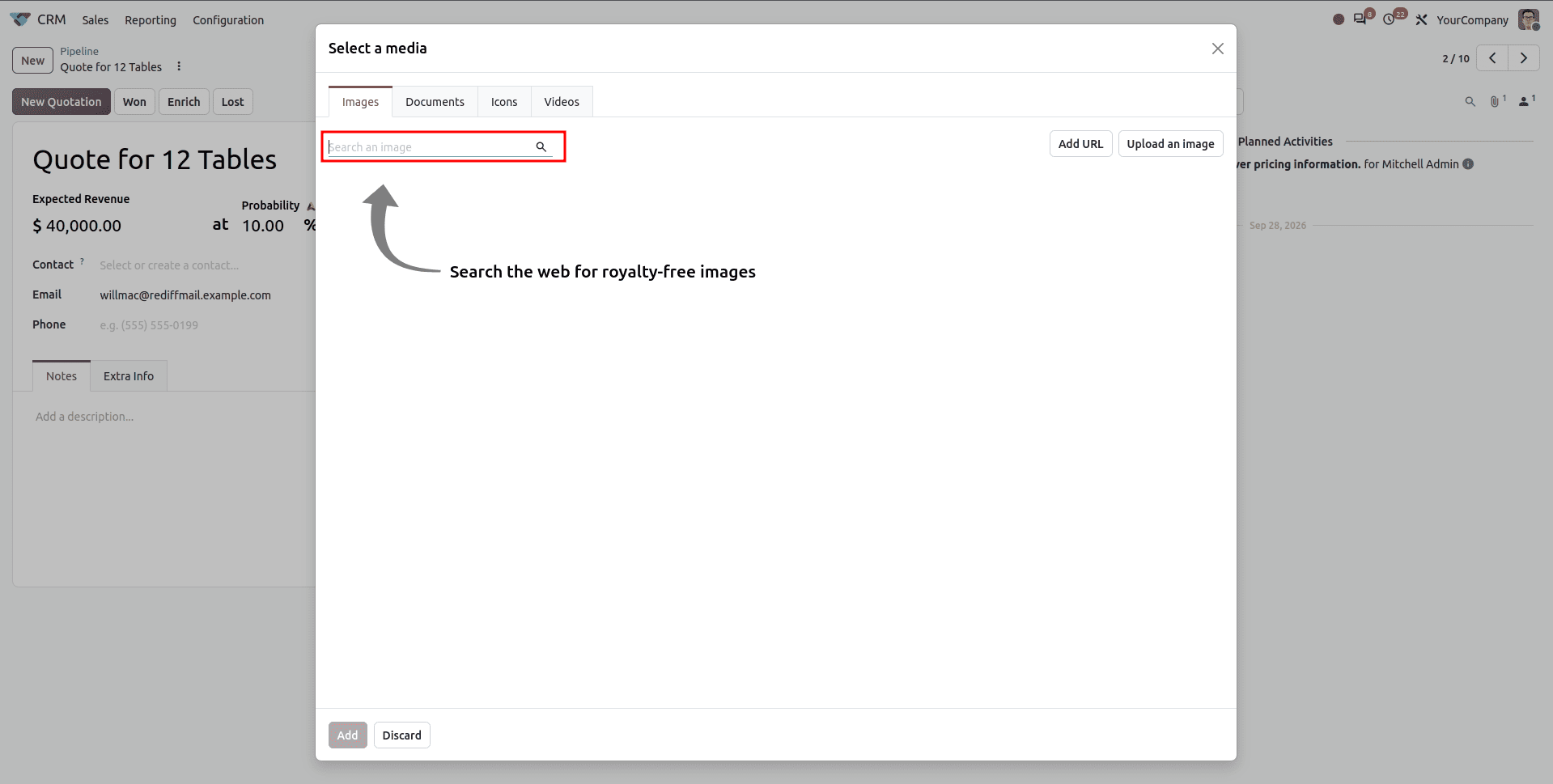
Your document will be much easier to understand and more attractive when pictures are included in it. Including and editing pictures in HTML fields has been made easy with Odoo 20.
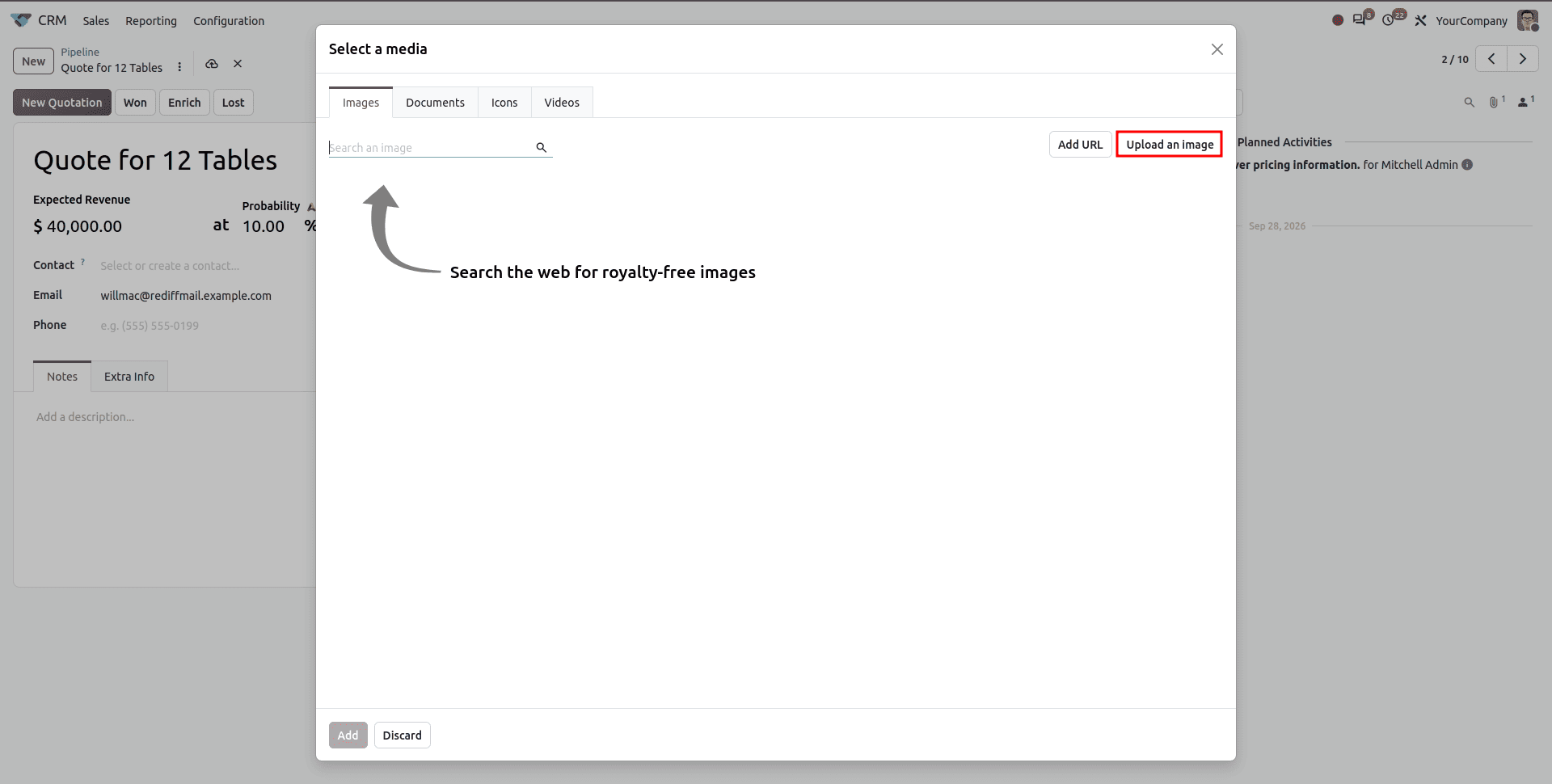
Three methods for inserting an image:
- Upload an image from your computer: The image should already be saved on your computer
- Image from URL: Insert the link of the image available on the web
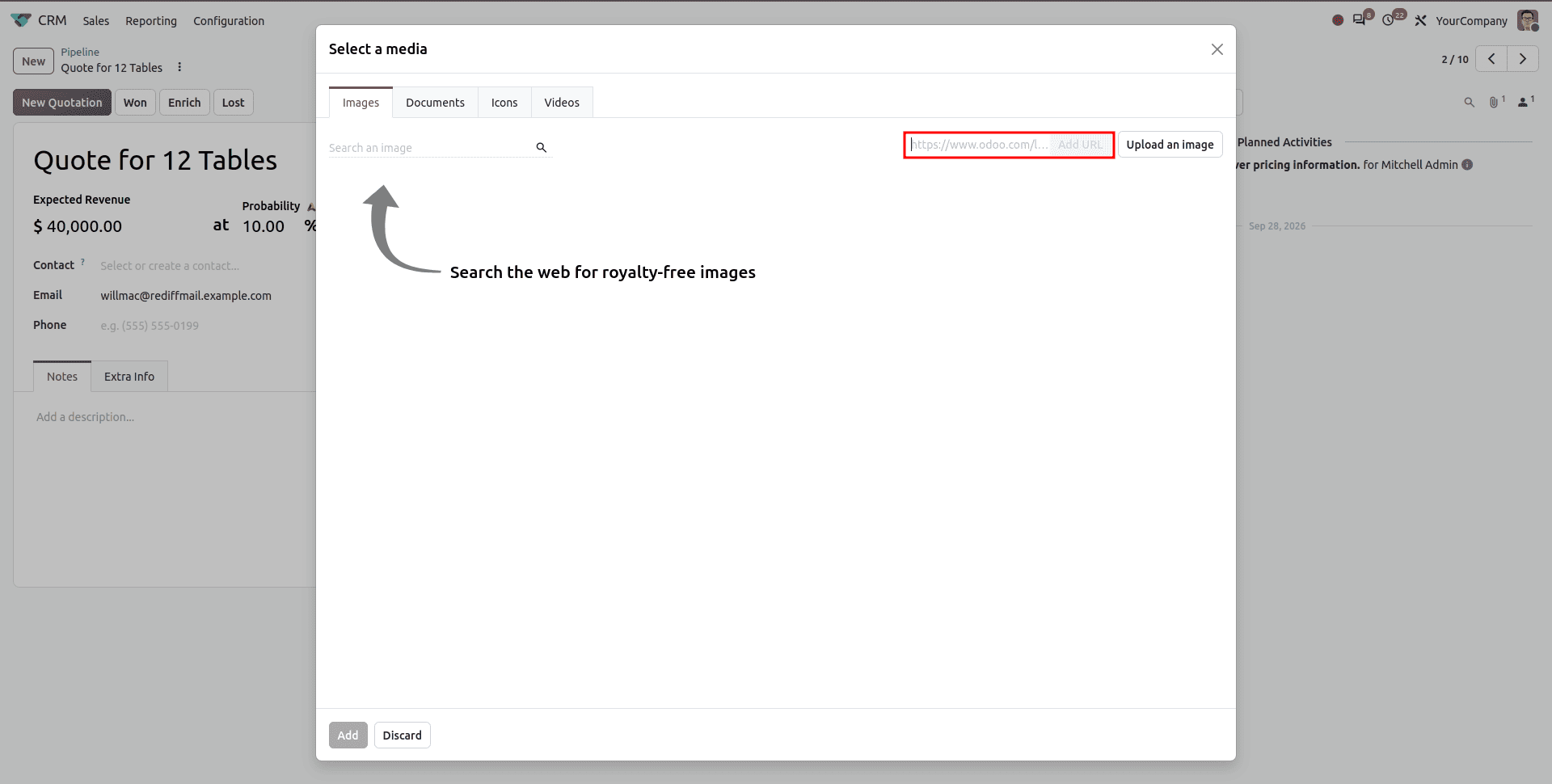
You can insert documents, files, and icons through the icon library.
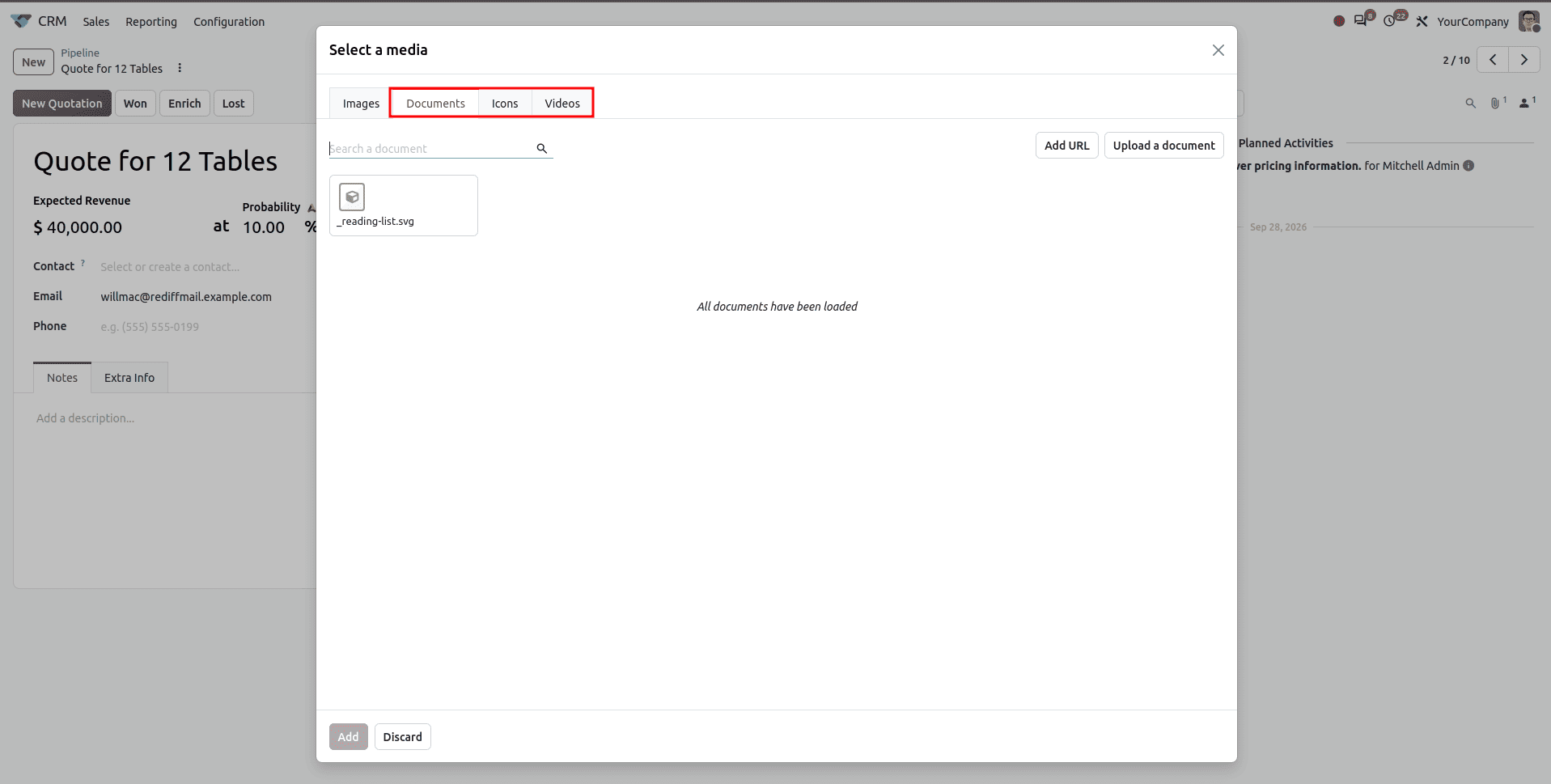
Customization of images:
When you insert an image, you can edit it. Below are some of the things you can do when editing the images.
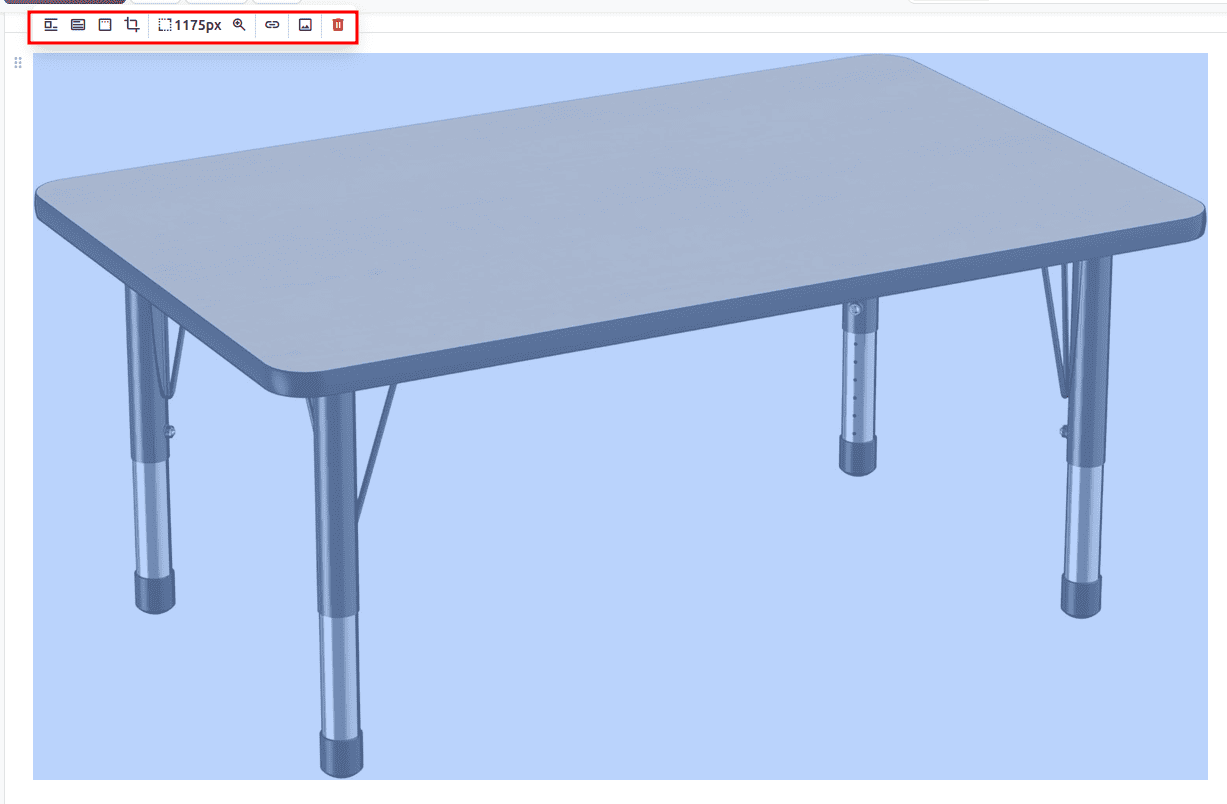
- Zoom in and preview: You will be able to download, view the images in full-screen mode, or zoom into the images to see more details.
- Use shapes: Get images rounded by making them perfect circles or rounding the corners.
- Effects can be added: It is possible to add border and shadow effects to make the images more prominent.
- Edit distances: Images can be padded in terms of size, which can be either small, medium, large, or extra-large.
- Image resize: Images can be resized to 100%, 50%, or 25% width.
- Edit freely: It is possible to resize and rotate images.
Cropping the image needs special attention.
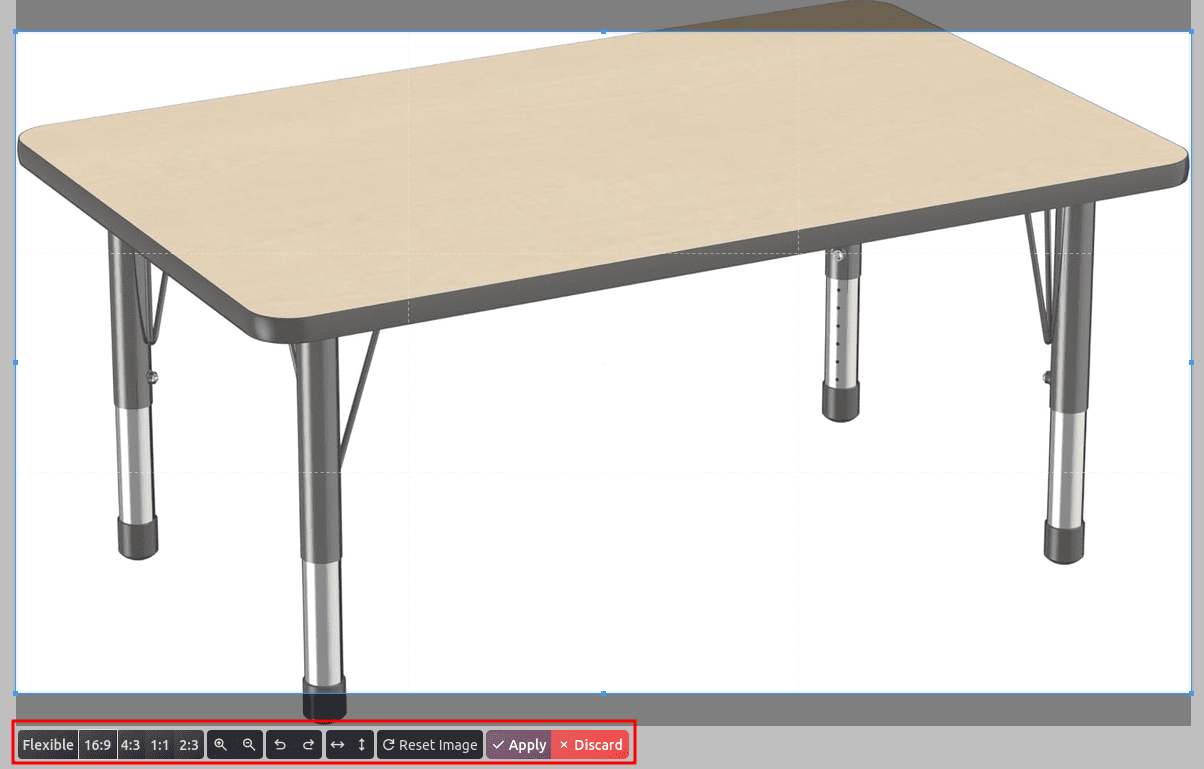
Aspect ratios like 16:9 for videos, 4:3 for presentations, 1:1 for squares, or 2:3 for portraits are in addition to the manual cropping. You will also be able to rotate, flip horizontally or vertically, and zoom in or out before cropping.
Working with Tables and Structured Data
Using tables helps you organize information into rows and columns, thus making the complicated data simpler. You can create a table using the powerbox tool or from the toolbar.
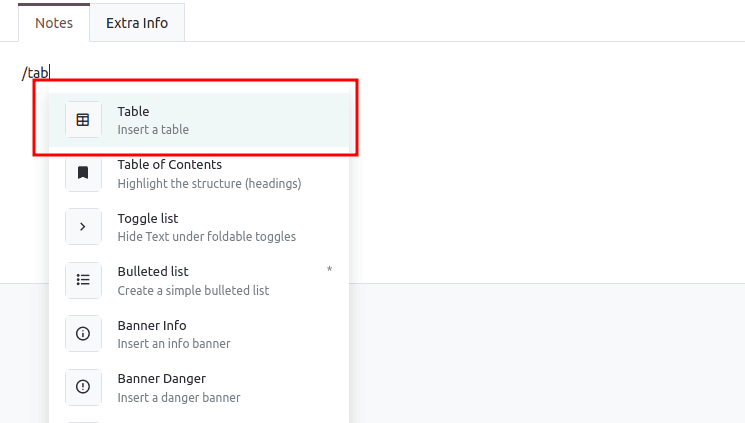
Once your table is set up, hovering over either columns or rows will display options for management.

Rows or columns can be inserted, deleted, or even rearranged within a worksheet to organize the data you need.
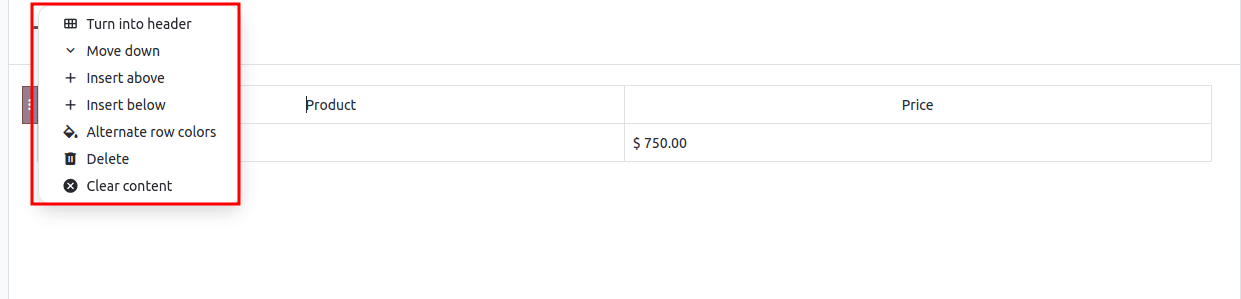
This gives you the ability to start with a basic table and then add on as your requirements change.
Features for Saving Time
Odoo 20 comes with a number of intelligent features which save your time and make content quality better.
Drag and Drop feature:
Take a look at the small drag feature that is displayed whenever you hover your mouse over any object.

Just hold down this icon and drag entire parts of text, pictures, or any section of the content without copying or pasting anything.
Keyboard Shortcuts for quick action:
Ctrl/Cmd + B - Bold Text
Ctrl/Cmd + I - Italic Text
Ctrl/Cmd + U - Underline
Link management:
Links connect your content with other content in the form of web pages, other documents or web pages. Just select your text and click on the link button, add the URL, and click Apply.
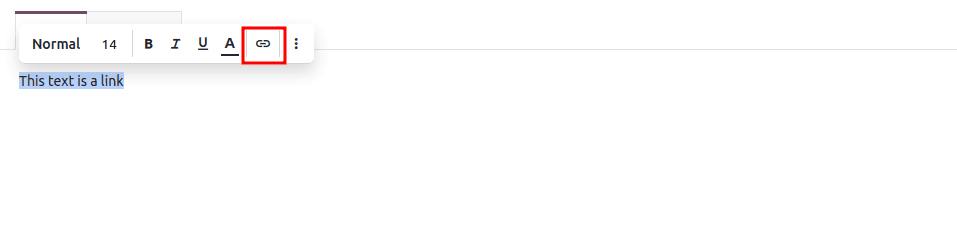
When the text is chosen, these options become available.
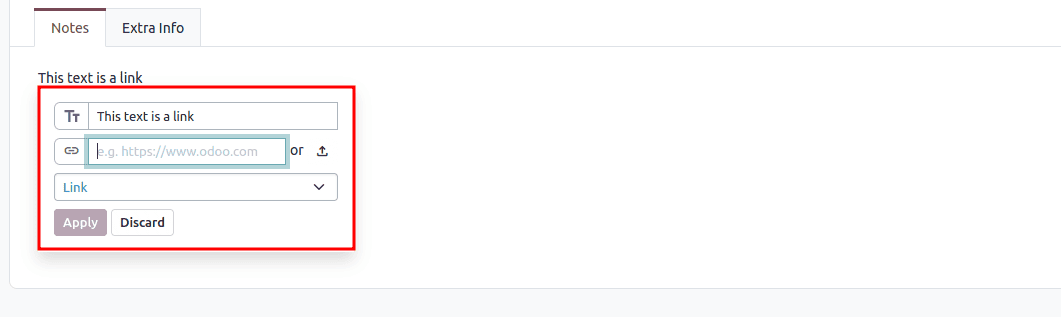
This allows us to enter a placeholder title and URL, select the format type, and press Apply.

Linking is possible to an external website, an Odoo page, a document, or even an image. To unlink at any time, click the Unlink button.
AI-powered writing assistance:
Odoo 20 comes with AI tools that can help you write better.
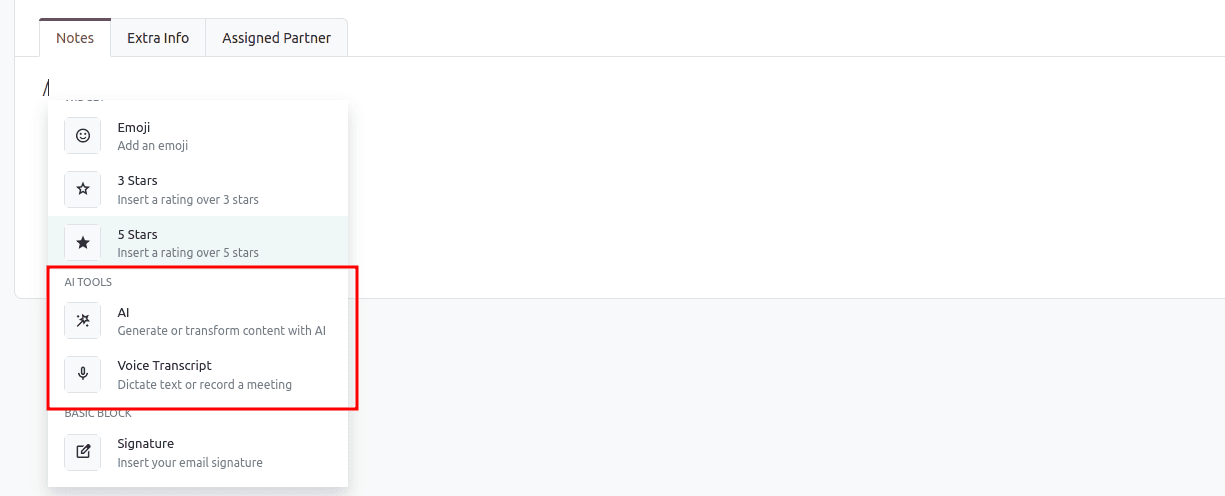
You can automatically fix any errors in grammar, make the text shorter or longer, and set the tone from friendly to formal or persuasive.
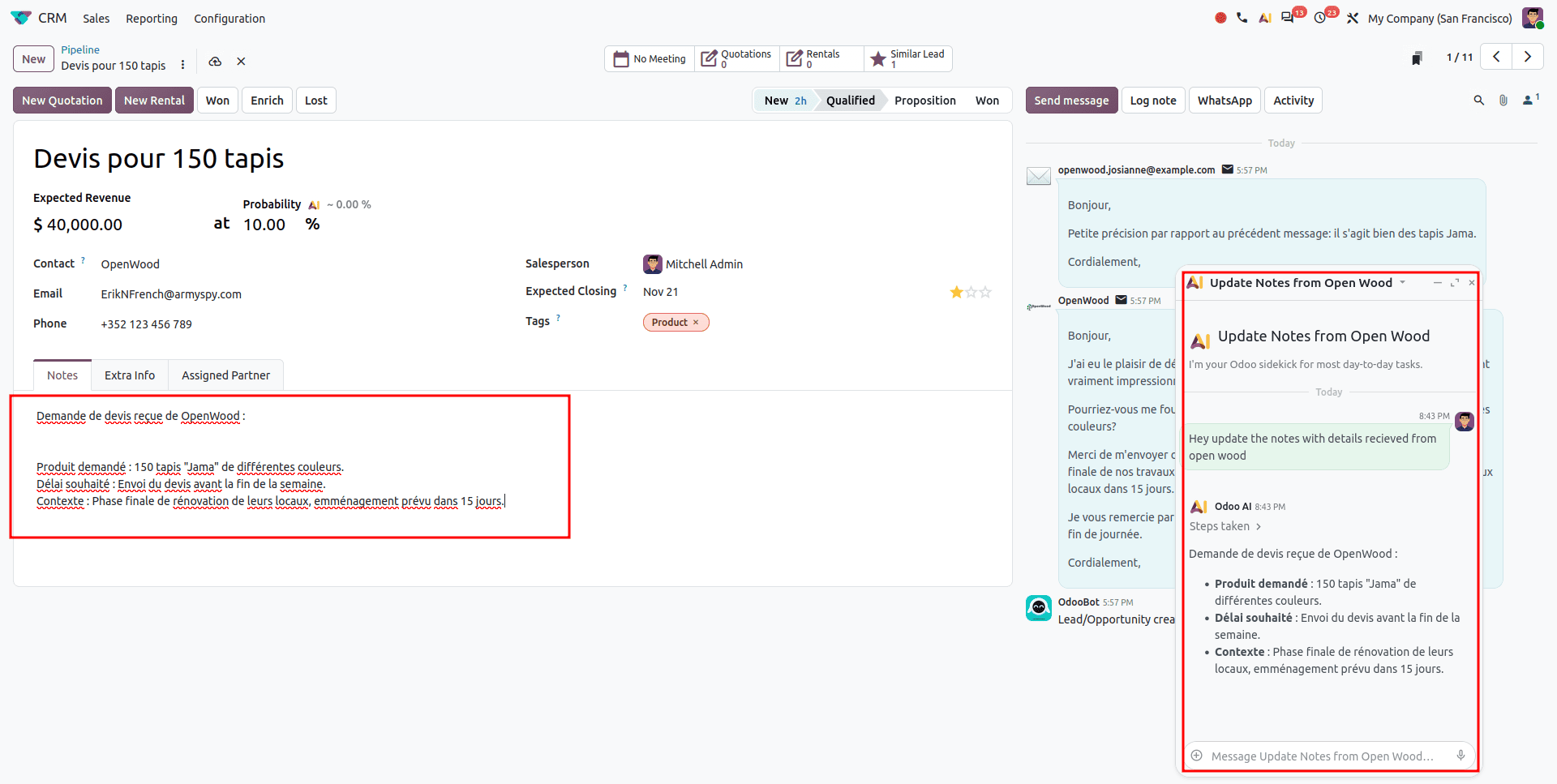
This is especially helpful when you want to adapt the content for various audiences.
Translation tools:
The translation function is especially useful for companies that operate in several countries at once.
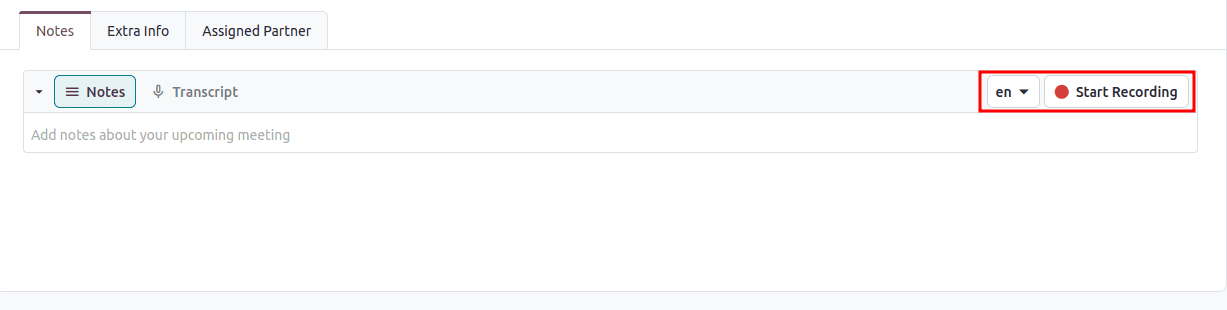
This enables you to translate your content straight away from the HTML editor into the required language that is installed in your Odoo platform.
Here is the updated content designed to seamlessly transition from your existing user-facing user guide into the technical/developer section, replacing or updating the conclusion and FAQ sections as appropriate.
HTML Field Implementation and Customization (Developer Guide)
Whereas Odoo’s rich text interface allows end users to create their well-formatted rich text content via user interface, sometimes developers needs to implement or customize their HTML fields in custom modules, QWeb report templates and workflows.
The following article is a comprehensive developer guide for HTML fields implementation and customization in Odoo using Python and XML code.
1. Definition of HTML fields in Python model
To use a rich text editor in your custom module, you will have to define your field as fields.HTML in your Python model.
It is strongly advised when implementing HTML fields for end users to set up security-related parameters such as sanitize.
from odoo import models, fields
class CustomModel(models.Model):
    _name = 'custom.model'
    _description = 'Custom Model with Rich Text'
    notes = fields.Html(string="Internal Notes")
    public_description = fields.Html(
        string="Public Description",
        sanitize=True,
        sanitize_tags=True,
        strip_style=False
    )
2. HTML Field Definitions in XML Form View Definitions
The rich-text editor can be displayed on the UI by declaring the field in the XML form view definition.
It is also possible to define view options such as options="{‘codeview’:true}", which provides a toggle button for inspecting raw HTML code inside the editor toolbar.
<record id="view_custom_model_form" model="ir.ui.view">
    <field name="name">custom.model.form</field>
    <field name="model">custom.model</field>
    <field name="arch" type="xml">
        <form>
            <sheet>
                <group>
                    <!-- Standard rich-text text editor -->
                    <field name="notes" placeholder="Enter notes here..."/>
                </group>
                <notebook>
                    <page string="Description">
                        <!-- Full-width HTML field with HTML code inspector enabled -->
                        <field name="public_description" options="{'codeview': true}"/>
                    </page>
                </notebook>
            </sheet>
        </form>
    </field>
</record>
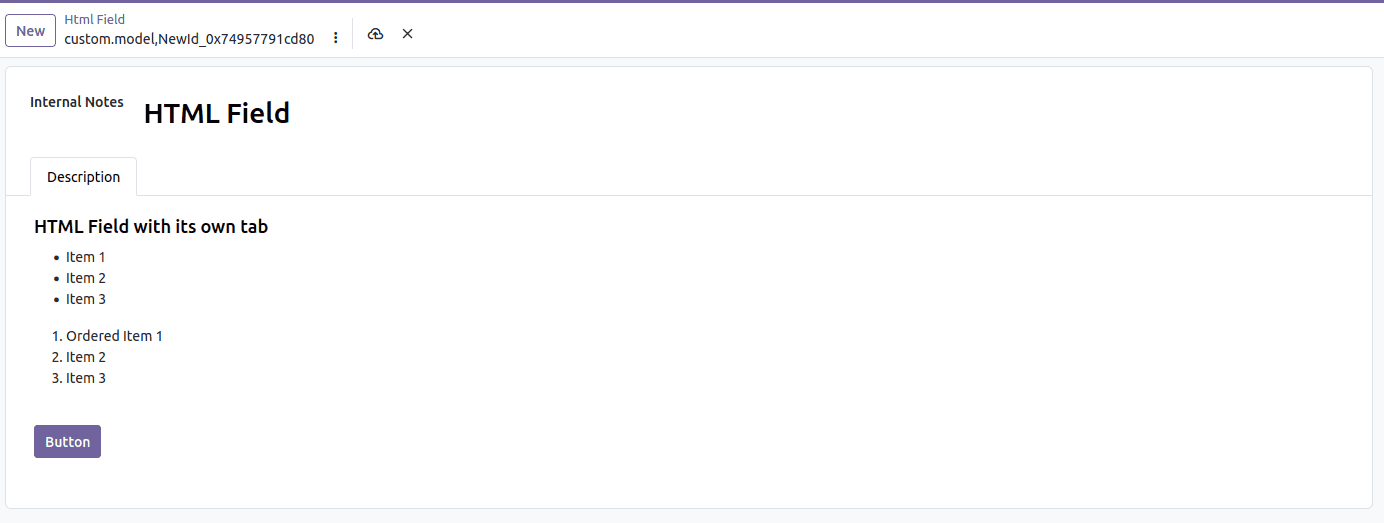
The notes field is shown on the layout form as an HTML input that accepts rich text inside the top group section. Beneath it lies the notebook section within the "Description" tab containing the `public_description` field, which is an HTML editor field that spans the whole width of the form view with a toolbar included.
3. Dynamically Generating HTML Using Python Codes
In the case where HTML tags are used within a Python function for an HTML field, the HTML string may become escaped and hence displayed as text instead of being treated as HTML.
In order to make sure that Odoo parses the tags and displays them as expected, you need to use the Markup object from markupsafe.
import markupsafe
from odoo import models, fields, api
class CustomModel(models.Model):
    _inherit = 'custom.model'
    def action_generate_html(self):
        for record in self:
            # Wrap the raw string in Markup so Odoo renders the HTML tags
            html_content = "<div><strong>Status:</strong> <span style='color: green;'>Approved</span></div>"
            record.notes = markupsafe.Markup(html_content)
4. Rendering HTML Fields in QWeb Templates & Emails
If you have to use the HTML field within a custom QWeb PDF report, website templates or email templates, the output directive will escape your formatting.
Odoo 20 HTML fields are a revolution in content creation and management. They offer you a powerful set of formatting options without any necessity to have special technical skills. With the help of such options, you can improve your communication efficiency when creating product pages, documenting anything, writing marketing emails, and managing the knowledge base.
It is always useful to start from simple things like lists and text formatting and proceed to such complicated features like images, multi-column formatting, and even AI. You will definitely become faster and more confident using HTML fields.
Don't forget that good content always has smart formatting. Use headings for information structuring, lists for simplifying difficult concepts, images for illustrations, and colors to highlight the most important things. Everything you need to create professional content and to advance the goals of your company can be found in Odoo 20 HTML fields. Give it a try and see how Odoo content will change!
To read more about How to Use HTML Fields in Odoo 19, refer to our blog How to Use HTML Fields in Odoo 19.