In Odoo 19, AI moved from the background to the foreground and into the hands of the end-user. A great example of this change is the AI Field type introduced in Odoo Studio, a no-code tool that allows you to create content automatically by simply describing what you want, rather than by typing data in by hand. This guide explains what AI Fields are, how to set them up, and how to benefit from them in your day-to-day operations.
AI fields
AI fields allow users to directly use Odoo's built-in AI capabilities within forms and records, where an AI field can automatically generate or suggest field values based on the current record, data available, and contextual information, especially useful for generating product descriptions, summarizing notes, and turning unstructured information into structured data, saving time and ensuring consistency.
Adding a new AI field
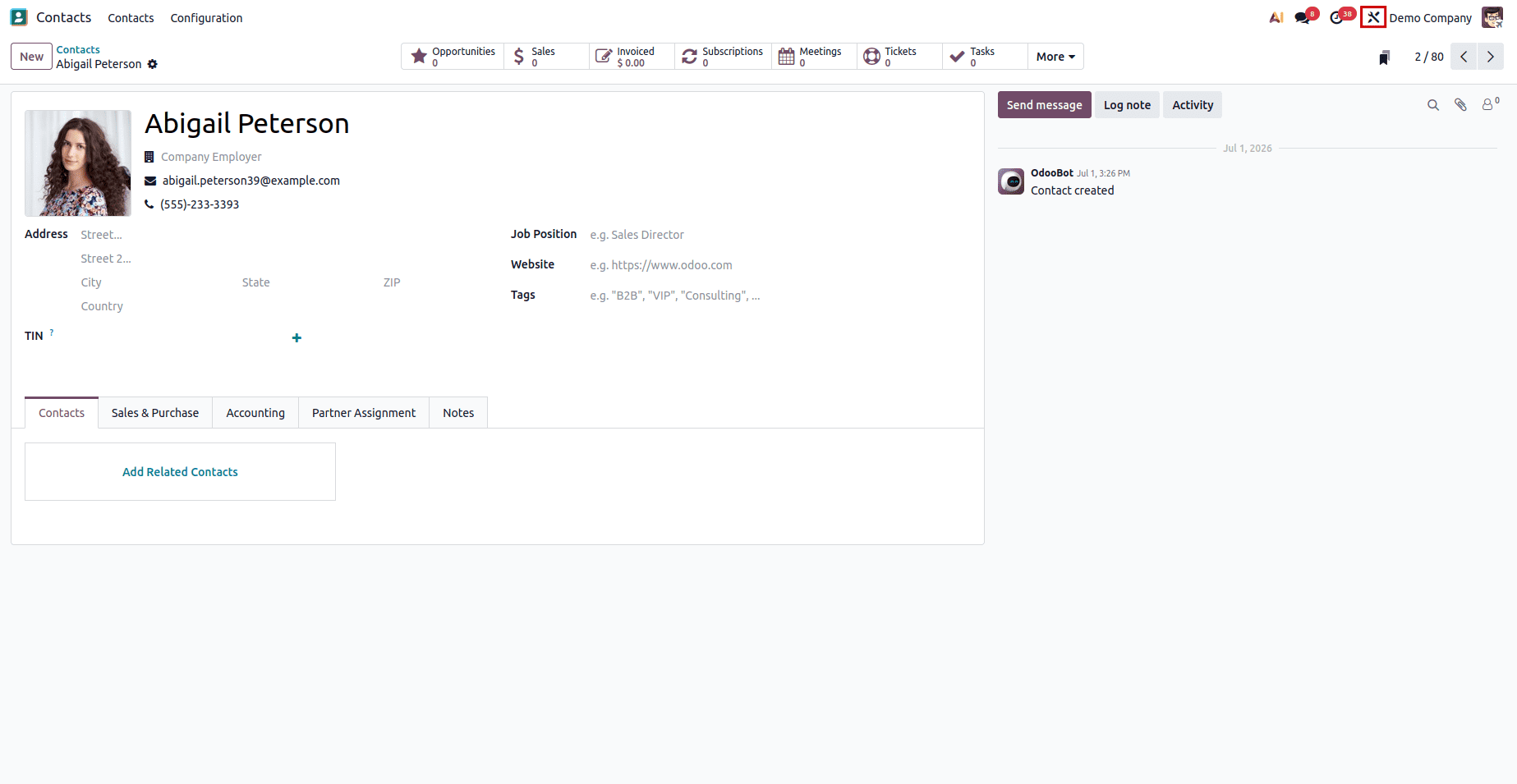
Through the studio module, the AI field is expanding. After installing the studio module, you can open the studio by clicking its icon. You can also install the AI module.
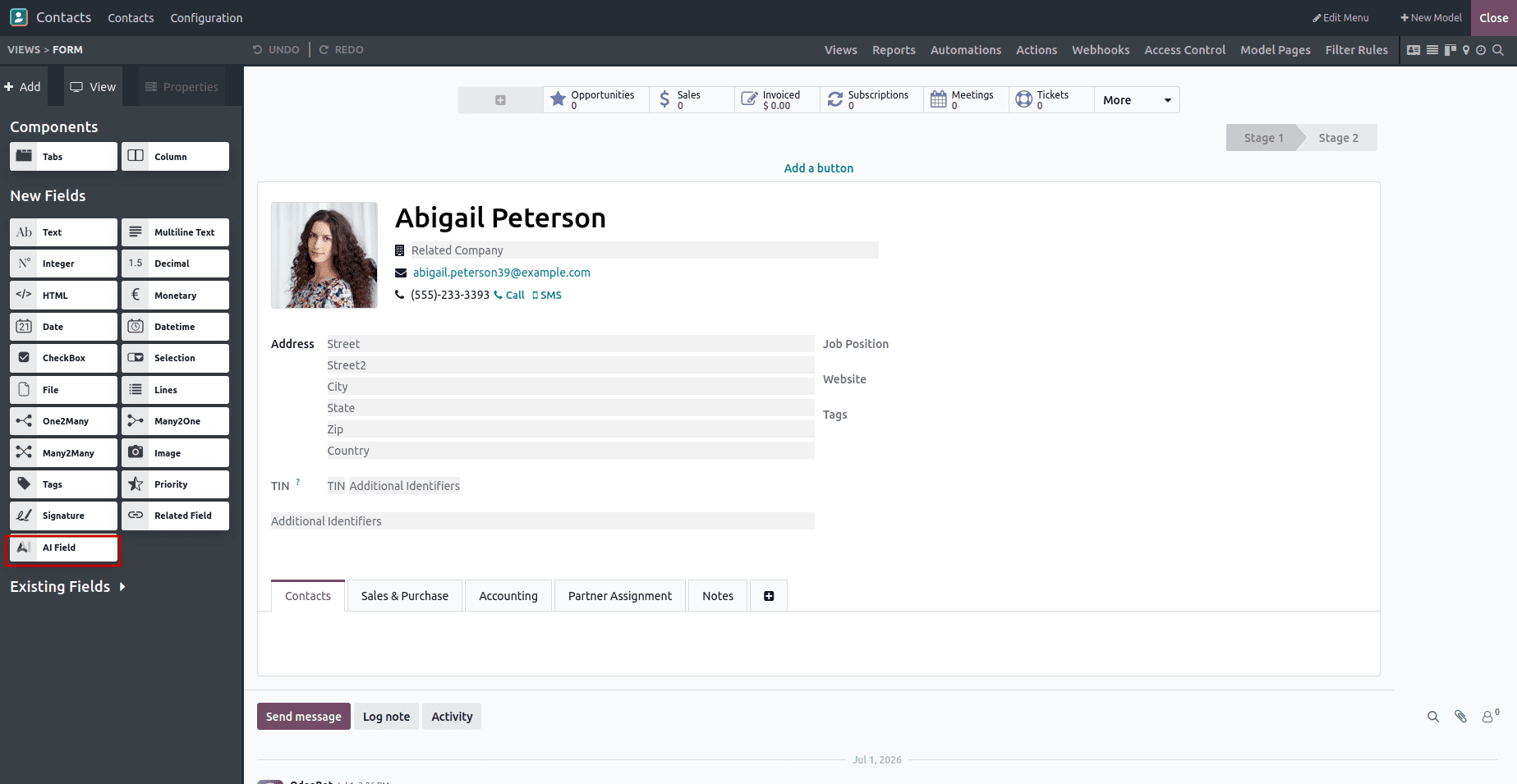
The AI field is located in the New Fields section of the left side bar. Select this AI field, then drag it to the record's desired location.
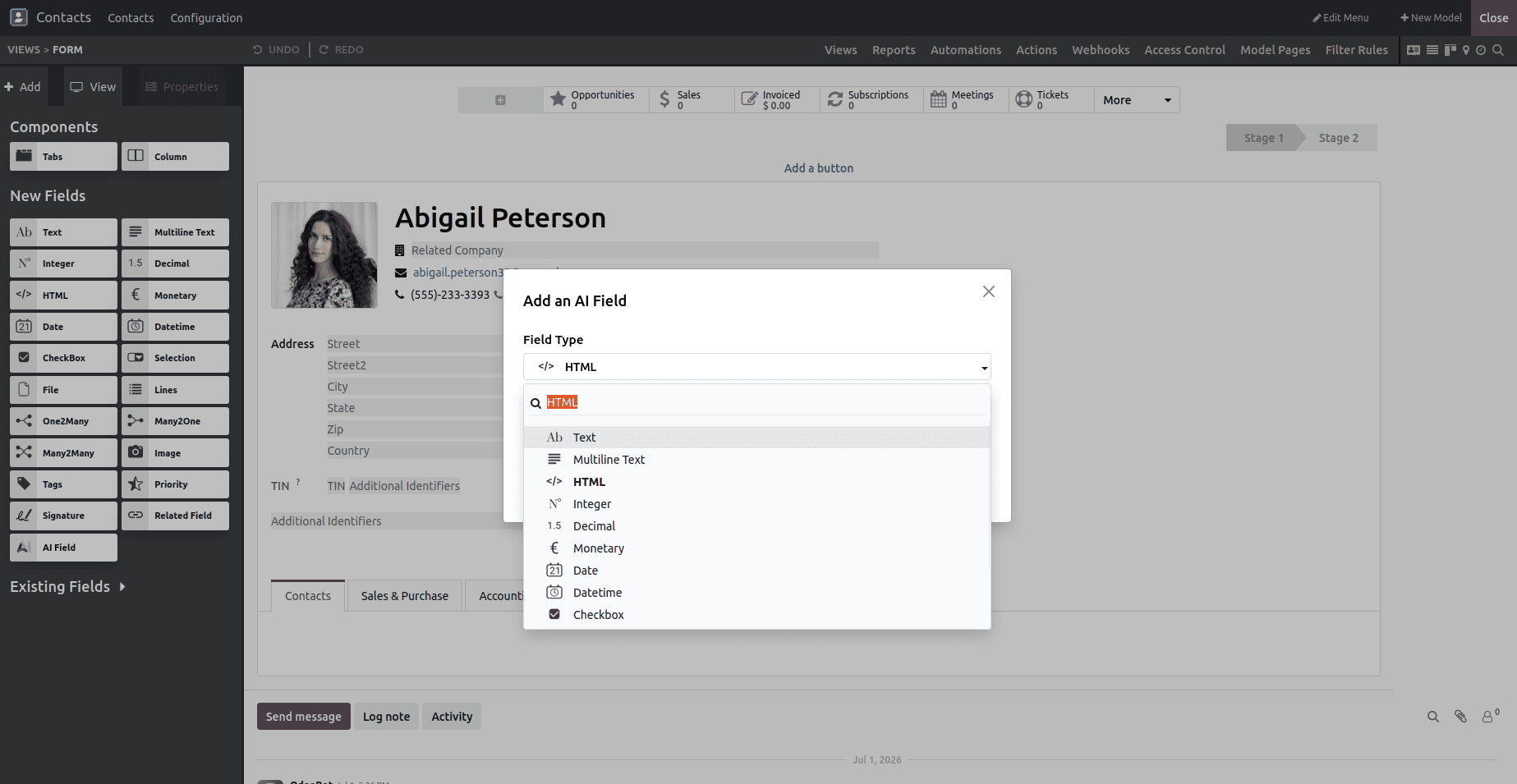
After finding the new AI field and choosing the field type.
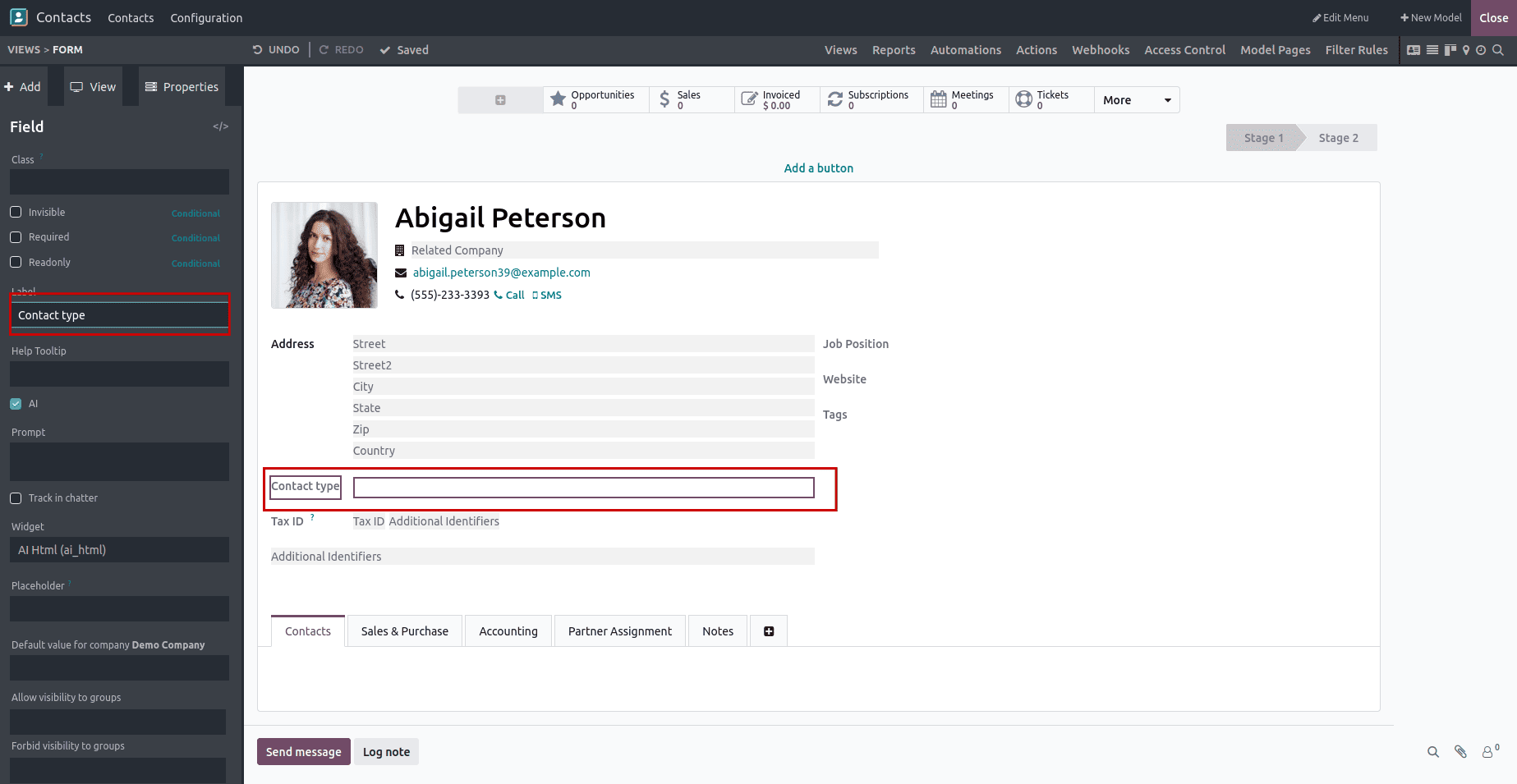
Then, add the label for the field here. I added the contact type as the field's label.
The AI field prompt should then be added. Here, I'll add the prompt based on the tags, after which you can enter the slash (/) to add the field selector. Click the insert button to add the selector after selecting the tag, then click the save and generate buttons.
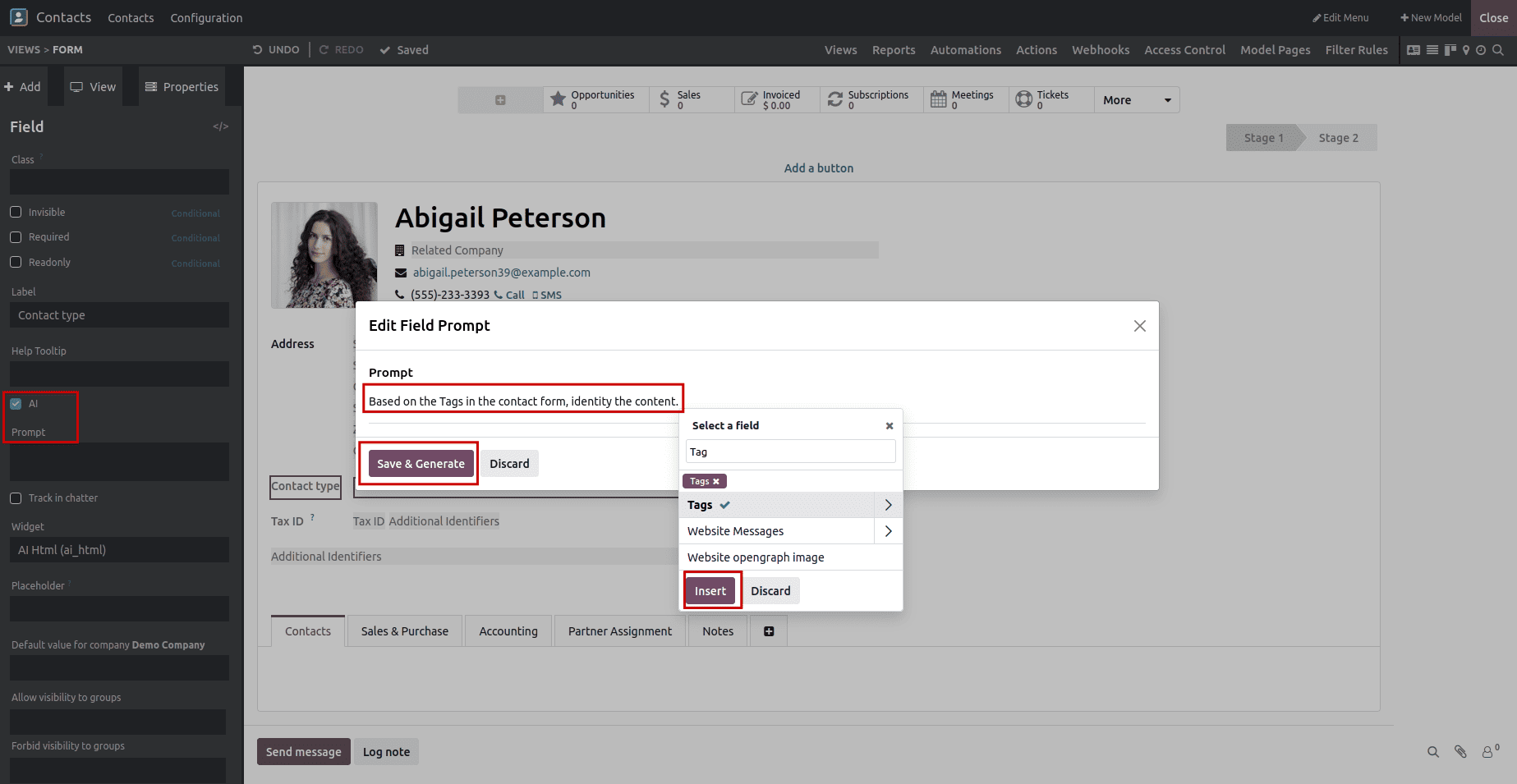
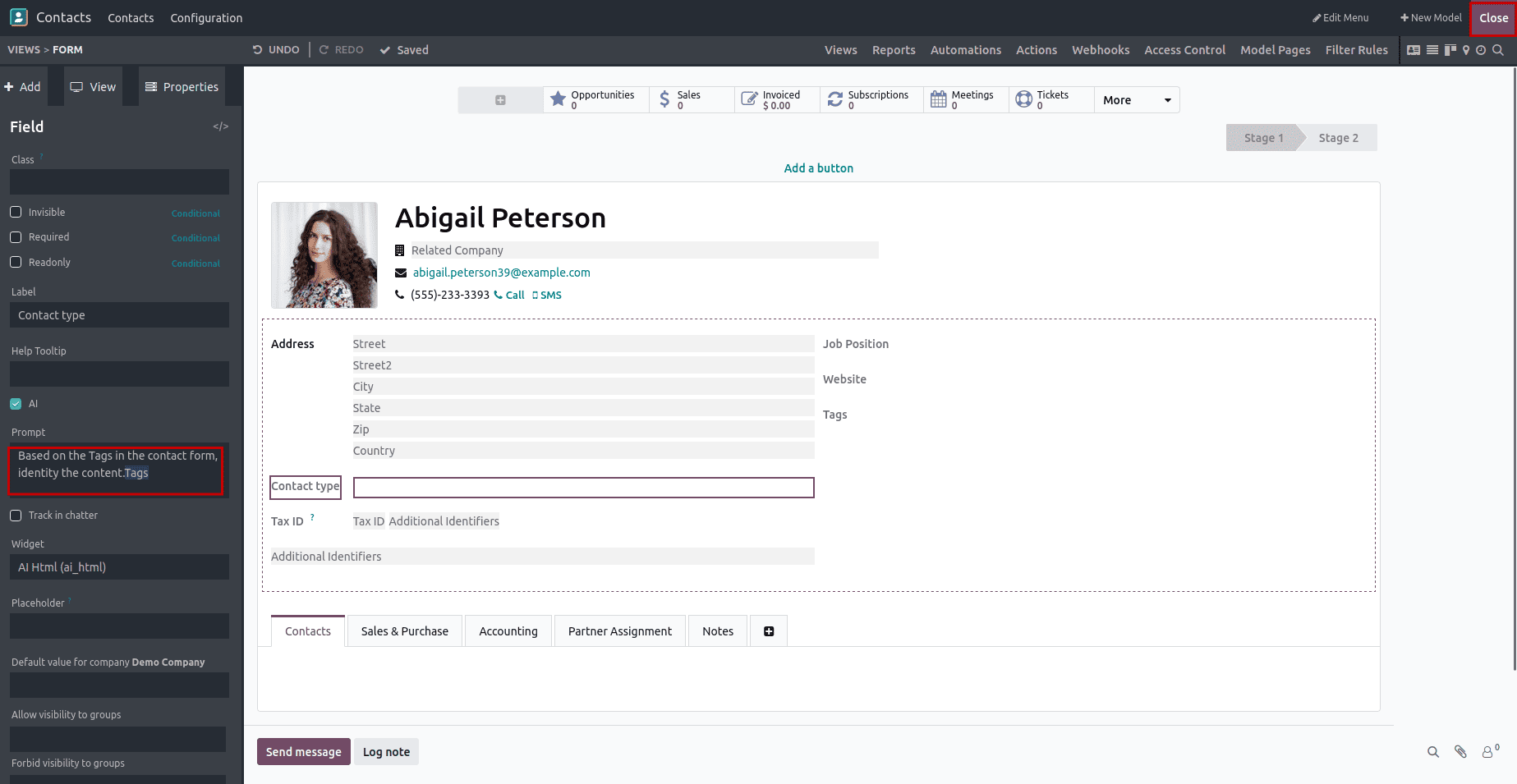
In the studio, we can add a prompt that displays the AI field property. The AI field value is generated based on the tag field. After that, click the close button.
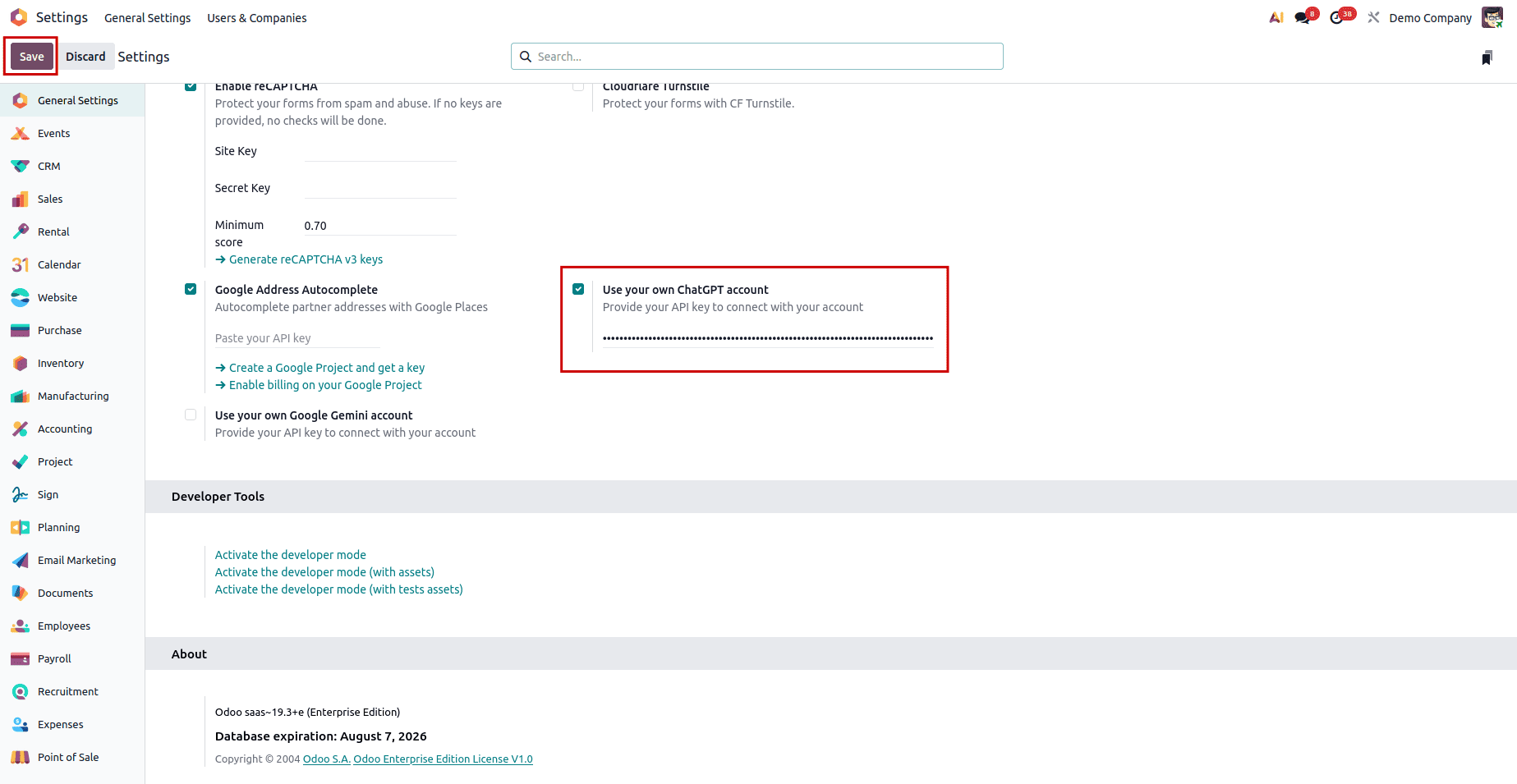
After setting up the AI API key in the settings, save it.
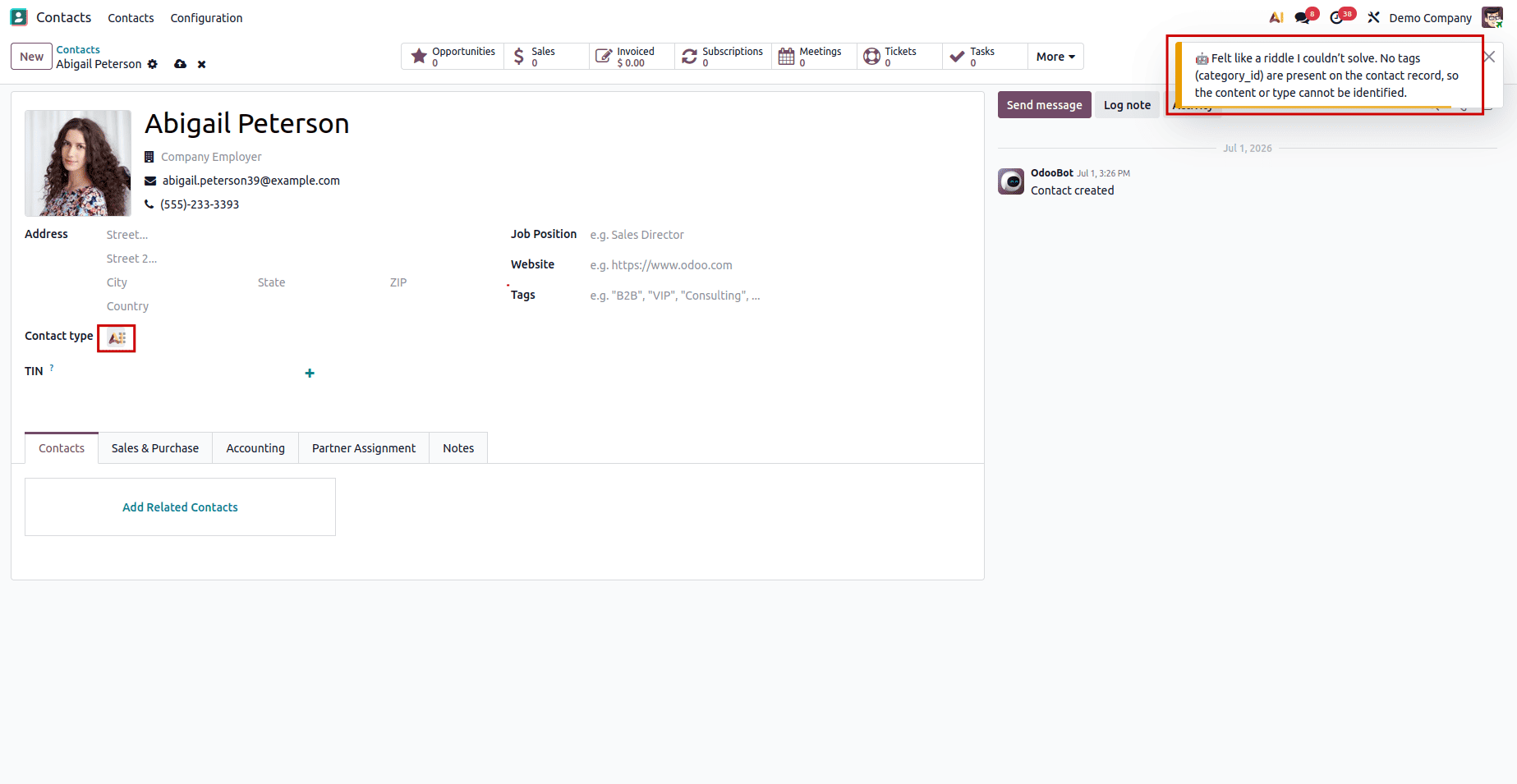
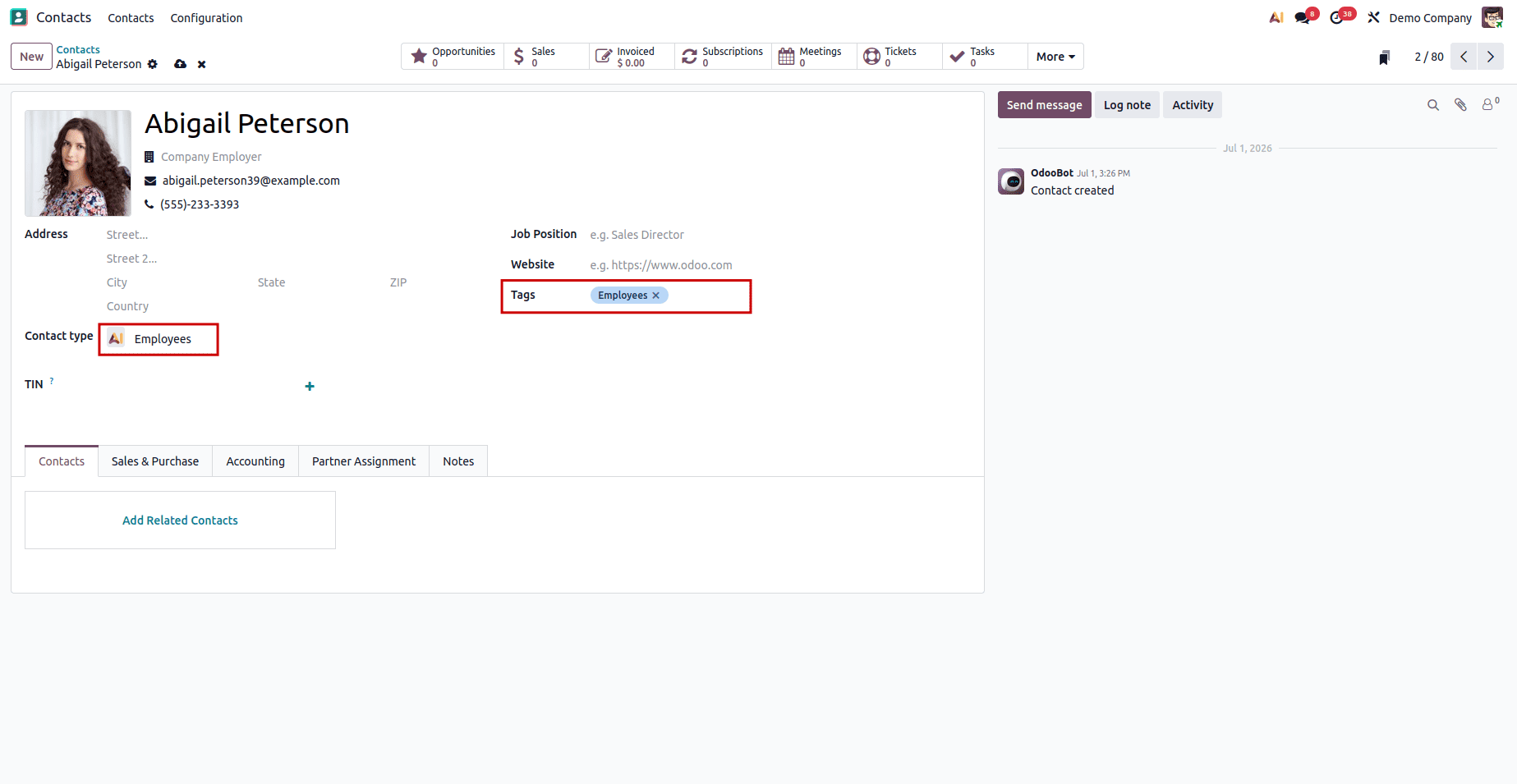
The generated AI field can then be seen after opening the contacts and choosing the record. The pop-up message will appear if you don't add the tag and click the AI.
Once the tags have been added to the tag field and clicked AI, they will be added to the AI field, which is determined by the tag value.
Odoo 19 Studio's fields allow you to automate routine tasks without writing a single line of code. Whether you are managing contacts, products, or any custom model, this feature helps keep your data consistent, structured, and up to date with the least amount of manual effort. By combining AI Fields with the field selector and a valid API key, you can automatically generate content based on data from existing records and save time on repetitive tasks like writing descriptions or summarizing notes.
To read more about How Automation and Filter Rules Transform Workflows in Odoo 19 Studio, refer to our blog How Automation and Filter Rules Transform Workflows in Odoo 19 Studio.