In Odoo 19 Manufacturing, proper product setup is crucial since it serves as the basis for a precise and effective production process. Production orders are generated accurately and resources are used efficiently when product specifications, such as routes, bills of materials, and factory settings, are defined. During manufacturing processes, a well-configured product helps prevent data inconsistencies, inventory shortages, and production delays. Better planning, cost monitoring, and quality control are also made possible throughout the production cycle. The significance of correctly configuring items in Odoo 19 Manufacturing and how it supports dependable and efficient manufacturing processes is discussed in this article.
Appropriate product configuration is the first step towards efficient manufacturing. Setting up items for manufacturing in Odoo 19 guarantees efficient workflow automation, material tracking, and production planning. Odoo's Manufacturing module makes operating a large production unit or a small workshop easier.
A product needs to be created in the database before it can be manufactured. Go to Manufacturing > Products > Products to create the product.
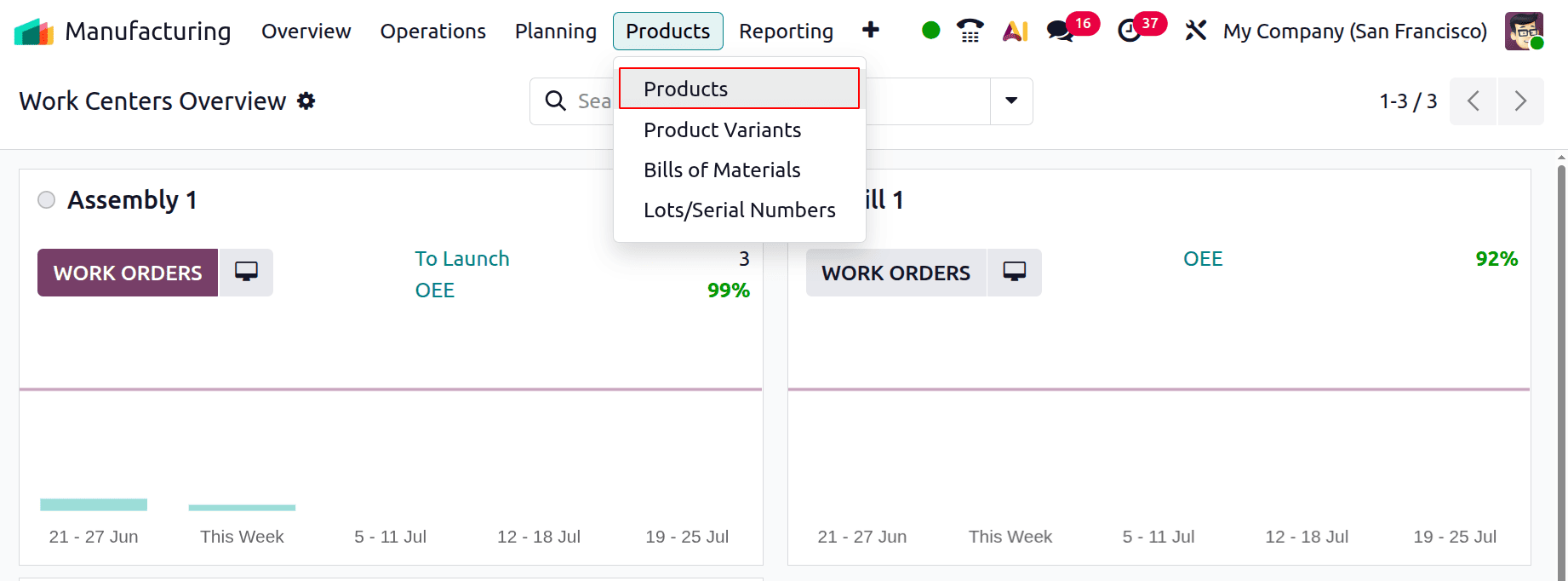
From there, you can browse every product that has been produced. Click the New button to open the product creation form. Enter the product name and select the Product Type. If the product requires inventory monitoring, enable Track Inventory and specify whether it should be tracked by Quantity, Unique Serial Number, or Lots.
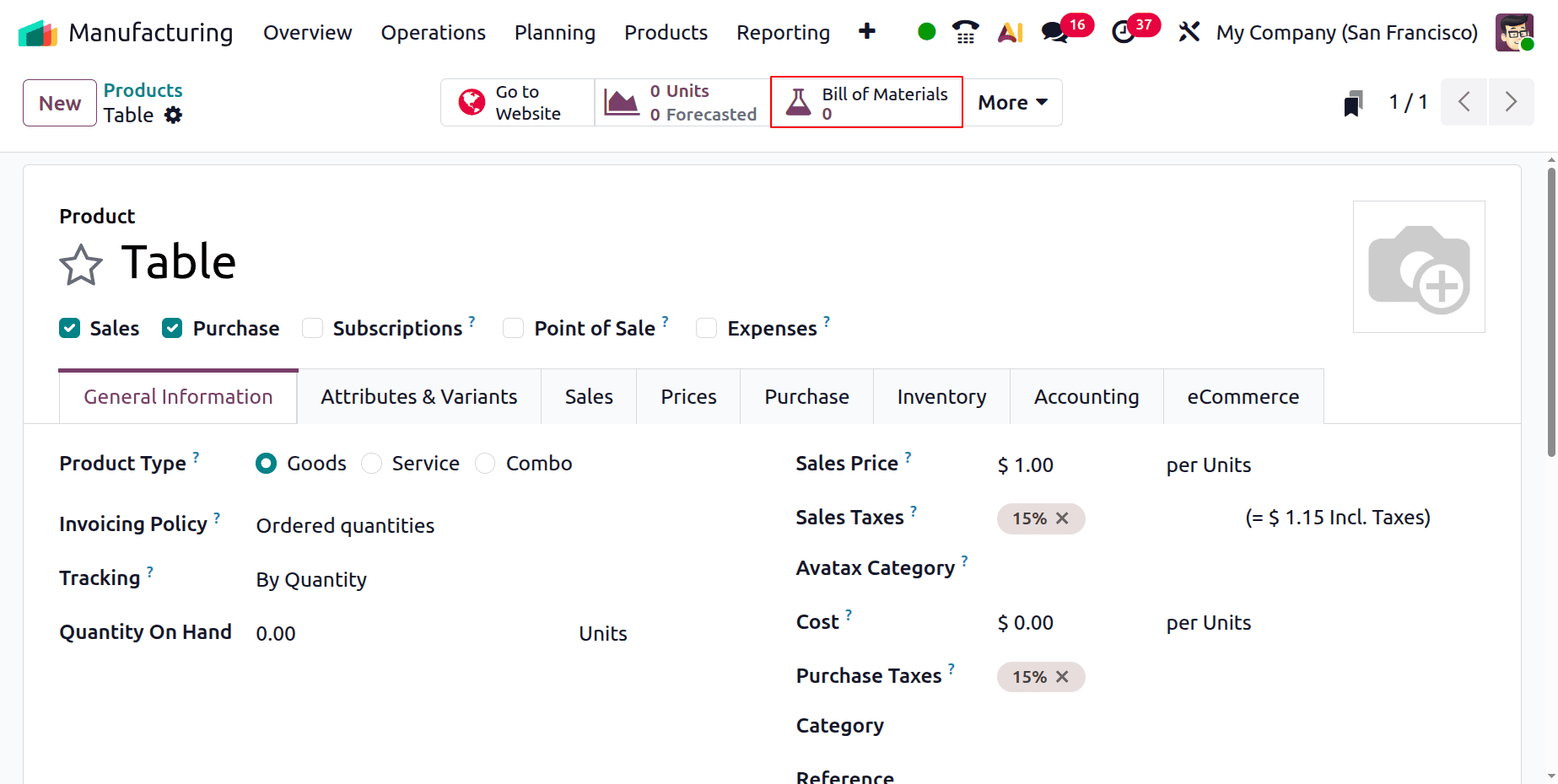
Next, the Bill of Materials for this product needs to be set up. In Odoo Manufacturing, a Bill of Materials (BoM) defines the materials, components, and operations required to manufacture a product.
By outlining what is needed for the manufacturing process, it aids in production organization.
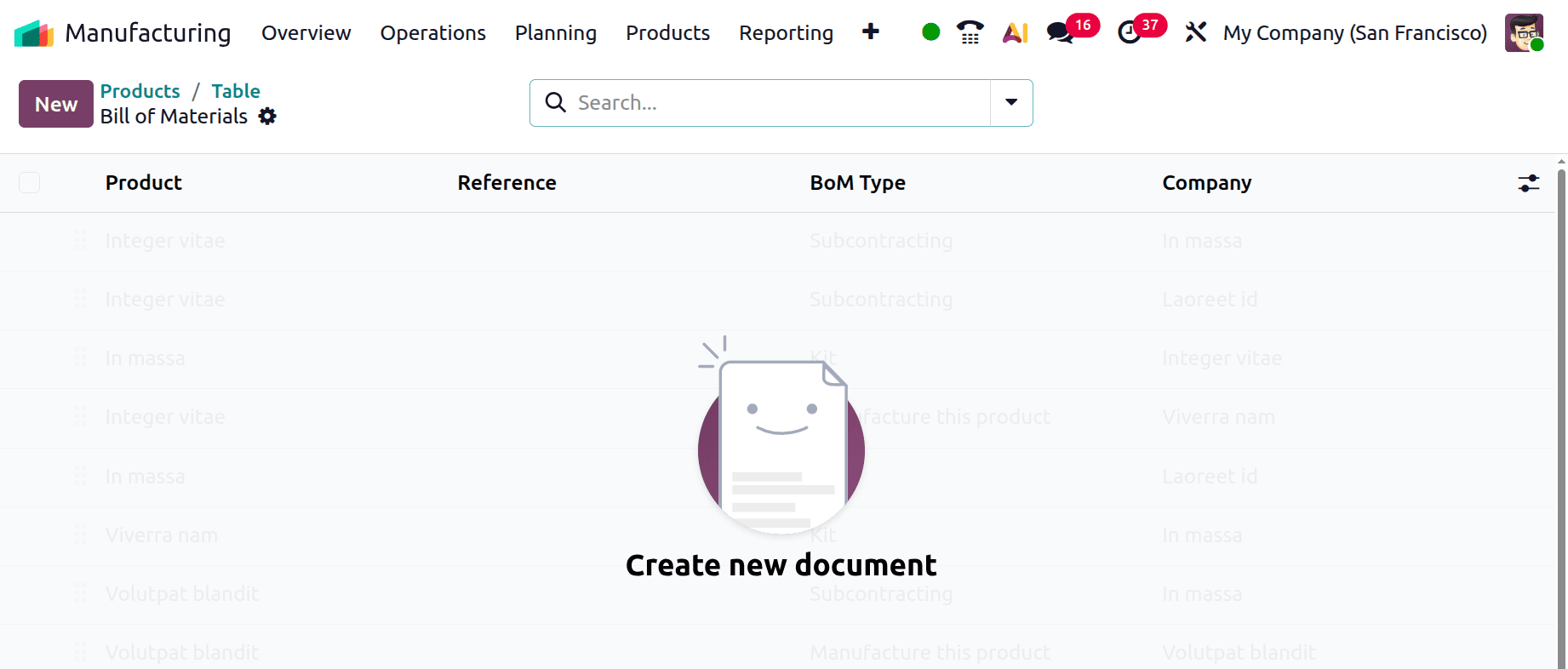
The product itself can be used to configure it. The Bills of Materials include a smart tab at the top. When you click on that, a new page opens with all of the Bills of Materials that have been set up for the product. Click New to add a new Bill of Materials (BoM) for the product.
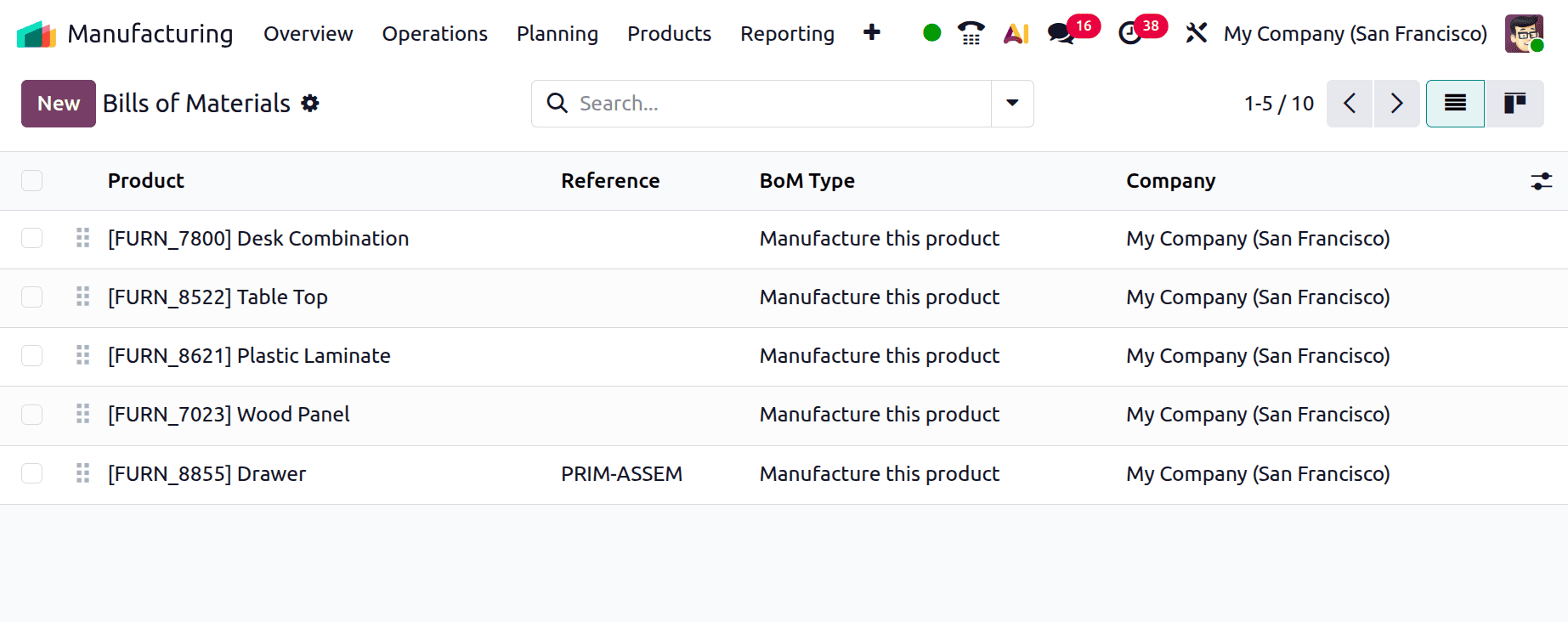
Go to Products > Bills of Materials from the Products menu to view the Bill of Materials.
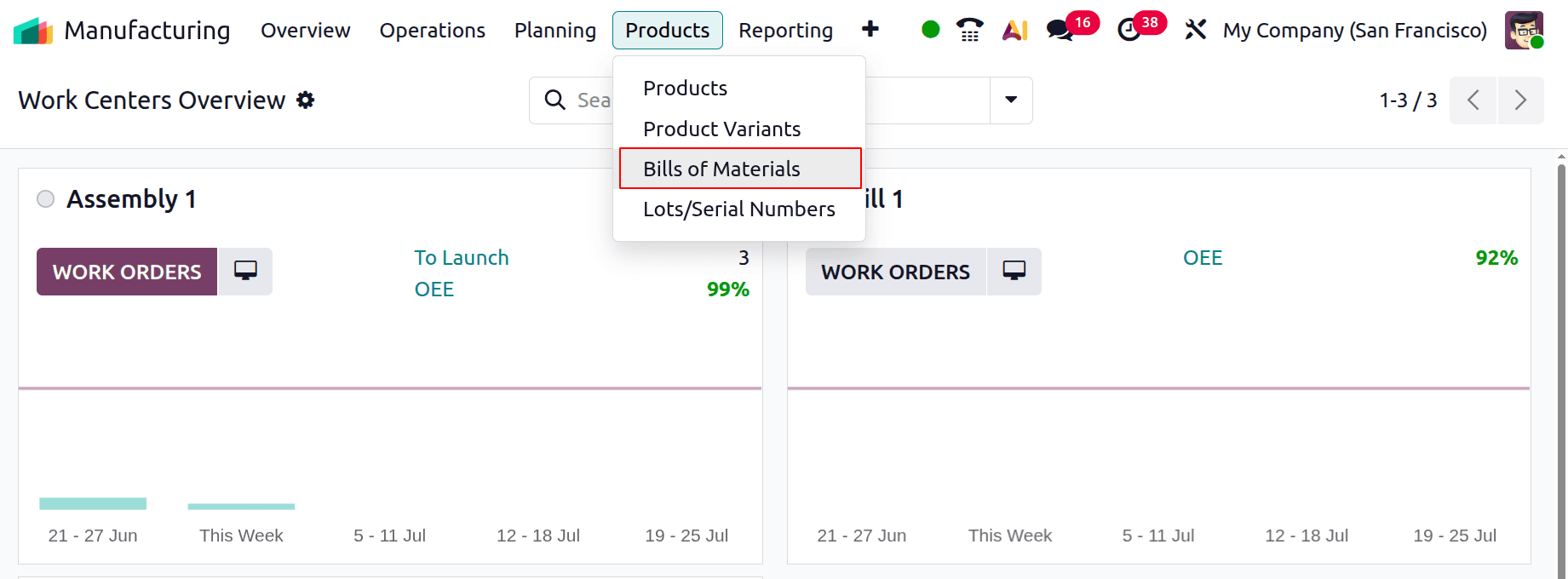
You can view all of the product's current BoMs from there. Click the New button to create a new BoM.
If you open the BoM from the Product page, the selected product is automatically displayed in the Product field. Additionally, every other necessary field needs to be filled out, including:
- Product: The final product for which this BoM is intended.
- Product Variant: This field indicates which of the product's variations the BoM applies to.
- Quantity: The quantity of final goods for which this BoM specifies ingredients.
- Reference: This BoM's special code or identification.
BoM Type:
- Manufacture this Product: Select this option when the product is manufactured in-house.
- Kit: Select this option when the product is sold as a kit, where the individual components are delivered instead of being assembled.
- Subcontracting: Select this option when the product is manufactured by a third-party subcontractor.
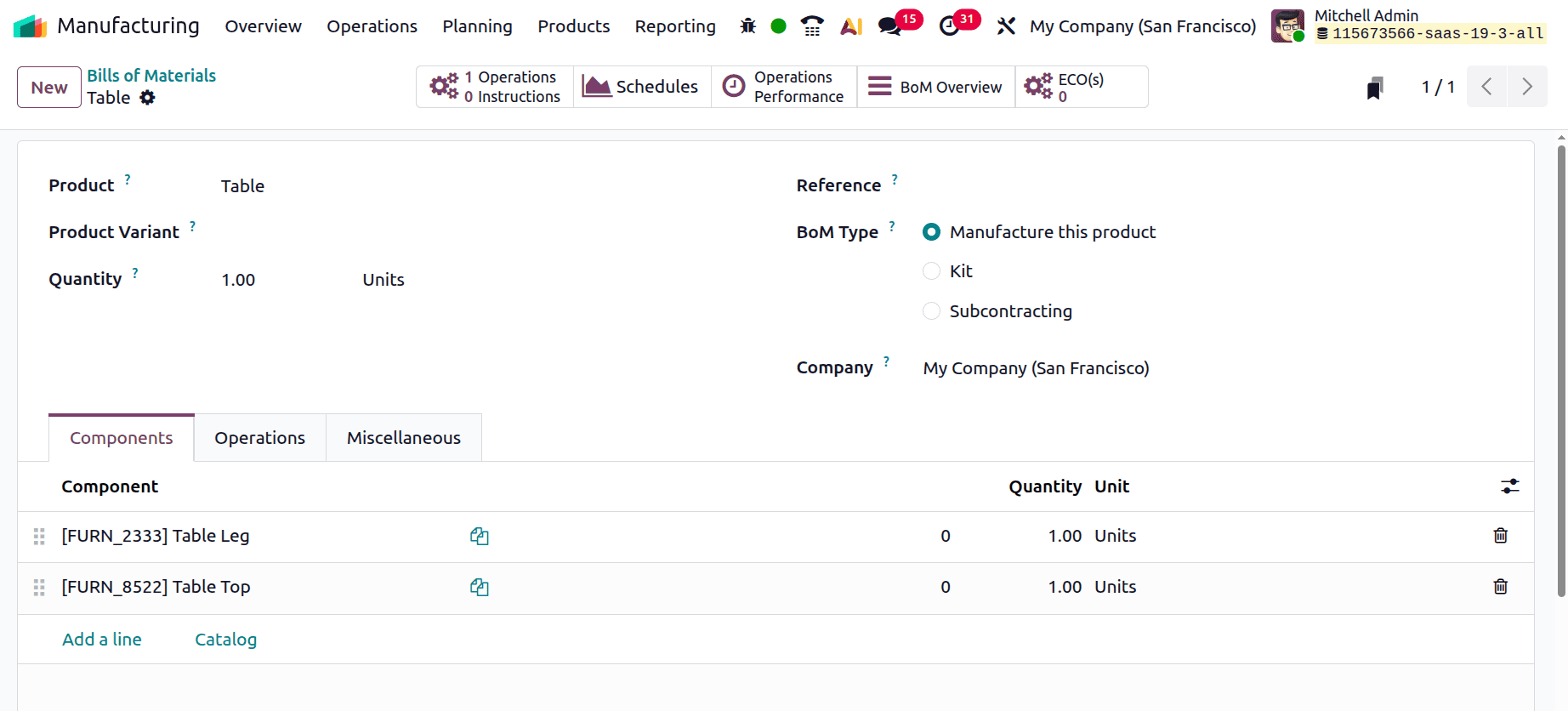
The BoM is divided into three tabs: Components, Operations, and Miscellaneous.
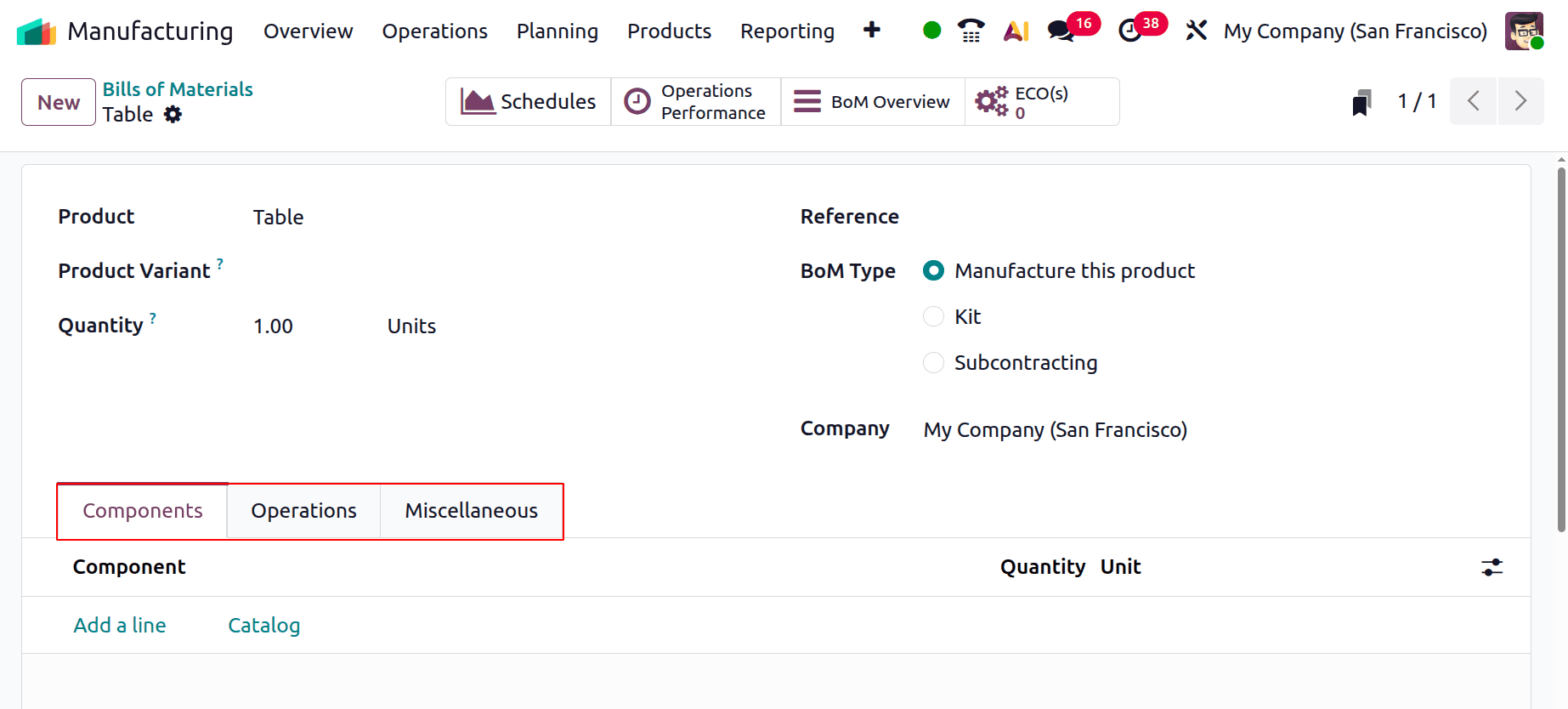
In the Components tab, add all the components required to manufacture the selected product. The BoM should also include the precise amount of the component needed to produce the product. To add a component, click Add a line or examine all the items in the catalogue, choose the product that needs to be added as a component, and then enter the amount needed to produce the specified product. Enter the unit of measurement for the component in the Product Unit of Measure field.
To finish the final product in a manufacturing process, several steps must be taken. Users can specify these manufacturing stages and their corresponding Work Centers using the Operations tab in the BoM. Here, every step needed to finish the product's manufacture must be added. It enables customers to specify various production-related tasks.
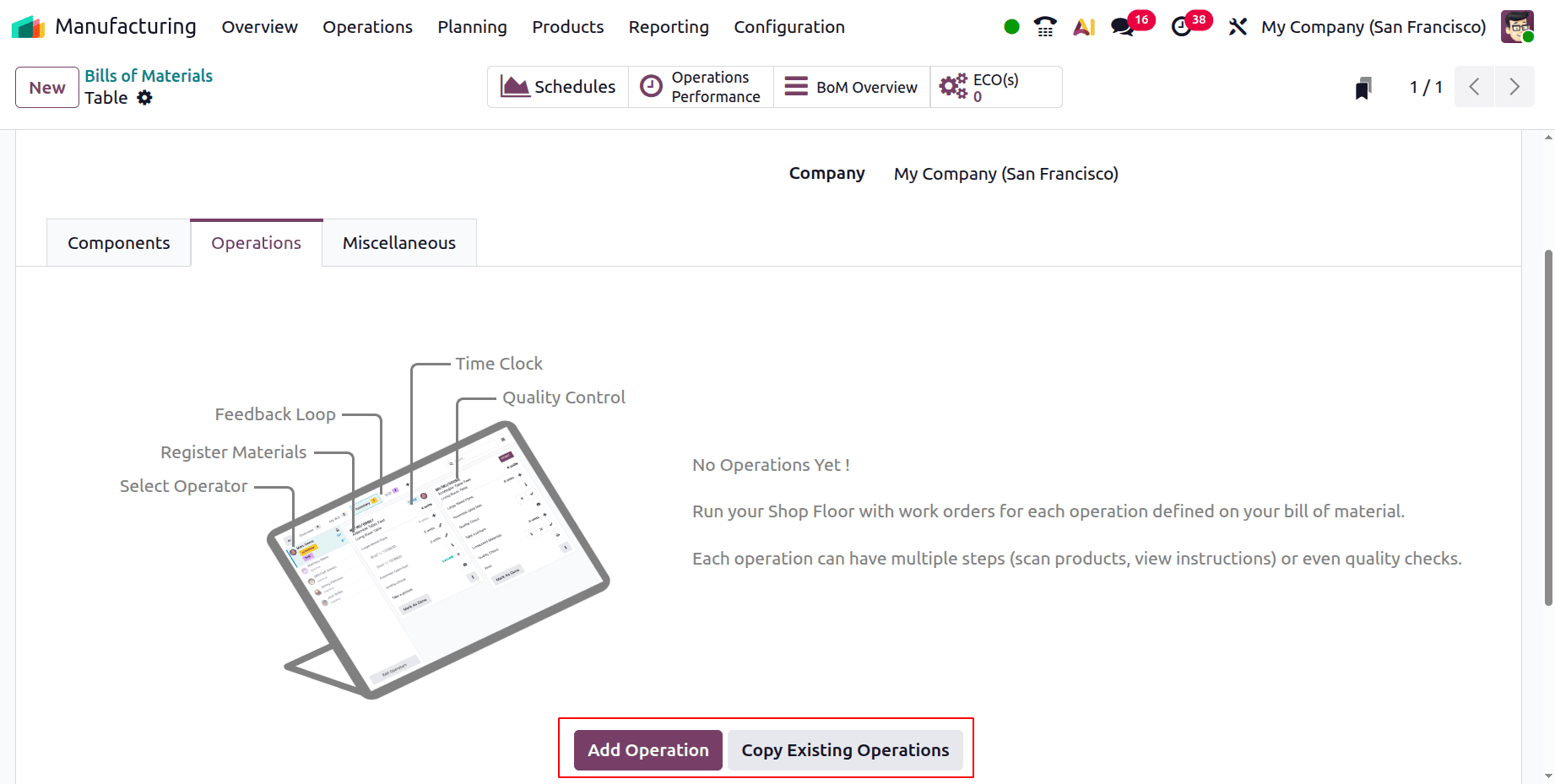
To build the operation, click Add Operation to bring up a new pop-up.
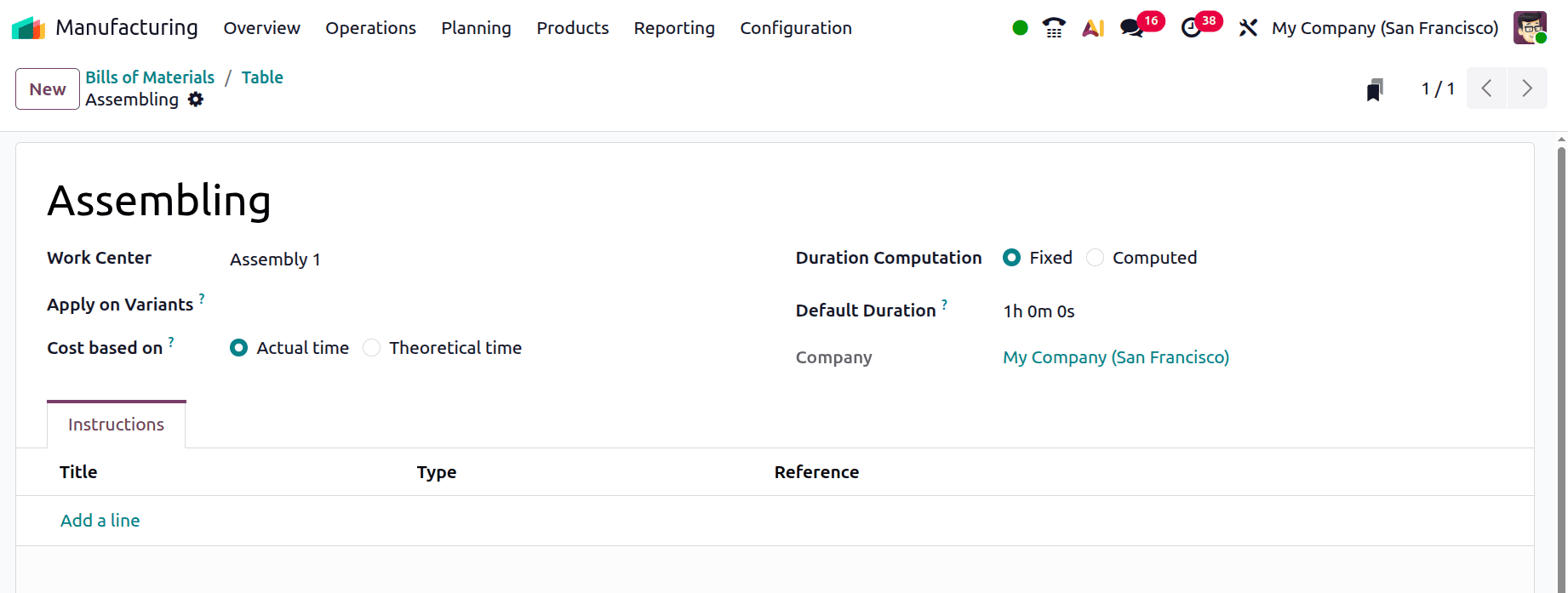
In this example, configure the following details for the manufacturing operation.
The Work Center defines the machine or workstation where the operation is carried out, whereas the Operation field names the task completed during the production process. The action can be limited to particular product versions by using the Apply on versions option. The Default Duration specifies the approximate time needed to finish the work, and the Duration Computation option establishes the mechanism used to calculate the operation time. The Company field identifies the business in charge of overseeing the operation, while the Employee Capacity field shows how many employees are required for it. Furthermore, the Worksheet option offers work instructions in text, PDF, or slide formats, and the Description field includes a succinct description of the tasks required in the operation.
Once the operations have been introduced, users can specify the following configurations by going to the BoM's Miscellaneous tab:
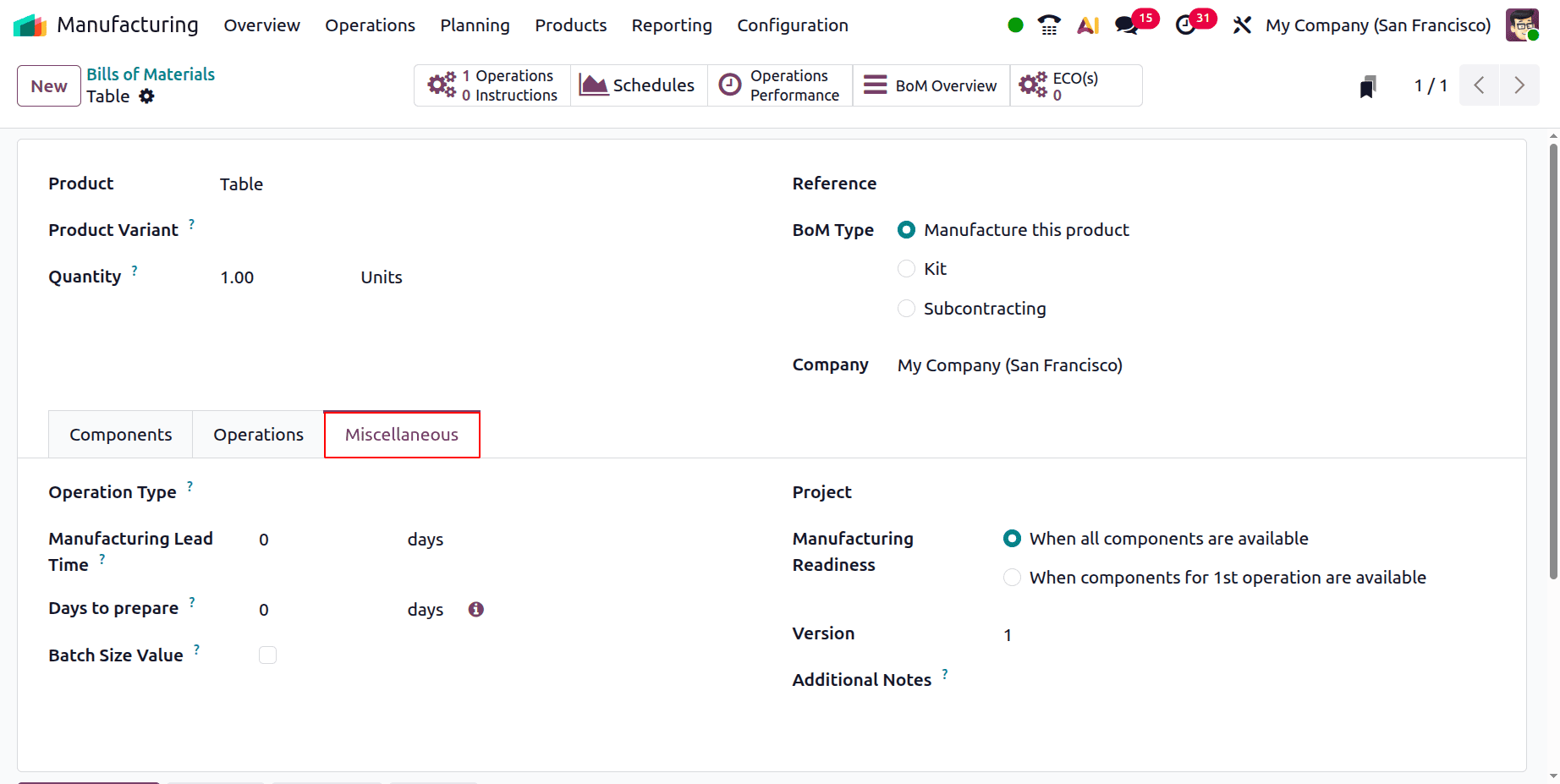
- Manufacturing Readiness:
- When all components are available: Only when all necessary components are available can manufacturing begin.
- When the first operation components are available: Even if other components are still pending, manufacturing can start as soon as the first operation's components are prepared.
- Project: Connects the manufacturing order to a particular project (helpful for project-based manufacturing tracking and costing).
- Manuf. Lead Time: The total number of days required to complete the product's manufacturing. It can be set up to correctly schedule and plan the manufacturing order.
- Days needed to prepare the manufacturing order: The amount of time needed to set up machinery and stage components before actual manufacturing starts.
- Version: The version of the Bill of Materials is updated here. After completing each Engineering Change Orders the versions update automatically.
- Operation Type: The Operation type can be chosen from there. If the company has multiple warehouses, the user can decide from which warehouse the production happens.
- Additional Notes: It's possible to add any additional notes belonging to the production here.
- Batch Size Value: All automatically generated production orders for this product will be of this size if this check box is enabled.
Then save the created bill of materials.
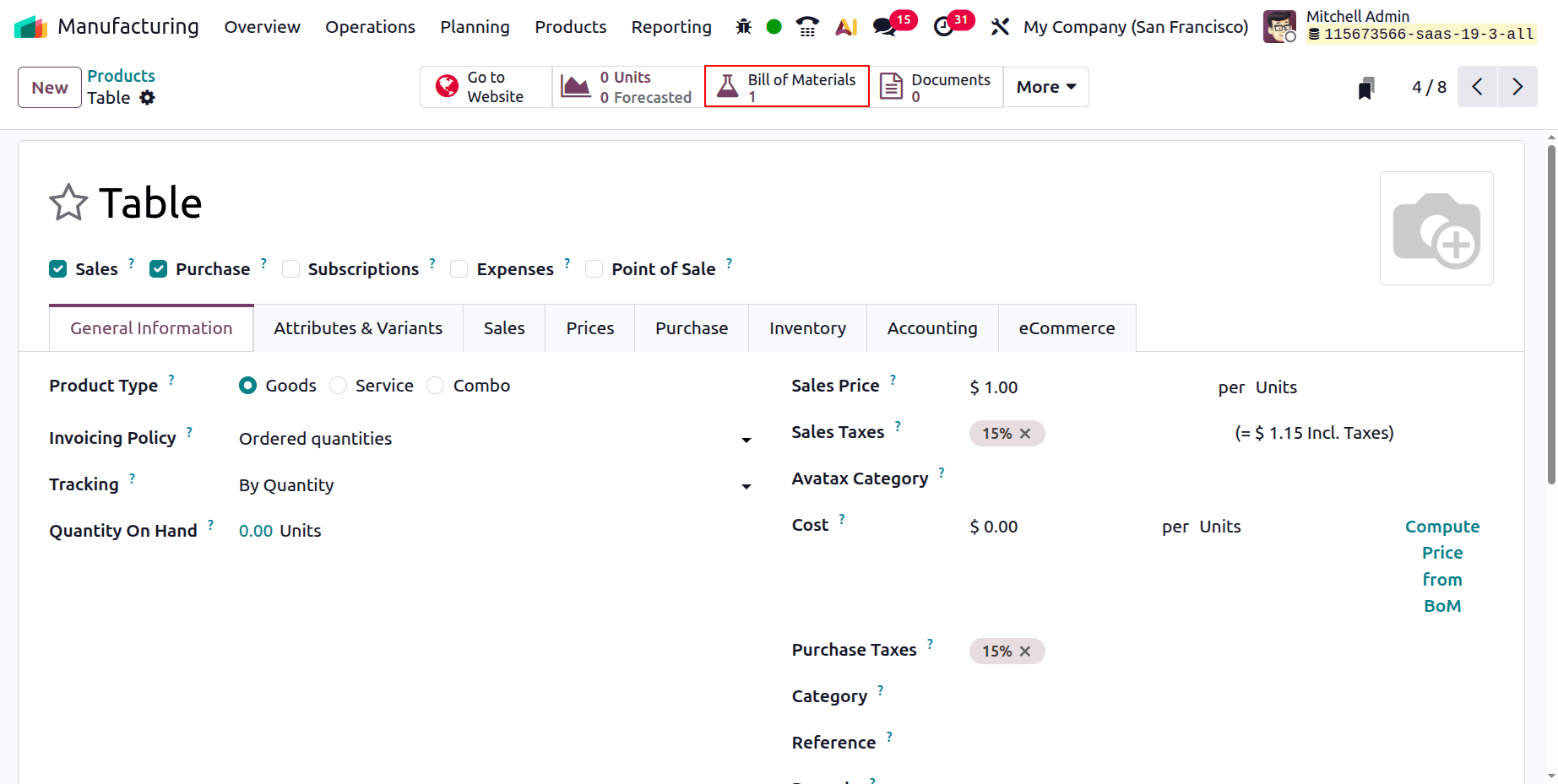
If again recheck the previously created product. The smart tab Bill of Materials will show as shown below. If the user opens the smart tab, the created Bill of Materials will be shown there.
In Odoo 19, a product can be set up for Manufacture in this manner. Odoo 19 makes it easy to set up items for manufacturing, which facilitates a seamless production process. You may simply control how things are created and what materials are utilised by designating a product as Manufacture and producing an appropriate Bill of Materials (BoM). From utilising raw materials to creating the finished product, Odoo 19 allows you to track every stage with features like Manufacturing Orders and Work Centers.
To read more about How to Configure Products to Manufacture in Odoo 18, refer to our blog How to Configure Products to Manufacture in Odoo 18.