Each business has tasks that are carried out repeatedly on a weekly basis: assign a follow-up task, inform a client about a status change, and make an important order pending approval. Performed manually, these actions are often forgotten, postponed or performed inconsistently.
Odoo Automation Action makes it possible to automate all these procedures. You just need to specify the conditions and the actions, and Odoo will execute your rule each time the condition is met. From Odoo 20, which was released in September 2026, the automation feature became integrated with AI agents of Odoo that could be launched from automation and scheduled actions.
This blog gives information about what Automation Actions are, how to configure them, and how to provide Automation Actions as code with a custom module.
What Are Automated Actions?
An automated action (technically a base.automation record) is a rule attached to one Odoo model, such as Contacts, Sales Orders, Tasks, or Stock Pickings. Each rule has three parts:
- A model: the type of record the rule watches.
- A trigger: the event that starts the rule.
- One or more actions: server actions that run when the trigger happens.
The domains further refine what records qualify, thus ensuring that the regulation applies when it should.
Step 1: Install the Module
Automation Actions exist within the Automation Rules application, which relies on the base_automation technical application. If it is not already installed, then it can be installed through the Apps menu. Most applications automatically install if they are needed for a particular application.
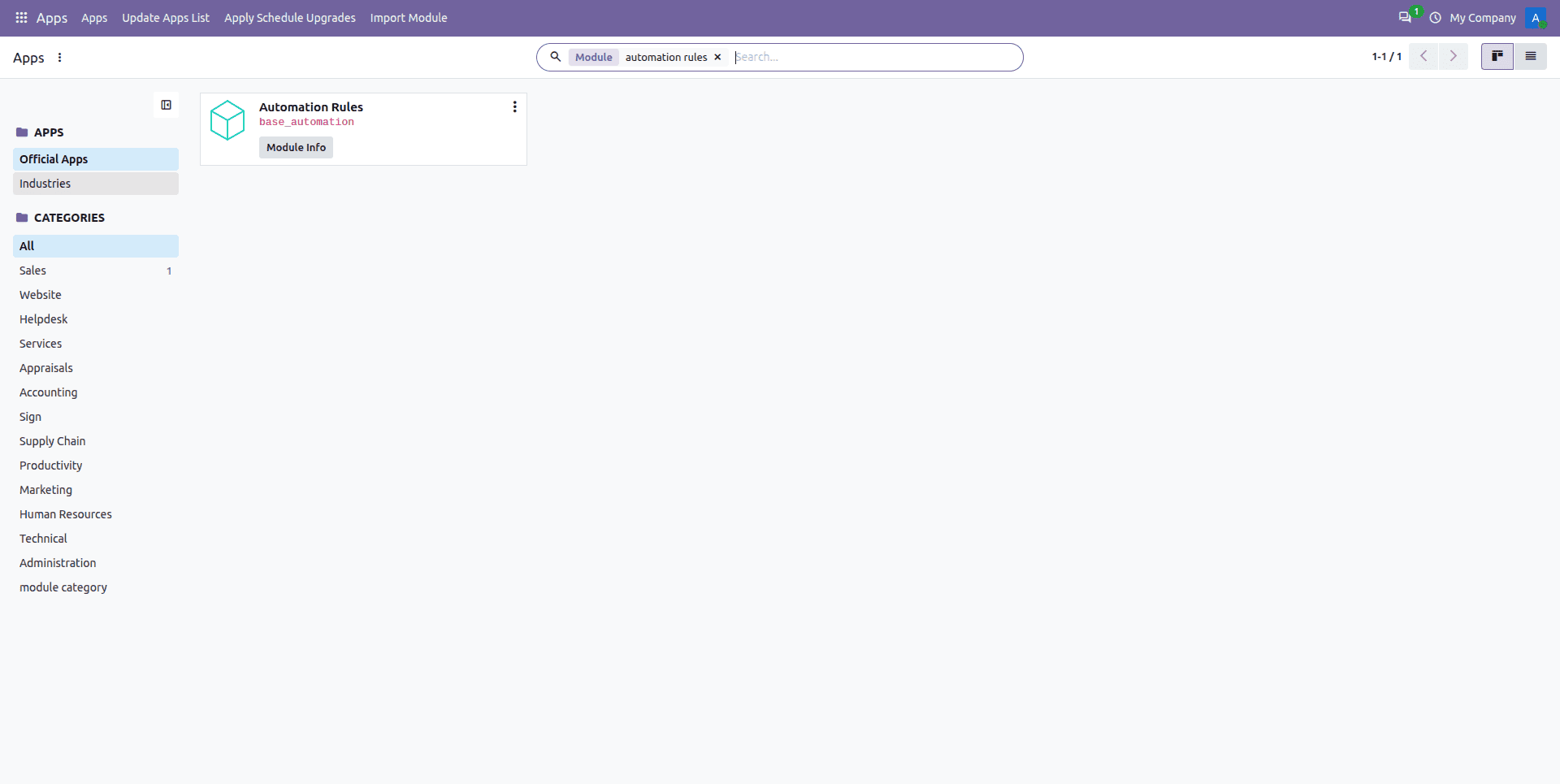
Step 2: Open the Automated Actions Menu
Activate developer mode.
Go to Settings > Technical > Automation > Automated Actions.
Click New to create a rule.
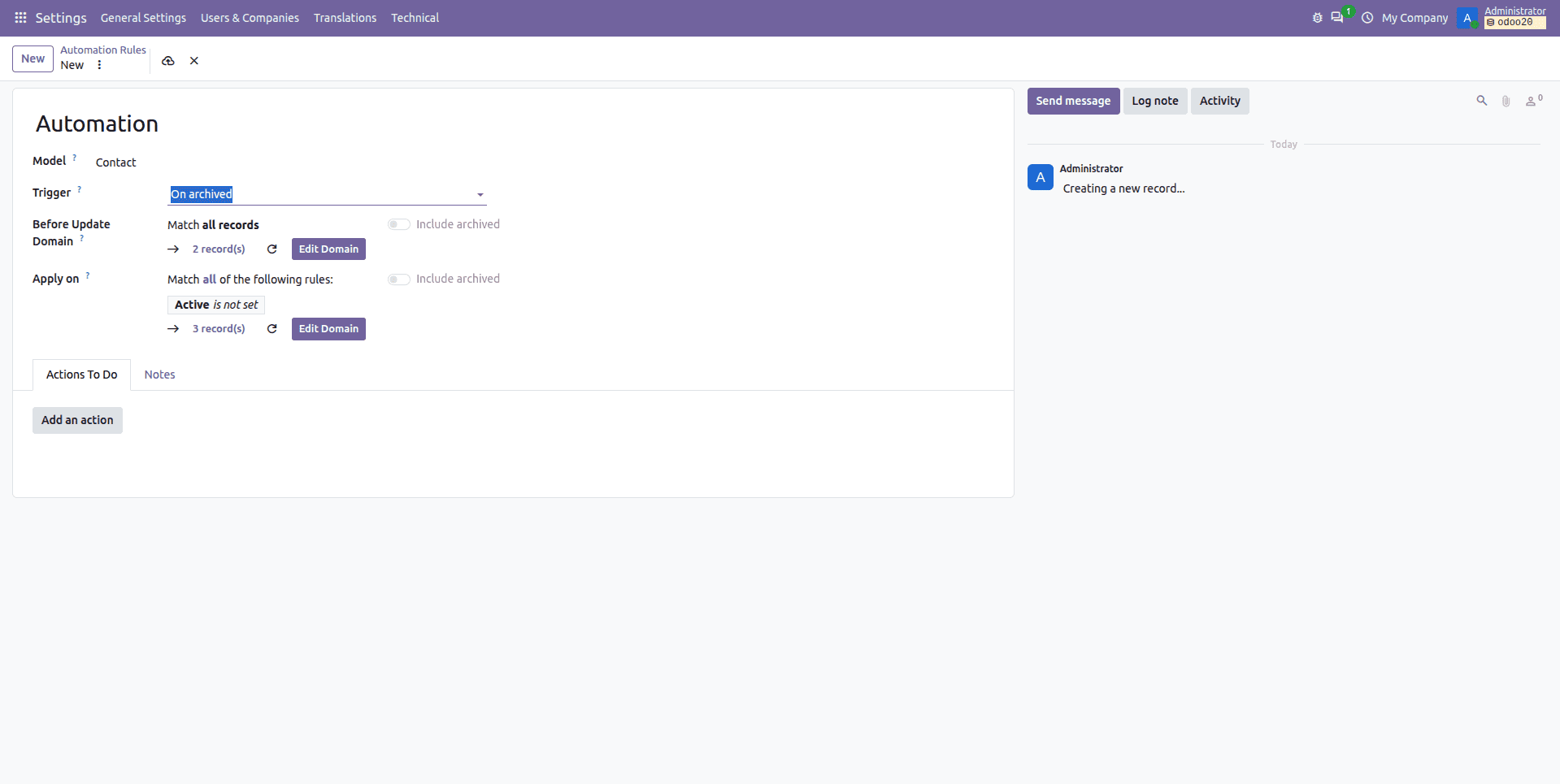
Step 3: Configure the Rule
Name and Model
Give the rule a descriptive name, such as "Notify manager on high-value orders", then select the model it applies to.
Choose a Trigger
- Values Updated: A field changes, a user is assigned, a tag is added, and a stage or status changes
- Email Events: On incoming email, on outgoing email
- Timing Conditions: Based on a date field, after creation, after last update
- Custom: On save, on deletion, on UI change
- External: On webhook
Set the Domains
Use the domain filters to control when the rule applies:
- Before Update Domain: the record must match this before the change.
- Apply on: the record must match this after the change.
Combined, they let you catch a transition, for example, "was not Confirmed, is now Confirmed", so the rule fires once rather than on every later edit.
Add the Actions
Under Actions To Do, choose what happens. The available types include:
- Update Record: set field values automatically.
- Create Record: generate a new record in any model.
- Send Email / Send SMS: notify a contact using a template.
- Create Activity: schedule a to-do for a specific user, or dynamically for a user taken from a field on the record.
- Add/Remove Followers: control who is notified on the record.
- Send Webhook Notification: POST data to an external system.
- Execute Python Code: custom logic for developers.
- Execute Existing Actions: chain multiple server actions together.
Creating an Automated Action with Code
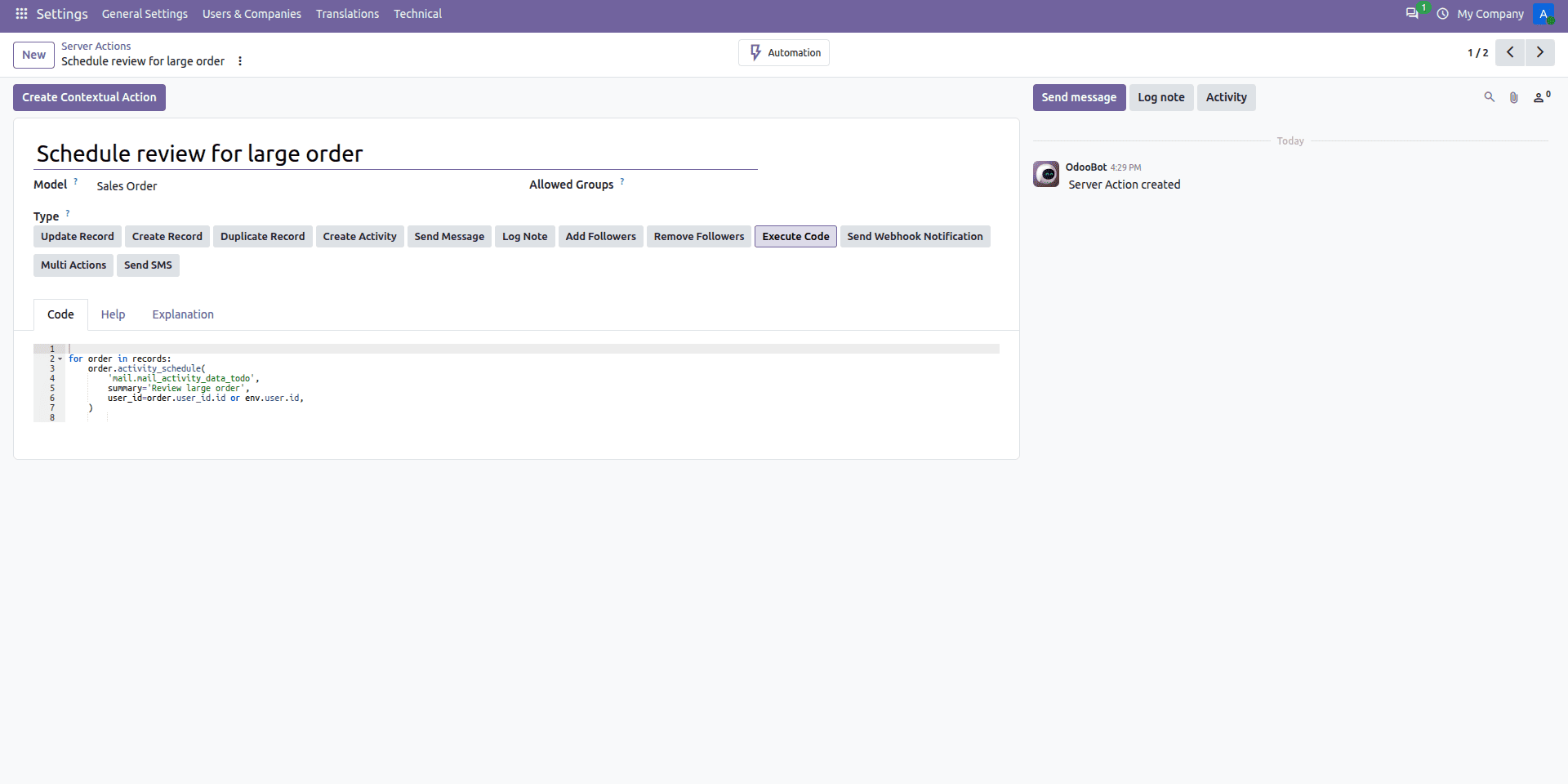
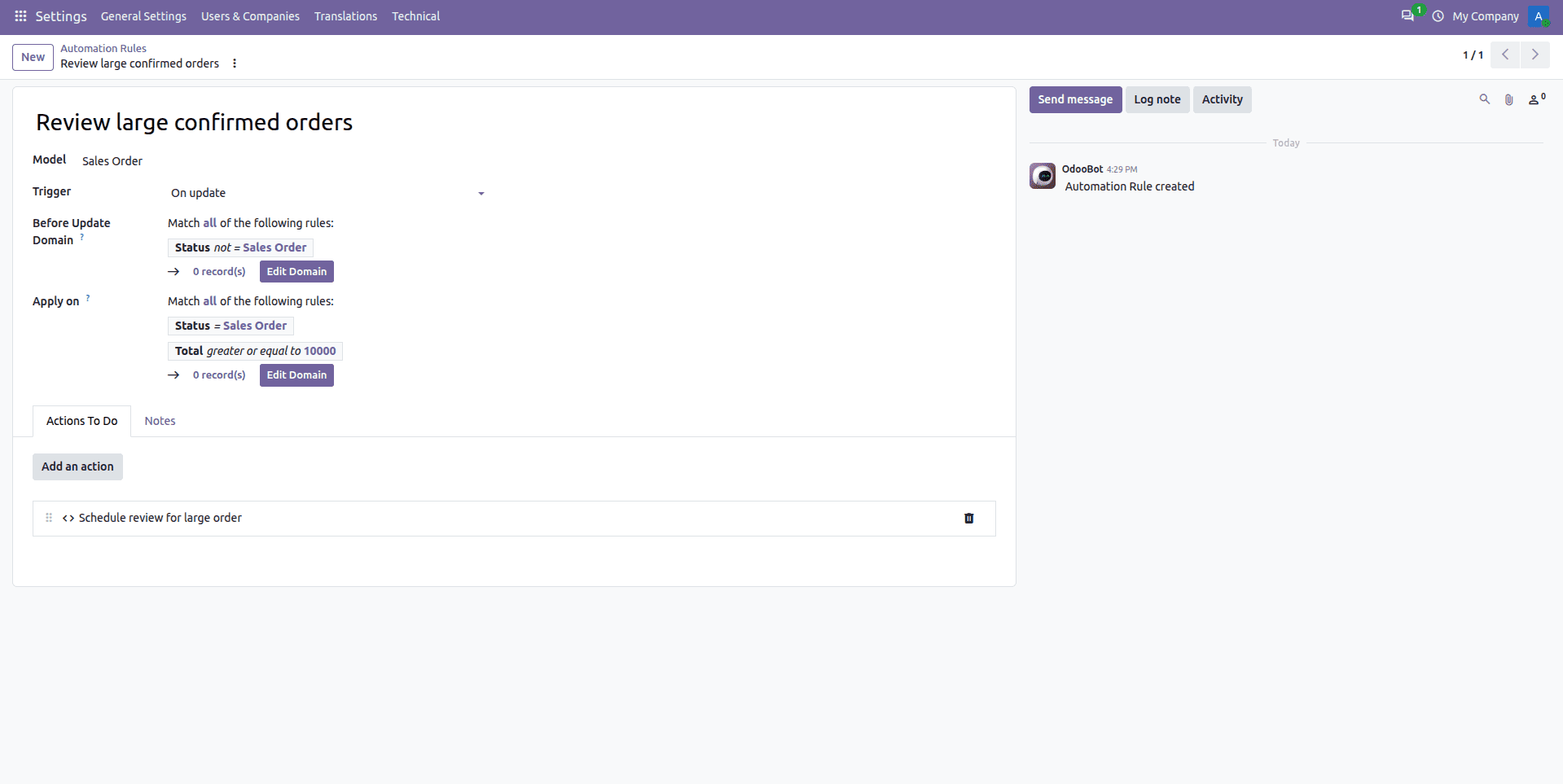
To manage rules through version control and deployment to different databases, create them using the XML file of your custom module. In this case, an activity has been created to review the activity of the salesperson for a sales order with a total value of 10,000 or above.
<?xml version="1.0" encoding="utf-8"?>
<odoo>
<data noupdate="1">
<!-- Server action: what to do -->
<record id="server_action_review_large_order" model="ir.actions.server">
<field name="name">Schedule review for large order</field>
<field name="model_id" ref="sale.model_sale_order"/>
<field name="state">code</field>
<field name="code">
for order in records:
order.activity_schedule(
'mail.mail_activity_data_todo',
summary='Review large order',
user_id=order.user_id.id or env.user.id,
)
</field>
</record>
<!-- Automated action: when to do it -->
<record id="automation_review_large_order" model="base.automation">
<field name="name">Review large confirmed orders</field>
<field name="model_id" ref="sale.model_sale_order"/>
<field name="trigger">on_write</field>
<field name="filter_pre_domain">[('state', '!=', 'sale')]</field>
<field name="filter_domain">[('state', '=', 'sale'), ('amount_total', '>=', 10000)]</field>
<field name="action_server_ids" eval="[(4, ref('server_action_review_large_order'))]"/>
</record>
</data>
</odoo>
With Automated Actions, routine and often faulty actions become dependable background activities. You begin with a very basic rule, like an activity on status change; make sure it works as planned, and then expand from there. Using Odoo 20’s AI agents as an action target, we can expand from mere field updating to more intelligent workflows using the same trigger-action principle.
To read more about How to Configure Automated Actions in Odoo 18, refer to our blog, How to Configure Automated Actions in Odoo 18.