If you look after the finance team in Odoo, sooner or later you'll have to decide who can do what in Accounting. Can the auditor see journal entries without changing them? Should the person sending invoices see the balance sheet? Who is allowed to approve corrections?
Odoo 20 gives you five accounting access levels in Enterprise and two in Community. This blog explains what each one lets your colleagues do, where to set it, and a few related permissions that are easy to overlook, including one Odoo 20 change that can quietly remove someone's accounting access.
Where Accounting Access Is Set
Open the user under Settings > Users & Companies > Users and go to the Access Rights tab. Two fields matter here: the Role at the top and the level on the Accounting line. You need administrator rights to change them; if you don't have them, send this page to your Odoo administrator.
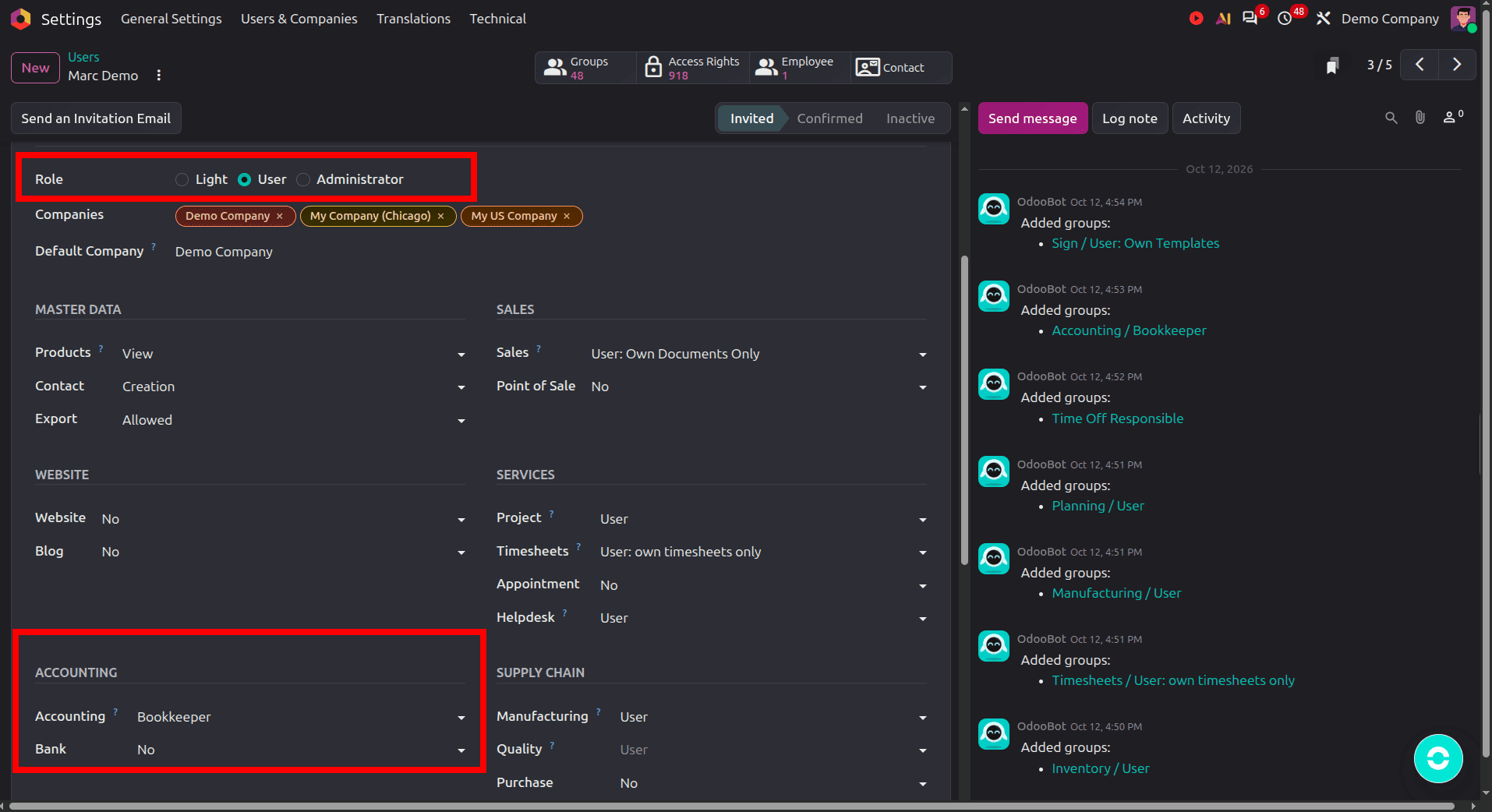
The Role field is new in Odoo 20 and has three values: Light, User, and Administrator. Administrator gives full Settings access, User is a normal internal user, and Light is meant for people who only use a few simple apps.
“Watch out for Light. Accounting levels don't count as light permissions, so if you switch a user to Light, Odoo strips their accounting access. Anyone who works in Accounting, a read-only auditor included, needs the User role".
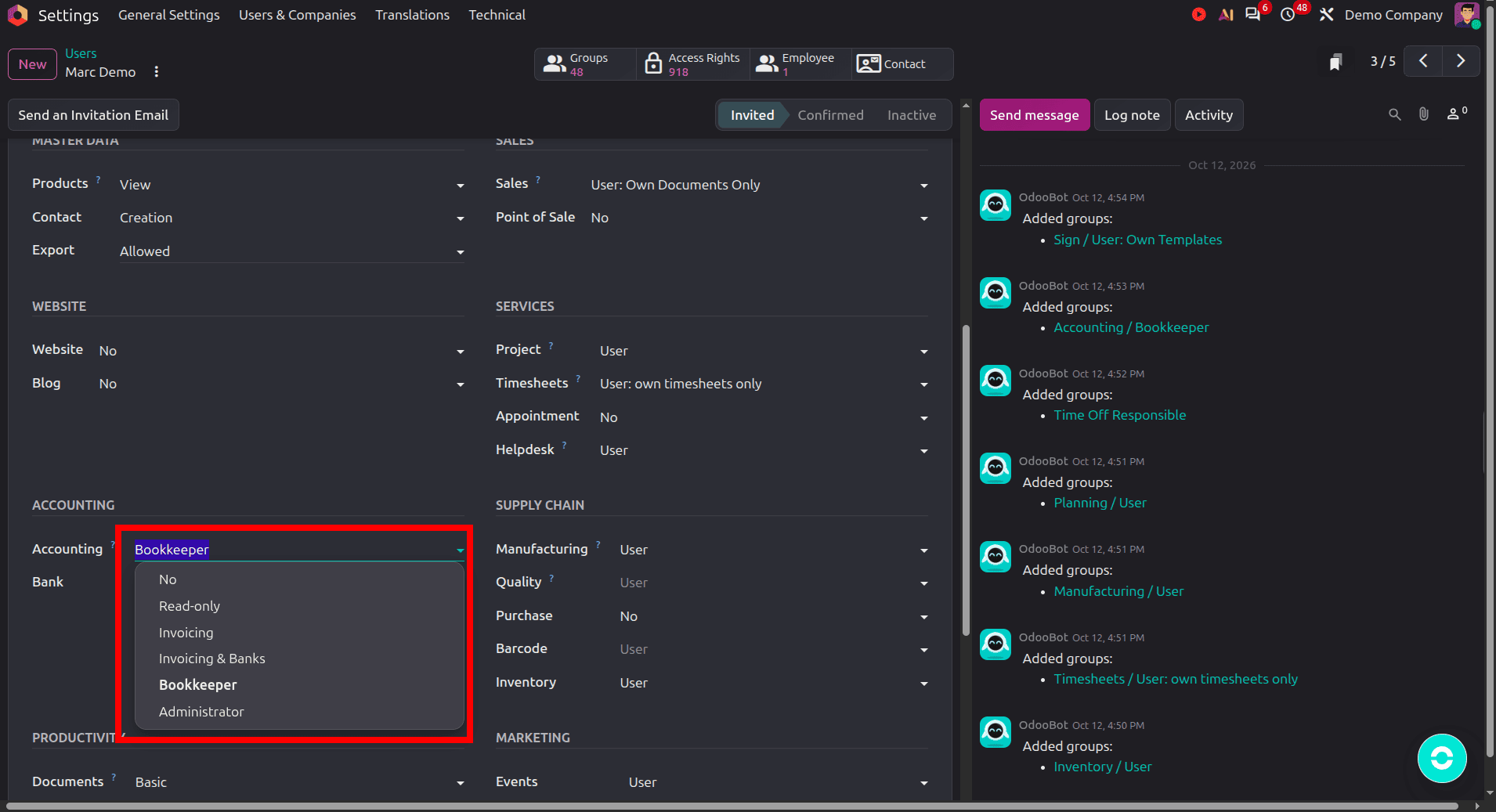
The Five Levels in Odoo 20 Enterprise
| Level | What it allows | Usually for |
| Read-only | Sees all accounting data, including journal entries, reports, and configuration. Can't do anything. | Auditors, management who only need to look |
| Invoicing | Customer invoices, credit notes, vendor bills, payments and basic invoice reports. No journal entries, reports, or reconciliation. | Sales admin, billing clerk |
| Invoicing & Banks | Everything in Invoicing, plus the accounting dashboard, bank management and follow-up reports. | Receivables or payables staff |
| Bookkeeper | All accounting features, including reporting, assets and analytic accounting, but no configuration. | The in-house accountant |
| No | No access to Accounting | Anyone without a finance role |
| Level | What it allows | Usually for |
| Administrator | Everything, including configuration such as the chart of accounts, taxes, and journals. | Finance manager, head of accounts |
The levels build on each other, with one exception. Read-only runs on its own track: it sees as much as a Bookkeeper but can't create or change anything. A Bookkeeper has read access built-in, and an Administrator has everything a Bookkeeper has.
One small thing that trips people up: there's no level called "Accountant" in Odoo 20. If an older guide mentions it, it means Bookkeeper.
And in Community?
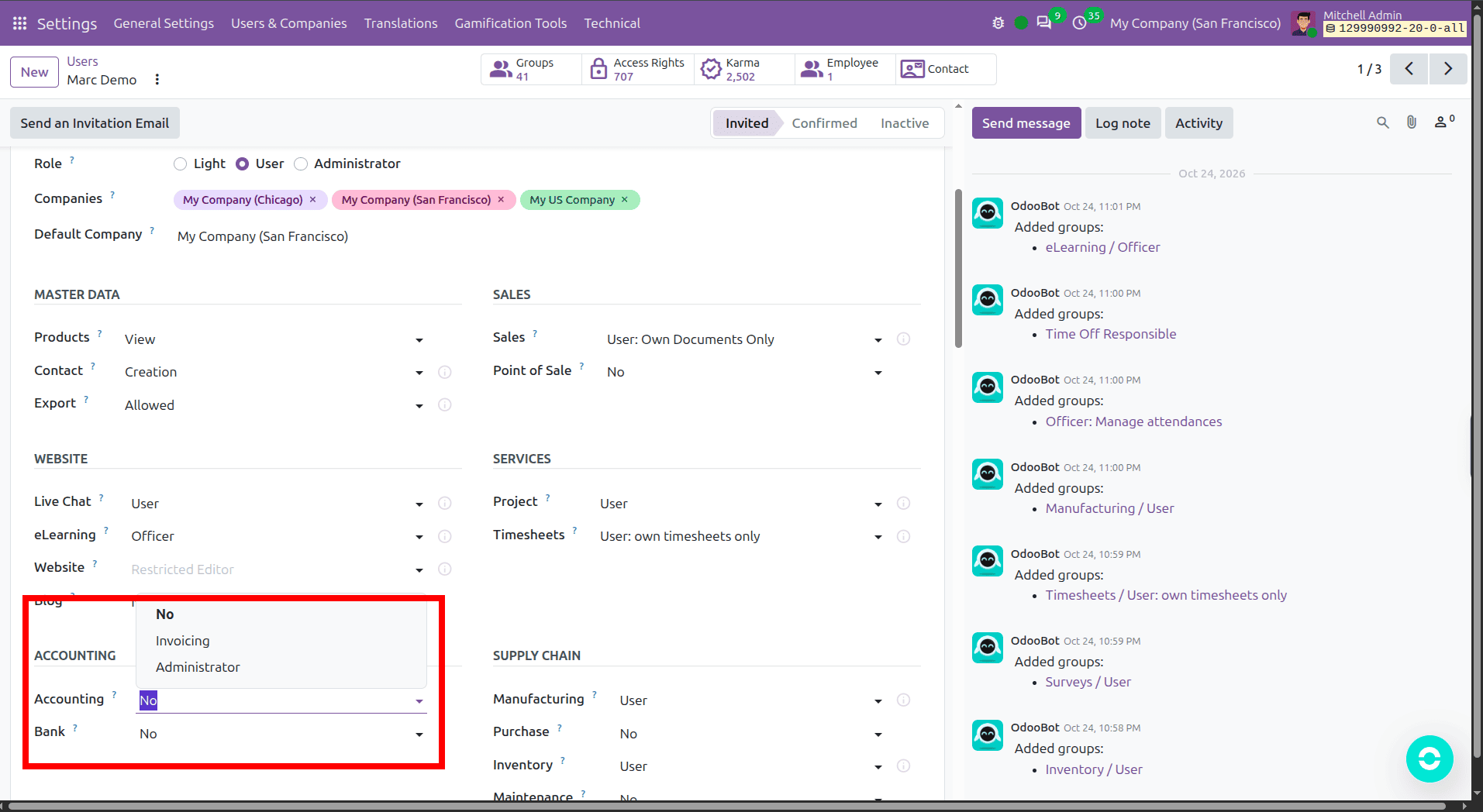
With the Community Invoicing app, you get two choices: Invoicing or Administrator. That's all the user form offers.
So Community has no read-only accounting user and no Bookkeeper level. If your team needs that kind of separation, for example, an auditor who can look but not touch, that's a good reason to consider Enterprise.
Setting Up an Auditor
Year-end usually brings this request. In Enterprise it's quick: set the user's Role to User, the Accounting level to Read-only, and leave the other apps empty unless the auditor actually needs them. If you run several companies, tick only the ones being audited under Allowed Companies.
The auditor can open journal entries, reports, and settings. Every action that would change data is blocked. It beats exporting reports to Excel every few days.
Review and Supervision of Entries
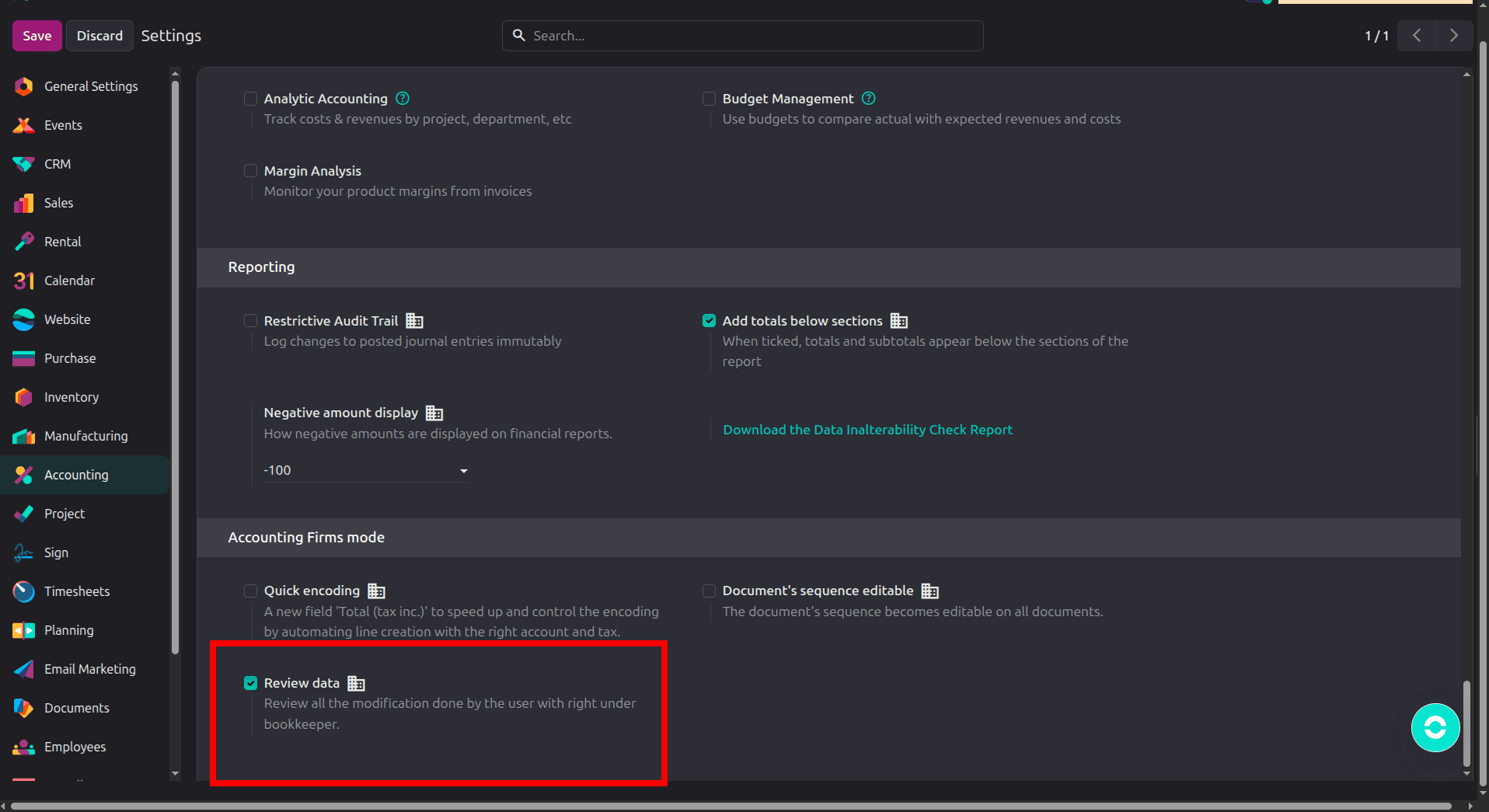
Odoo 20 can track a review status on journal entries: No Review, To Review, Reviewed, Supervised, and Anomaly. It's switched on with Review data under Accounting > Configuration > Settings, in the Accounting Firms mode section. With it on, changes are made by users below. Bookkeepers are flagged for review.
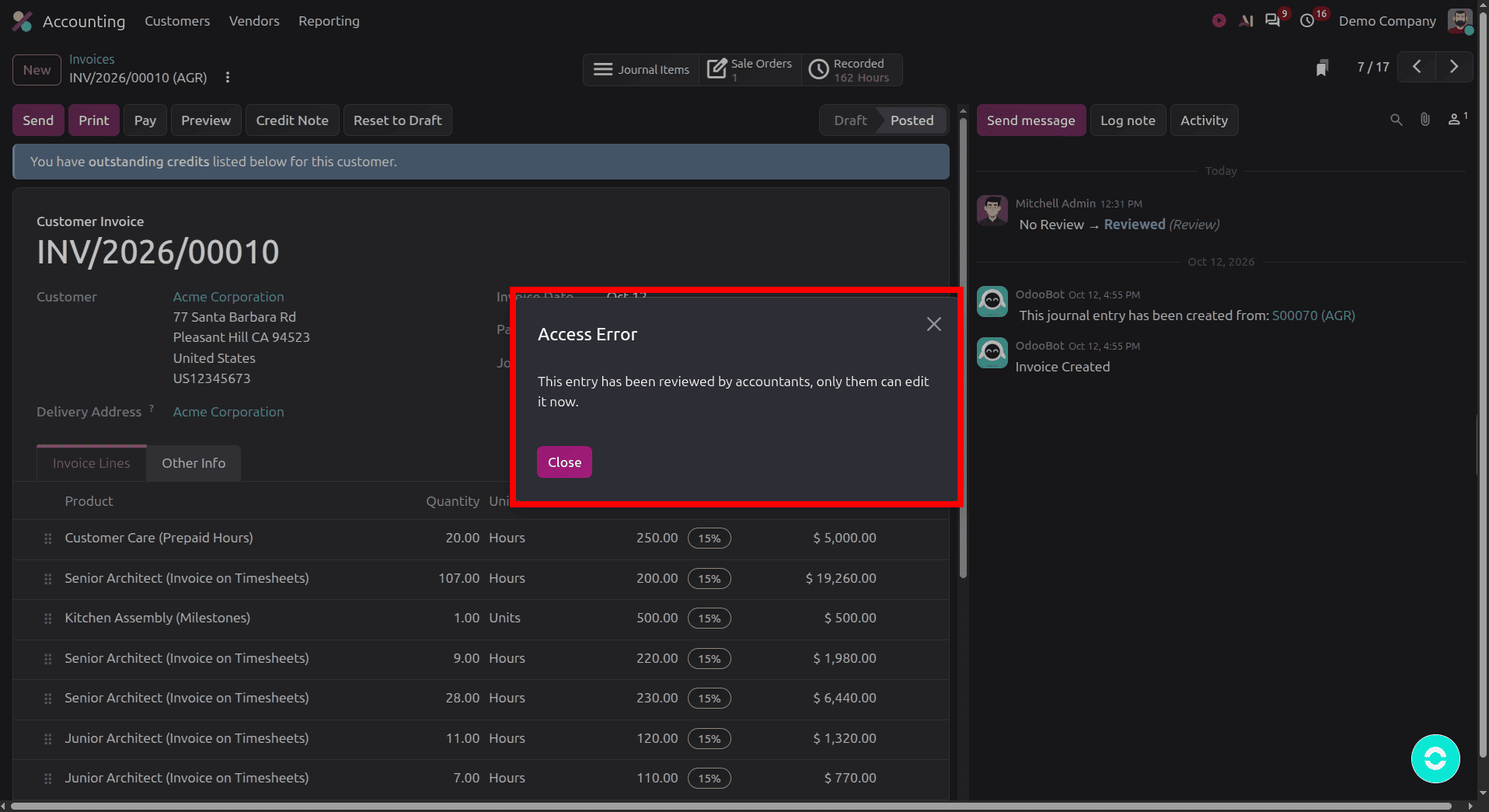
Odoo checks these rules every time someone changes the status. Bookkeepers and Administrators can mark an entry as Reviewed, and once it's reviewed, only they can edit it. Supervised is stricter: only an Administrator can set it or change a supervised entry. To Review and Anomaly can be set by anyone with access.
If a colleague with the Invoicing level tries to edit a reviewed entry, they'll see the message "This entry has been reviewed by accountants; only they can edit it now." Now you'll know what it means when they ask.
Two Permissions That Get Overlooked
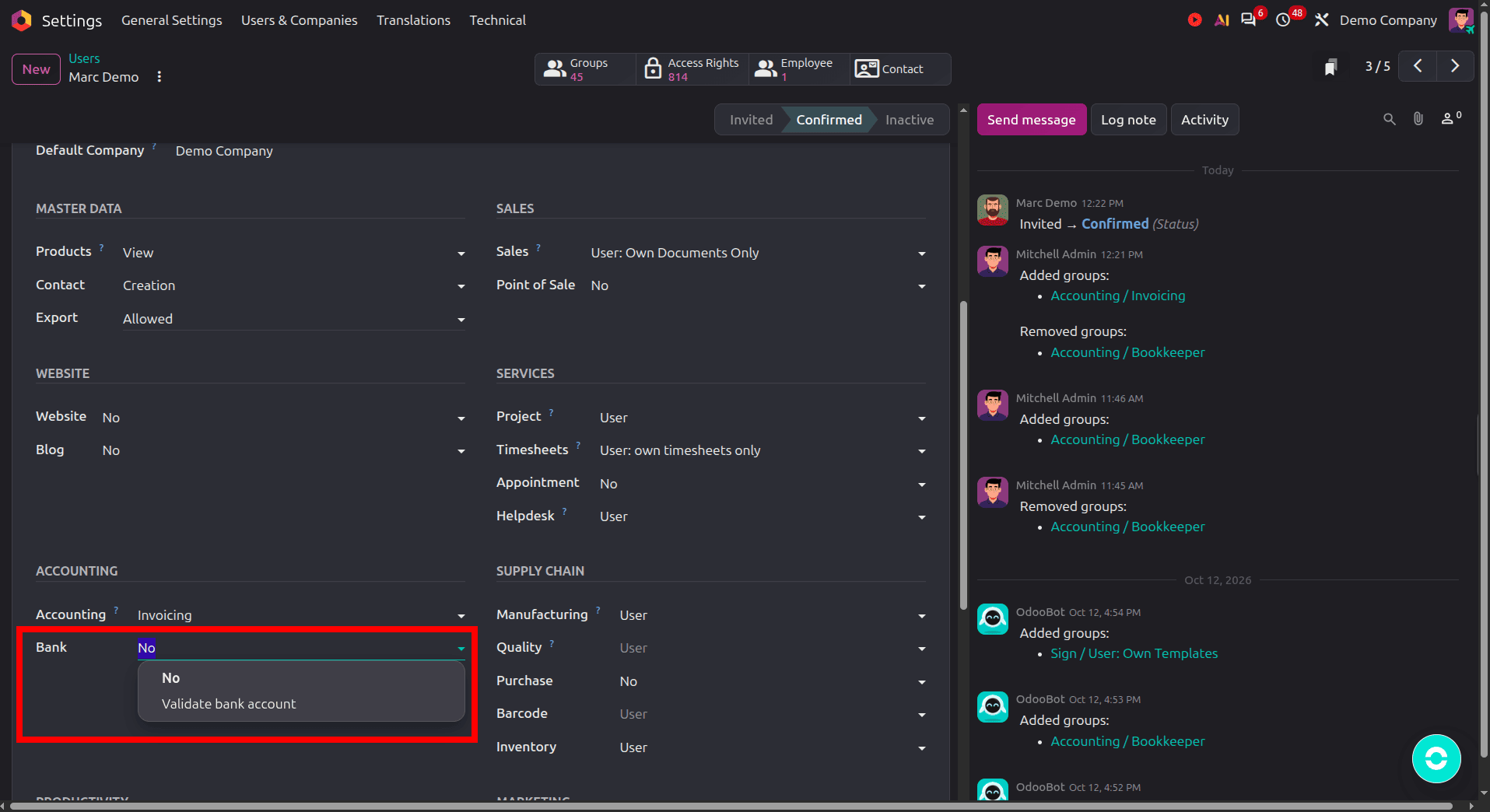
The first is Validate bank account, on the Bank line of the user form. It decides who can mark a vendor's bank account as trusted for outgoing payments. Settings administrators have it automatically. Keep the list of people with this right very short, because a swapped bank account is one of the oldest forms of payment frauds.
The second is Show Inalterability Features. It shows whether posted entries are secured against changes, which helps when you need to prove to an auditor that nothing was altered. It's a technical setting, so your Odoo administrator has to switch it on for you.
Multi-Company
Access levels belong to the user, not the company. Someone who is a Bookkeeper is a Bookkeeper in every company they can access. If a person should have different rights in different companies, you'll need separate users. Review data, on the other hand, is set per company, so you can use it for one entity and not another.
Check Before You Hand Out Access
When you set up a new colleague, it's worth checking that their access really works the way you expect. If you have a test database, create a user with the same level and log in as them in a private browser window. Try the things they'll do every day, such as posting an invoice, registering a payment, or reconciling a bank line, and also try something they shouldn't be able to do, like changing a tax. Ten minutes of checking saves a lot of "I can't see the button" messages later.
One Last Piece of Advice
Resist giving people Administrator "just in case". In most finance teams, only one or two people need it. Everyone else can do their job perfectly well as Invoicing, Invoicing & Banks, or Bookkeeper, and your books are safer for it.
To read more about How to Manage User Access and Permissions in Odoo 19, refer to our blog, How to Manage User Access and Permissions in Odoo 19.