Although Odoo comes with a built-in import tool, real projects frequently require a guided import, which consists of a single button, a list of required columns, automatic creation of related records that are lacking, and unambiguous validation signals when a file is incorrect. A simple wizard that launches from a custom button is the most efficient method to do this.
We will create a whole module, product_csv_import, in this blog that gives the product form an Import CSV button. When the user clicks it, a wizard appears, allowing them to upload a CSV file and create (or amend) records on the product.template model template. In addition to handling the product type change brought about by current Odoo versions, we will enforce six required fields and automatically establish the product category when it does not already exist.
Step 1: Module structure
The logic lives in a TransientModel, because the upload and parsing are one-off actions that should not be stored permanently in the database.
product_csv_import/
+-- __manifest__.py
+-- __init__.py
+-- security/
¦   +-- ir.model.access.csv
+-- wizard/
    +-- __init__.py
    +-- product_csv_import_wizard.py
    +-- product_csv_import_wizard_views.xml
The wizard (Python)
The template account is used to generate the invoice PDF report.report_invoice_document. The XPath targets need to be modified because the structure is a little different from the Sale Order report. However, the reasoning behind visual presentation remains the same.
Python code - product_csv_import_wizard.py:
import base64
import csv
import io
from odoo import fields, models
from odoo.exceptions import UserError
# The 6 mandatory columns expected in the CSV header.
REQUIRED_COLUMNS = [
    "name",
    "default_code",     # internal reference - also used as the upsert key
    "list_price",       # sales price
    "standard_price",   # cost
    "categ",            # product category (find-or-create by name)
    "type",             # consu / service
]
# Accept a few friendly spellings; everything storable/goods maps to 'consu'.
TYPE_MAP = {
    "consu": "consu", "consumable": "consu", "goods": "consu",
    "good": "consu", "storable": "consu",
    "service": "service",
}

class ProductCsvImportWizard(models.TransientModel):
    _name = "product.csv.import.wizard"
    _description = "Product CSV Import Wizard"
    csv_file = fields.Binary(string="CSV File", required=True)
    file_name = fields.Char(string="File Name")
    delimiter = fields.Selection(
        [(",", "Comma (,)"), (";", "Semicolon (;)"), ("\t", "Tab")],
        string="Delimiter",
        default=",",
        required=True,
    )
    def action_import(self):
        self.ensure_one()
        if not self.csv_file:
            raise UserError("Please upload a CSV file.")
        # 1. Decode the uploaded binary into text.
        try:
            decoded = base64.b64decode(self.csv_file)
            text = decoded.decode("utf-8-sig")  # utf-8-sig strips Excel BOM
        except Exception:
            raise UserError("Unable to read the file. Ensure it is a valid UTF-8 CSV.")
        reader = csv.DictReader(io.StringIO(text), delimiter=self.delimiter)
        # 2. Validate the header has every mandatory column.
        headers = [h.strip() for h in (reader.fieldnames or [])]
        missing = [c for c in REQUIRED_COLUMNS if c not in headers]
        if missing:
            raise UserError(
                "Missing mandatory column(s): %s\nExpected header: %s"
                % (", ".join(missing), ", ".join(REQUIRED_COLUMNS))
            )
        Product = self.env["product.template"]
        touched = Product.browse()
        for line_no, row in enumerate(reader, start=2):  # row 1 is the header
            values = {c: (row.get(c) or "").strip() for c in REQUIRED_COLUMNS}
            empty = [c for c in REQUIRED_COLUMNS if not values[c]]
            if empty:
                raise UserError(
                    "Row %s: empty mandatory value(s): %s"
                    % (line_no, ", ".join(empty))
                )
            vals = {
                "name": values["name"],
                "default_code": values["default_code"],
                "list_price": self._to_float(values["list_price"], "list_price", line_no),
                "standard_price": self._to_float(values["standard_price"], "standard_price", line_no),
                "categ_id": self._get_category(values["categ"]).id,
                "type": self._get_type(values["type"], line_no),
            }
            # 3. Upsert by internal reference: update if it exists, else create.
            existing = Product.search(
                [("default_code", "=", values["default_code"])], limit=1)
            if existing:
                existing.write(vals)
                touched |= existing
            else:
                touched |= Product.create(vals)
        if not touched:
            raise UserError("No data rows found in the file.")
        return {
            "type": "ir.actions.act_window",
            "name": "Imported Products",
            "res_model": "product.template",
            "domain": [("id", "in", touched.ids)],
            "view_mode": "list,form",
            "target": "current",
        }
    # ----- helpers -------------------------------------------------------
    def _get_category(self, name):
        categ = self.env["product.category"].search([("name", "=", name)], limit=1)
        if not categ:
            categ = self.env["product.category"].create({"name": name})
        return categ
    def _get_type(self, value, line_no):
        mapped = TYPE_MAP.get(value.lower())
        if not mapped:
            raise UserError(
                "Row %s: invalid type '%s' (use consu/goods or service)." % (line_no, value))
        return mapped
    def _to_float(self, value, field, line_no):
        try:
            return float(value)
        except ValueError:
            raise UserError(
                "Row %s: '%s' is not a valid number for %s." % (line_no, value, field))
Since uploading and parsing a file is a one-time operation that shouldn't be saved permanently, we built the wizard as a TransientModel. Delimiter allows the user to select the separator, which is important since spreadsheets exported in some countries use a semicolon; file_name maintains the name for display; and csv_file is a binary field that contains the upload.
When a binary field arrives base64-encoded, we first decode it using base64.b64 before decoding the bytes using utf-8-sig instead of plain utf-8. The byte-order mark (BOM) that programs like Excel append to the beginning of a file, which would otherwise taint the first column name, is eliminated by the sig variant. Each row is then read by csv.DictReader into a dictionary that is keyed by the header names.
We make sure all six required columns are present before modifying any data, and we raise a UserError with a list of the missing ones. In order to ensure that the error line numbers match the file (row 1 is the header), we remove whitespace and reject empty mandatory values for each row, starting at 2.
The only detail unique to Odoo-19 is the type field. The previous product (Storable) type is no longer in use; instead, consu (labeled goods) and service are accepted, with storability managed independently by Track Inventory. A slightly different label does not prevent the import because the TYPE_MAP dictionary normalizes spellings like goods or storable down to consu.
Because categ_id is a Many2one, a plain text value cannot be supplied to it directly. The _get_category helper looks for the category by name, creates it if it isn't already there, and then returns the record so we may use its ID. The "record not found" errors that would result from a strict lookup are avoided using this find-or-create approach.
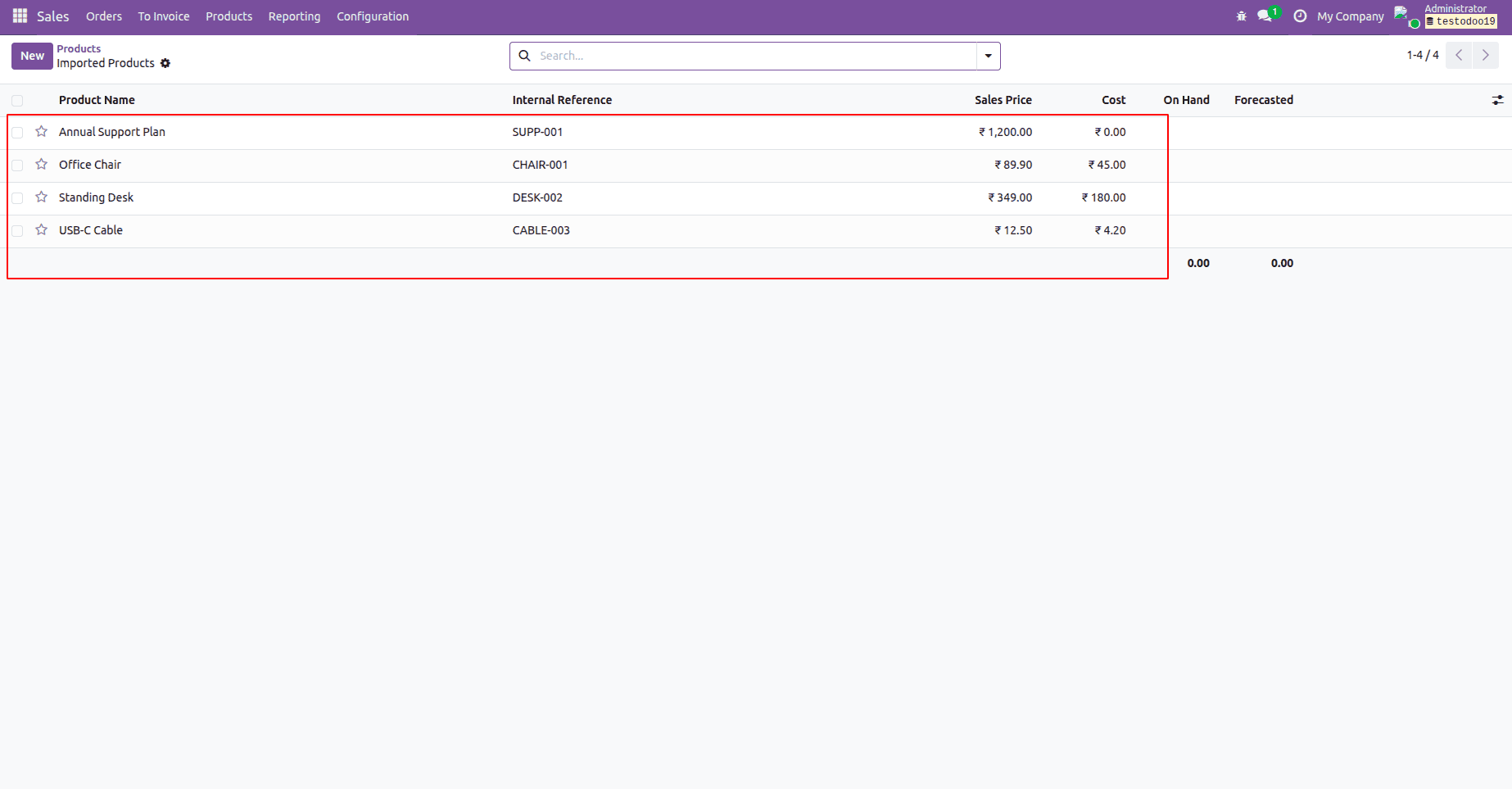
Lastly, we search by default_code and update the product if it already exists, otherwise creating it, rather than creating one product every row at random. As a result, the import can be safely repeated without creating duplicates. After the loop, we return an action that opens exactly the records we touched, so the user immediately sees the result.
The views and custom button (XML)
Xml code: product_csv_import_wizard_views.xml
<?xml version="1.0" encoding="utf-8"?>
<odoo>
    <!-- Wizard form -->
    <record id="view_product_csv_import_wizard_form" model="ir.ui.view">
        <field name="name">product.csv.import.wizard.form</field>
        <field name="model">product.csv.import.wizard</field>
        <field name="arch" type="xml">
            <form string="Import Products from CSV">
                <group>
                    <field name="csv_file" filename="file_name"/>
                    <field name="file_name" invisible="1"/>
                    <field name="delimiter"/>
                </group>
                <div class="text-muted">
                    Mandatory columns:
                    <b>name, default_code, list_price, standard_price, categ, type</b>
                    <br/>type accepts: consu / goods / service
                </div>
                <footer>
                    <button name="action_import" type="object"
                            string="Import" class="btn-primary"/>
                    <button string="Cancel" class="btn-secondary" special="cancel"/>
                </footer>
            </form>
        </field>
    </record>
    <!-- Action that opens the wizard -->
    <record id="action_product_csv_import_wizard" model="ir.actions.act_window">
        <field name="name">Import Products</field>
        <field name="res_model">product.csv.import.wizard</field>
        <field name="view_mode">form</field>
        <field name="target">new</field>
    </record>
    <!-- Custom button in the Product list view header -->
    <record id="product_template_list_csv_import" model="ir.ui.view">
        <field name="name">product.template.list.csv.import</field>
        <field name="model">product.template</field>
        <field name="inherit_id" ref="product.product_template_tree_view"/>
        <field name="arch" type="xml">
            <xpath expr="//list" position="inside">
                <header>
                    <button name="%(action_product_csv_import_wizard)d"
                            type="action"
                            string="Import CSV"
                            class="btn-primary"/>
                </header>
            </xpath>
        </field>
    </record>
</odoo>
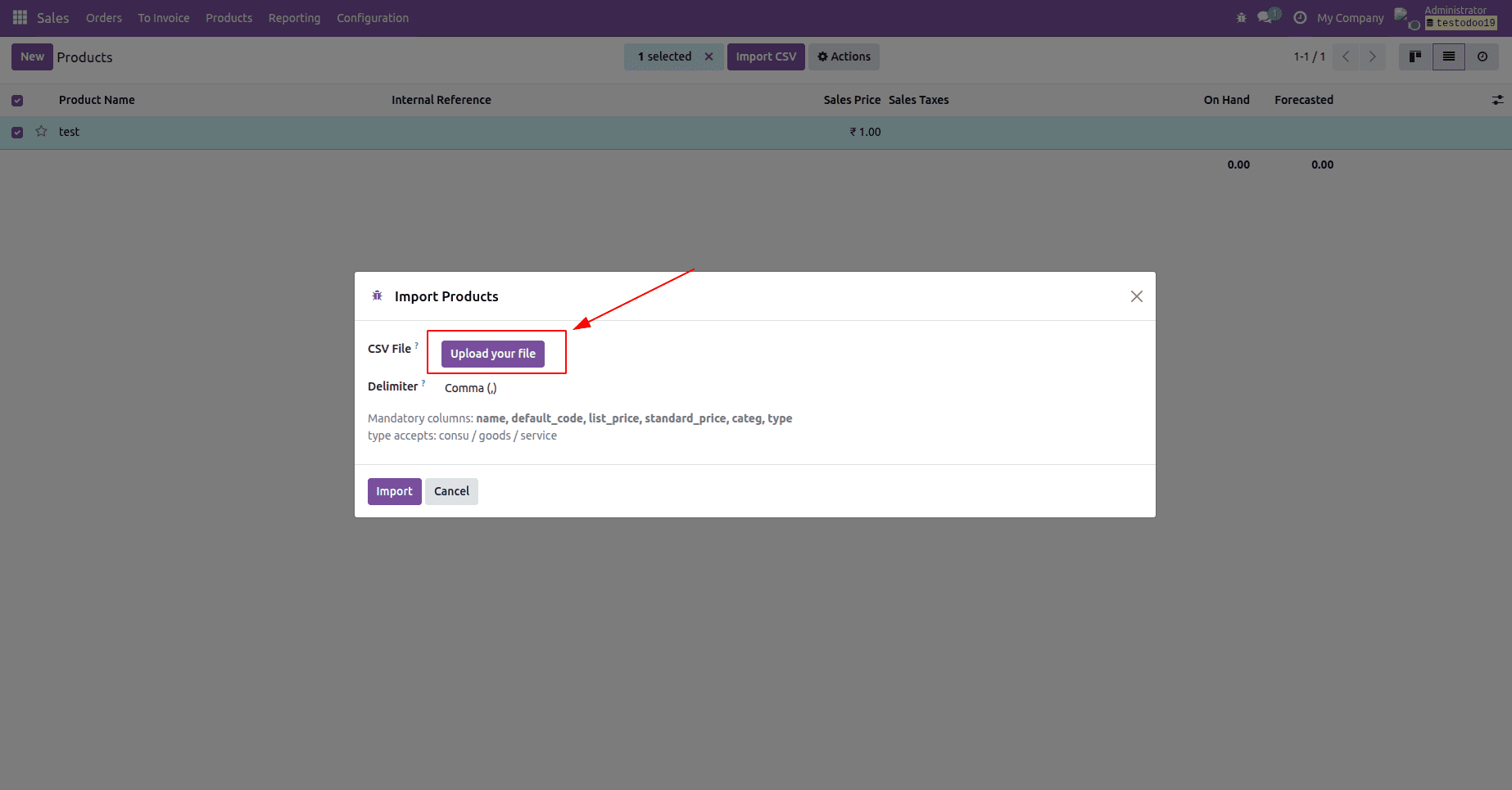
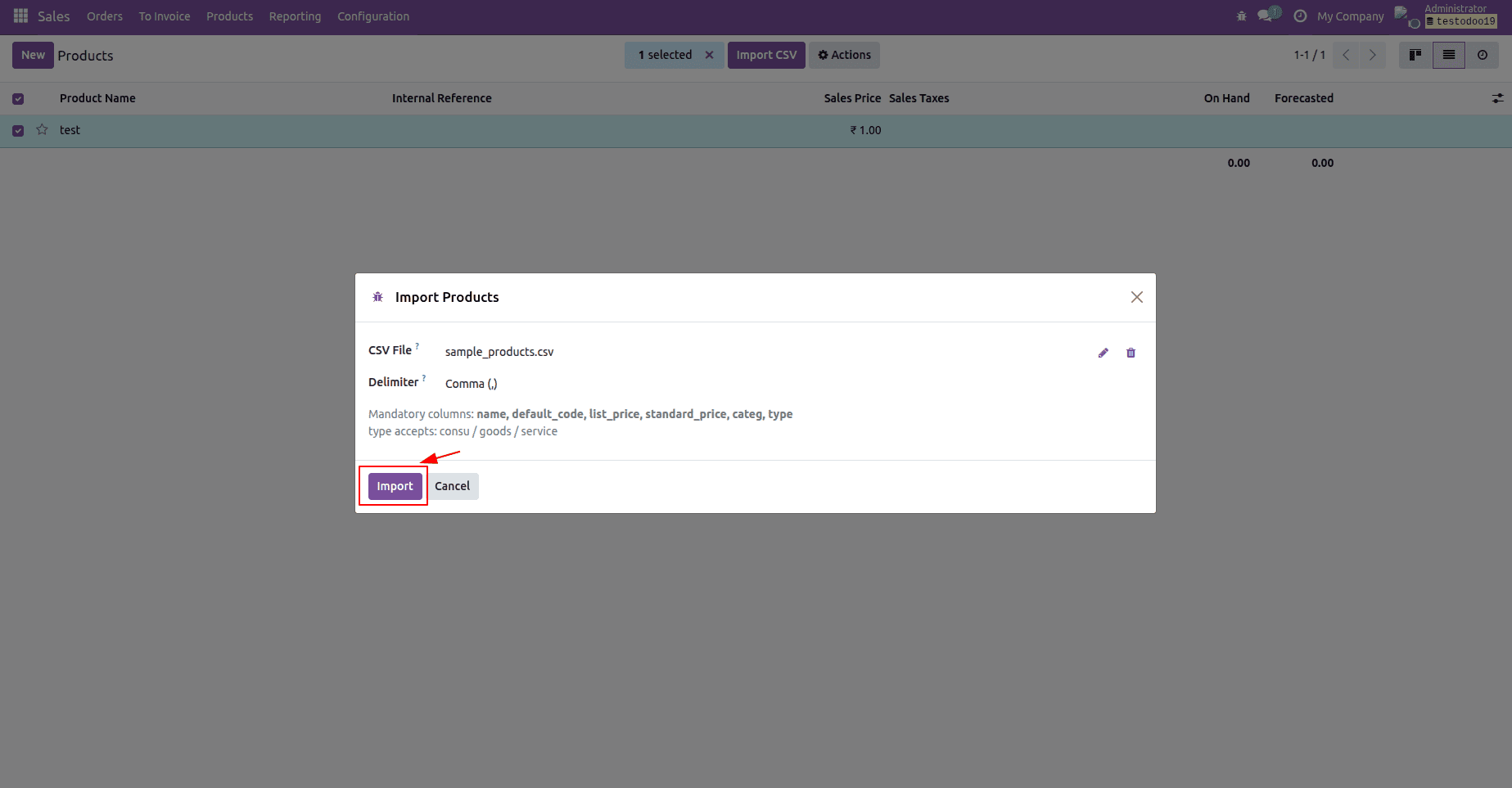
The wizard form exposes the delimiter so the user may match their export and uses the filename attribute on csv_file to display the actual file name in the upload widget. The Import button, which uses type="object" to run action_import, and the Cancel button, which uses special="cancel" to simply end the dialog, are located in the footer.
The window action causes the wizard to launch as a pop-up; target="new" is what causes it to show up in a dialog rather than taking the place of the current page.
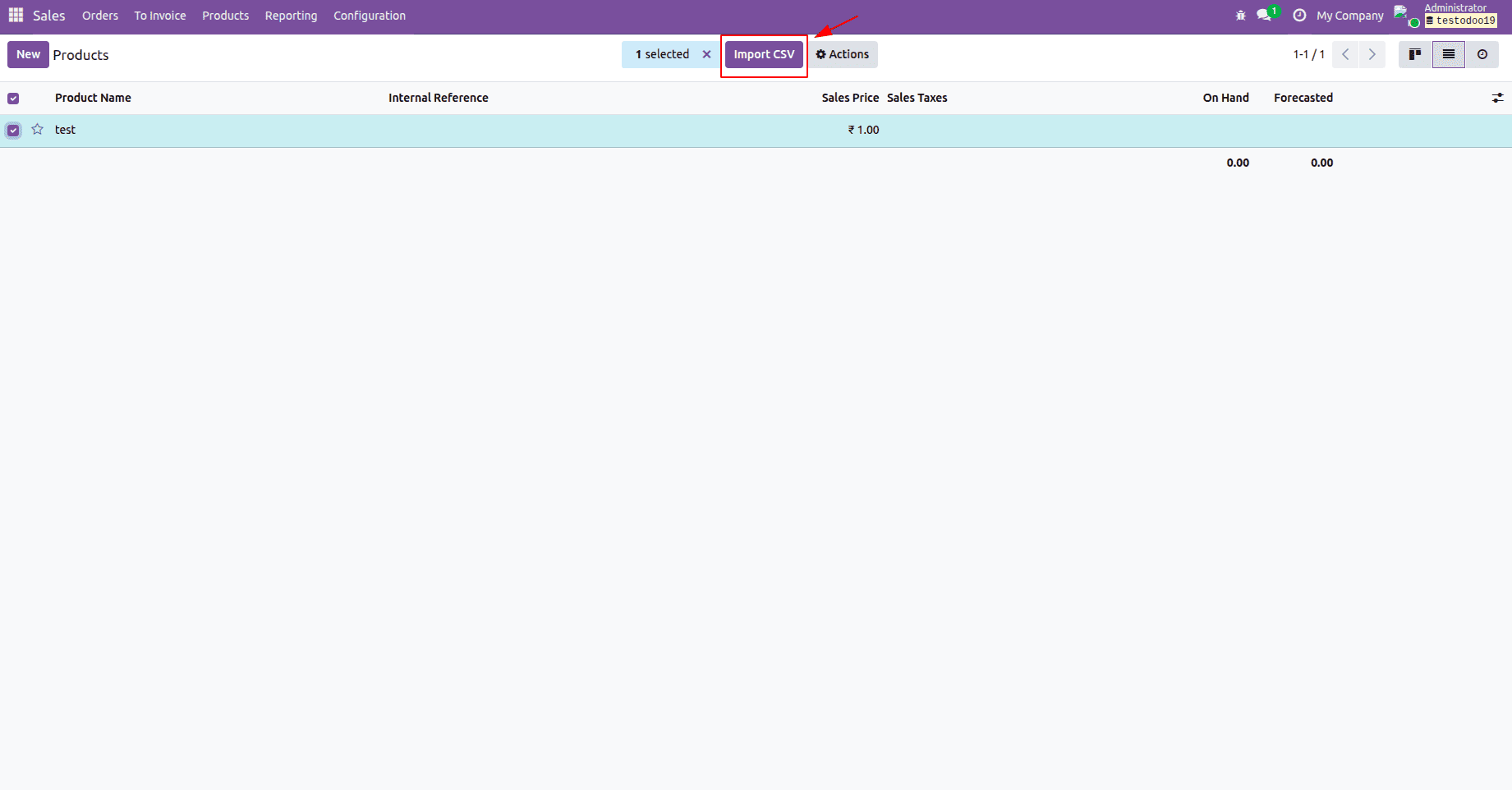
We use the normal product list view product for the button itself. The foundation list used by the Products menu and expanded by apps such as Sales and Inventory is called Product_template_tree_view. By using position="inside" on the //list root, we create a button whose name corresponds to the action with %(action_product_csv_import_wizard) and type="action" that starts that window action when clicked. The Import CSV button is now at the top of the Products list because list-view header buttons render in the control panel.
The following screenshots illustrate what occurs when you add these Python and XML files and install or upgrade your custom module.
The Import CSV button on the product list view:
The import wizard dialog: click the upload your file button, and select the CSV file
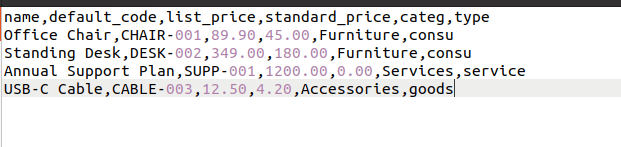
The content of sample csv file:
Then click the import button:
The result with imported products:
Using a little TransientModel wizard and one inherited view, we added a guided CSV import feature to the Odoo 19 product list view. This approach offers much more control than Odoo's generic import tool by enforcing a predefined set of required columns, performing transparent row-level validations, automatically creating missing product categories, normalizing product types to match Odoo 19's Goods/Service model, and implementing a secure upsert mechanism that prevents duplicate records during re-imports.
A similar approach may be applied to almost any Odoo model. We may construct customized import solutions for items, sale orders, contacts, contracts, vendors, or any unique business entity in the database by only changing the target model, adjusting the necessary fields, and reusing the decode–validate–create process.
This approach is very useful in reality when imports need custom fields, complex field mappings, data transformations, or other validation requirements that the basic Odoo import feature cannot handle effectively. It provides a more user-friendly, controlled, and reliable data import process while ensuring data consistency and reducing manual corrections after import.
To read more about How to Import CSV Data Through a Custom Button in Odoo 19, refer to our blog How to Import CSV Data Through a Custom Button in Odoo 19.