All businesses require reports like invoices, sales orders, purchase orders, delivery orders, and other documents. Odoo provides reporting action where users can print any document right from Odoo itself in PDF format.
This blog post describes what a reporting action is and how to create one in Odoo 20. In this example, we shall create a very basic custom module, add a report in it, and see how it can be used.
Understanding Report Actions in Odoo
In Odoo, the report action is an object which connects a model (thing that is to be printed) and a template (layout of the report page). The report action also defines the format of the report; it is most often PDF but can also be HTML or XLSX.
The template is coded in QWeb, which is Odoo’s templating language. QWeb is just HTML with some additional tags that retrieve information from records.
Common use cases for reporting actions include:
- Invoices and Sales Orders: Printable copies for customers.
- Purchase Orders: Official documents for vendors.
- Delivery Slips: Packing details for shipments.
- Custom Reports: Reports made for internal use or for a particular business process.
Step-by-Step Guide to Creating a Report Action
Let’s create a simple PDF report for a custom module. Our module name is demo_order_report. The final folder structure looks like this:
demo_order_report/
+-- __init__.py
+-- __manifest__.py
+-- data/
¦   +-- sequence_data.xml
+-- models/
¦   +-- __init__.py
¦   +-- demo_order.py
+-- reports/
¦   +-- report_order.xml
¦   +-- report_order_templates.xml
+-- security/
¦   +-- ir.model.access.csv
+-- tests/
¦   +-- __init__.py
¦   +-- test_order_report.py
+-- views/
    +-- order_views.xml
1. Create the Module and Models
A model holds the data of your records. Here, we create two models, one for the order and one for its lines.
from odoo import api, fields, models
class DemoOrder(models.Model):
    _name = 'demo.order'
    _description = 'Demo Order'
    name = fields.Char(string='Order Reference', required=True, copy=False,
                       readonly=True, default='New')
    customer_id = fields.Many2one('res.partner', string='Customer', required=True)
    order_date = fields.Date(string='Order Date', default=fields.Date.context_today)
    order_line_ids = fields.One2many('demo.order.line', 'order_id', string='Order Lines')
    currency_id = fields.Many2one('res.currency', string='Currency',
                                  default=lambda self: self.env.company.currency_id)
    total_amount = fields.Monetary(string='Total Amount', compute='_compute_total_amount',
                                   store=True, currency_field='currency_id')
    @api.depends('order_line_ids.price_subtotal')
    def _compute_total_amount(self):
        for order in self:
            order.total_amount = sum(order.order_line_ids.mapped('price_subtotal'))
    @api.model_create_multi
    def create(self, vals_list):
        for vals in vals_list:
            if vals.get('name', 'New') == 'New':
                vals['name'] = self.env['ir.sequence'].next_by_code('demo.order') or 'New'
        return super().create(vals_list)

class DemoOrderLine(models.Model):
    _name = 'demo.order.line'
    _description = 'Demo Order Line'
    order_id = fields.Many2one('demo.order', string='Order', required=True, ondelete='cascade')
    product_id = fields.Many2one('product.product', string='Product', required=True)
    quantity = fields.Float(string='Quantity', default=1.0)
    price_unit = fields.Monetary(string='Unit Price', currency_field='currency_id')
    currency_id = fields.Many2one(related='order_id.currency_id', store=True,
                                  string='Currency')
    price_subtotal = fields.Monetary(string='Subtotal', compute='_compute_price_subtotal',
                                     store=True, currency_field='currency_id')
    @api.depends('quantity', 'price_unit')
    def _compute_price_subtotal(self):
        for line in self:
            line.price_subtotal = line.quantity * line.price_unit
The order reference is generated from a sequence, so the next file defines it.
data/sequence_data.xml
<?xml version="1.0" encoding="utf-8"?>
<odoo noupdate="1">
    <record id="seq_demo_order" model="ir.sequence">
        <field name="name">Demo Order</field>
        <field name="code">demo.order</field>
        <field name="prefix">ORD/</field>
        <field name="padding">3</field>
    </record>
</odoo>
2. Define the Report Action in XML
Now, we register the report. Create the file reports/report_order.xml.
<?xml version="1.0" encoding="utf-8"?>
<odoo>
    <record id="action_report_demo_order" model="ir.actions.report">
        <field name="name">Demo Order Report</field>
        <field name="model">demo.order</field>
        <field name="report_type">qweb-pdf</field>
        <field name="report_name">demo_order_report.report_demo_order_document</field>
        <field name="print_report_name">(object.name or '').replace('/', '')</field>
        <field name="binding_model_id" ref="model_demo_order"/>
        <field name="binding_type">report</field>
    </record>
</odoo>
Let’s break down the key fields:
- id: A unique external identifier for the report action. We will use it later in the button.
- name: The name shown to users in the Print menu.
- model: The model this report is for. The records selected by the user are the ones that get printed.
- report_type: The output format. Use qweb-pdf for PDF and qweb-html for HTML.
- report_name: The full name of the QWeb template that was used, given in module_name.template_id format.
- report_file: The name used for the report file.
- print_report_name: The Python expression for setting the name of the generated file. It strips away the slashes from the order name, and thus order “ORD/001” becomes “ORD001.pdf”.
- binding_model_id: It binds the report to the model and gets automatically added to the Print menu by Odoo. For creating the ref, take the model name from the name field and replace all the dots with underscores and prefix it with model. For demo.order it becomes model_demo_order.
- binding_type: Set to report so that it appears under the Print menu.
3. Create the Report Template (QWeb)
Now, we design the page that will get printed. Create the file reports/report_order_template.xml.
<?xml version="1.0" encoding="utf-8"?>
<odoo>
    <template id="report_demo_order_document">
        <t t-call="web.html_container">
            <t t-foreach="docs" t-as="o">
                <t t-call="web.external_layout">
                    <div class="page">
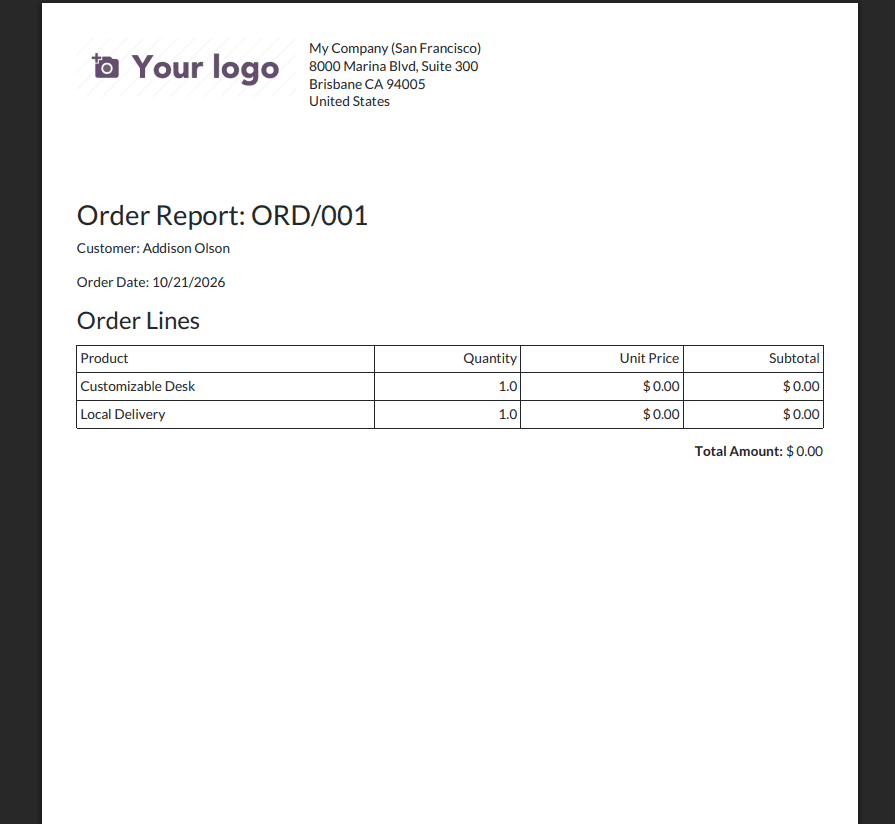
                        <h2>Order Report: <span t-field="o.name"/></h2>
                        <p>Customer: <span t-field="o.customer_id.name"/></p>
                        <p>Order Date: <span t-field="o.order_date"/></p>
                        <h3>Order Lines</h3>
                        <table class="table table-sm">
                            <thead>
                                <tr>
                                    <th>Product</th>
                                    <th class="text-end">Quantity</th>
                                    <th class="text-end">Unit Price</th>
                                    <th class="text-end">Subtotal</th>
                                </tr>
                            </thead>
                            <tbody>
                                <tr t-foreach="o.order_line_ids" t-as="line">
                                    <td><span t-field="line.product_id.name"/></td>
                                    <td class="text-end"><span t-field="line.quantity"/></td>
                                    <td class="text-end"><span t-field="line.price_unit"/></td>
                                    <td class="text-end"><span t-field="line.price_subtotal"/></td>
                                </tr>
                            </tbody>
                        </table>
                        <p class="text-end">
                            <strong>Total Amount: </strong>
                            <span t-field="o.total_amount"/>
                        </p>
                    </div>
                </t>
            </t>
        </t>
    </template>
</odoo>
Key elements in the QWeb template:
- <template id="report_demo_order_document">: This ID must match the template part of report_name in the report action.
- <t t-call="web.html_container">: The main container used by Odoo reports.
- <t t-foreach="docs" t-as="o">: The docs variable holds the records selected for printing. This loop goes through each of them and calls the current one.
- <t t-call="web.external_layout">: Adds the standard company header, logo and footer. Use web.internal_layout if you want a simpler page.
- <div class="page">: The main content area of the report.
- <span t-field="o.name"/>: Prints a field value from the record. Odoo formats it according to the field type.
- You can use normal HTML tags and Bootstrap classes such as table and table-sm to style the page.
4. Add a Button on the Form View
The report is already present in the Print menu due to binding. If you want to add a button as well for the same report in the header of the form, you can do so, as the file will contain the list view and action menu too.
views/order_views.xml
<?xml version="1.0" encoding="utf-8"?>
<odoo>
    <record id="view_demo_order_form" model="ir.ui.view">
        <field name="name">demo.order.form</field>
        <field name="model">demo.order</field>
        <field name="arch" type="xml">
            <form string="Demo Order">
                <header>
                    <button name="%(demo_order_report.action_report_demo_order)d"
                            string="Print Order Report"
                            type="action"
                            class="oe_highlight"/>
                </header>
                <sheet>
                    <div class="oe_title">
                        <h1><field name="name"/></h1>
                    </div>
                    <group>
                        <group>
                            <field name="customer_id"/>
                            <field name="order_date"/>
                        </group>
                        <group>
                            <field name="currency_id"/>
                            <field name="total_amount"/>
                        </group>
                    </group>
                    <notebook>
                        <page string="Order Lines">
                            <field name="order_line_ids">
                                <list editable="bottom">
                                    <field name="product_id"/>
                                    <field name="quantity"/>
                                    <field name="price_unit"/>
                                    <field name="price_subtotal"/>
                                </list>
                            </field>
                        </page>
                    </notebook>
                </sheet>
            </form>
        </field>
    </record>
    <record id="view_demo_order_list" model="ir.ui.view">
        <field name="name">demo.order.list</field>
        <field name="model">demo.order</field>
        <field name="arch" type="xml">
            <list string="Demo Orders">
                <field name="name"/>
                <field name="customer_id"/>
                <field name="order_date"/>
                <field name="total_amount"/>
            </list>
        </field>
    </record>
    <record id="action_demo_order" model="ir.actions.act_window">
        <field name="name">Demo Orders</field>
        <field name="res_model">demo.order</field>
        <field name="view_mode">list,form</field>
    </record>
    <menuitem id="menu_demo_order_root" name="Demo Orders"
              action="action_demo_order" sequence="10"/>
</odoo>
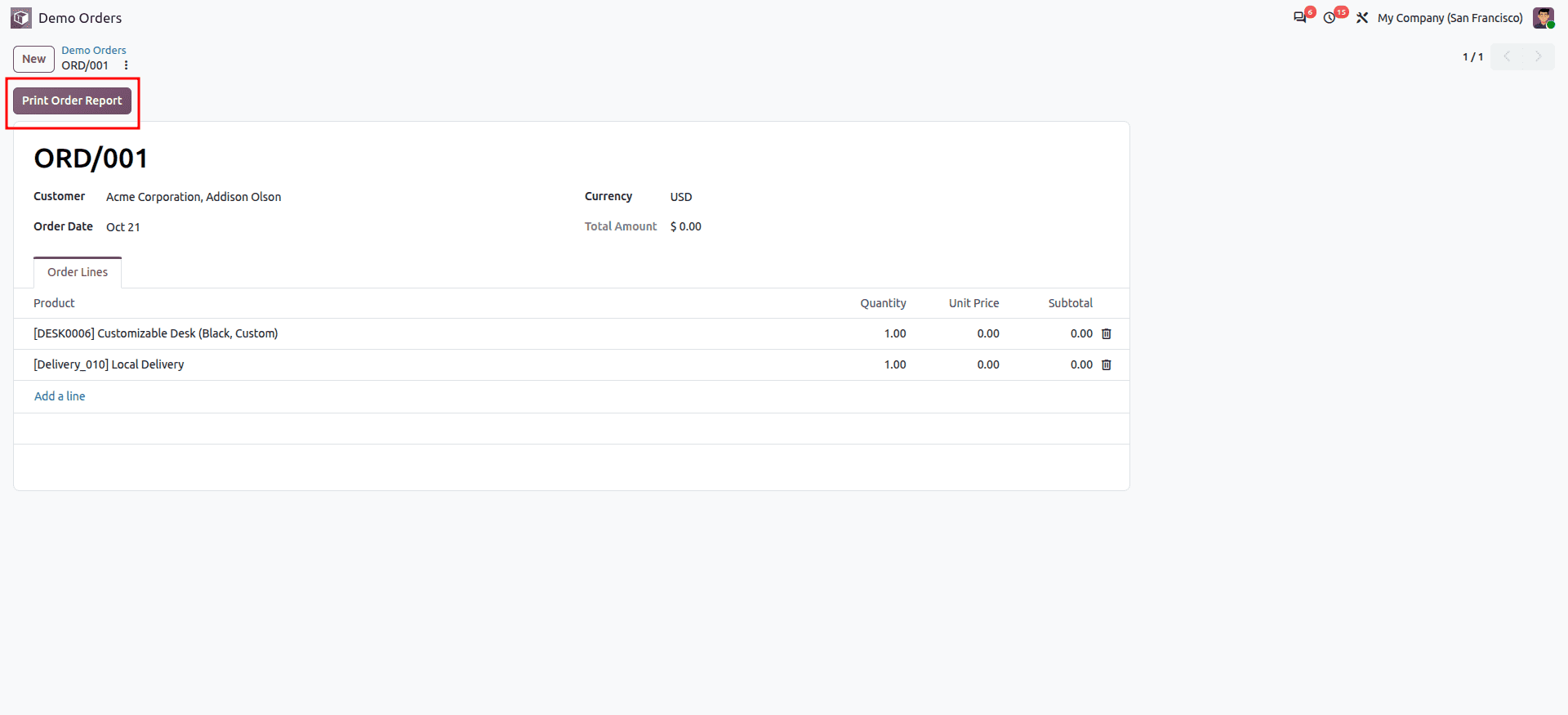
In this button, %(demo_order_report.action_report_demo_order)d represents the action of the report we have just created. The 'd' at the end tells Odoo to take the database ID of the record.
5. Add the Files to the manifest
{
    'name': 'Demo Order Report',
    'version': '20.0.1.0.0',
    'category': 'Tools',
    'summary': 'Example of a reporting action in Odoo 20',
    'depends': ['product'],
    'data': [
        'security/ir.access.csv',
        'data/sequence_data.xml',
        'reports/report_order_templates.xml',
        'reports/report_order.xml',
        'views/order_views.xml',
    ],
    'installable': True,
    'application': True,
    'license': 'LGPL-3',
}
Using Reporting Actions
After the report action is created and linked, users can generate reports in a few ways:
- From a Form View: Using the Print menu or Print icon present on a form will download the report.
- From a List View: Multiple records can be selected, and the Print menu is used with the report option to produce a single PDF file for all the selected records.
When the user prints a report, Odoo does the following:
- Fetches the selected records of the model given in the report action.
- Renders the QWeb template named in report_name with that data.
- Converts the result into the selected report_type, such as PDF.
- Downloads the file in the user’s browser.
Reporting actions are very important components in the process of creation of business documents in Odoo. Once you learn how to specify the action and create QWeb templates for the model, you will be able to create any report in Odoo 20.
To read more about How to Create and Use Reporting Actions in Odoo 19, refer to our blog, How to Create and Use Reporting Actions in Odoo 19.