Managing a business's workflow is getting more difficult every day. Odoo 20 provides a Project module to track tasks and maintain business workflows. This module helps you organize, monitor, and evaluate your team's work through user-friendly projects and tasks. This platform allows you to efficiently manage internal operations and deliver client projects.
In this blog, we will explore how to create a project in Odoo 20 and configure its essential settings.
Create a New Project in Odoo 20
The Project module allows you to create projects, assign employees, and give them tasks. You can easily create custom tasks and subtasks for each project to match your needs. To create a new project, open the Project module from the Odoo 20 dashboard.
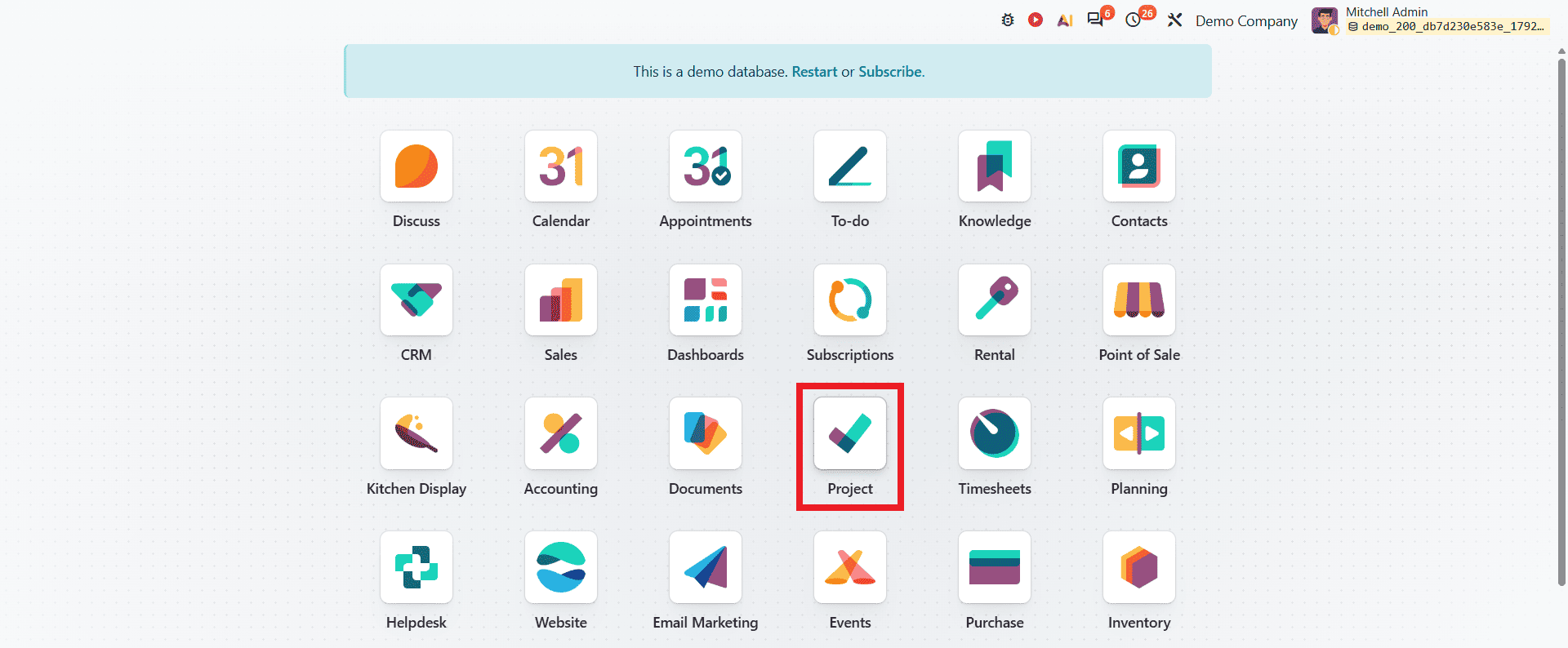
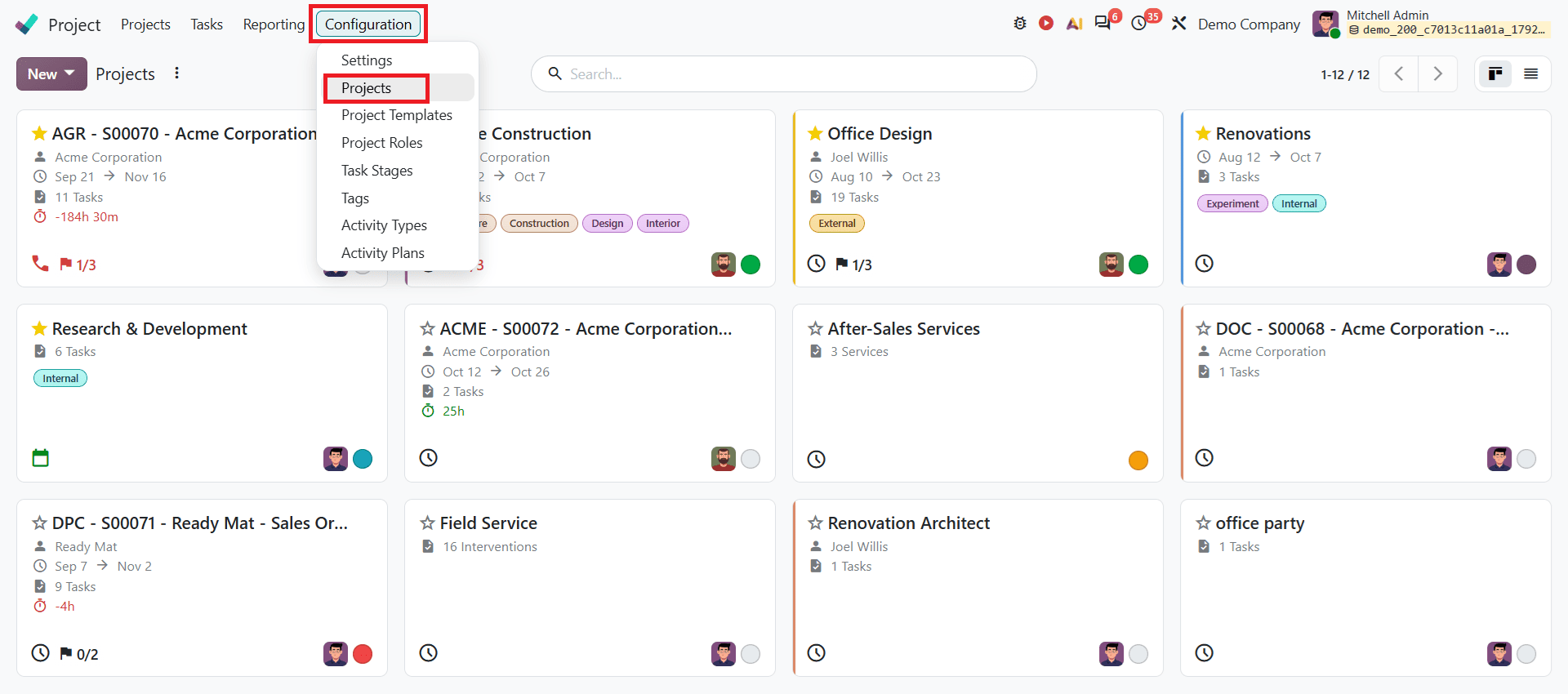
After opening the Project module, you will be able to see projects that already exist. To create a new project from configuration, go to Configuration and select Projects.
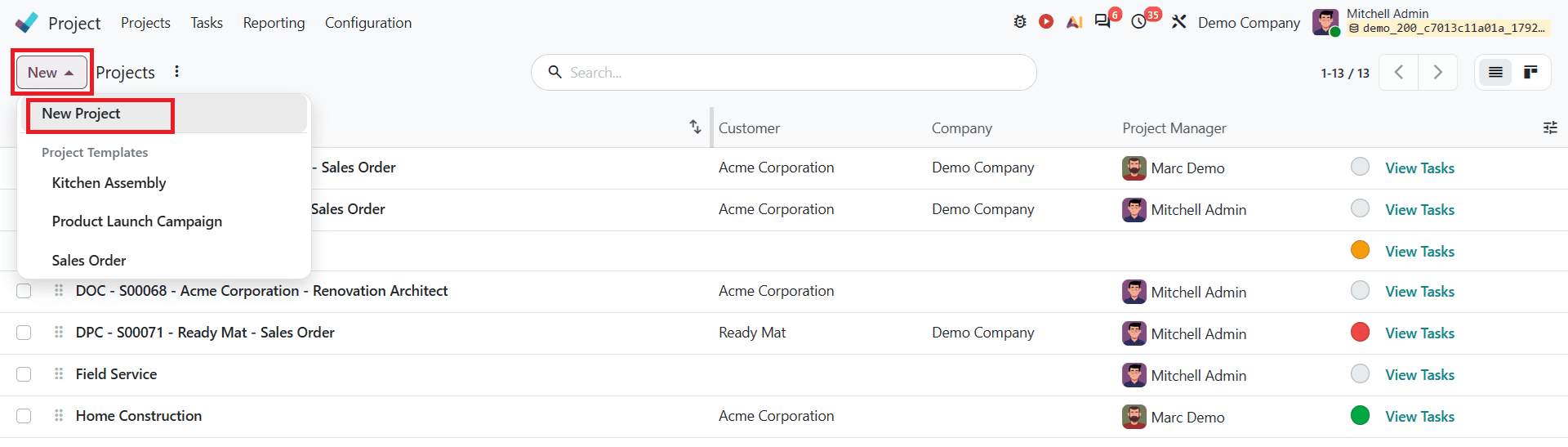
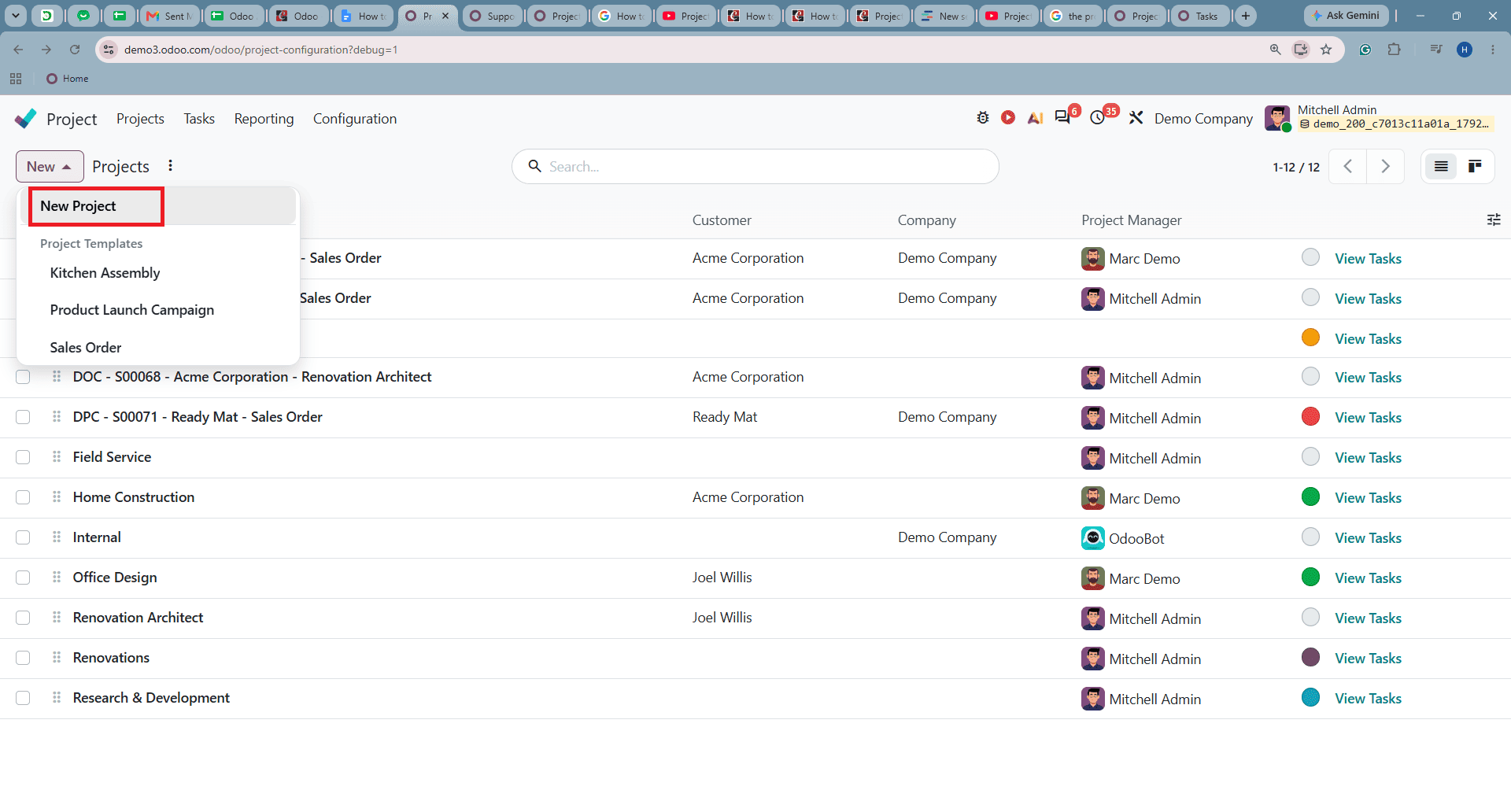
In the project configuration menu, click on New and select New Project to create.
Once you open it, a new window will appear as shown below:
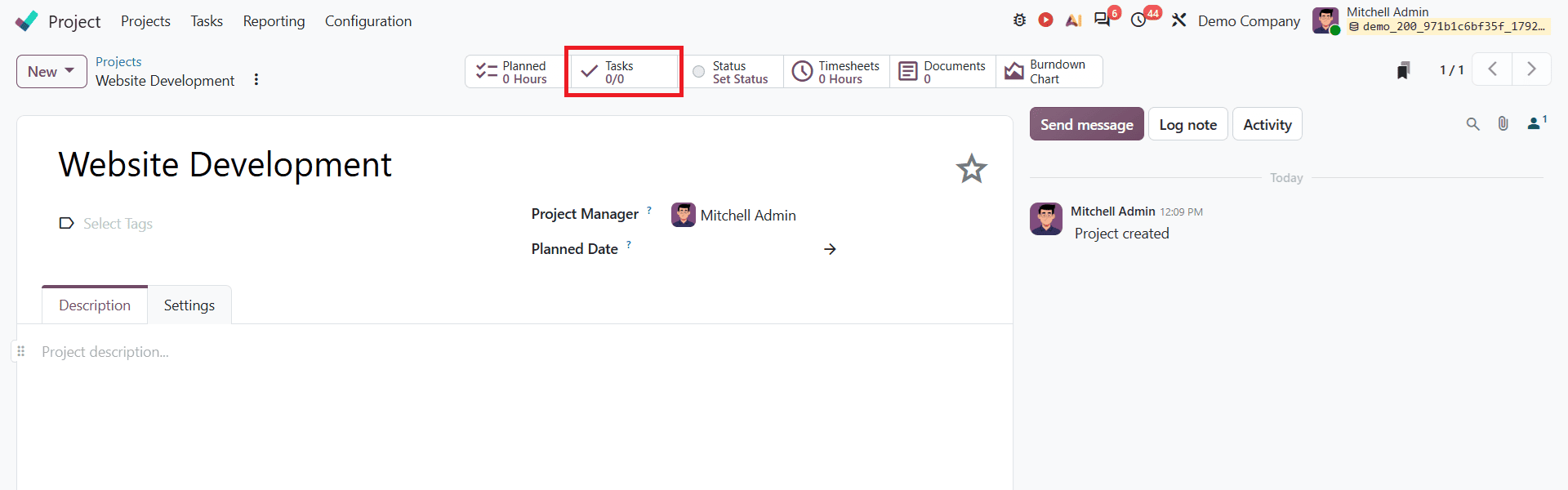
In this window, you can add the name of your project, project manager, and planned date. Once you save the details, your project will be created.
Creating a Project from the Dashboard
Odoo 20 also allows you to create projects directly from the project dashboard. To create a project from the dashboard, click on the New button on the dashboard and select New Project.
A pop-up window will appear as shown below.
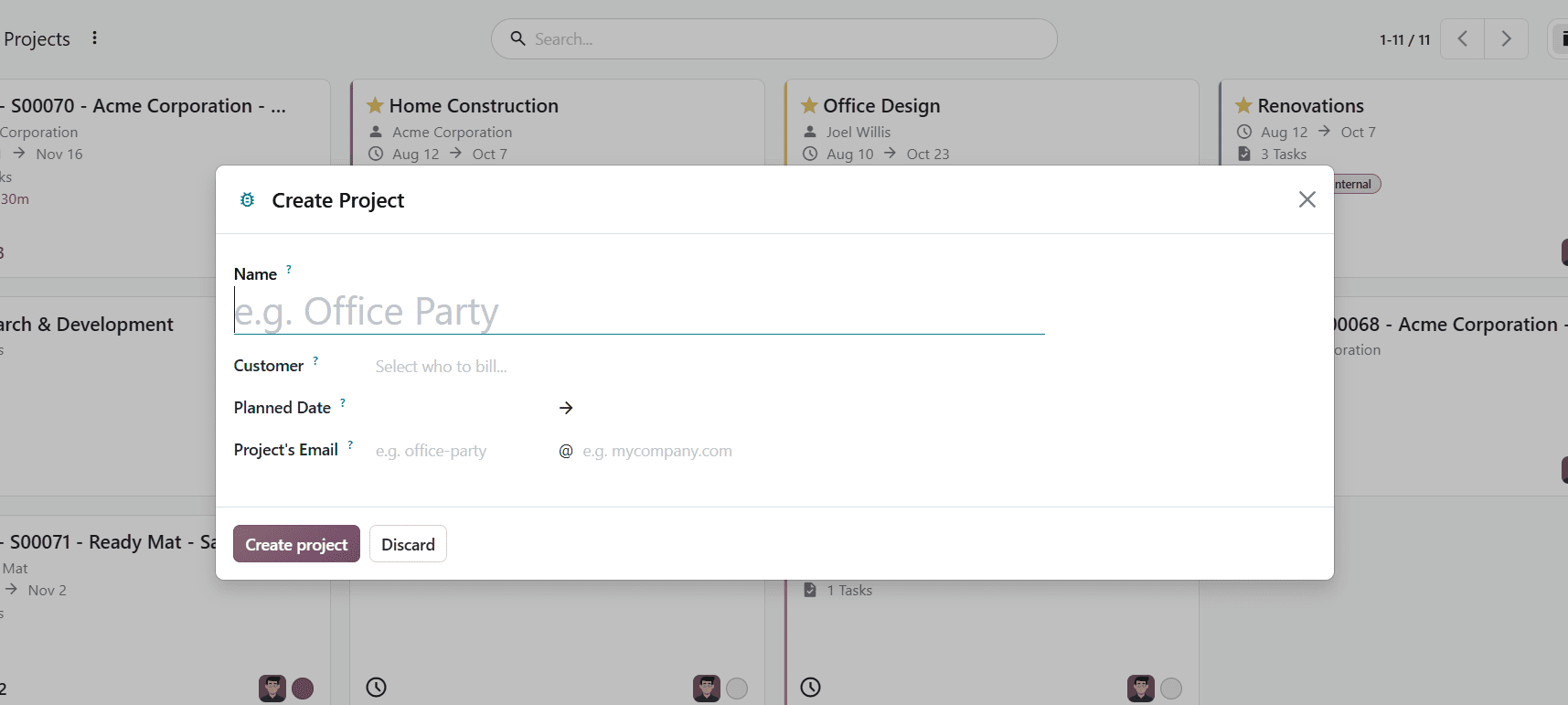
Here you can enter the project name, select a customer, set the planned date, and specify the project's email. After entering the required details, click the Create project button to create the project.
Creating a Project from a Template
You can create a project from an existing template to save time and maintain a predefined project structure. To create a project from an existing template, click on New and select a template you want to use to create a project.
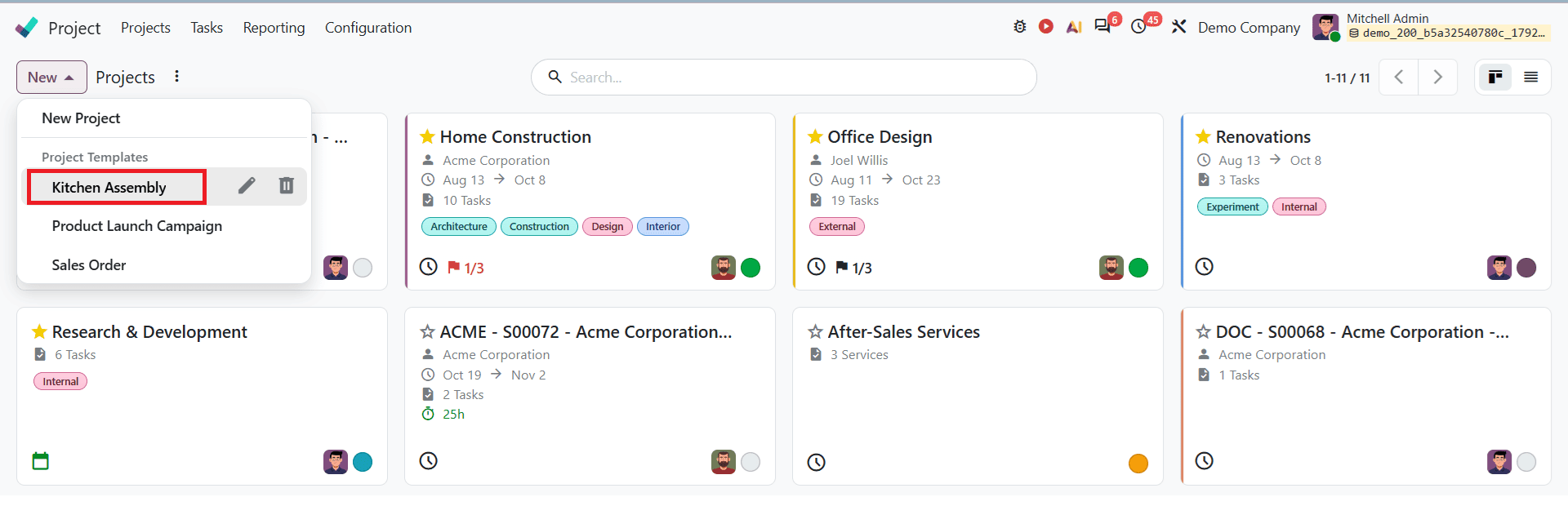
When you click on a template option, a project template will appear as shown below. You can add the necessary details and customize the project according to your requirements.
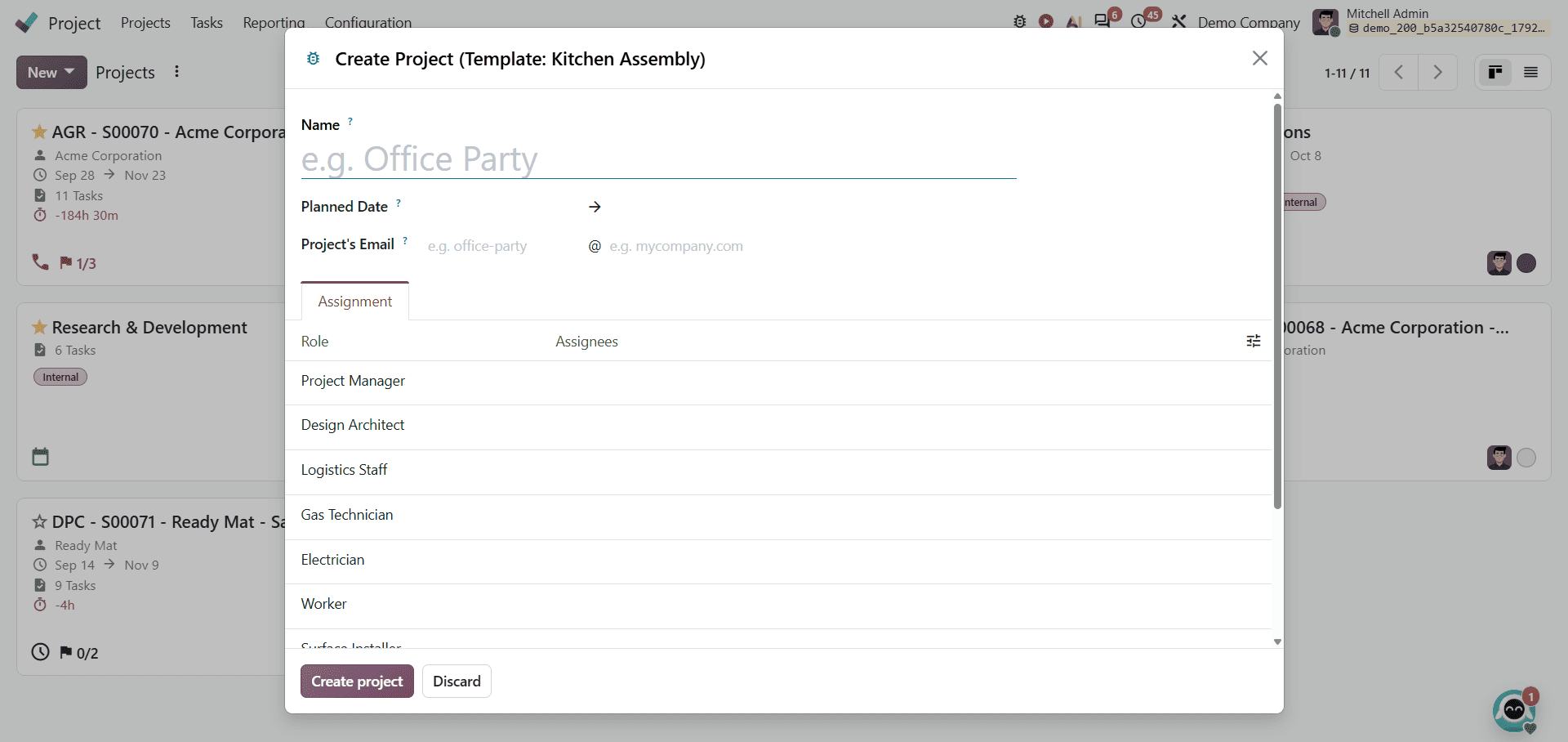
Once you have entered the required details, click on Create project to save.
Configure a Project
After creating a project, you can organize its activities by adding tasks. Click on Tasks from the smart button at the top of the project form to access the tasks associated with the project.
Here you can create new tasks, assign them to your team members, and organize them into different stages based on their progress. You can also customize the stages according to your project's workflow. Below, you can see the task view and stages.
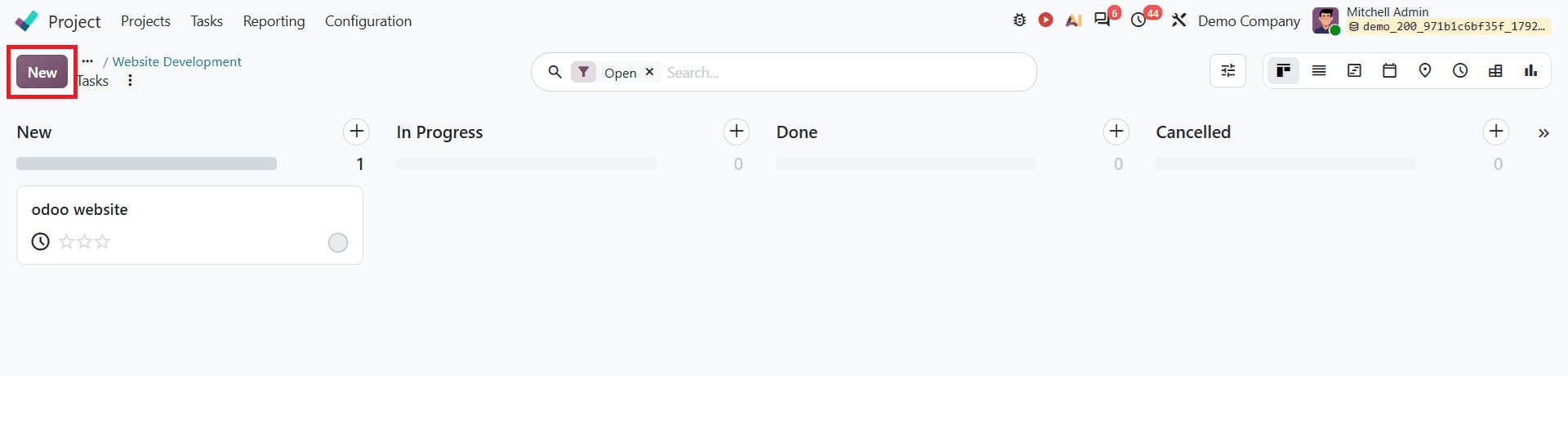
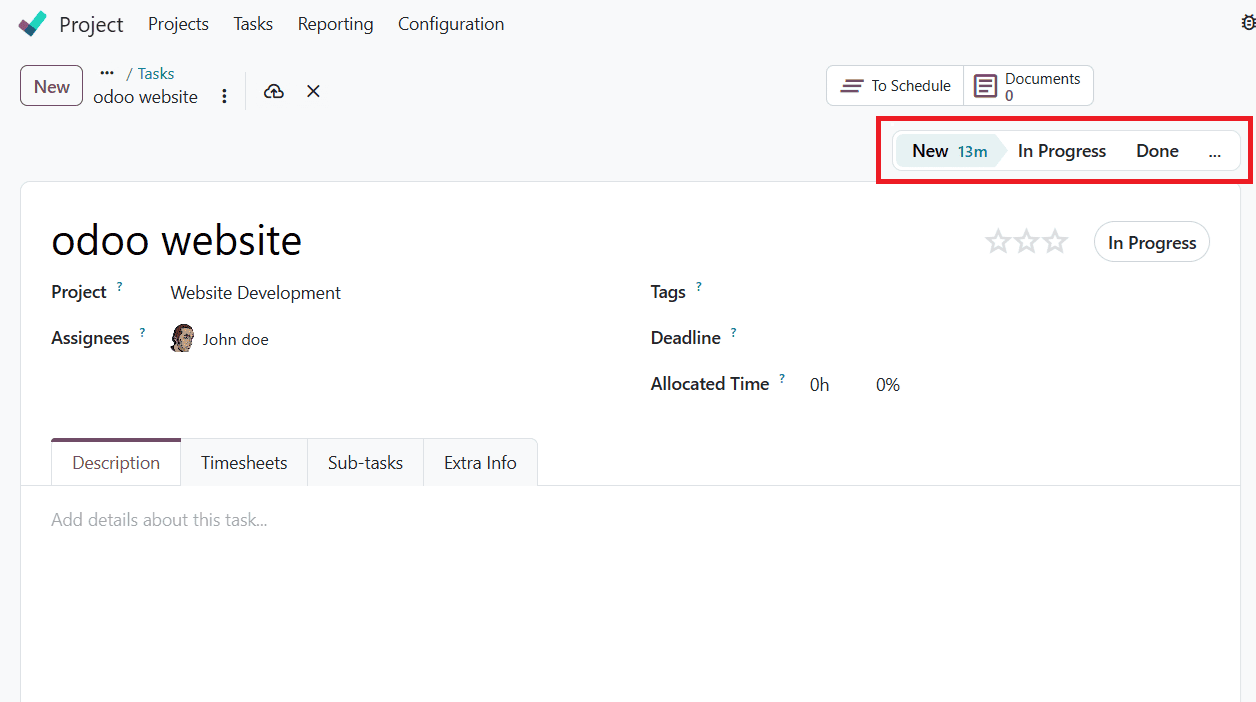
Click the New button to add tasks related to your project. After creating tasks, you can organize them according to their current progress. Odoo allows you to move tasks between stages to track the progress of project activities.
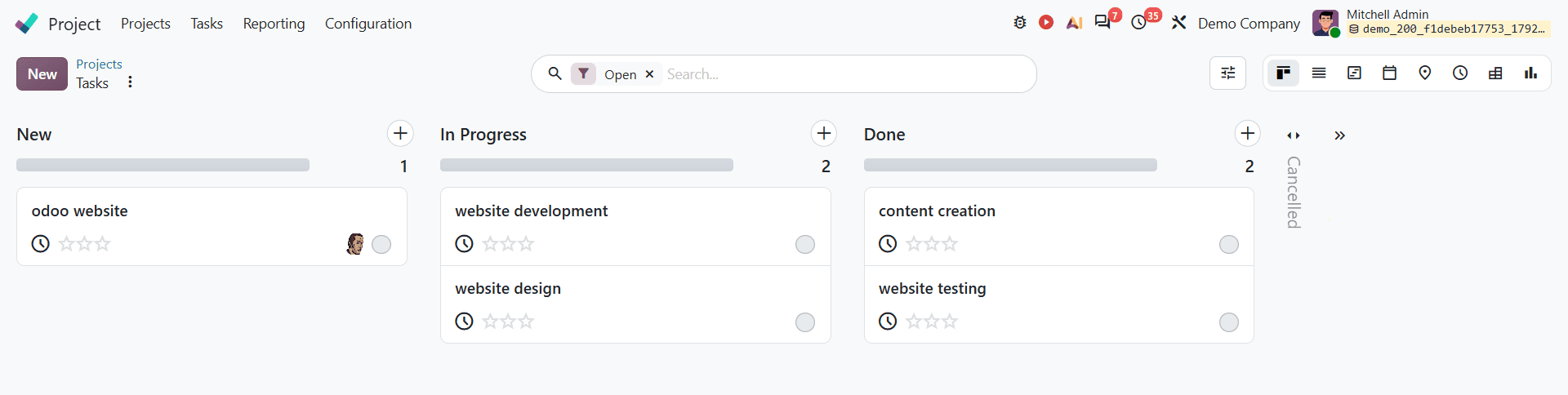
For example, in the screenshot below, you can see the stages displayed as New, In Progress, and Done. As work progresses, you can move tasks between stages by clicking the stages or dragging them to the appropriate stage on the task board.
Once you have organized the stages, you can see them as shown below:
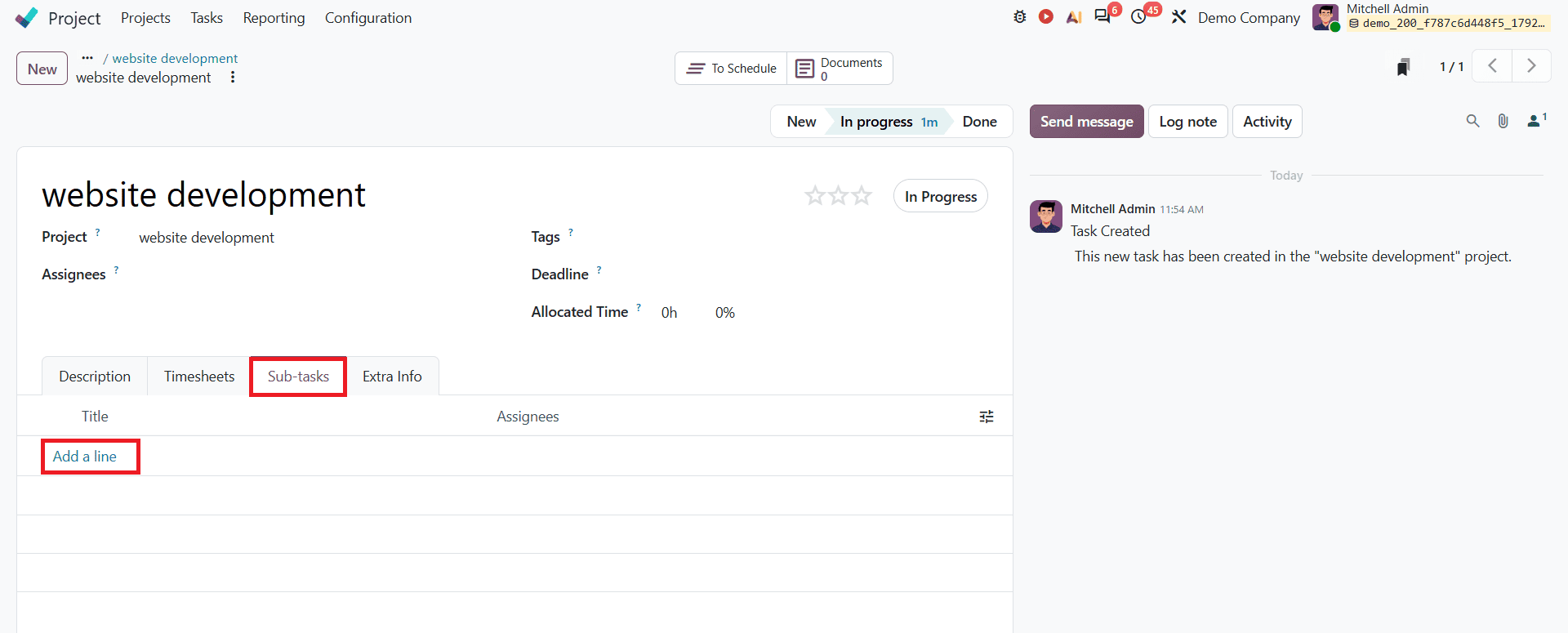
Once you create tasks, you can assign them to team members and organize them according to progress. You can also create subtasks to divide larger activities into smaller, manageable steps. To create a subtask, open a task. In the task form, under the Sub-tasks tab, you can add your subtask by clicking Add a line as shown below.
This makes it easier to coordinate work and monitor project progress. Odoo 20 provides several fields to customize a project according to its requirements. These settings help you to identify the project, organize its tasks, and manage its schedule.
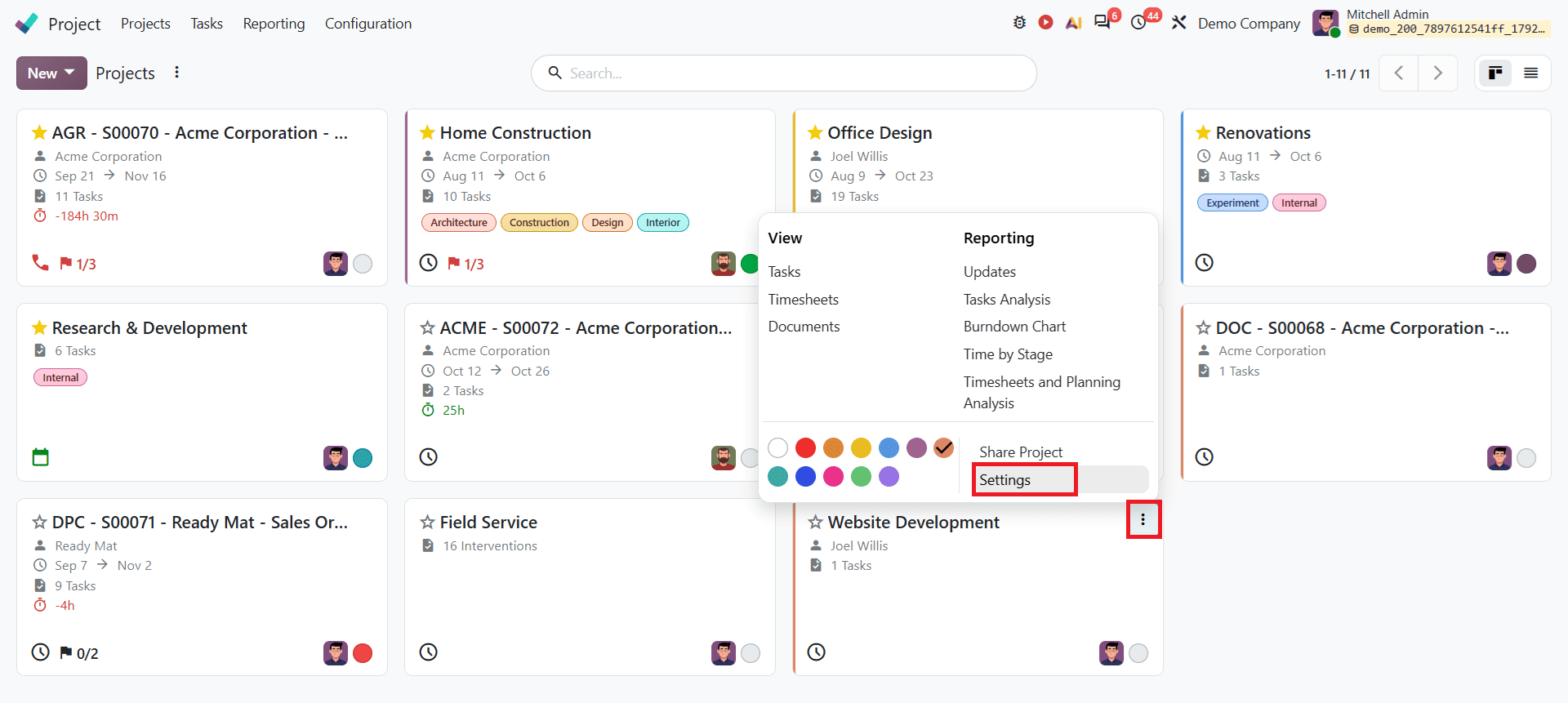
To customize your existing project, click on the drop-down toggle button of your project from the project dashboard. Then select Settings as shown below:
After opening your existing project, you can update the available fields according to your requirements. You can change the project name, add a customer, set planned dates, and add tags to identify the project easily. You can also mark your project as a favorite to access it more easily by using the My favorite filter in the search bar. This helps you quickly locate important projects.
The Description field can be used to provide additional information about the project.
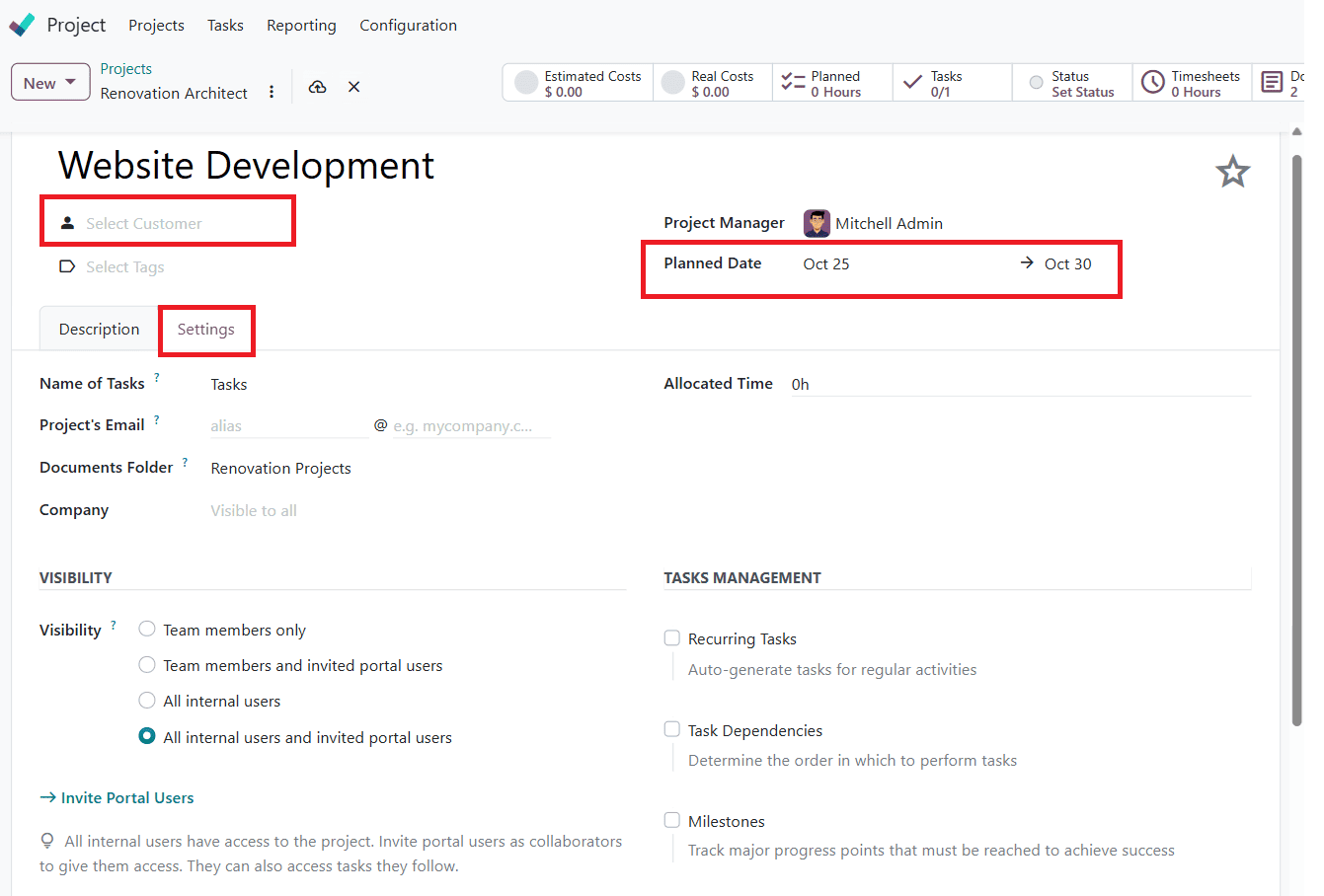
In the Settings tab, you can configure additional options regarding your project. These options help you to manage project visibility, organize tasks, and control the allocated time of the project.
Name of Tasks: You can set a default name for tasks created within the project.
Project Email: Use an email alias to automatically transform incoming emails into project tasks, centralizing requests and saving manual effort.
Documents Folder: Specify the folder used to organize project-related documents.
Company: Assign the project to the appropriate company.
Allocated Time: Set the time allocated to complete the project.
Visibility: Visibility options control who can access your project, letting you share it with your Team members only, Team members with invited portal users, All internal users, or All internal users and invited portal users.
Task management: This section provides an option to enable additional project features such as Recurring tasks, Task dependencies, and Milestones. Recurring Tasks let you automatically repeat tasks on a daily, weekly, or monthly basis. Enable Task Dependencies to ensure specific tasks are completed before subsequent tasks begin. Milestones help you to track important stages and deliverables within a project.
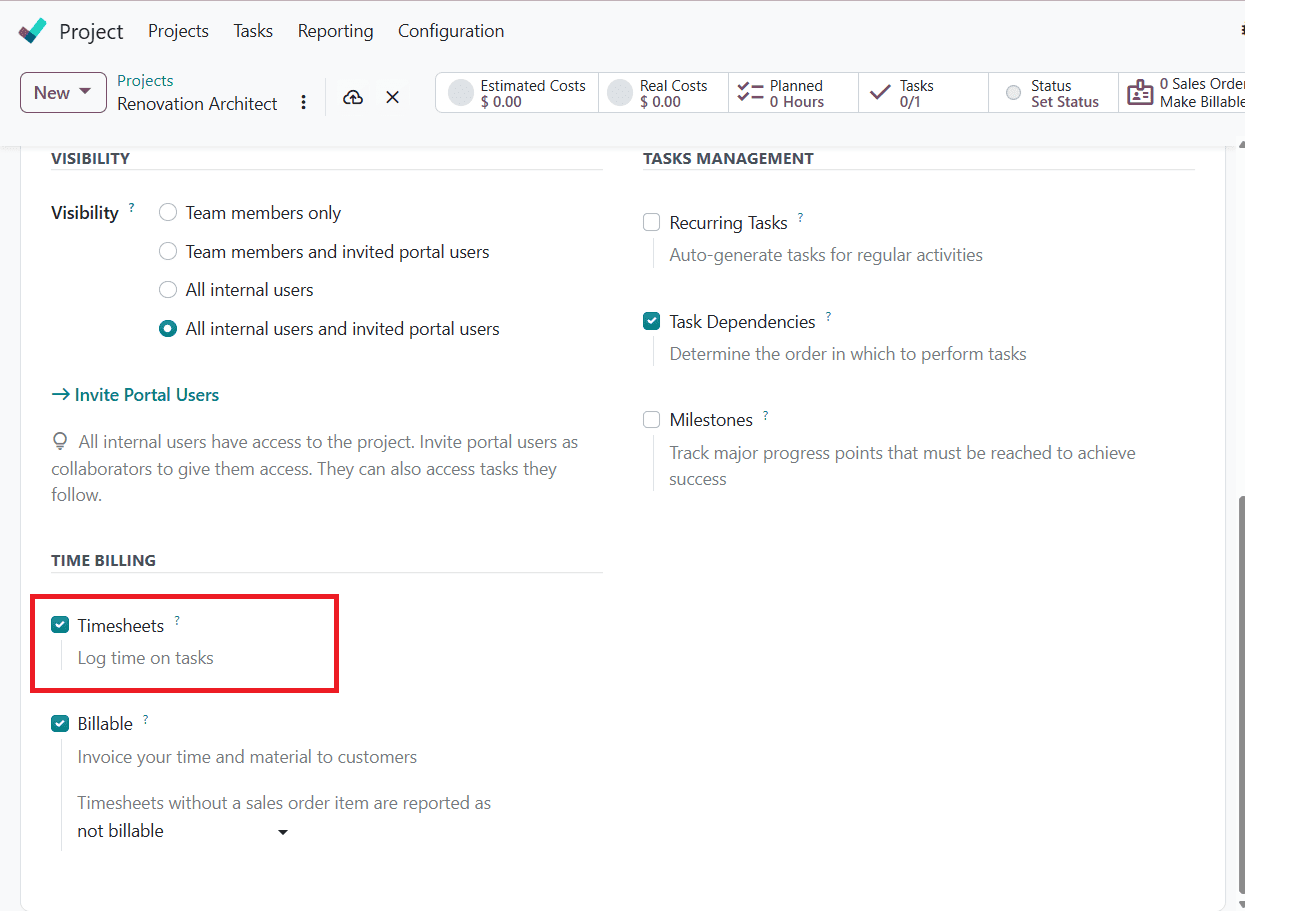
The Time Billing section includes Timesheet and Billable. Timesheets help you to track the time spent on project tasks, making it easier to monitor working hours and review the effort required to complete a project. The Billable option allows you to invoice your customer for the actual hours your team spends working on tasks. These settings allow you to adapt a project workflow to your team's requirements and manage project activities more effectively.
Odoo 20 simplifies project management by allowing users to create projects, organize tasks, and configure settings according to their requirements. Features such as recurring tasks, task dependencies, milestones, and visibility controls help teams to manage their workflow more efficiently.
To read more about Complete Overview of Odoo 19 Project Module, refer to our blog Complete Overview of Odoo 19 Project Module.