As someone who’s built integrations using Odoo before, you’ll understand that there is a need for a mechanism through which each of those external systems securely communicates with your backend. Passwords in each request? This won’t work at all. Instead, there are API keys created specifically for this purpose, serving only one user while providing full authorization control.
In this blog, we'll build a complete authentication flow in Odoo 18 from generating an API key to creating secured endpoints that external apps can call. When you’re finished, you’ll have working code that can be put directly into your own module.
What Are API Keys in Odoo?
Secure tokens linked to a particular user account are called API keys. They cannot be used to log in through the user interface and are only intended for programmed access, in contrast to passwords. Treat them with the same caution, though, as they have the same permission levels as the user they are attached to.
Tip: Keep API keys safe at all times. Don't hardcode them into your source files.
Creating API Keys in Odoo 18
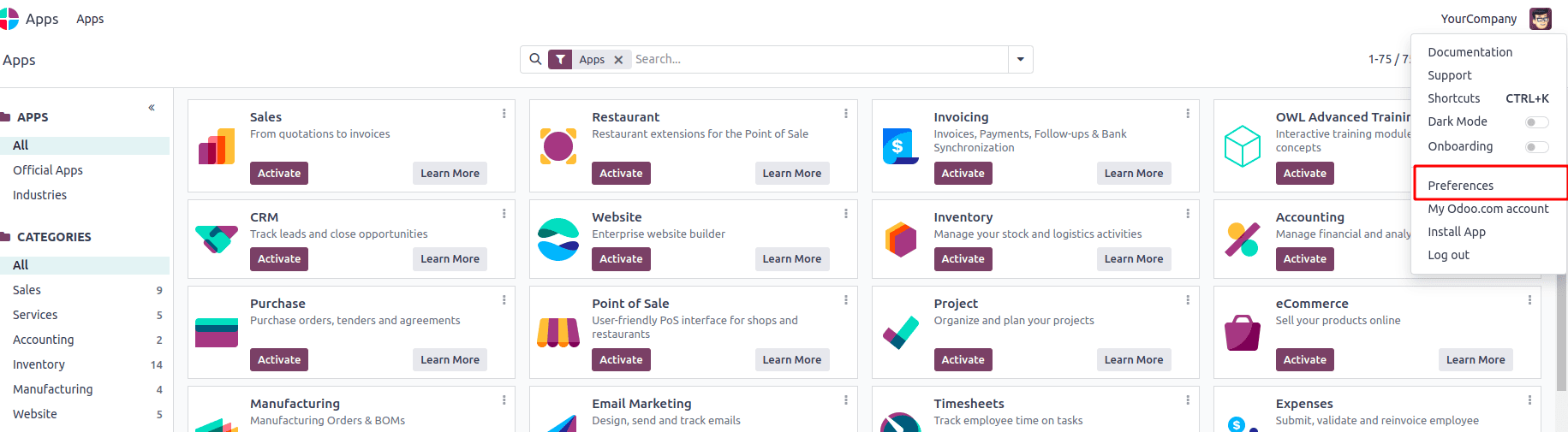
- Navigate to My Profile under User Preferences.
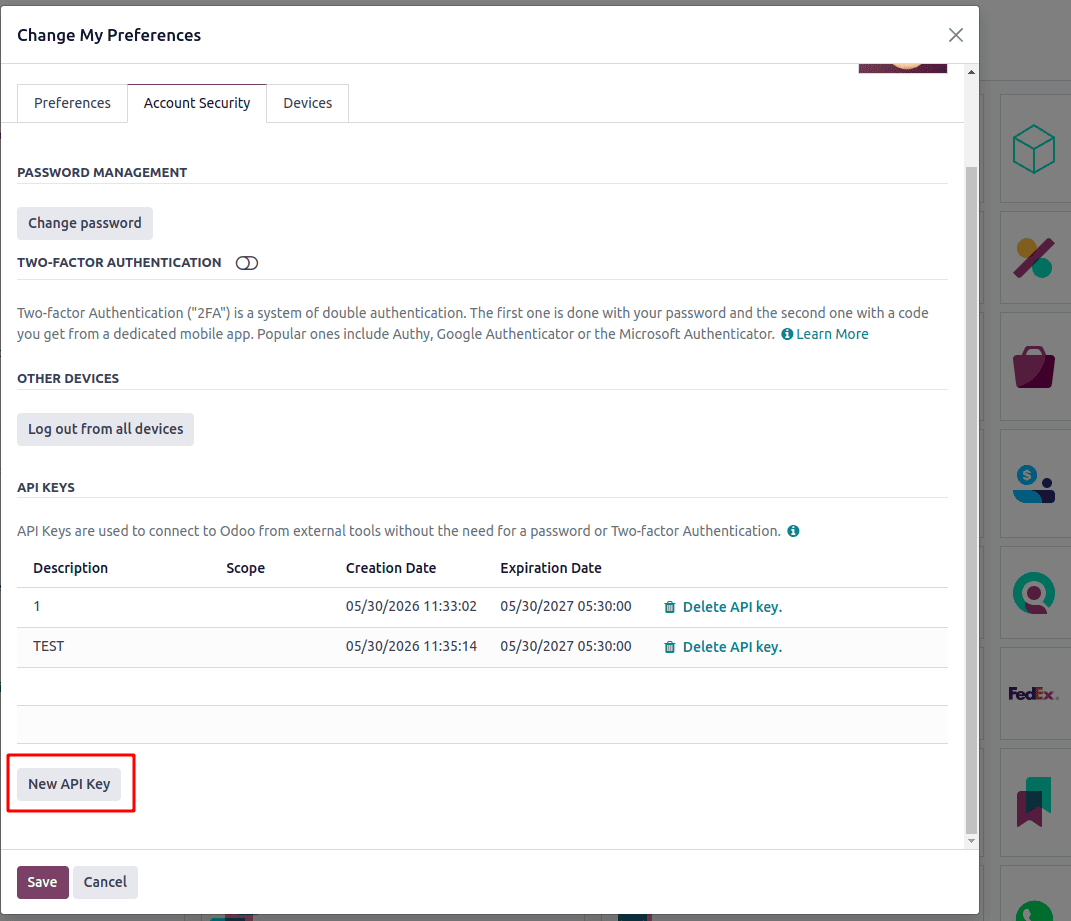
- Navigate to the tab for Account Security.
- Under API Keys, click on New API Key
- Give it a label and click Generate.
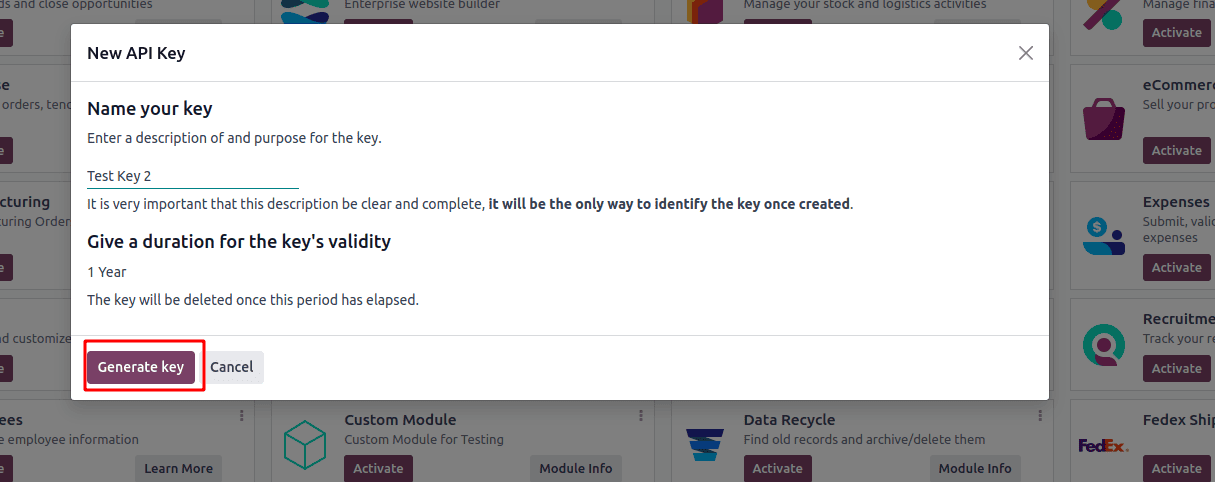
Once created, copy the key and save it securely. It will not be possible to see it again.
Step-by-Step: Connect to Odoo 18 Using API Keys
Here, we'll go over three topics: configuring your environment, creating a secure endpoint to retrieve user/employee data, and creating a token programmatically using a custom controller.
1. Set Up Your Python Environment
Make sure the requests library is installed:
pip install requests
Then import it into your script:
import requests
import json
2. Build an Authentication Endpoint in Odoo
A cleaner method is to authenticate once and receive a token instead of submitting credentials on each request. This custom Odoo controller accomplishes just that
python
from odoo import http
from odoo.http import request, Response
import json
class AuthController(http.Controller):
    @http.route('/api/authenticate', type='json', auth='none', methods=['POST'], csrf=False)
    def authenticate_user(self, **post):
        username = post.get('username')
        password = post.get('password')
        db = post.get('db')
        uid = request.session.authenticate(db, username, password)
        if not uid:
            return {"error": "Invalid credentials"}
        env = request.env(user=request.env.user.browse(uid))
        env['res.users.apikeys.description'].check_access_make_key()
        token = env['res.users.apikeys']._generate("", username)
        return {
            "token": token,
            "user_id": uid,
            "message": "Authentication successful"
        }
3. Test the Authentication Endpoint in Postman
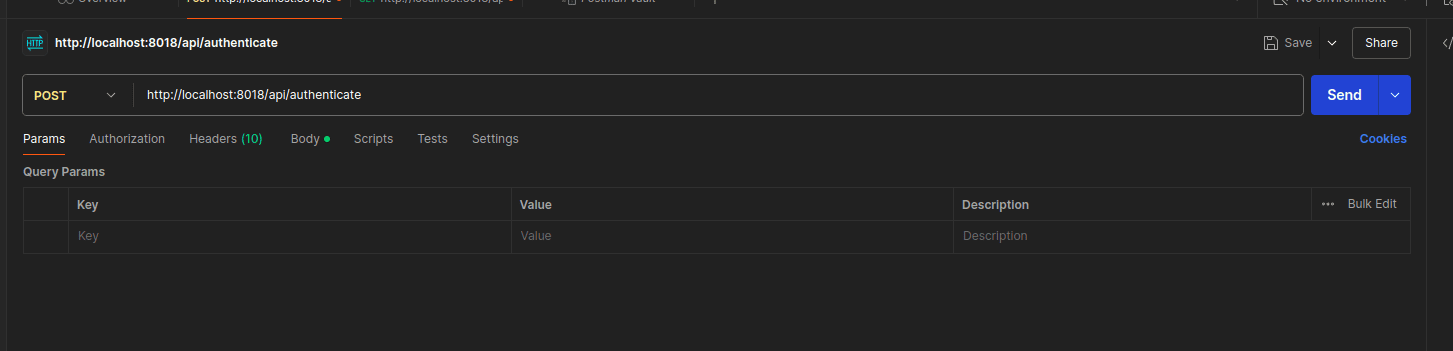
Start Postman and properly configure the request as follows:
Set the method and URL
- Method: POST
- URL: http://localhost:8018/api/authenticate
Only port 8018 has this setup. Your Odoo instance may be running on a different port, such as 8069 (the default), 8072, or a custom port that your system administrator has set. Check the xmlrpc_port setting in your Odoo configuration file (odoo.conf) if you're unsure which port to use.
Just replace 8018 with your actual port number:
Go to the Body Tab
- Select raw
- Choose JSON from the format dropdown on the right
- Paste the following:
{
    "username": "admin",
    "password": "admin"
    “db” : “db_name”
}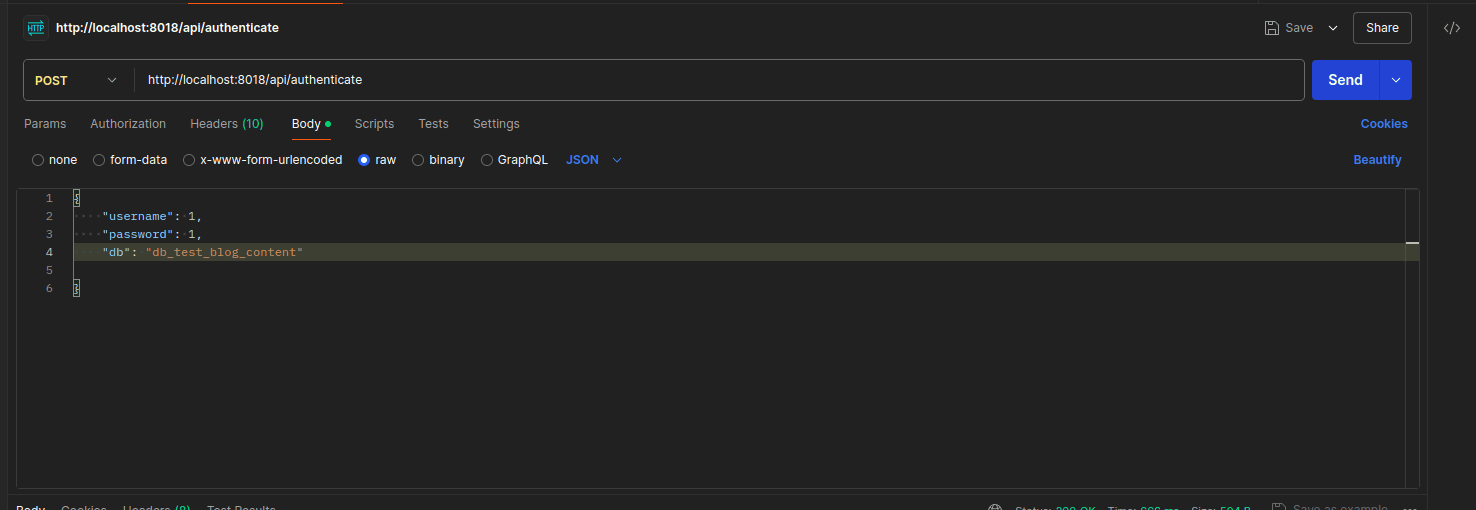
Replace admin / admin with your actual Odoo username and password.
Click Send
If everything is configured correctly, you'll get a response like this:
{
   "data": {
       "user_id": {
           "uid": 2,
           "auth_method": "password",
           "mfa": "default"
       },
       "username": "1",
       "token": "f9801fb4309946a1f83fe54e3e210690a9486167"
   },
   "responsedetail": {
       "messages": "UserValidated",
       "messagestype": 1,
       "responsecode": 200
   }
}
3. Validate Incoming Tokens
Before any secured endpoint hands back data, it should verify that the token is legitimate. Here's a simple validation method you can reuse across controllers:
python
def authenticate_token(self, token):
   user_id = request.env['res.users.apikeys']._check_credentials(
       scope='rpc', key=token
   )
   if not user_id:
       raise Exception("Invalid API Token")
   return user_id
This looks up the token in res.users.apikeys and returns the associated user_id. If nothing matches, it raises an exception which your endpoint can catch and return as a proper error response.
4. Build a Secure Employee Data Endpoint
Now let's wire it all together. Here's a GET endpoint that checks the Authorization header, validates the token, and returns a list of users:
python
@http.route('/api/employees', auth="none", type='http', methods=['GET'],
           csrf=False)
def api_get_employee(self, model='res.users', values=None, context=None,
                    **kw):
   try:
       token = request.httprequest.headers.get('Authorization',
                                               '').replace('Bearer ', '')
       if not token:
           return Response(
               json.dumps(
                   {'error': 'Missing API Token', 'status_code': 401},
                   sort_keys=True, indent=4),
               content_type='application/json;charset=utf-8',
               status=401
           )
       user_id = self.authenticate_token(token)
       res = []
       env = api.Environment(request.cr, user_id, {'active_test': False})
       users = env[model].search([])
       for user in users:
           res.append({
               'name': user.name,
               'login': user.login,
           })
       return Response(
           json.dumps(res, sort_keys=True, indent=4),
           content_type='application/json;charset=utf-8',
           status=200
       )
   except Exception as e:
       return Response(
           json.dumps({'error': str(e), 'status_code': 500},
                      sort_keys=True, indent=4),
           content_type='application/json;charset=utf-8',
           status=500
       )
Test the Secured Endpoint in Postman
Open a new tab in Postman
- Method: GET
- URL: http://localhost:8018/api/employees
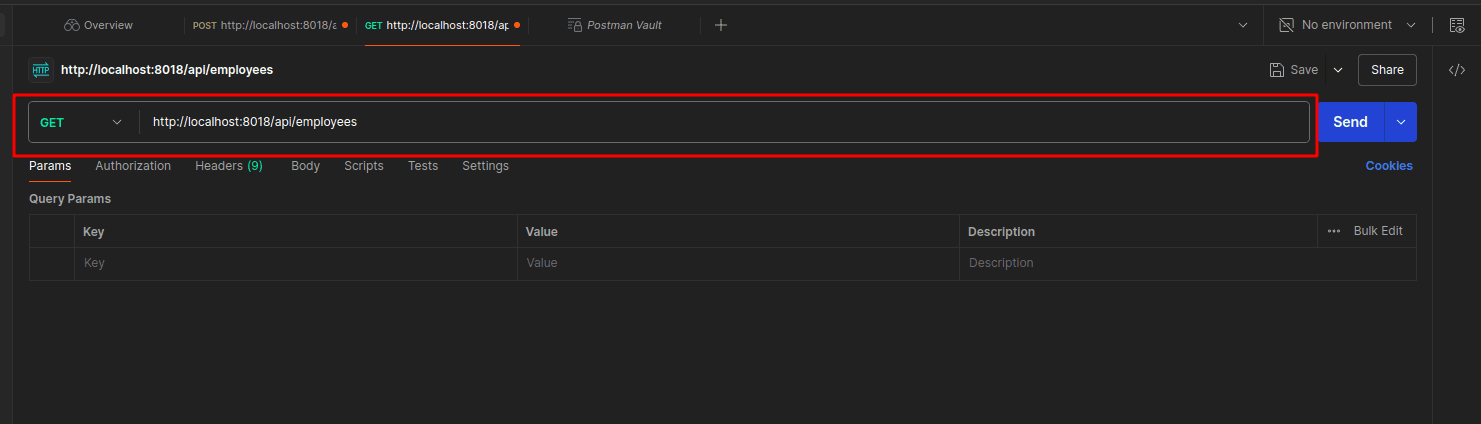
Go to the Headers tab
Add the Authorization header with your token:
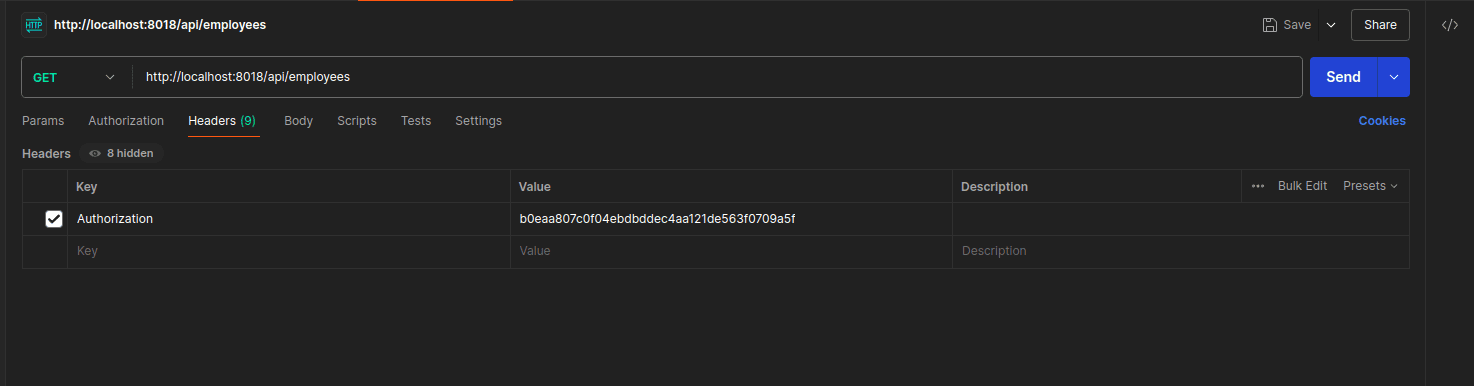
Click Send
A successful response returns your user list:
[
   {
       "login": "default",
       "name": "Default User Template"
   },
   {
       "login": "portal",
       "name": "Joel Willis"
   },
   {
       "login": "demo",
       "name": "Marc Demo"
   },
   {
       "login": "1",
       "name": "Mitchell Admin"
   },
   {
       "login": "portaltemplate",
       "name": "Portal User Template"
   },
   {
       "login": "public",
       "name": "Public user"
   },
   {
       "login": "__system__",
       "name": "System"
   }
]
Best Practices Worth Following
A few things that can save you headaches down the line:
- API keys should never be made public in repositories. Make use of.env files and add them to gitignore.
- Particularly for accounts with advanced rights, rotate keys regularly
- Carefully consider the scope of your user permissions. Use an admin account only if you truly require admin-level access, as the API key inherits the user's access rights.
- In production, always use HTTPS. It is problematic to send tokens using simple HTTP.
You can now integrate other systems to the Odoo backend through API keys in Odoo 18 without compromising on the level of security or developer convenience. All the hard work will be done by the pre-built res.users.apikeys module, while you just need to connect your controller logic and ensure consistent validation of the tokens for all of your endpoints.
It works really well and provides high levels of maintainability whether you are working on a mobile app based on Odoo, an integration with a reporting dashboard, or an integration with a third-party system. Just re-using the existing token validation technique is all that you need to do when you want to add new endpoints.
To read more about How to Connect With Odoo 17 Using API Key, refer to our blog How to Connect With Odoo 17 Using API Key.