Managing work on different platforms is very difficult as your team grows. Monday.com is a popular work management platform used to manage work and track the team's work, while Odoo manages business operations like sales, inventory, and projects. Odoo is a smart business management solution that connects two businesses, or users, who can simplify their project information and manage their work more efficiently.
This blog is based on the Monday.com Odoo Connector. In this blog, we’ll learn what Monday.com is, understand the basic concepts, and how to connect monday.com with the Monday Odoo Connector.
Monday.com
monday.com is a cloud-based Work Operating System designed to help teams and individuals efficiently manage, organize, and monitor their projects and tasks from a centralized platform.
It supports various use cases:
Instead of managing work through spreadsheets, emails, or other software, Monday.com provides a visual workspace, and everything is organized.
Basic concepts of monday.com
Before connecting monday.com with Odoo, users want to understand the monday.com basic concepts.
Workspace
The workspace is the main area where all of your work is organized. It includes one or more boards that can be organized around a team, department, or specific project.
Example: Development, Sales.
Board
The Board is where you manage a project or process. It contains all the tasks and information related to that work.
Example: Website Development, Employee Management
In the Odoo Monday connector, you can import Monday.com boards into Odoo.
Group
A group divides the boards into separate sections for better organization. It keeps tasks organized.
Item
An item is a single task or piece of information inside a group.
Columns
Columns store the information about each item.
Some common columns are:
- Status - Current progress
- Owner - Person responsible
- Due Date - Deadline
- Timeline - Start and end dates
- Priority - Importance of the task
- Email - Contact email
- Phone - Contact number
- Notes - Additional information
Monday Odoo Connector
Monday Odoo Connector is an integration module that connects Odoo with Monday. After the connection, users can fetch the data.
How to connect?
Before connecting Monday.com with Odoo, install the monday.com odoo connector. After installation, open monday.com, and create an account. If you already have an account, you can sign in directly.
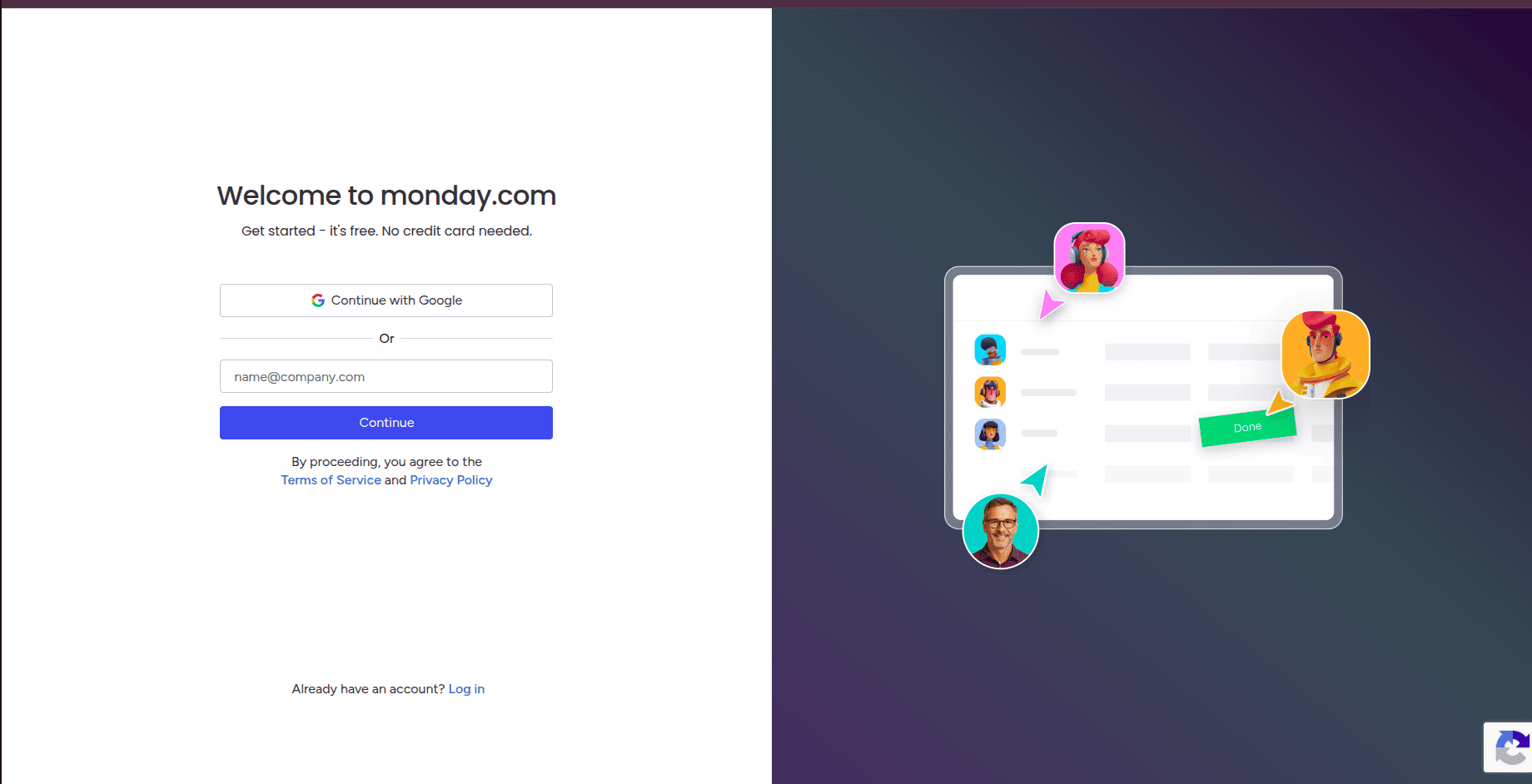
After signing in to your account, the page looks like this; the process begins. Monday.com asks a few questions to understand how you plan to use the monday.com platform.
On the first screen, we will see this question,
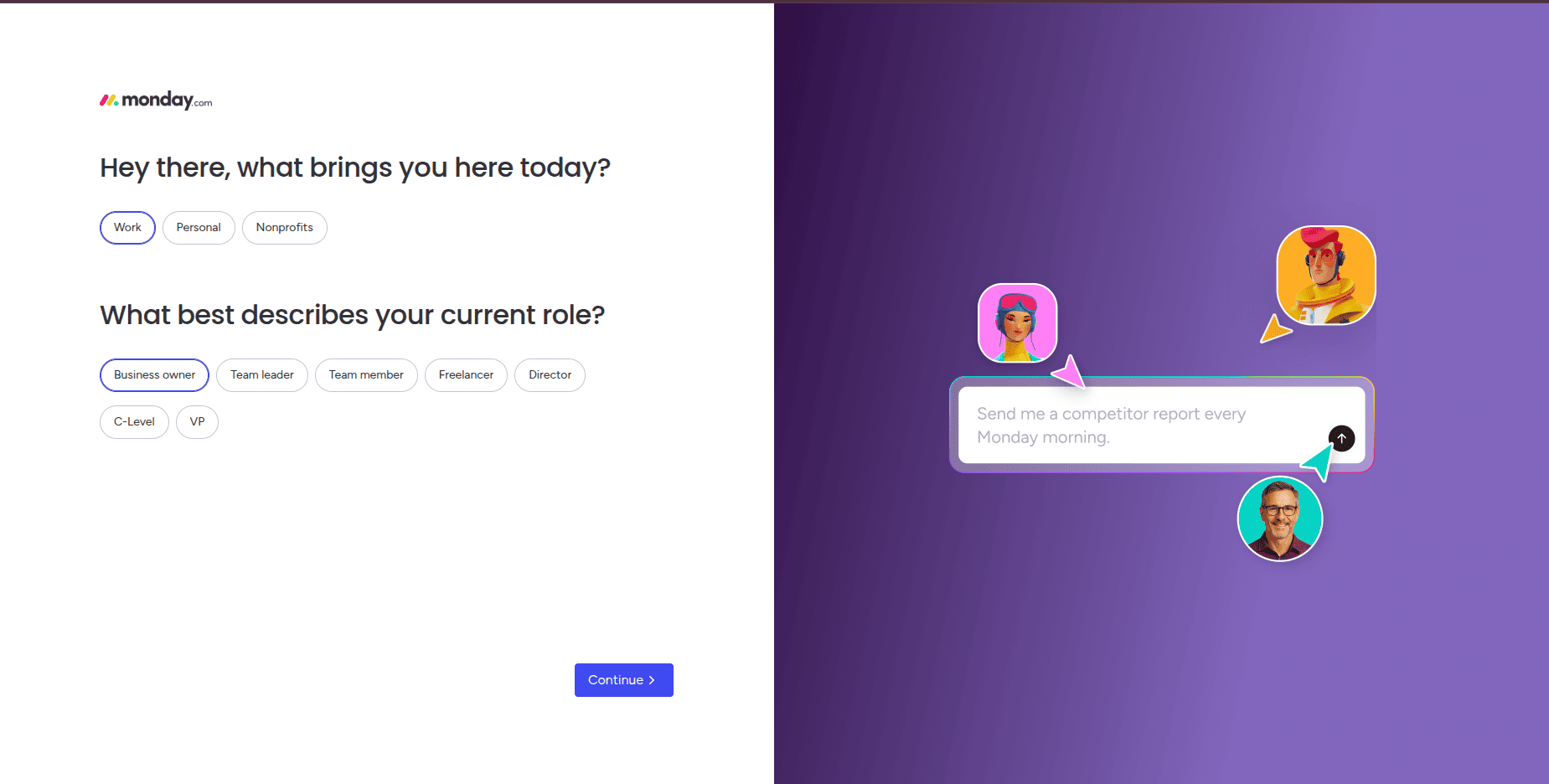
- Work - For managing business projects, tasks, teams, or workflows.
- Personal - For organizing personal goals, daily tasks, or personal projects.
- Nonprofits - For nonprofit organizations and community-based projects.
For connecting Monday.com with Odoo, select Work because the integration is designed for business and project management.
The monday.com questions help us to organize our workspace better.
After choosing Work, Monday.com asks another question to identify your current role. This helps customize your workspace. Once completed, click Continue to proceed to the next page.
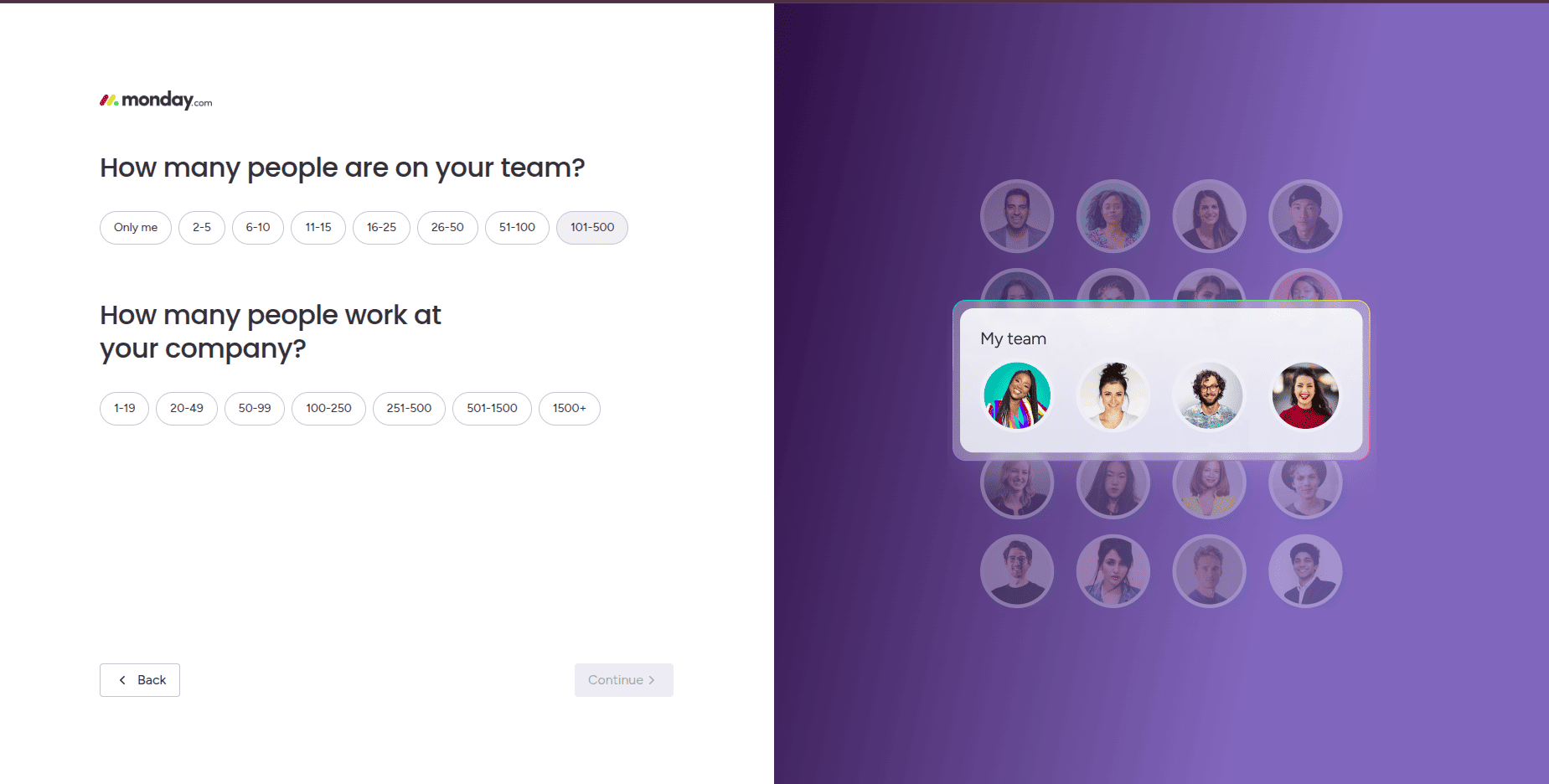
The next step in the Monday.com onboarding process is to provide information about your team and organization.
In the next step, Monday.com asks you what type of work you want to manage in your workspace.
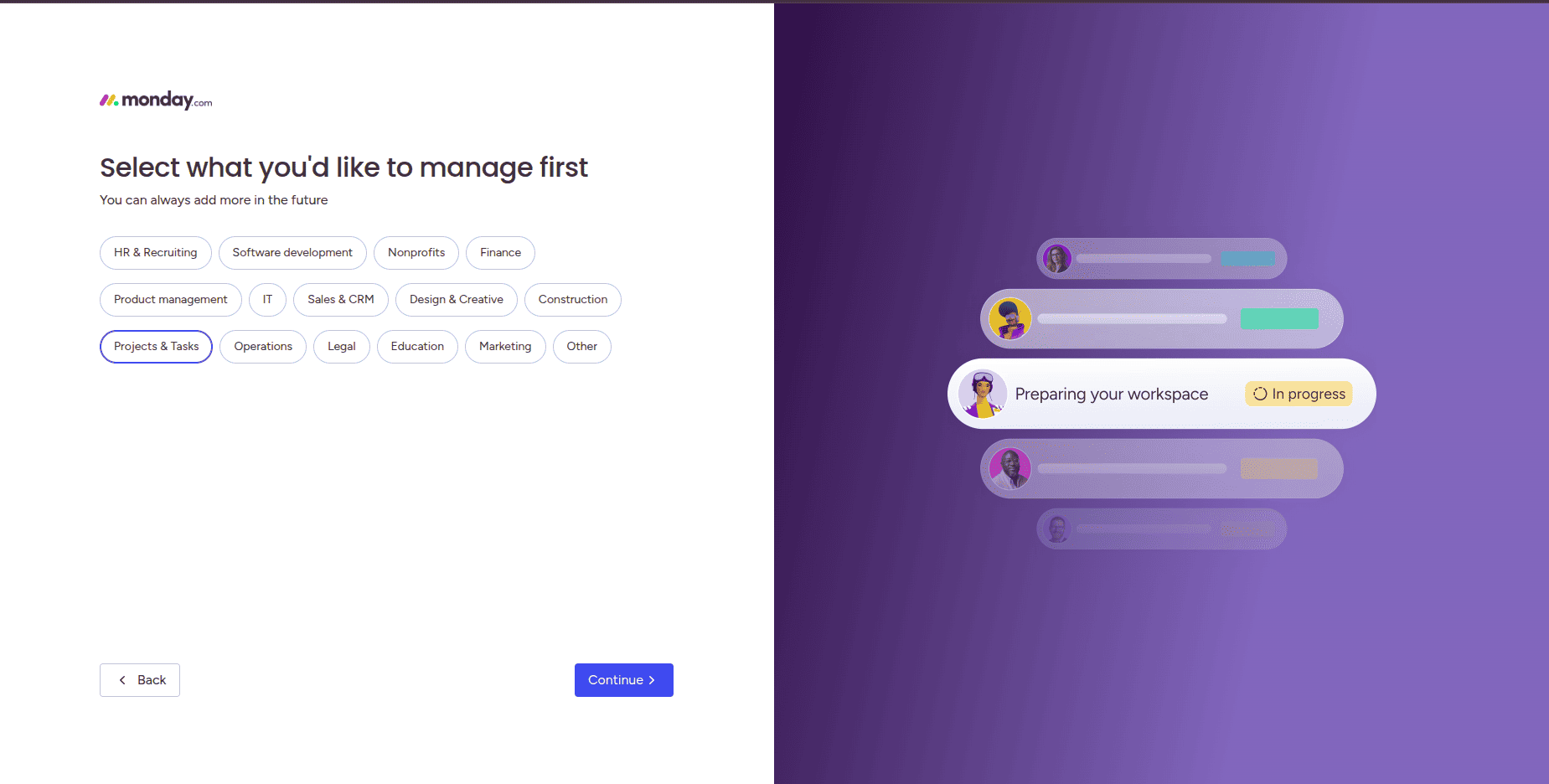
Select the categories that best suit your plan and requirements. Here, just select Projects & Tasks, then click Continue to move to the next step.
After selecting the category, monday.com asks another question to choose your primary focus.
You can choose several focuses; here I am just selecting Project Management. This option creates a project-oriented workspace.
The next step is to create a board. The board is the main workspace where you organize and manage your projects, tasks, and team activities.
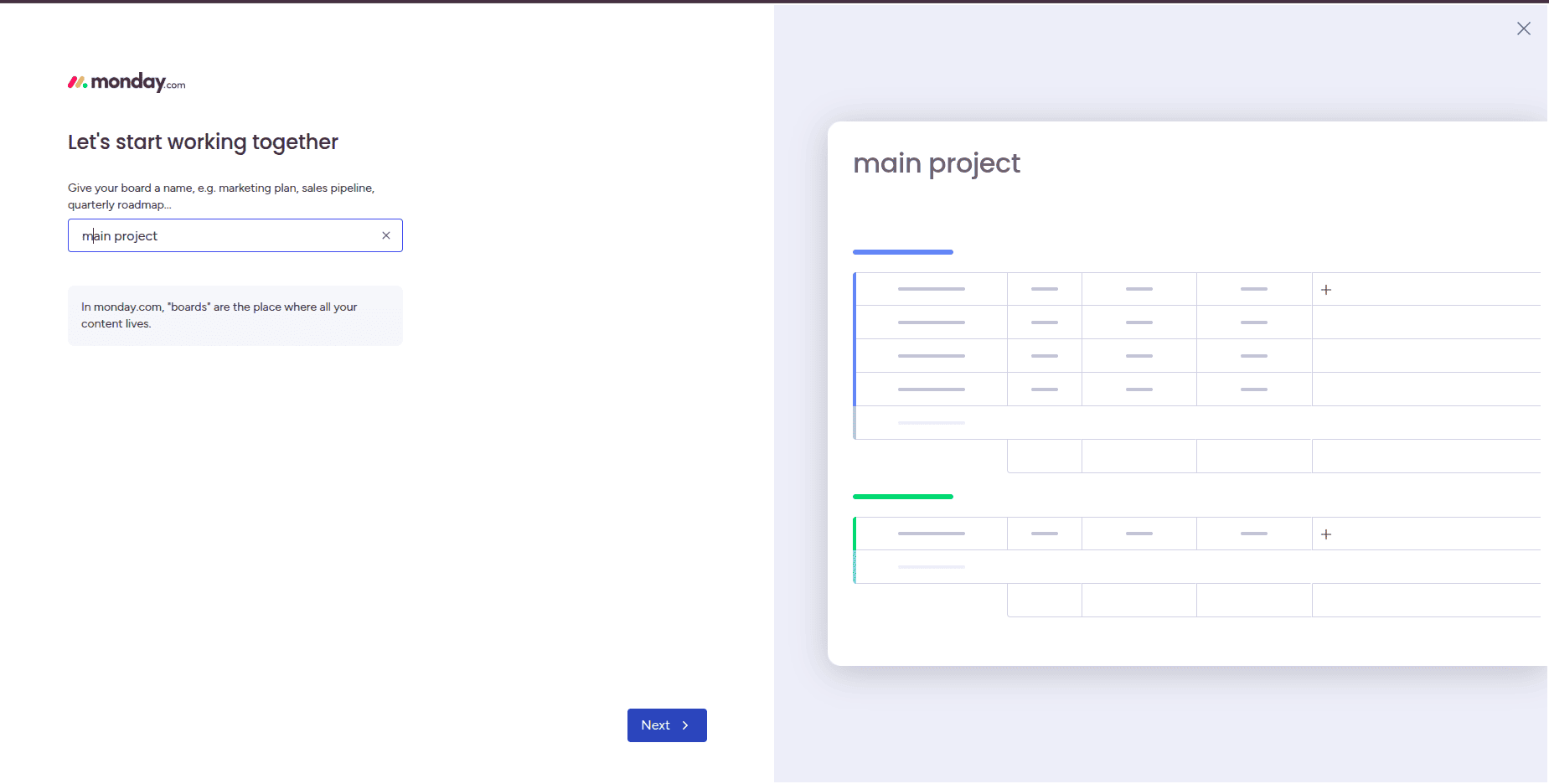
After that, we can select relevant columns for our board.
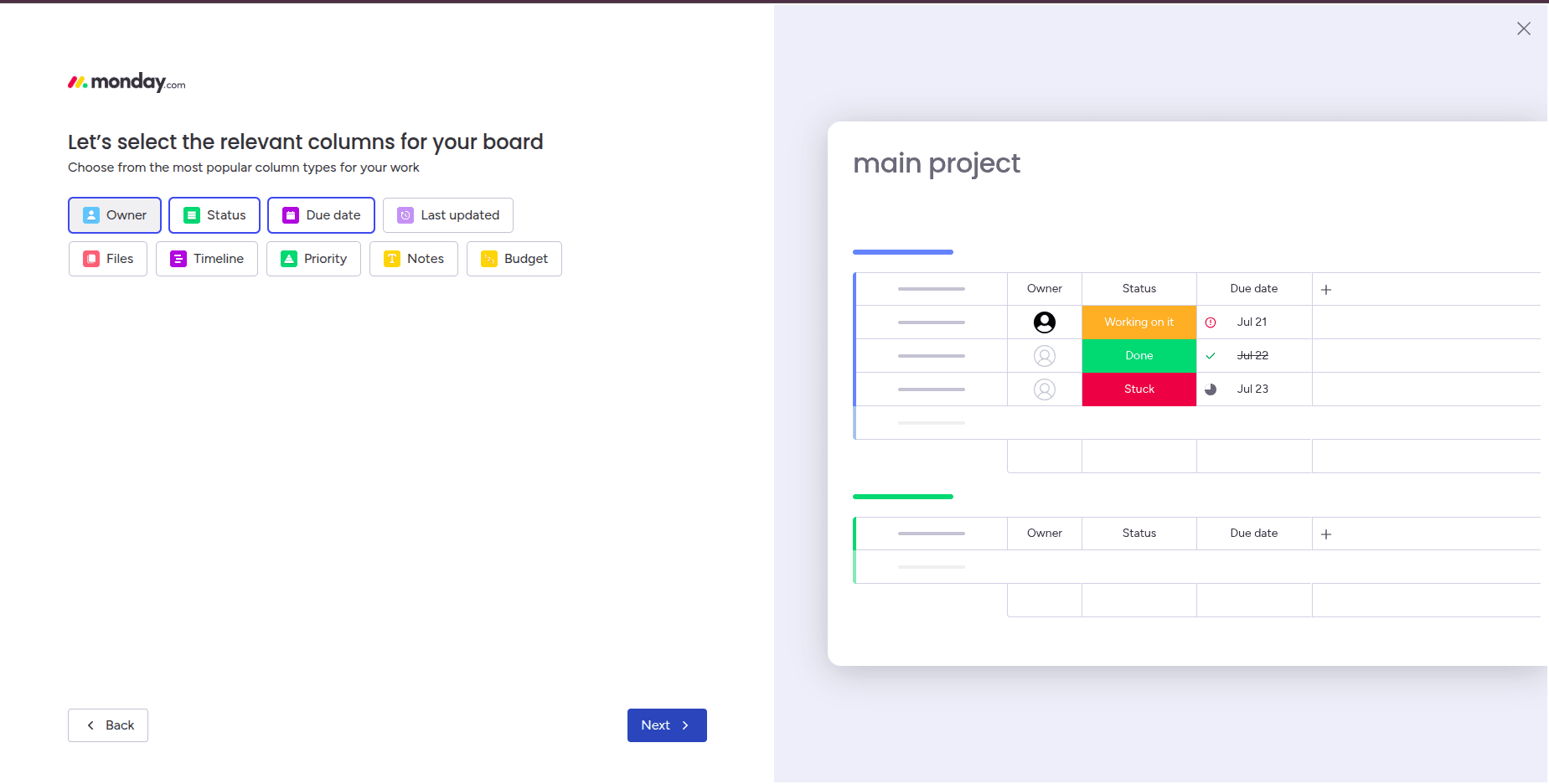
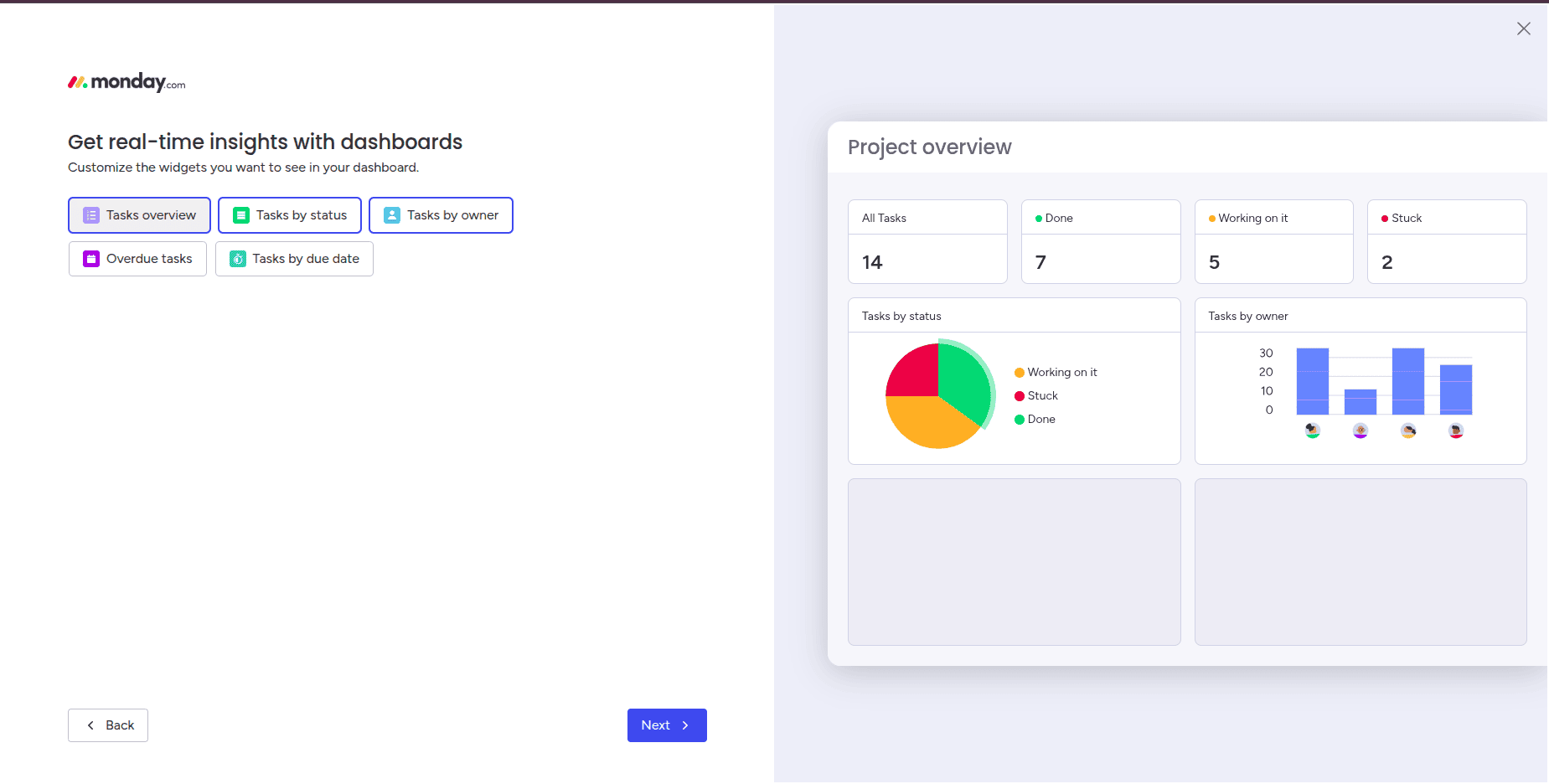
After creating your first board, Monday.com gives the option to customize your dashboard. Dashboards provide a visual overview of your projects, displaying the charts and task summaries in one place.
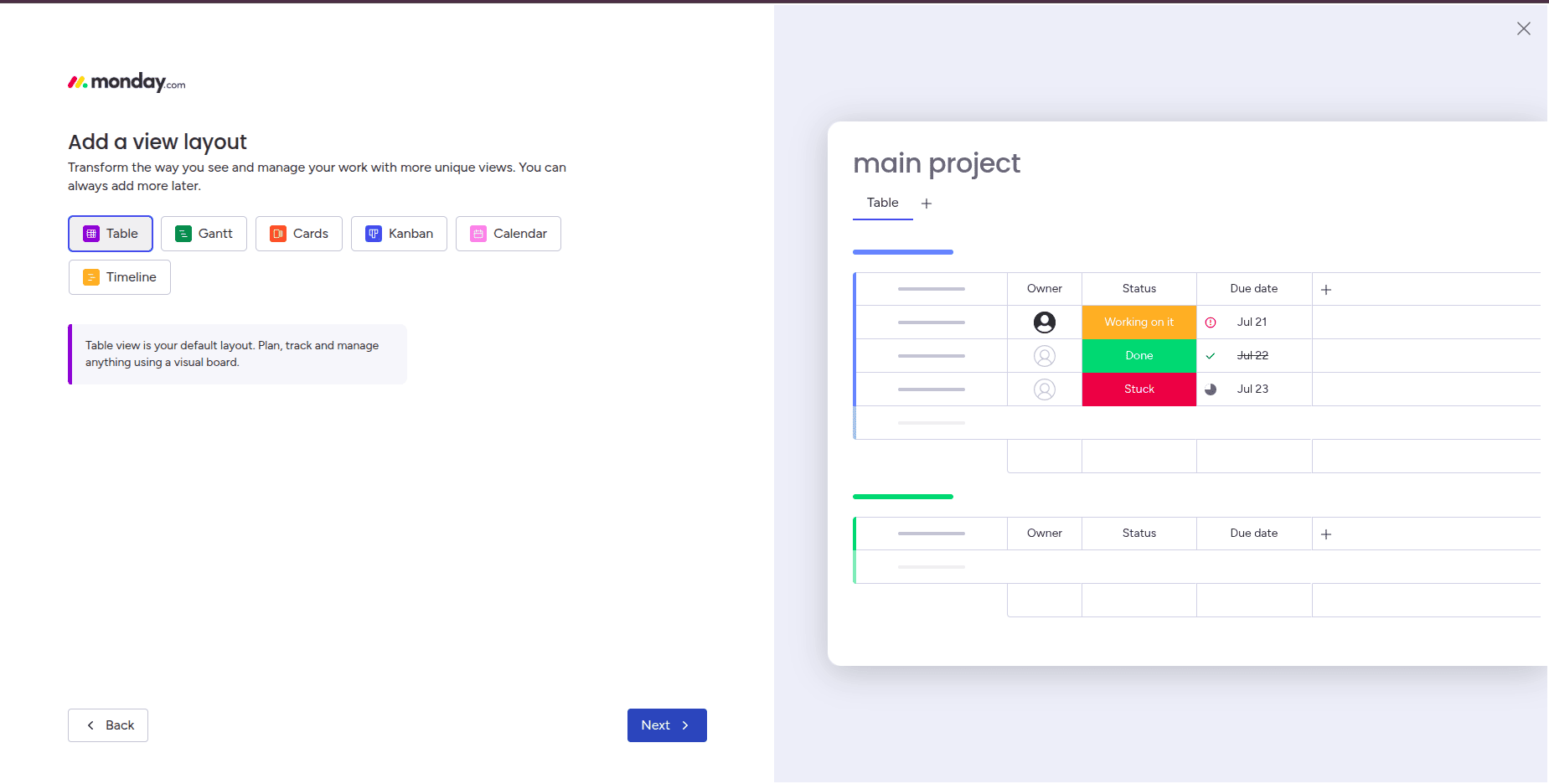
Then, you can select the view layout.
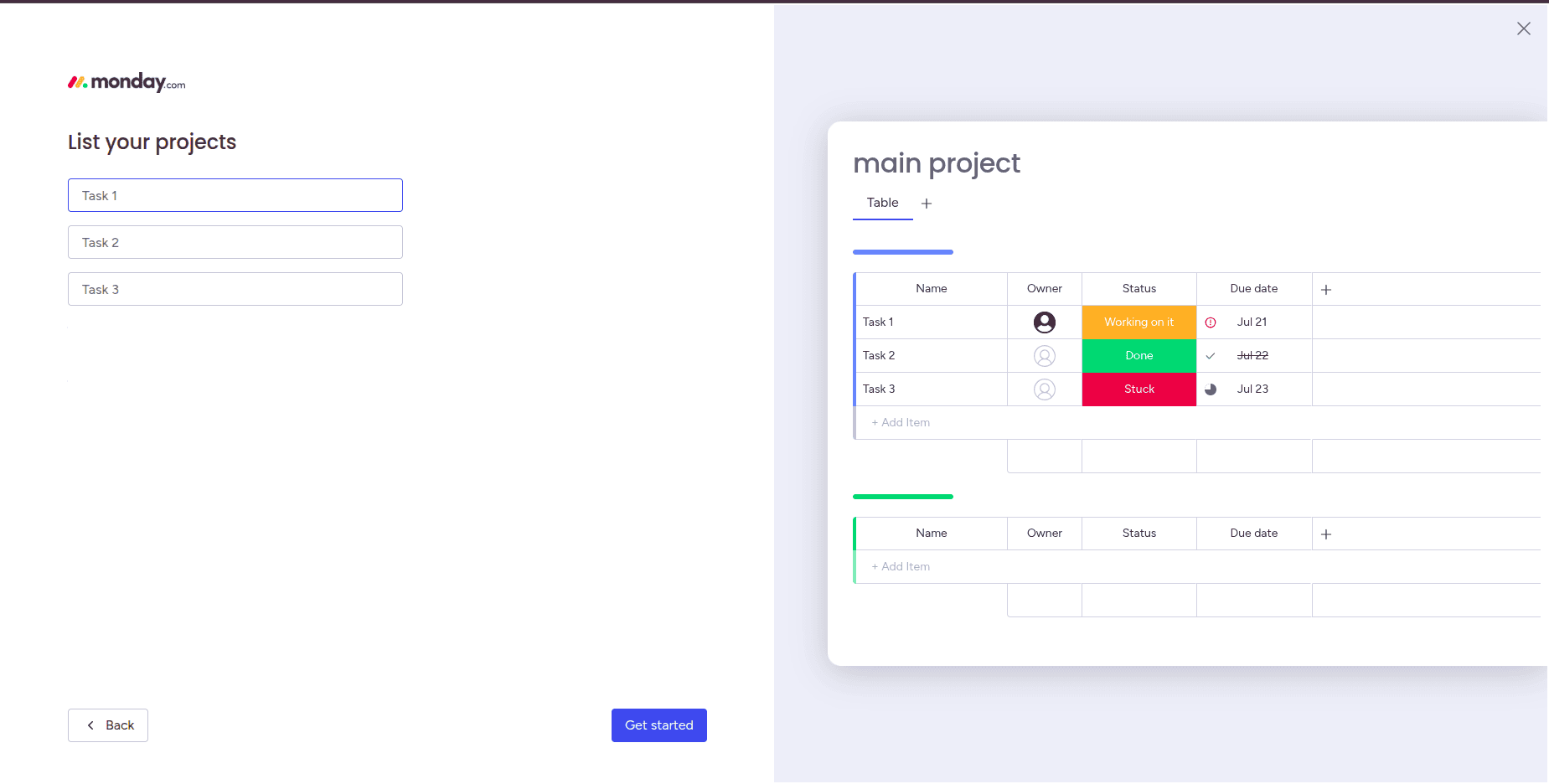
After that, you can add the initial tasks,
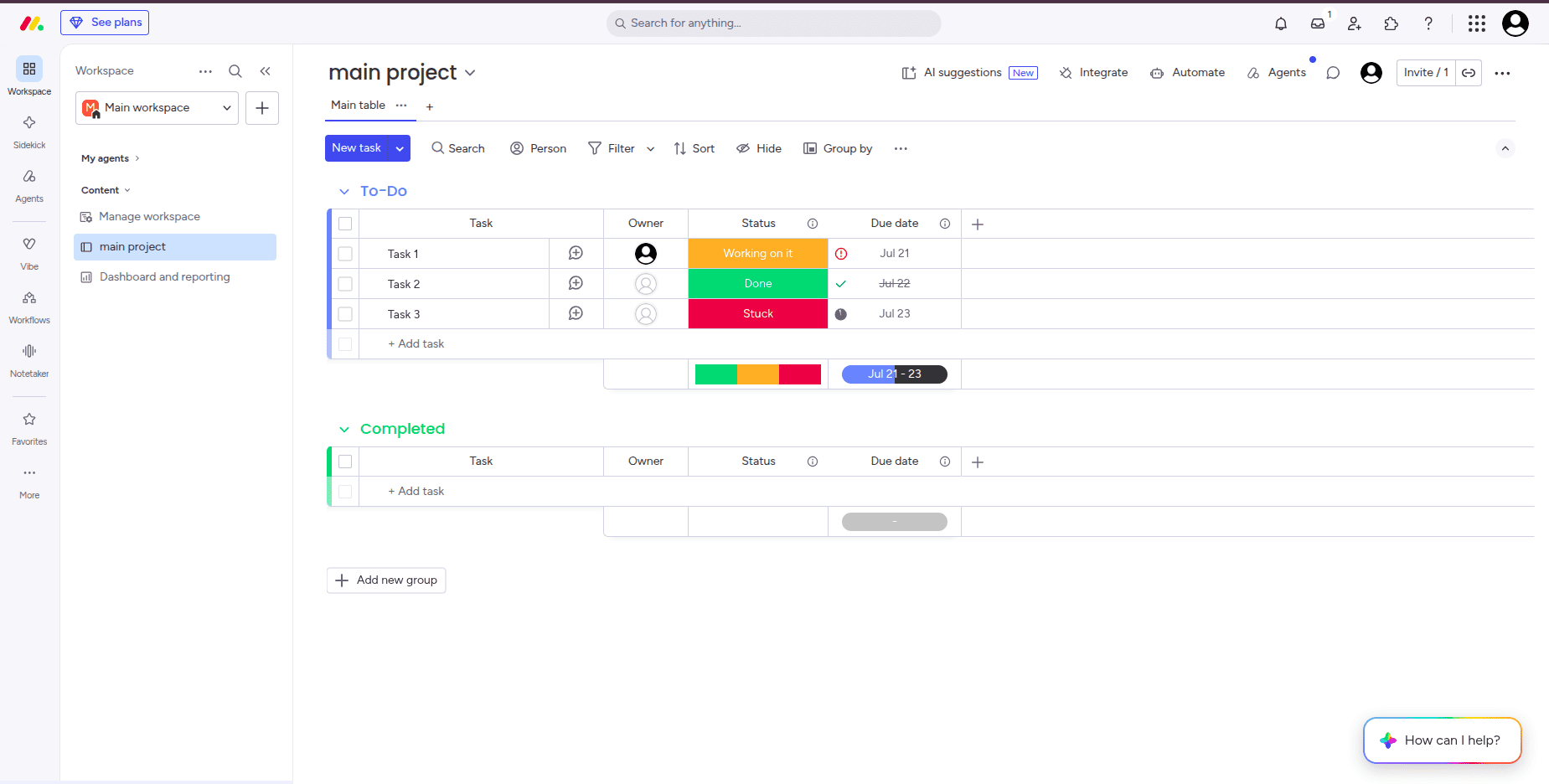
After the onboarding process, the compilation moves to the next page; this is the main working area. This section allows you to manage projects, delegate tasks, track progress, and collaborate smoothly with your team.
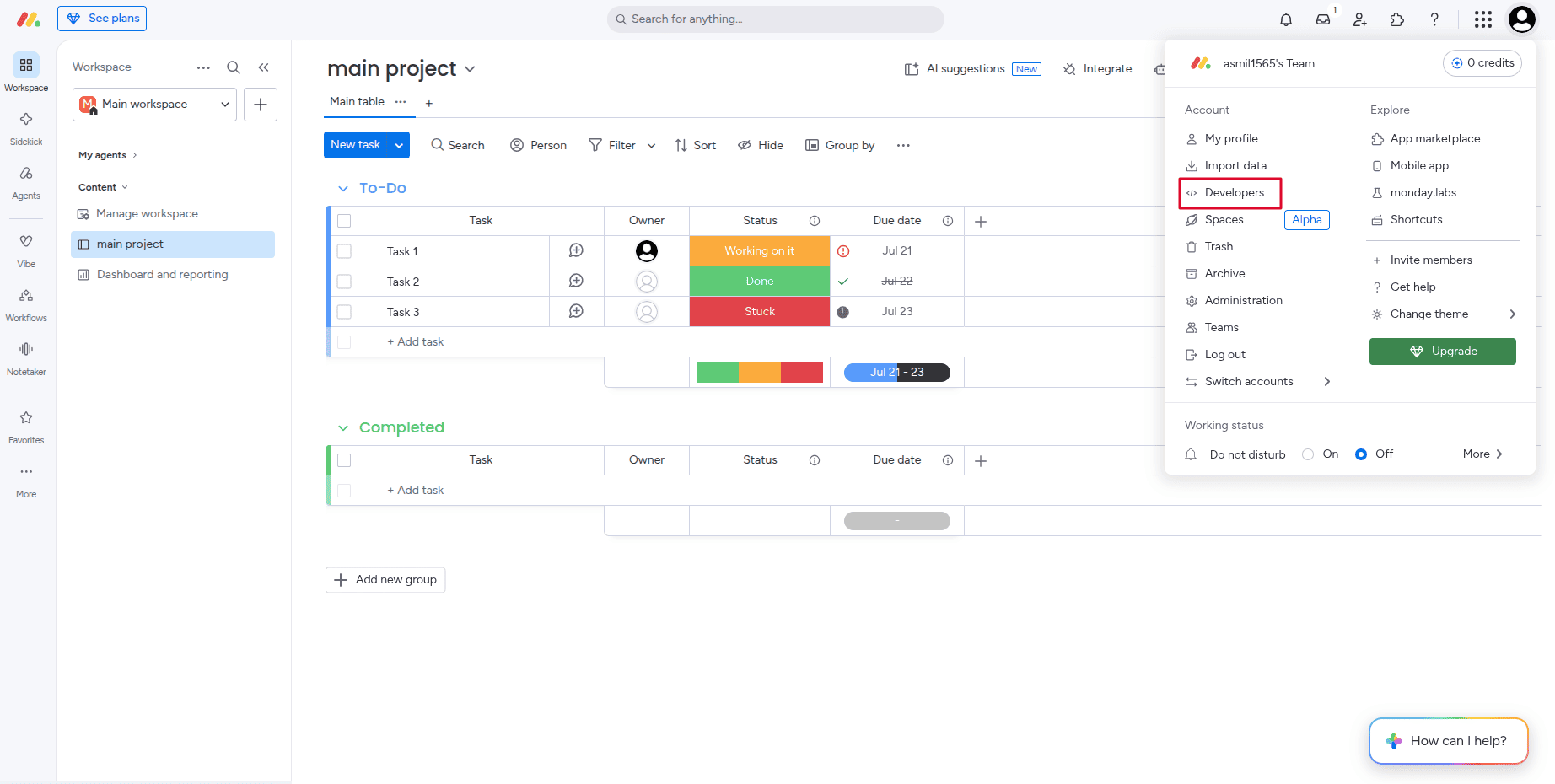
Then, connect to the monday.com with odoo, got to the profile icon > then click Developers.
Then, select the API token, and you can see your API token.
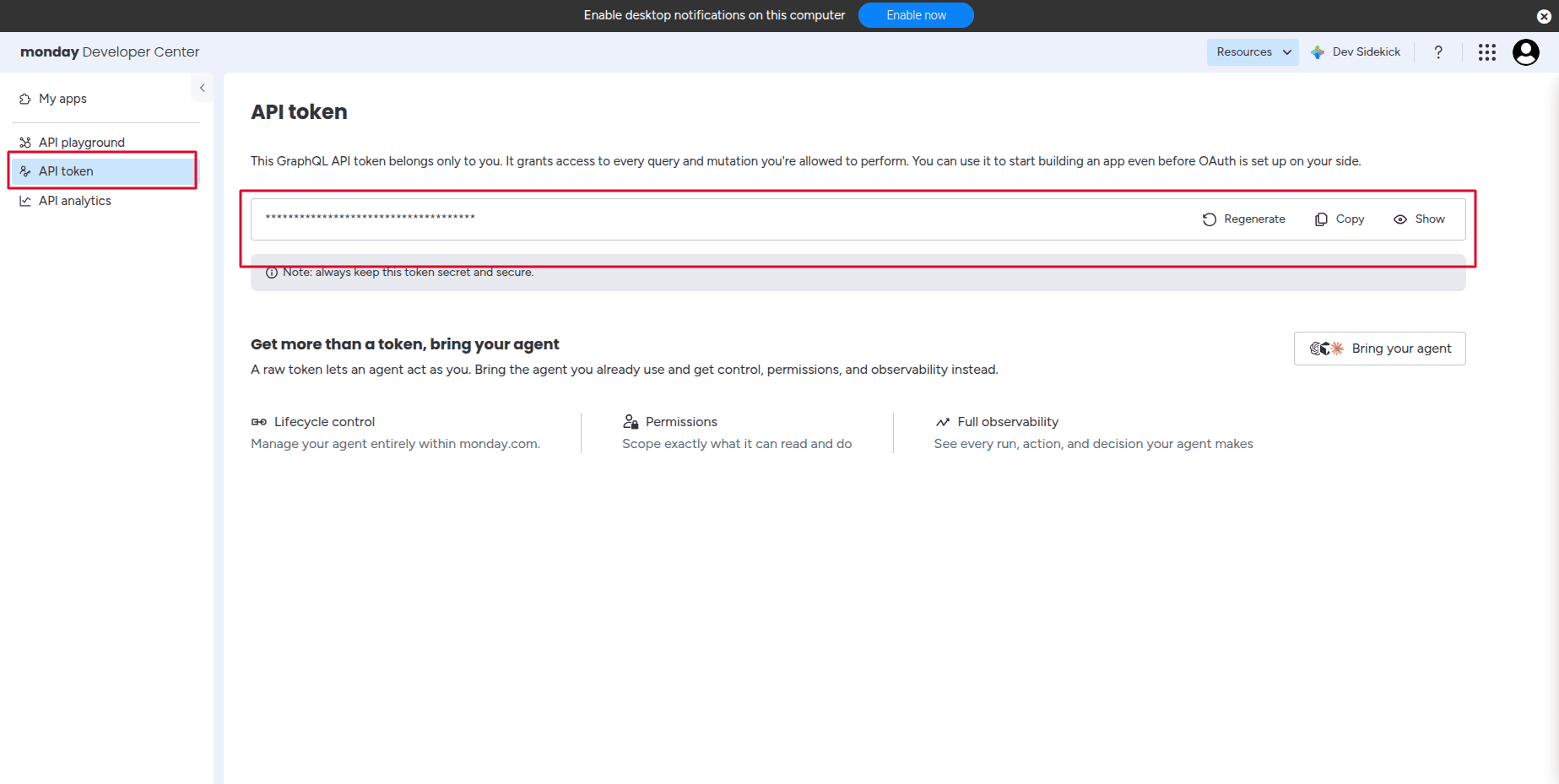
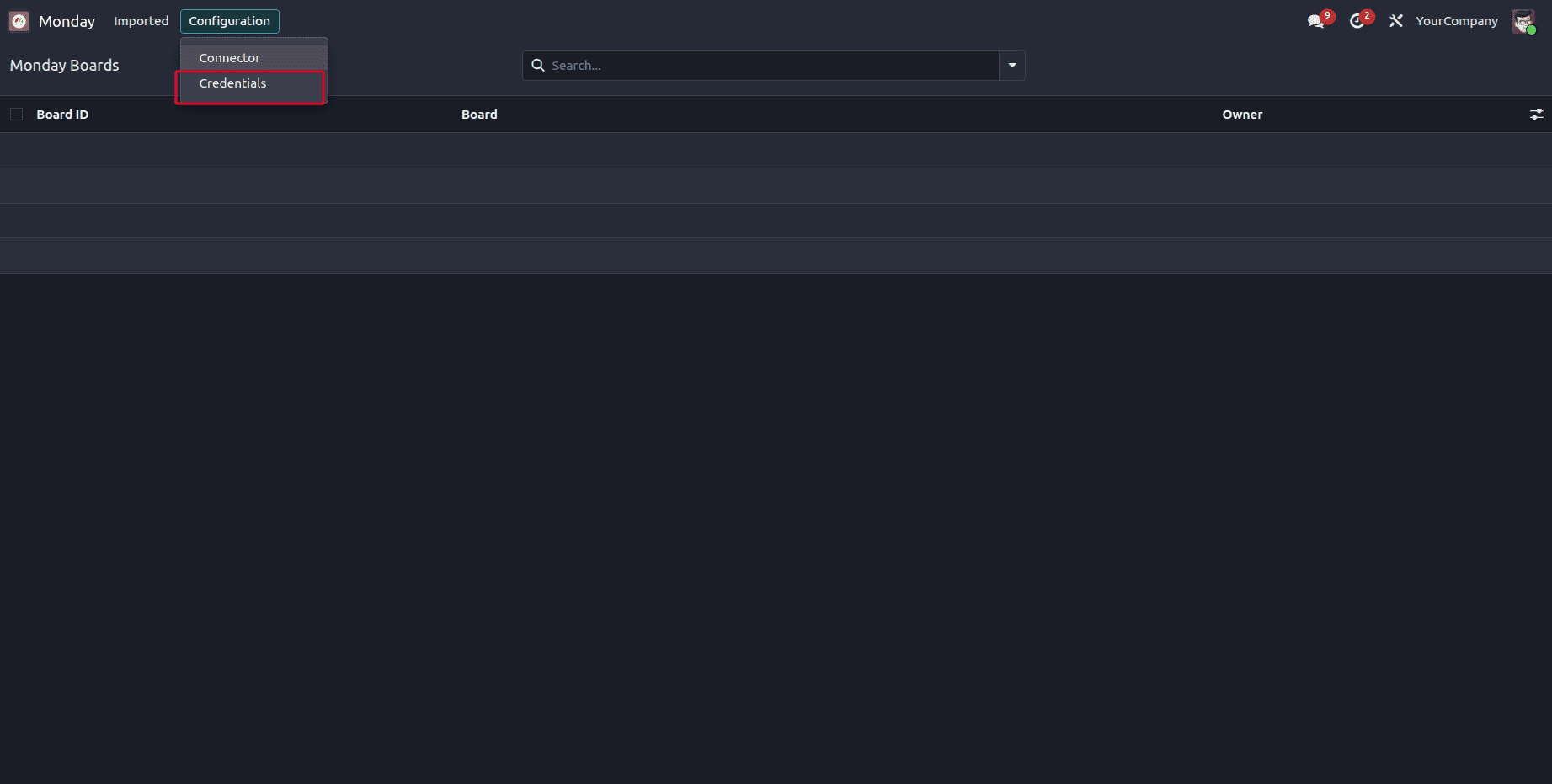
Copy that and open the monday.com odoo connector. Then, navigate to the Credentials menu and add the Api token, then save.
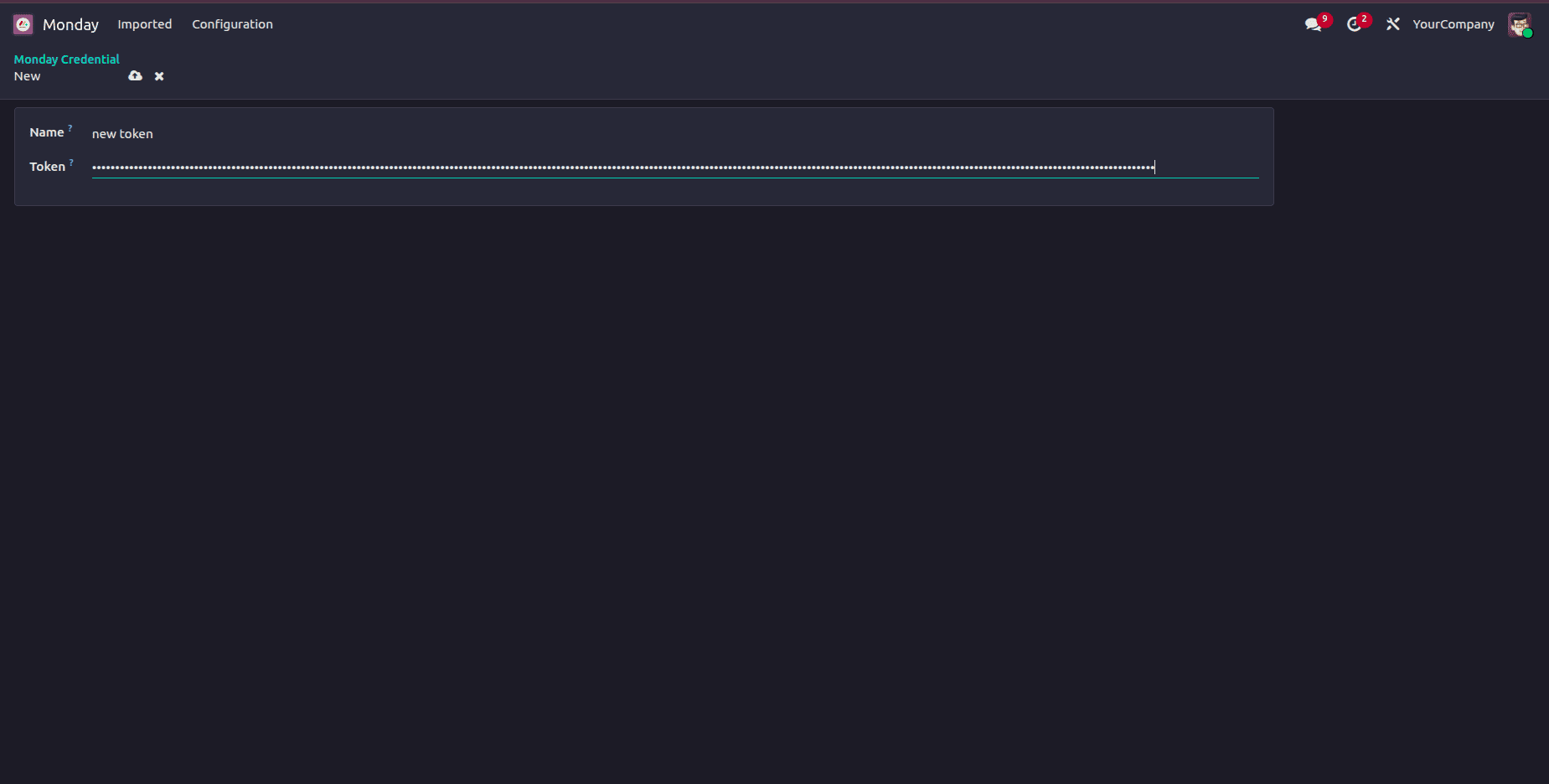
Now, Monday.com connects to monday.com odoo connector.
Import Data from Monday.com into Odoo
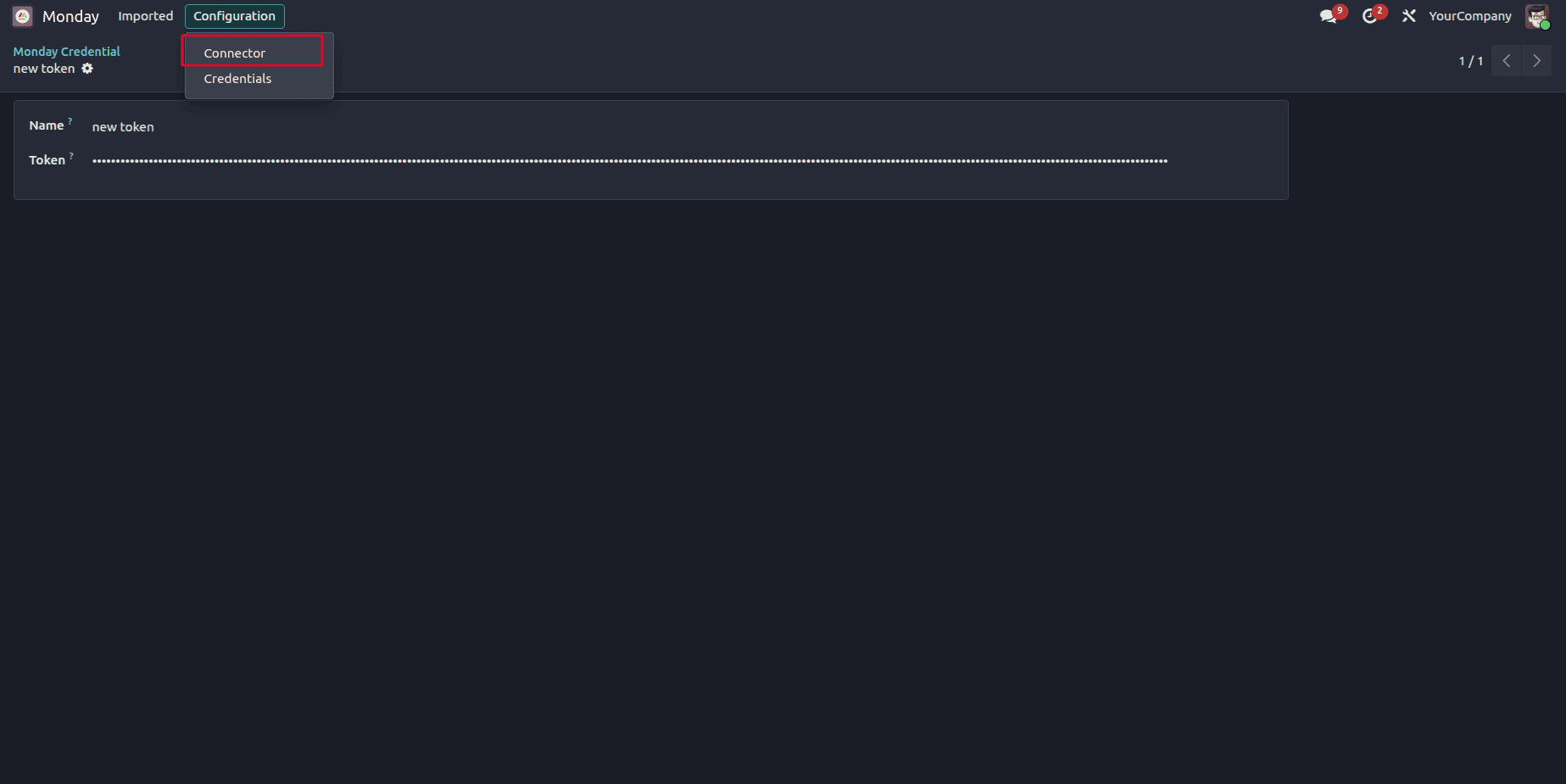
After that, navigate to the Connector menu.
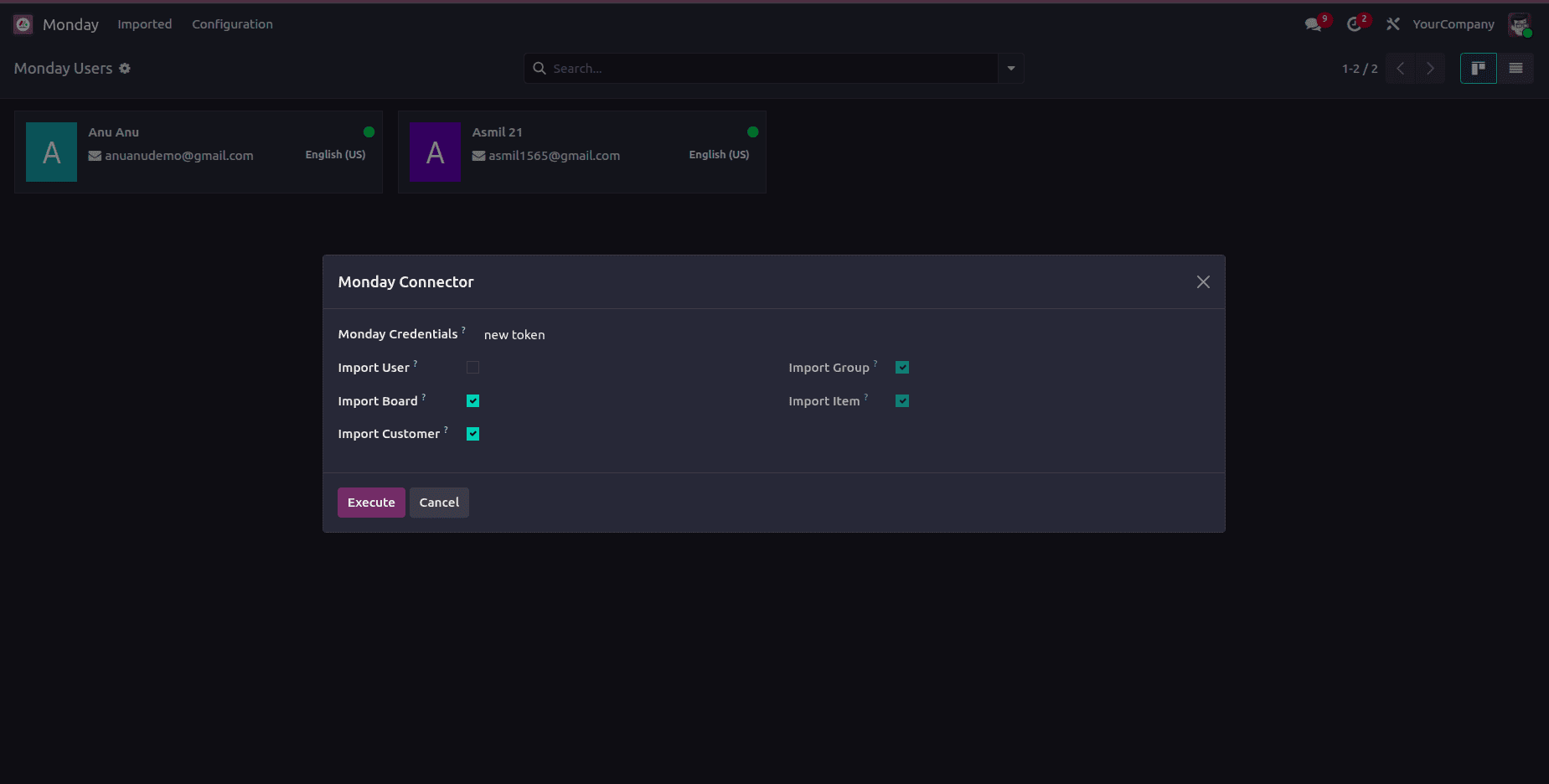
First, select the added Monday credentials. Then, you can import users, import boards, and import customers from your Monday.com workspace.
Import users
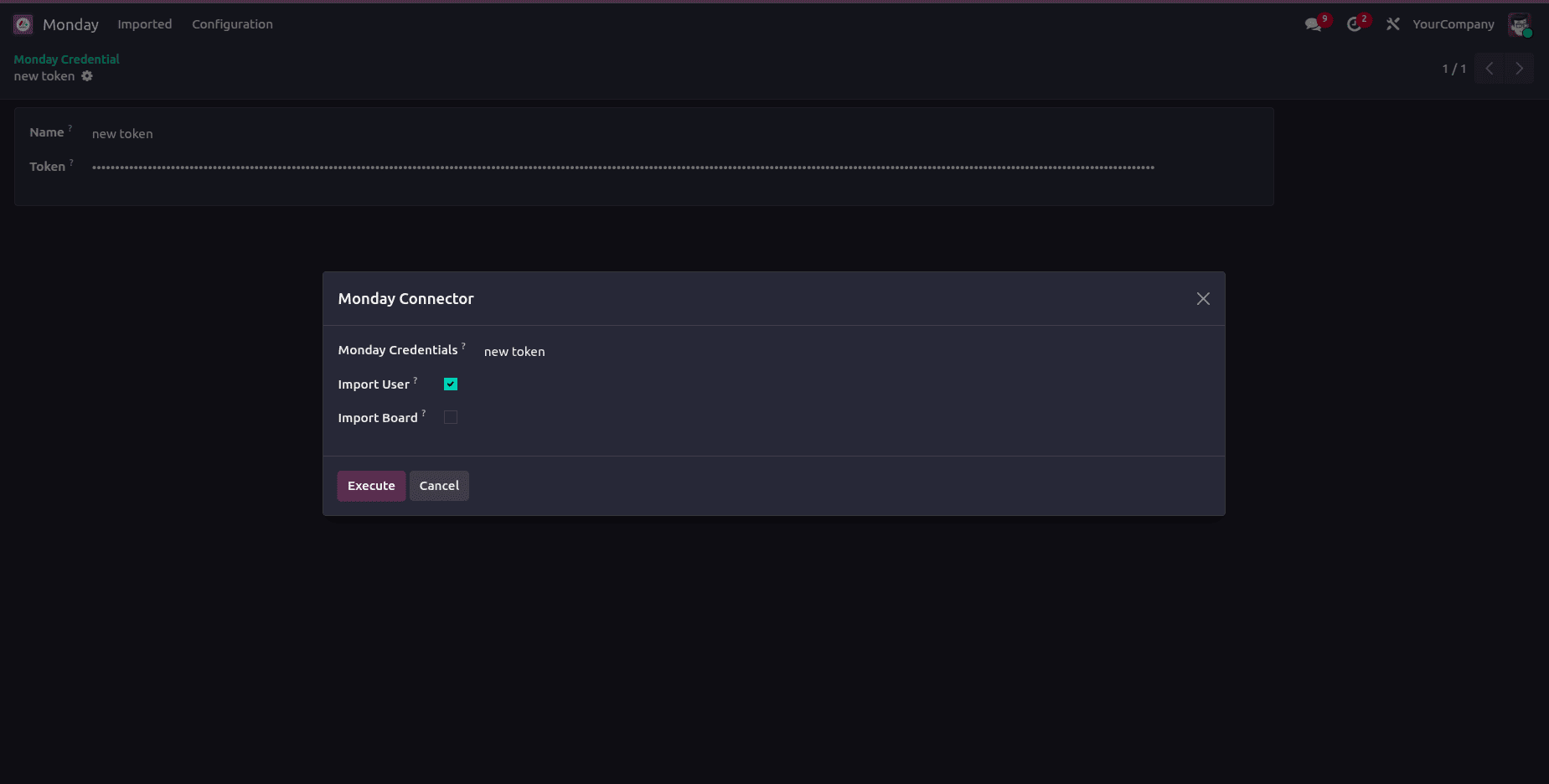
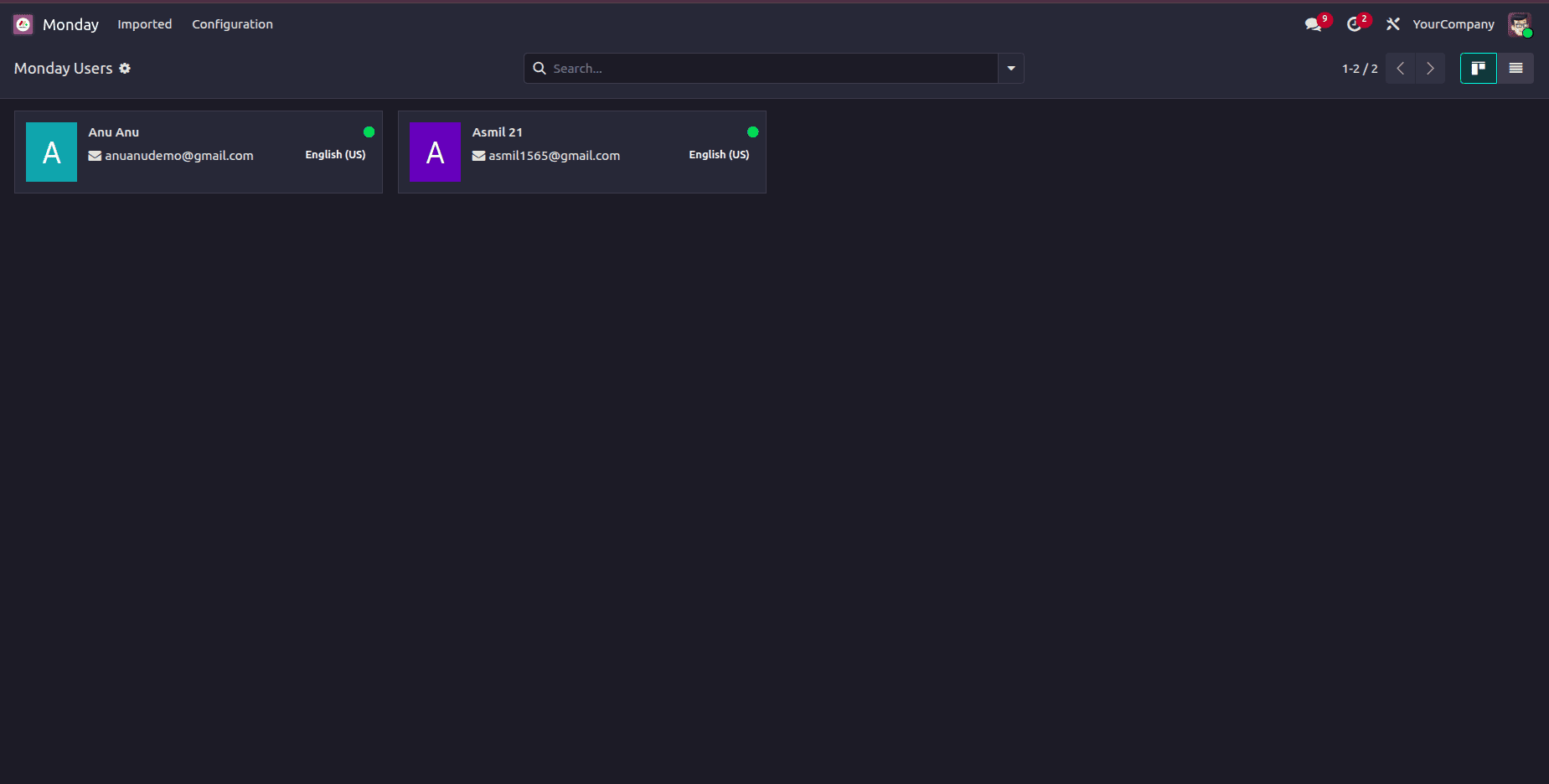
Tick the user option, then click the Execute button. This retrieves all users associated with your Monday.com workspace.
Go to Imported menu and navigate to Users. Here, you can see the users.
Import board and customers
Tick the board or customer option, then click the Execute button. This retrieves all boards associated with your Monday.com workspace.
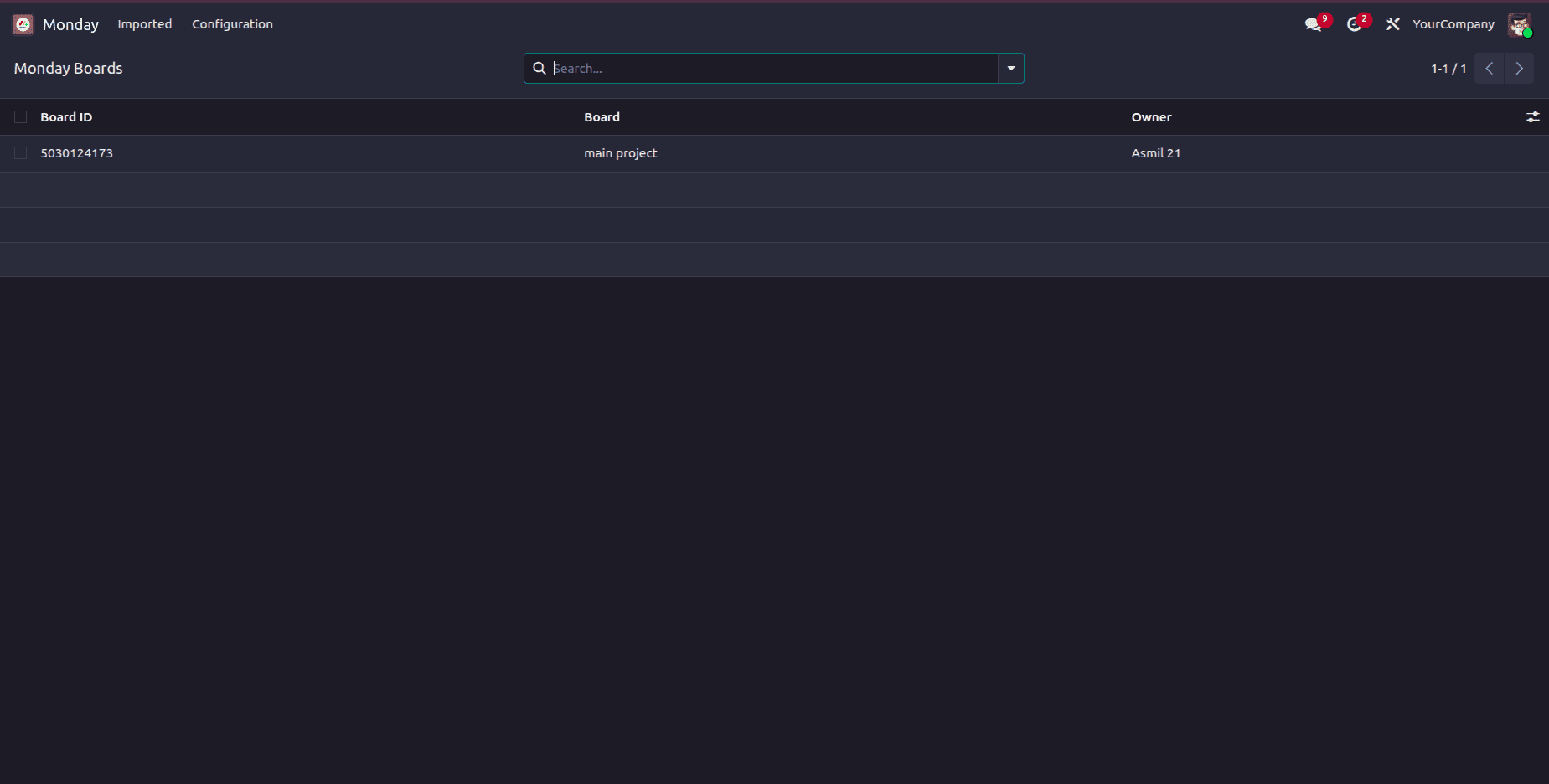
Then, go to the imported menu and navigate to boards. Here, you can see the board. Each imported board is stored as a separate record in Odoo along with its related information.
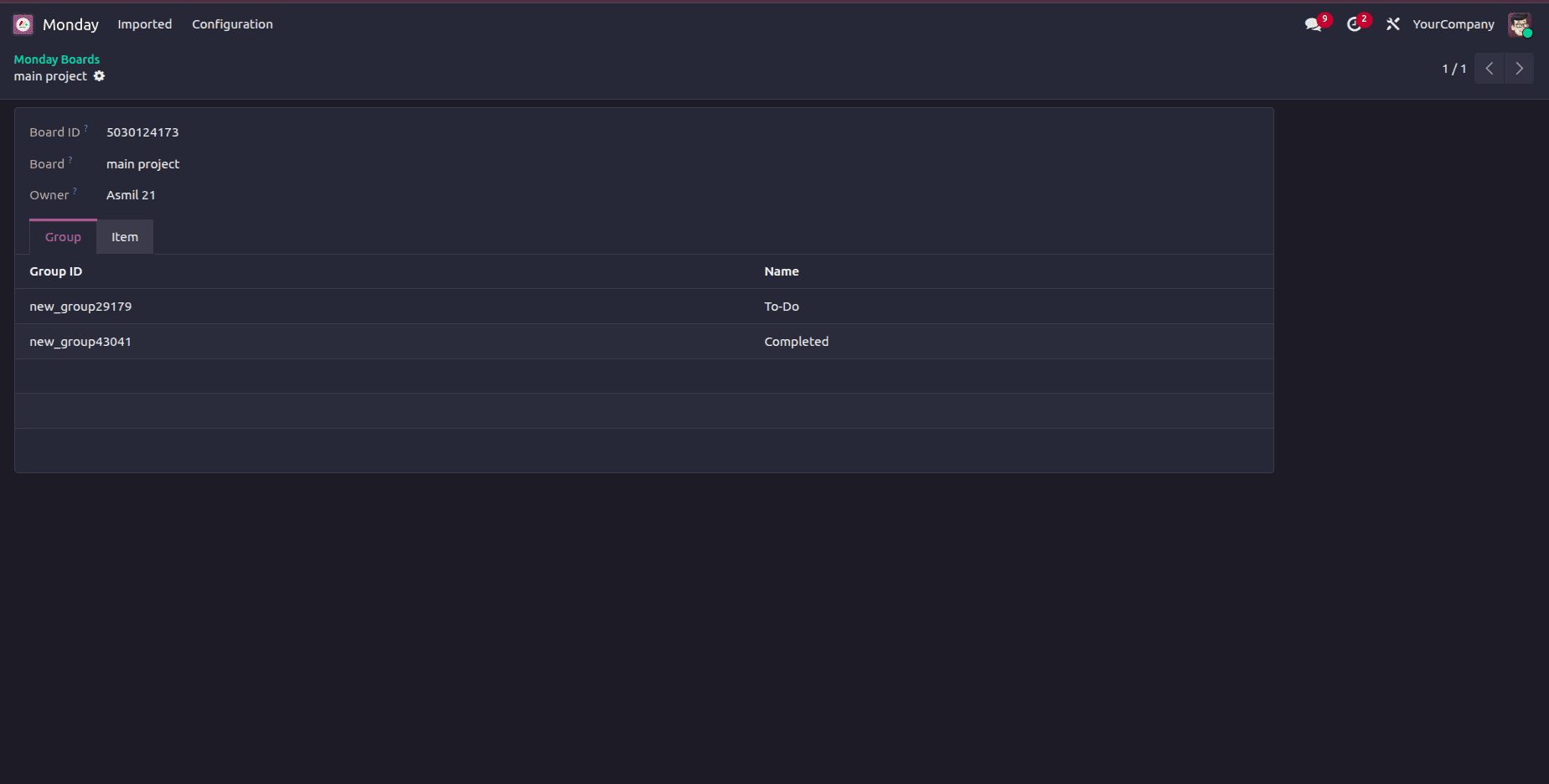
The Group tab displays all the groups available within the imported board.
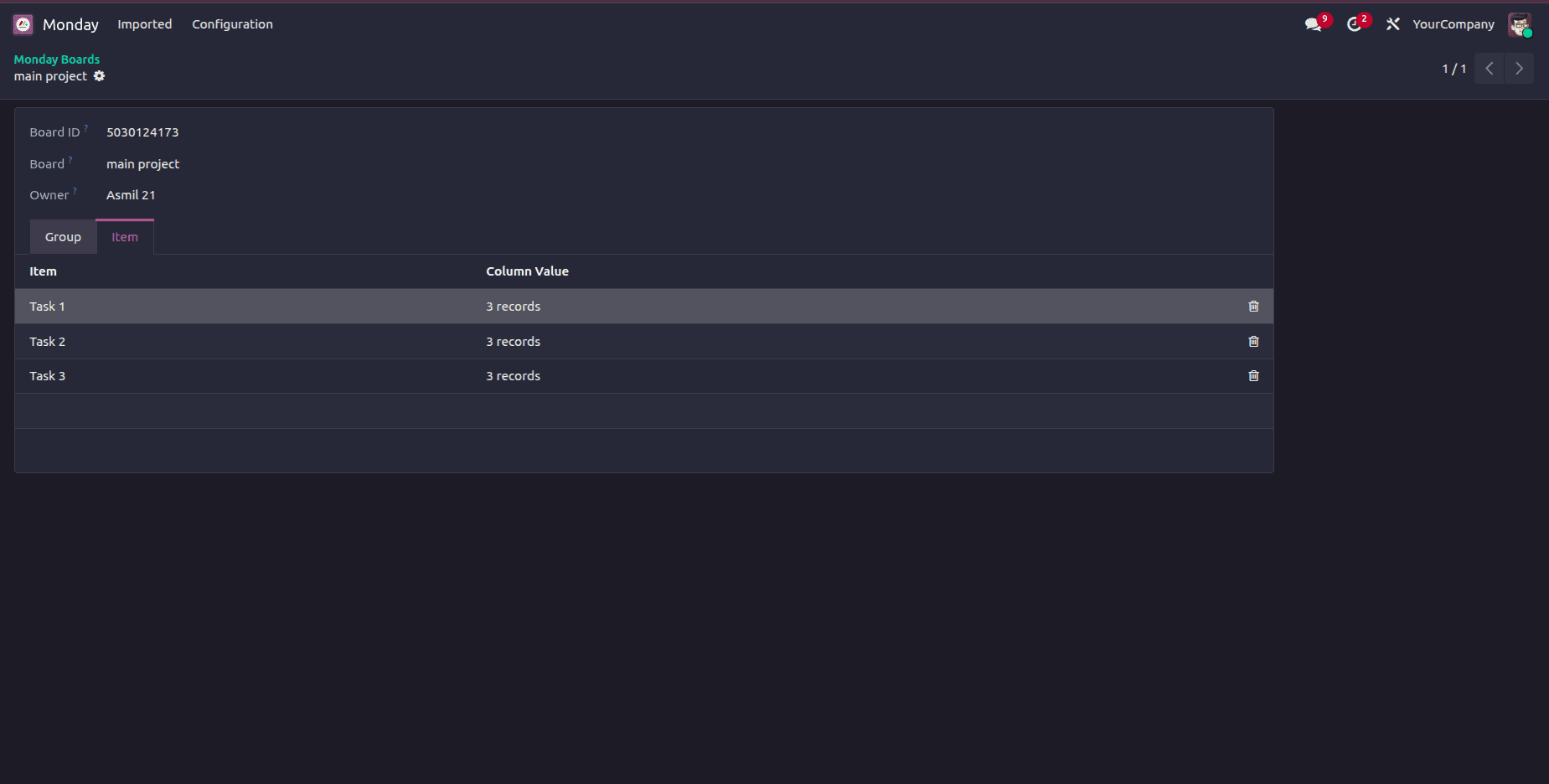
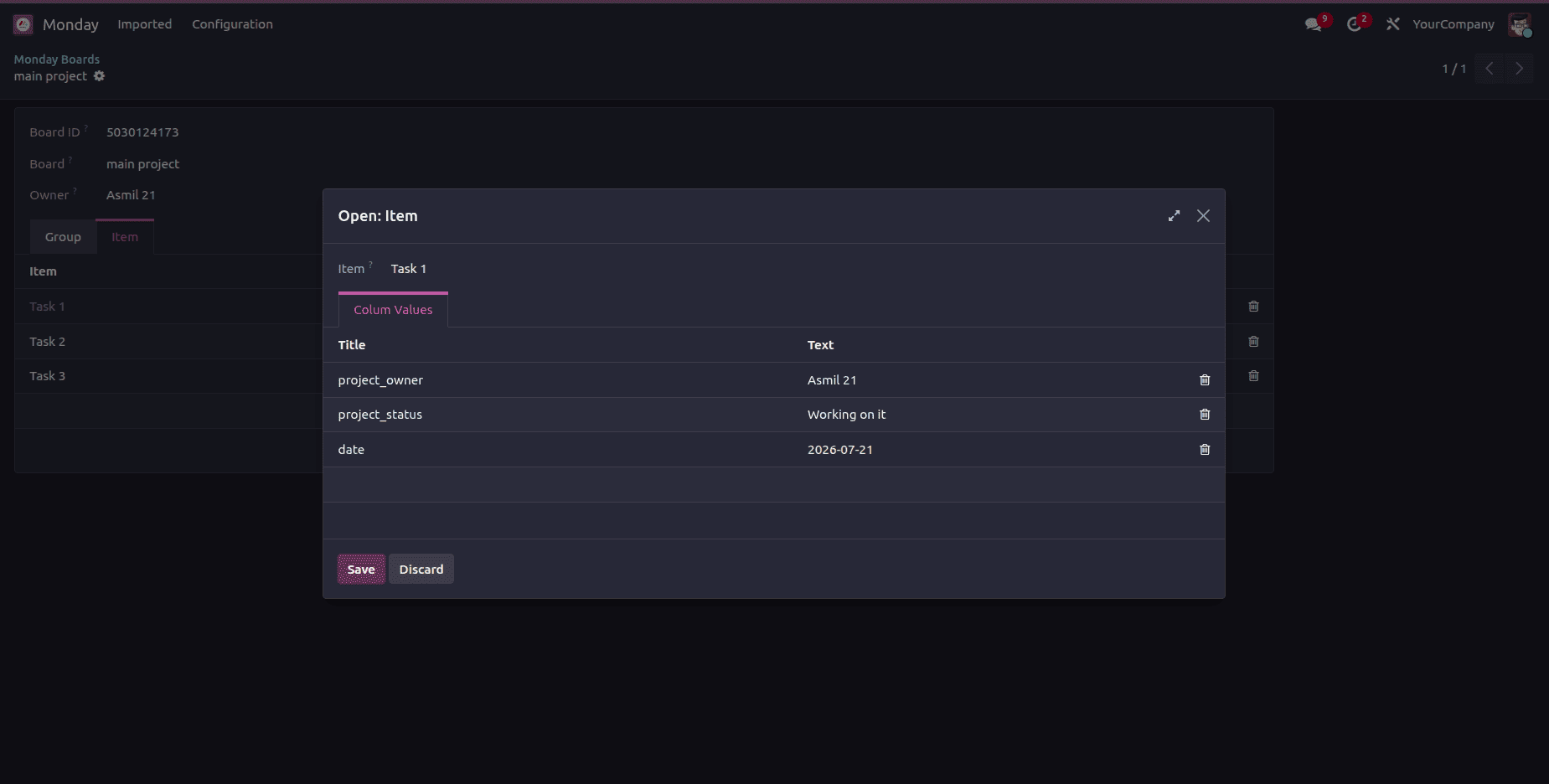
The Item tab displays all the tasks (items) that belong to the selected board. Each imported item includes information such as its name, status, assigned user, date, and other available details.
The Monday Odoo Connector provides a simple and efficient way to integrate your Monday.com workspace with Odoo. By connecting your Monday.com account using an API token, you can seamlessly import users and boards into Odoo, allowing project data to be managed from a centralized platform.
Before configuring the connector, it is important to understand the basic concepts of Monday.com, such as Workspaces, Boards, Groups, and Items, as these form the structure of the data that is synchronized with Odoo. Once the connection is established, the connector retrieves the selected records and organizes them within Odoo.
To read more about How to Connect Mailchimp with Odoo 18 Using the Mailchimp Marketing Connector V18, refer to our blog How to Connect Mailchimp with Odoo 18 Using the Mailchimp Marketing Connector V18.