Organizing online courses and managing eLearning programs can become challenging as the number of courses and participants increases. The Odoo 20 eLearning module helps users create and manage courses while providing an interactive learning experience. Course managers can also add an eLearning quiz to course content, allowing participants to test their knowledge, answer questions, and earn rewards.
In this blog, explore how to create a course and add quizzes to its content in the Odoo 20 eLearning module.
Create a course
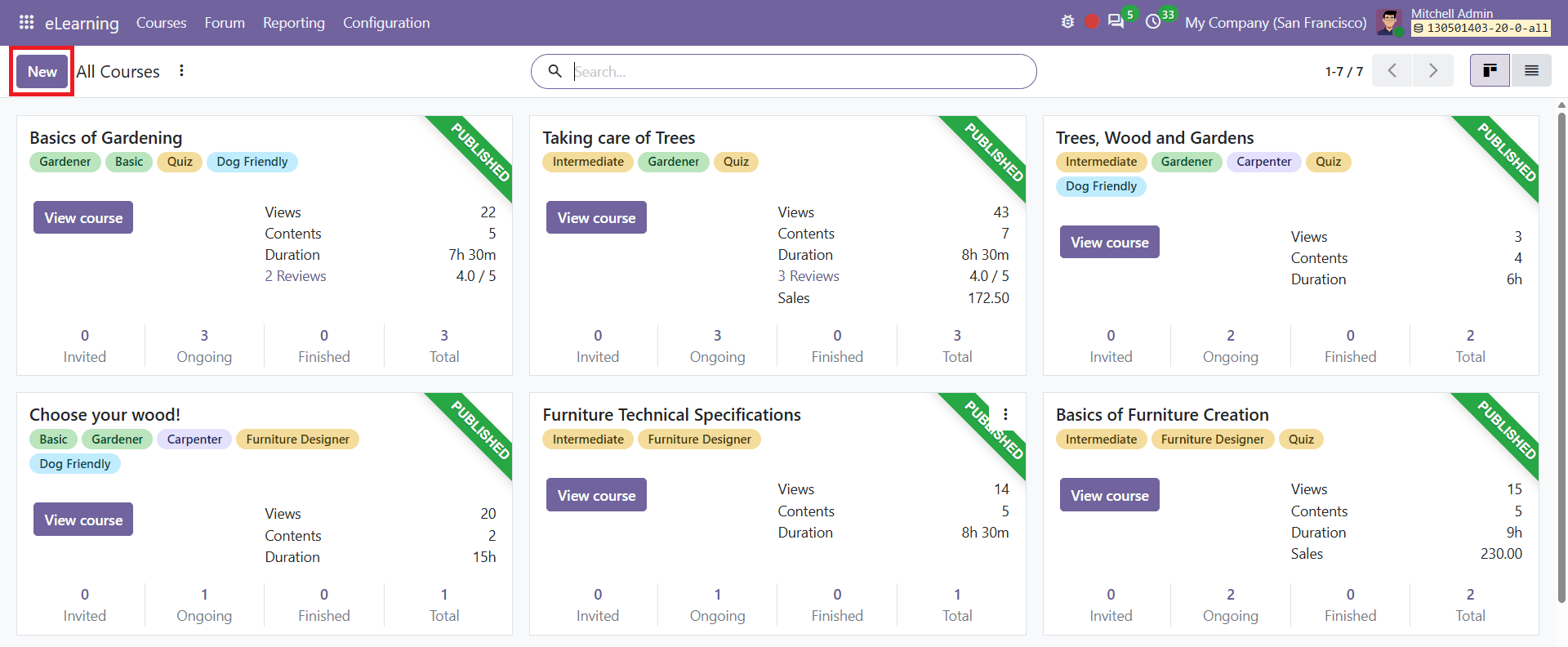
To create a course, open the eLearning module from the Odoo 20 dashboard and click New, as shown below.
In the course creation form, enter required details such as Course Title and Tag. This form contains four tabs: Content, Description, Options, and Karma, as shown below.
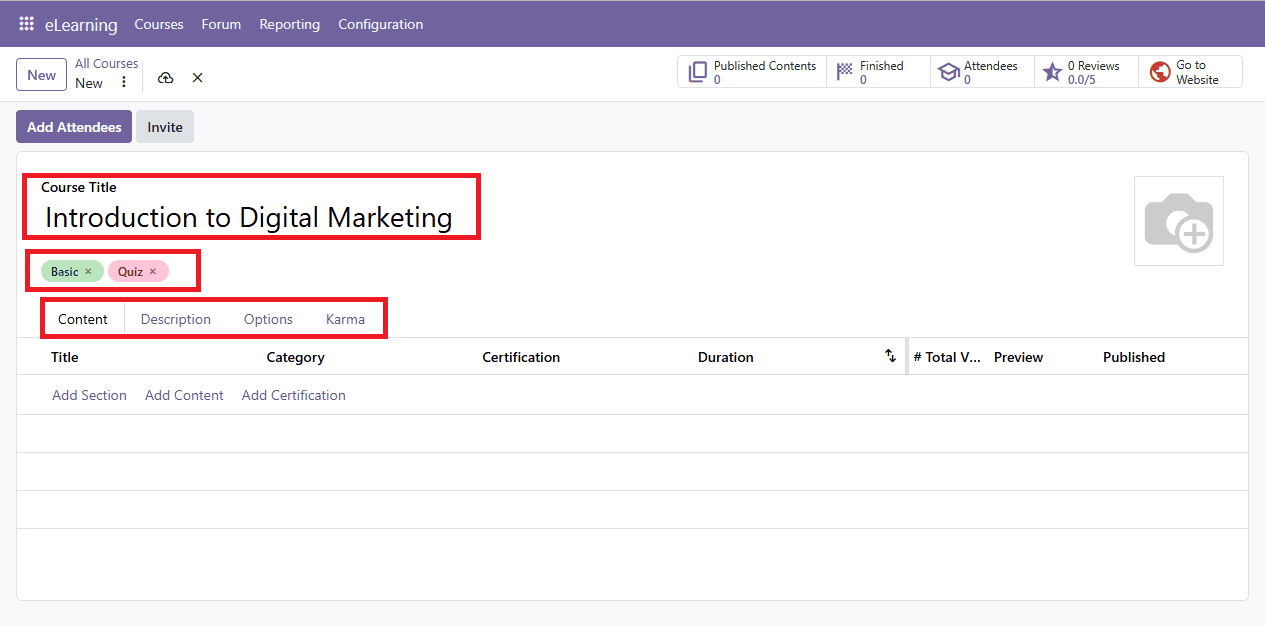
The course form also provides Smart tabs that display information about course activities. It includes Published Content, which shows the number of published learning materials, while Finished indicates course completion activity. Attendees displays the number of enrolled participants, Reviews provide access to feedback submitted by learners, and the Go To Website opens the course page on the website.
In the Content tab, include Add Section, Add Content, and Add Certification. Once you click on Add Content, a pop-up window will appear, as shown below.
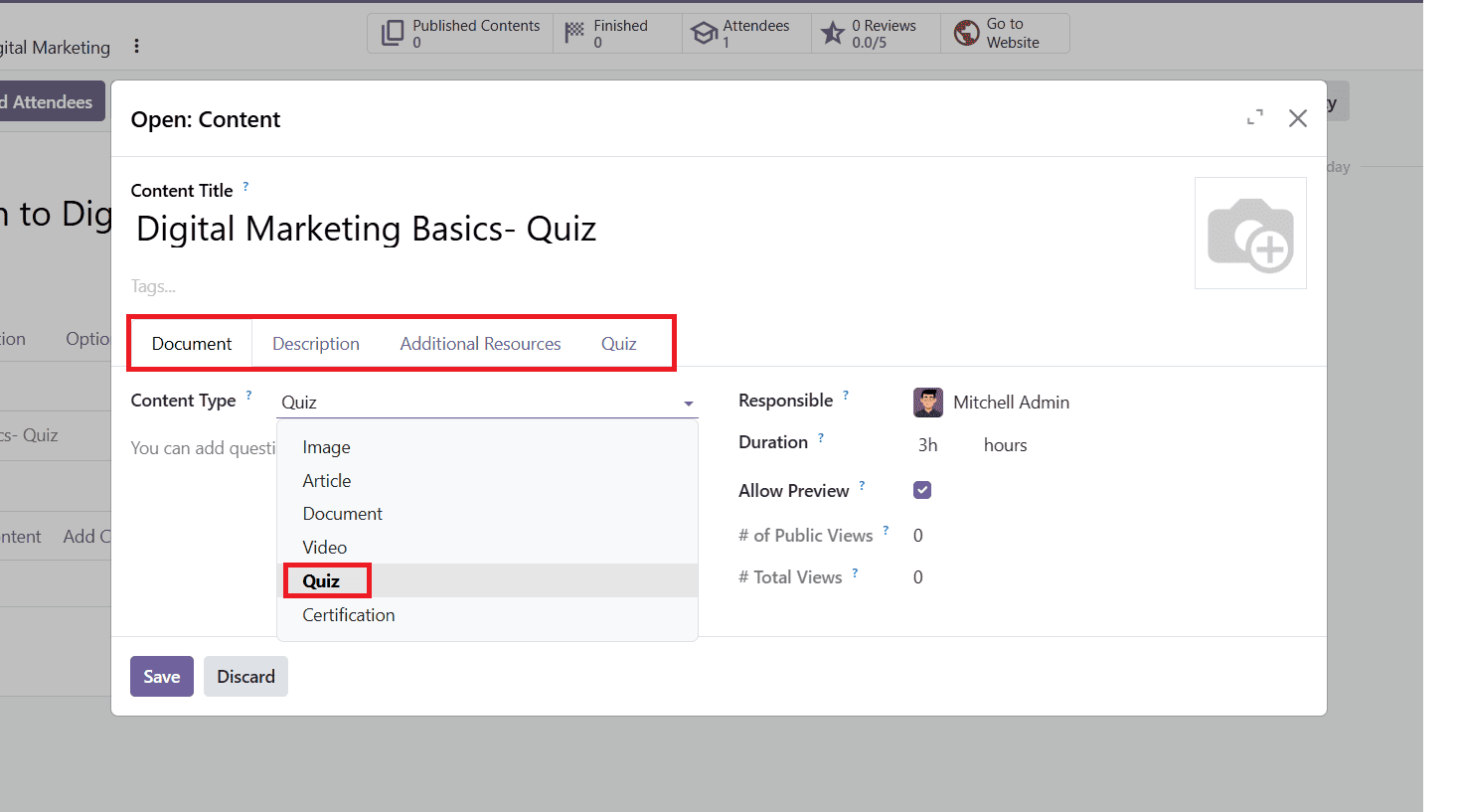
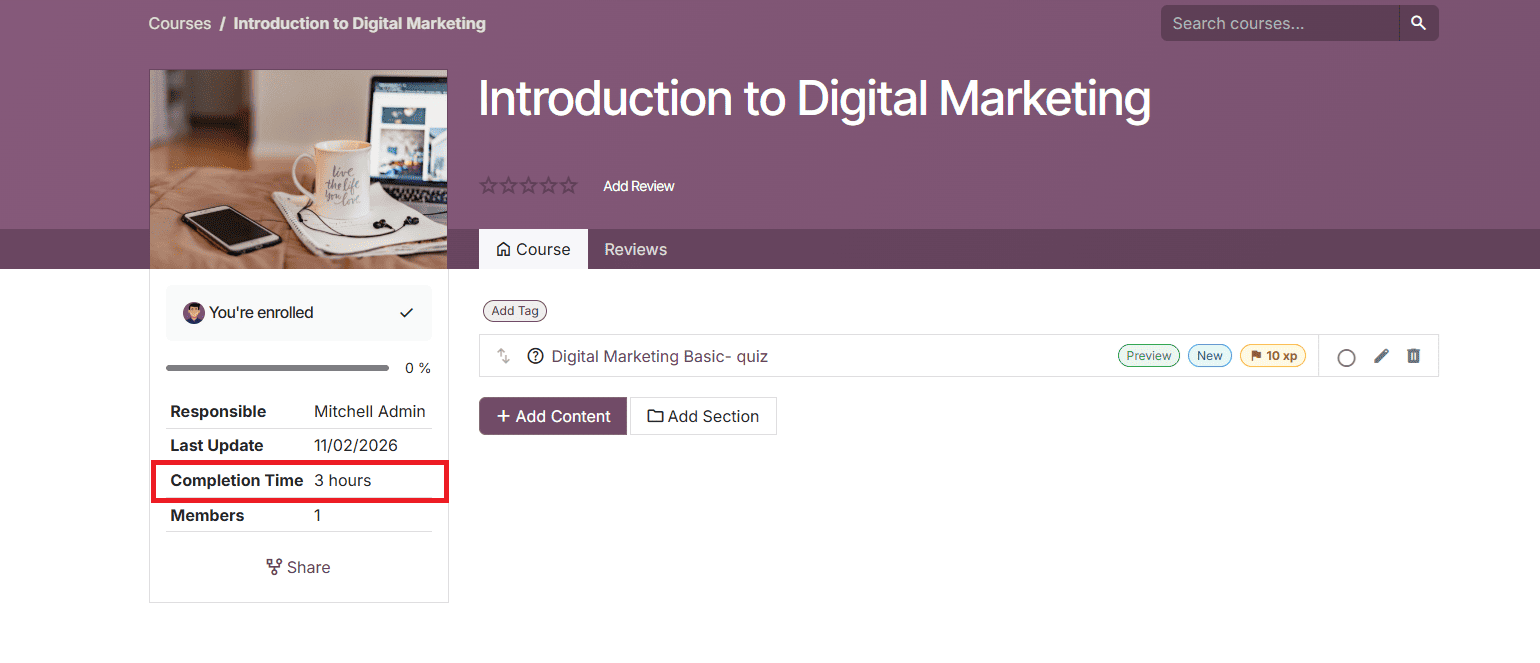
In this form, in the Document tab, choose your content type as Quiz or according to your required type. The Duration field allows course managers to specify the estimated time required for participants to complete the content. For example, setting the duration to 3 hours indicates that the lesson is expected to take approximately three hours to complete. Once you publish the course, you can see the duration on the website as shown below.
The Allow Preview option makes the content accessible to anyone, including non-enrolled participants or visitors browsing your website. When enabled, visitors can open and view the content before enrolling in the course. Odoo also tracks and displays the number of Public Views and Total Views, helping course managers monitor content engagement.
Enter a description of the content under the Description tab. Additional Resources allows you to add an additional link or file, such as supporting documents, reference websites, or a video link, to help participants with a specific course content item. The Quiz tab allows you to add questions and answers to your course quiz.
Odoo 20 eLearning allows course managers to organize quizzes in different ways. You can add a quiz as a separate content item, allowing participants to access it independently. Alternatively, quizzes can be included alongside other learning materials, such as documents or videos, within the same course. This gives course managers flexibility to create courses with only quizzes or a mix of learning materials and assessment.
Configuring Quiz Questions and Rewards
After selecting the Quiz, open the Quiz tab to configure the questions and answers. This tab includes a Points Rewards section, where course managers can assign karma points based on the number of attempts participants need to answer correctly.
To create a question, click on Add a line under the question section.
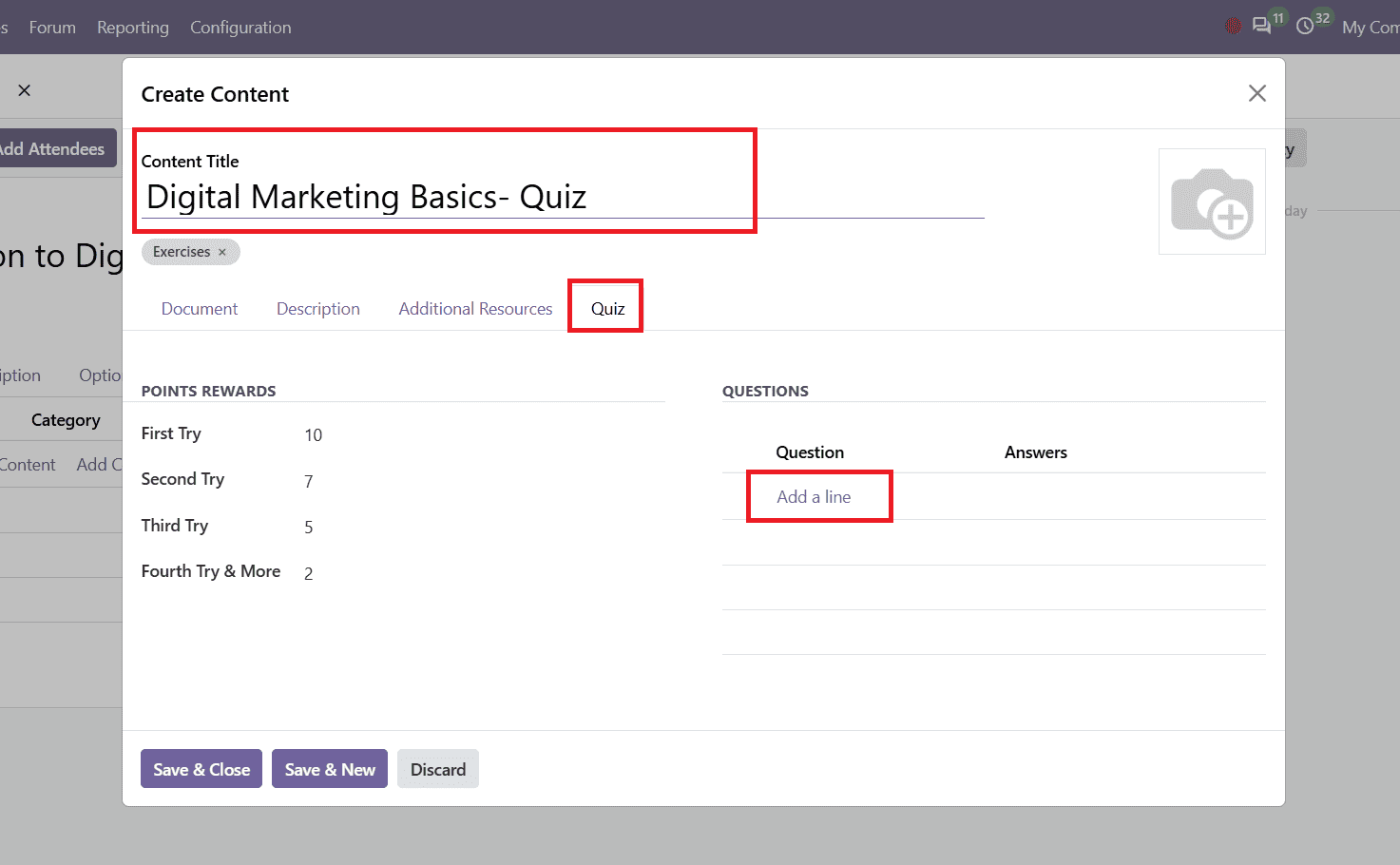
A new window will open as shown below, where you can enter the Question name and add possible answers.
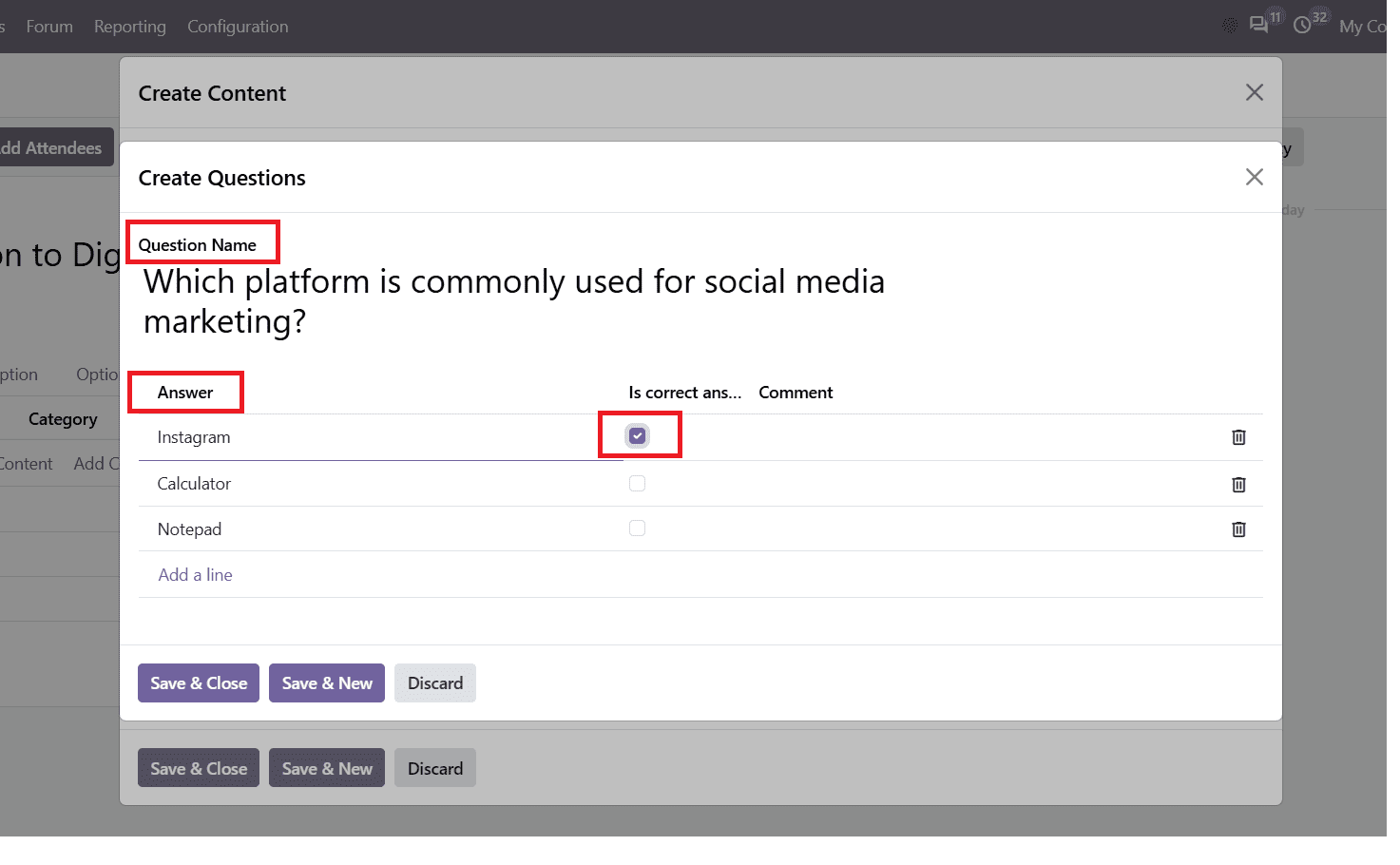
Use the Add a line option under the Answers section to include multiple answer choices. Select the Is correct answer checkbox to identify the correct answer. You can also use the comment field to provide additional information or explanations when a participant selects an answer. Repeat the process to add more questions to the quiz.
After configuring the question and answers, configure the Points Reward section. The quiz karma points feature allows course managers to reward participants based on the number of attempts they need to answer correctly.
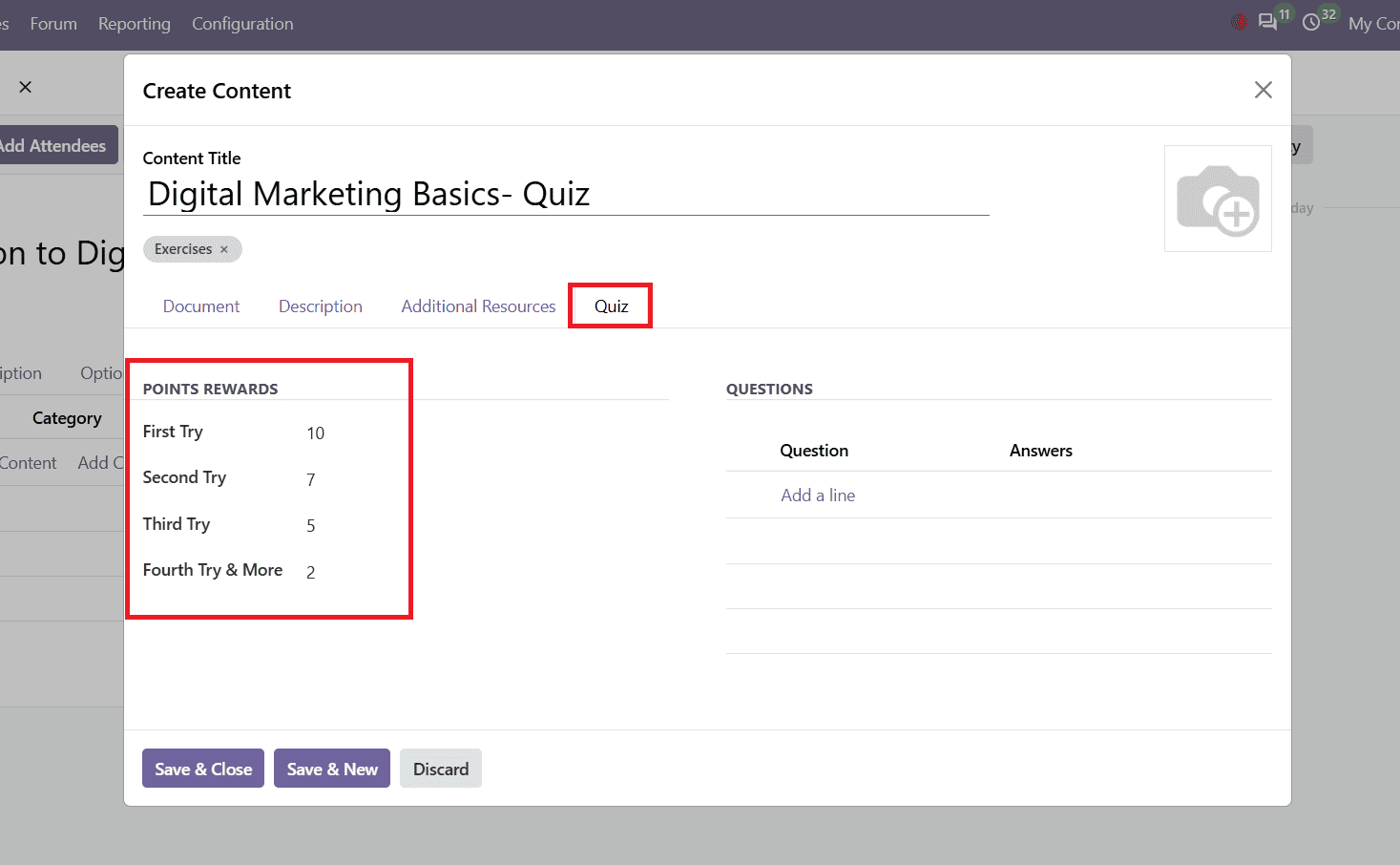
The Points Reward section allows course managers to assign different rewards based on the number of attempts a participant needs to answer the quiz correctly. Odoo 20 provides four reward levels:
- First Try: 10 points
- Second Try: 7 points
- Third Try: 5 points
- Fourth Try & More: 2 points
For example, a participant who answers correctly on the first attempt receives 10 points. If they need a second attempt, the reward will decrease to 7 points. These rewards are part of Odoo's karma-based gamification system, which encourages learners to understand the course content and complete quizzes successfully. You can set these points according to your requirements.
Publishing the Course
Once the course and quiz content are configured, click the Go to Website smart button to open the course page. On the website, enable the Unpublished toggle to Published to make the course available to participants.
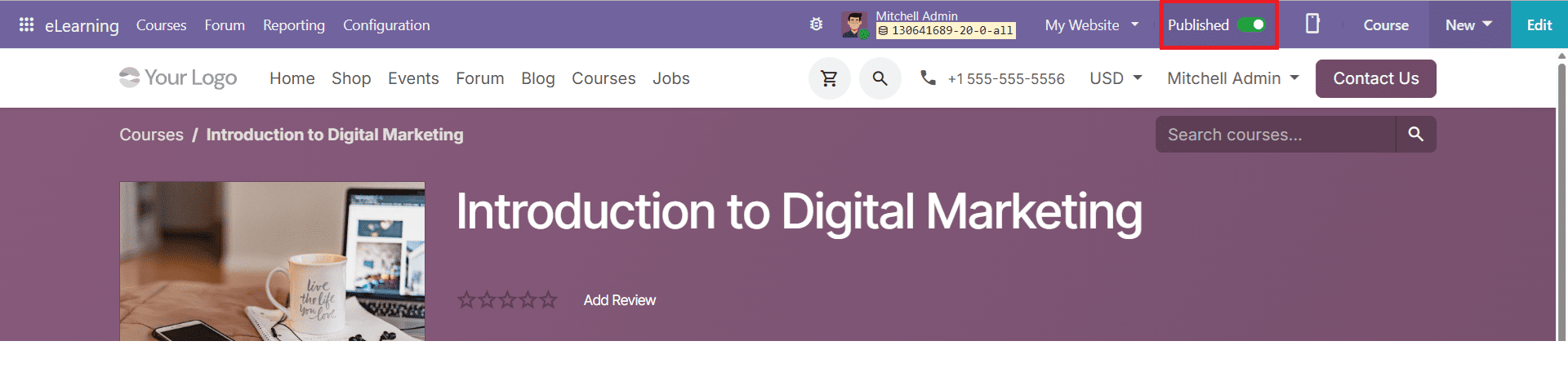
After publishing the course, participants can access it through the Odoo website. The course page displays the available materials, including documents, videos, and quizzes. This allows learners to access the quiz alongside other course content and test their understanding of the topic covered. A website view of a published course is given below.
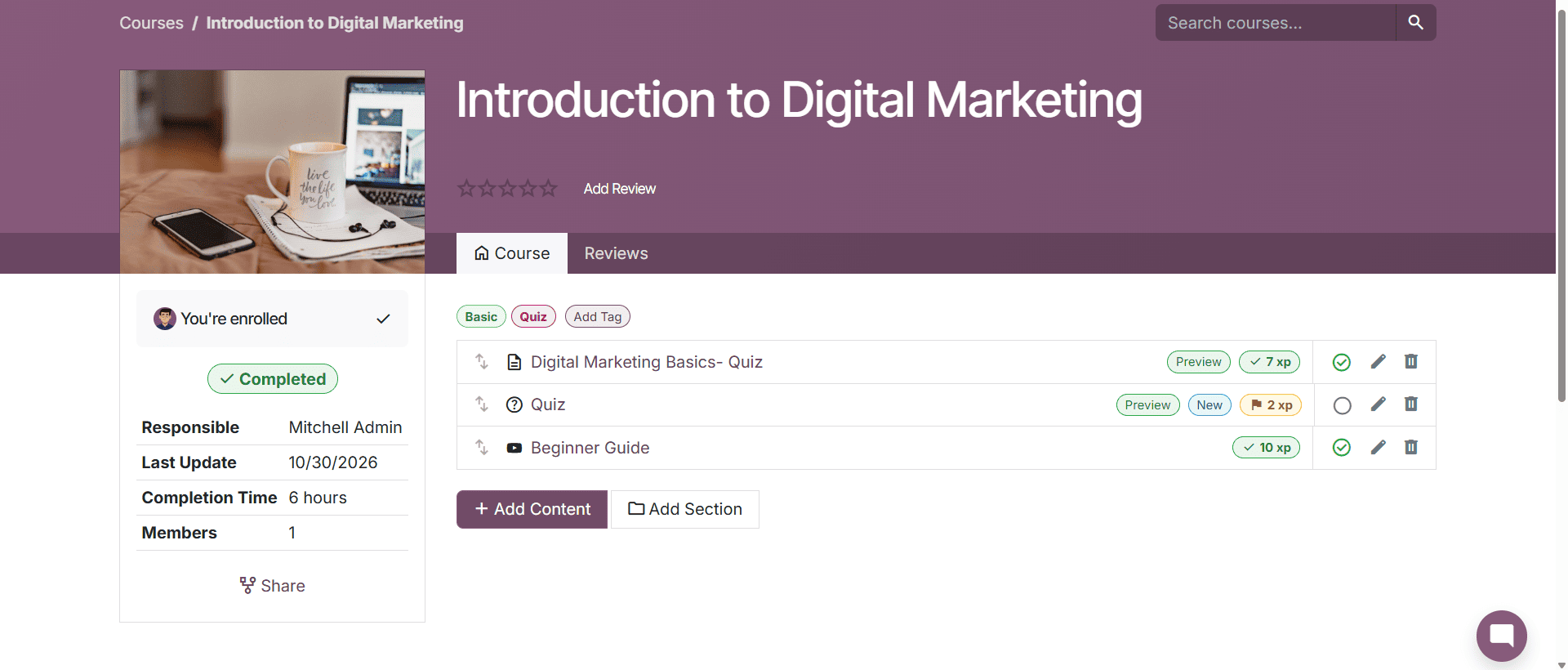
By clicking on individual content items, participants can open the available learning materials such as documents and videos. They can also select quiz content to view the questions and submit their answers as shown below.
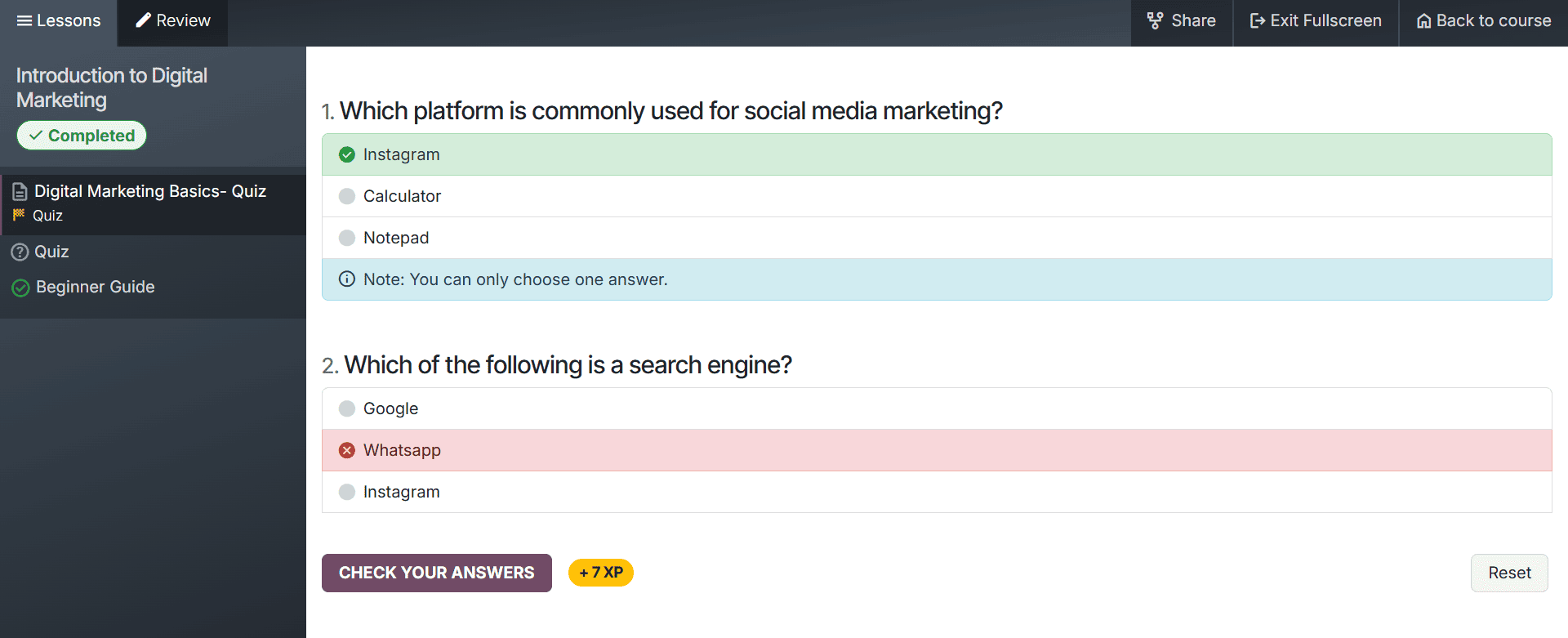
When participants submit an answer, Odoo 20 provides instant feedback by highlighting the correct and incorrect answer selections. Any additional comments configured for the answer choice are also displayed. Participants can also earn karma points based on the number of attempts needed to answer correctly. This helps them understand their mistakes and track their progress while learning.
Quizzes Reporting
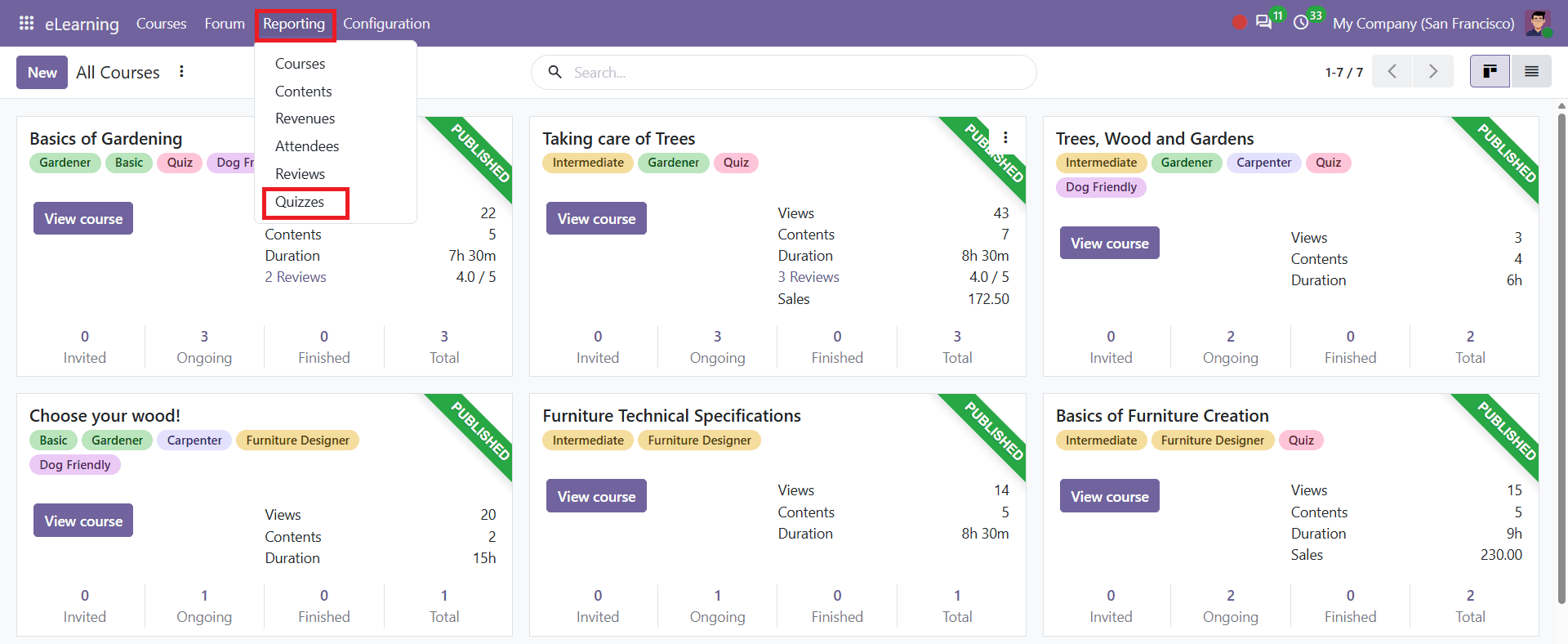
Odoo 20 eLearning provides a reporting option to help course managers track course activities and learner progress. This helps them review how quizzes are being used across their eLearning course. To access the quiz report, open the Reporting course dashboard and click Quizzes as shown below.
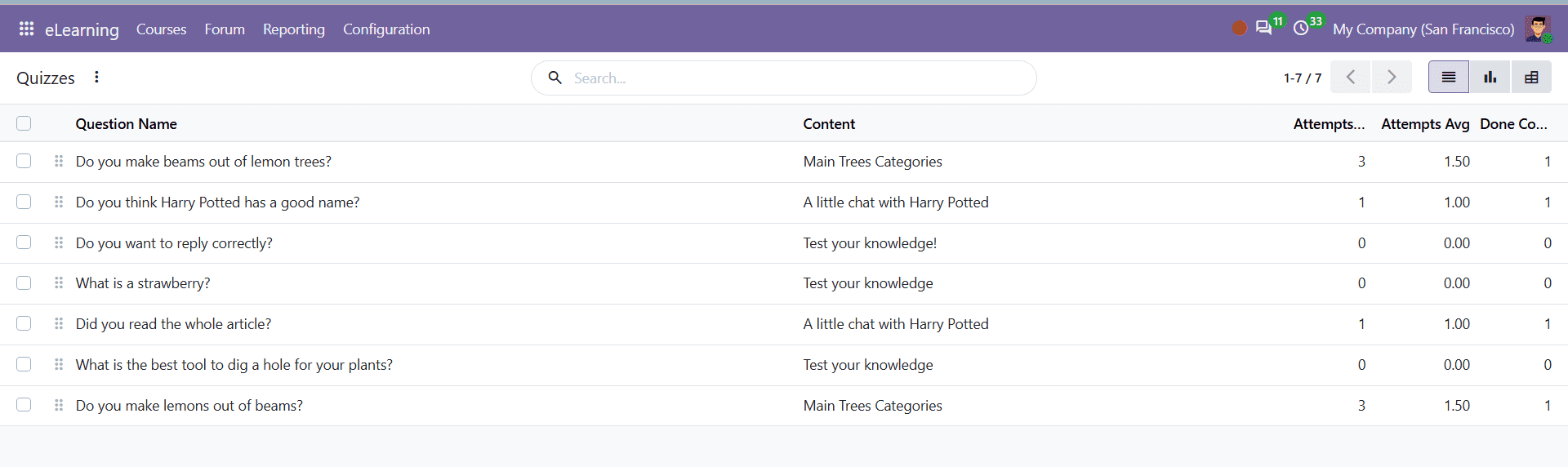
After you open Quizzes, you can see a list view of questions that have been added to courses. In the list view, course managers can find quiz-related details, such as the total number of attempts, average number of attempts, and number of successful attempts. This helps them monitor quiz performance and understand how participants are doing on assessments.
Odoo 20 eLearning makes it easy to create an Odoo 20 eLearning quiz, add questions to course content, and assess participants' understanding. With configurable questions, answer feedback, and karma rewards, course managers can create more interactive learning experiences. This quiz report also helps them monitor attempts and successful quiz completion.
To read more about How to Set Course Prerequisites and Learning Paths in Odoo 20 eLearning, refer to our blog How to Set Course Prerequisites and Learning Paths in Odoo 20 eLearning.