Running an event is not about making a list and saying you are done. You have to schedule sessions, keep track of registrations, set up tickets, watch how things are going on the day of the event, and check in all the people who are coming. The Odoo Events module does all of this well on a computer. If you have ever put on an event, you know that a lot of the work happens when you are walking around, going from the front desk to the stage to the welcome table. The Mobo Events app fills the gap when you need access beyond your computer.
It puts the power of Events in your pocket so you can make an event, set up tickets, watch how it is going, or check in a guest with a quick scan, all from your phone. And because the app is always connected to your Odoo database, nothing you do on the spot gets lost. Every change is reflected instantly, ensuring you and your team always have access to the same up-to-date information.
In this blog, we’ll explore the key features of the Mobo Events app and how they can make managing events easier and more efficient From the page and making an event to managing tickets and checking in guests. And see how it makes running an event something you can really do from your phone. We will look at the Mobo Events app. How it helps with event management. The Mobo Events app is very useful for people who run events.
EVENT DASHBOARD
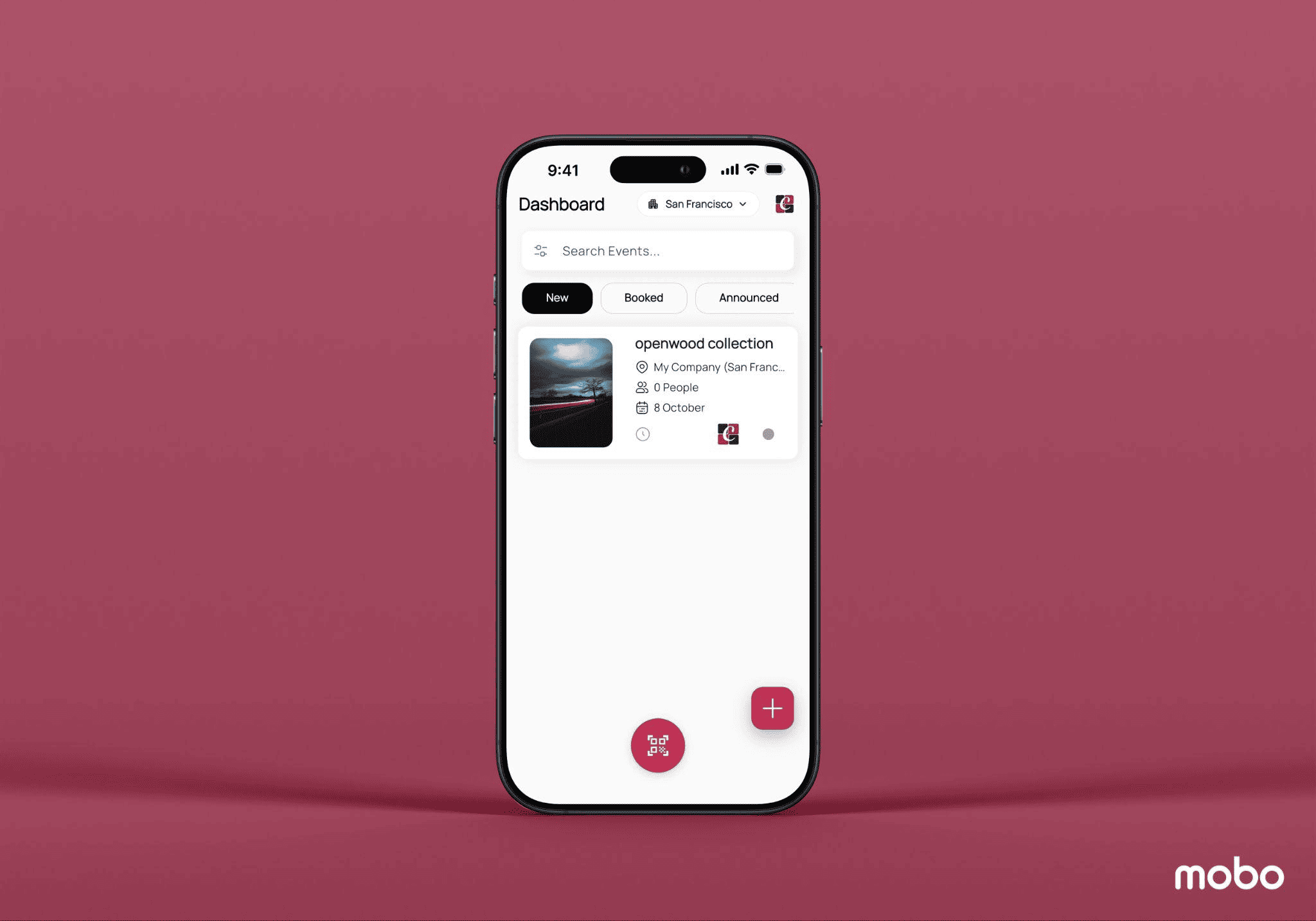
Everything starts at the Event Dashboard, which acts as the command centre for managing events on the move. As soon as you open the app, you can switch between companies and jump into your profile straight from the top-right corner — handy if you're juggling more than one organization.
A search bar sits right at the top so you can find a specific event in seconds, and the built-in filters let you narrow the list down further, which is a small thing but genuinely useful once you're managing several events side by side.
Events themselves are grouped into stages — New, Booked, Announced, and Ended — giving you an at-a-glance read on where each one stands. These stages pull directly from Odoo, so if your team has set up custom stages back on the desktop, they'll show up here too, no extra configuration needed. Tap a stage, and the app instantly filters the list to match.
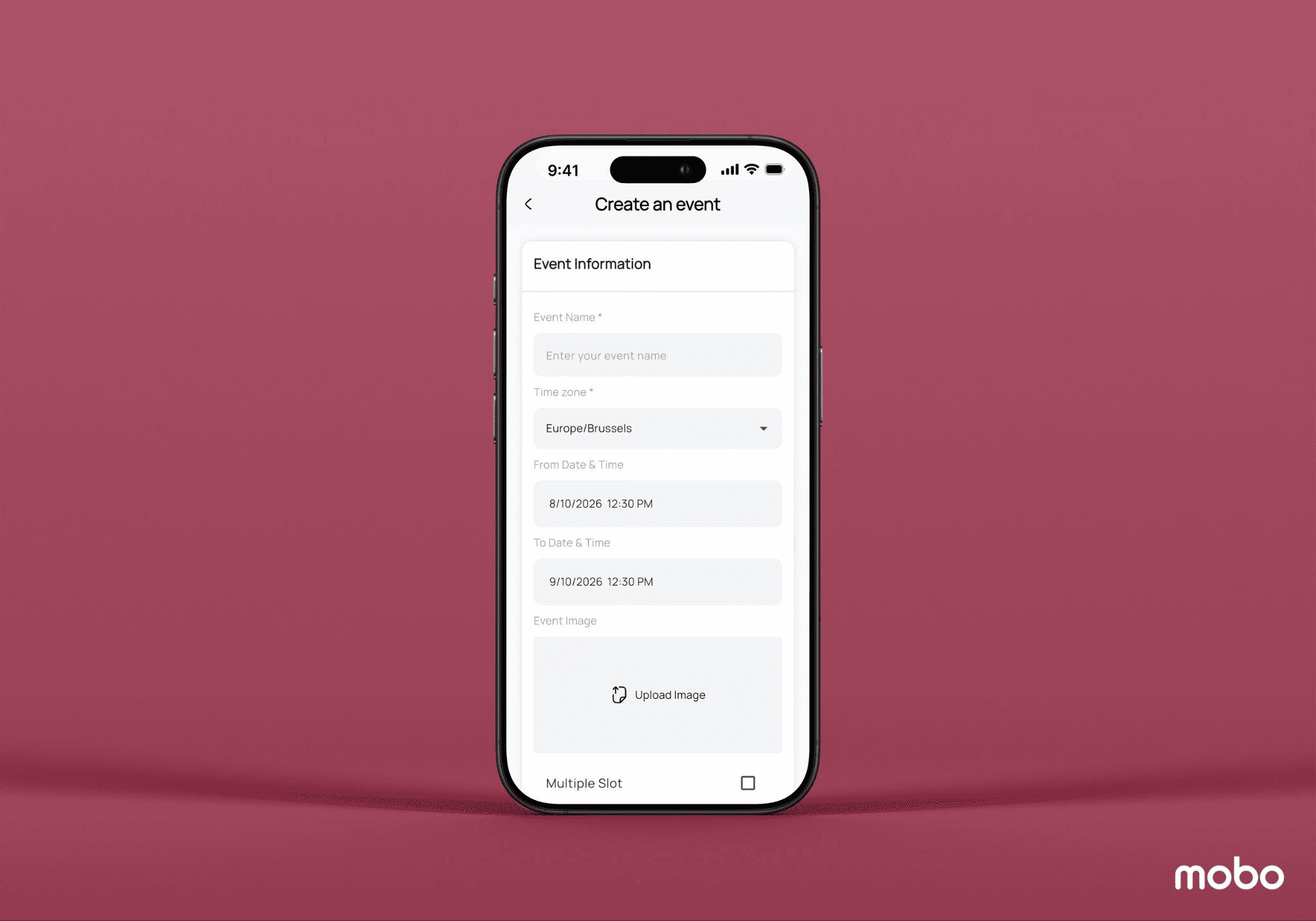
Need to add something new? The + button on the dashboard lets you create an event right there, without switching over to a desktop at all. And when it's time to check people in, the dashboard's built-in ticket scanner makes registering attendance quick and painless.
Attendance Management
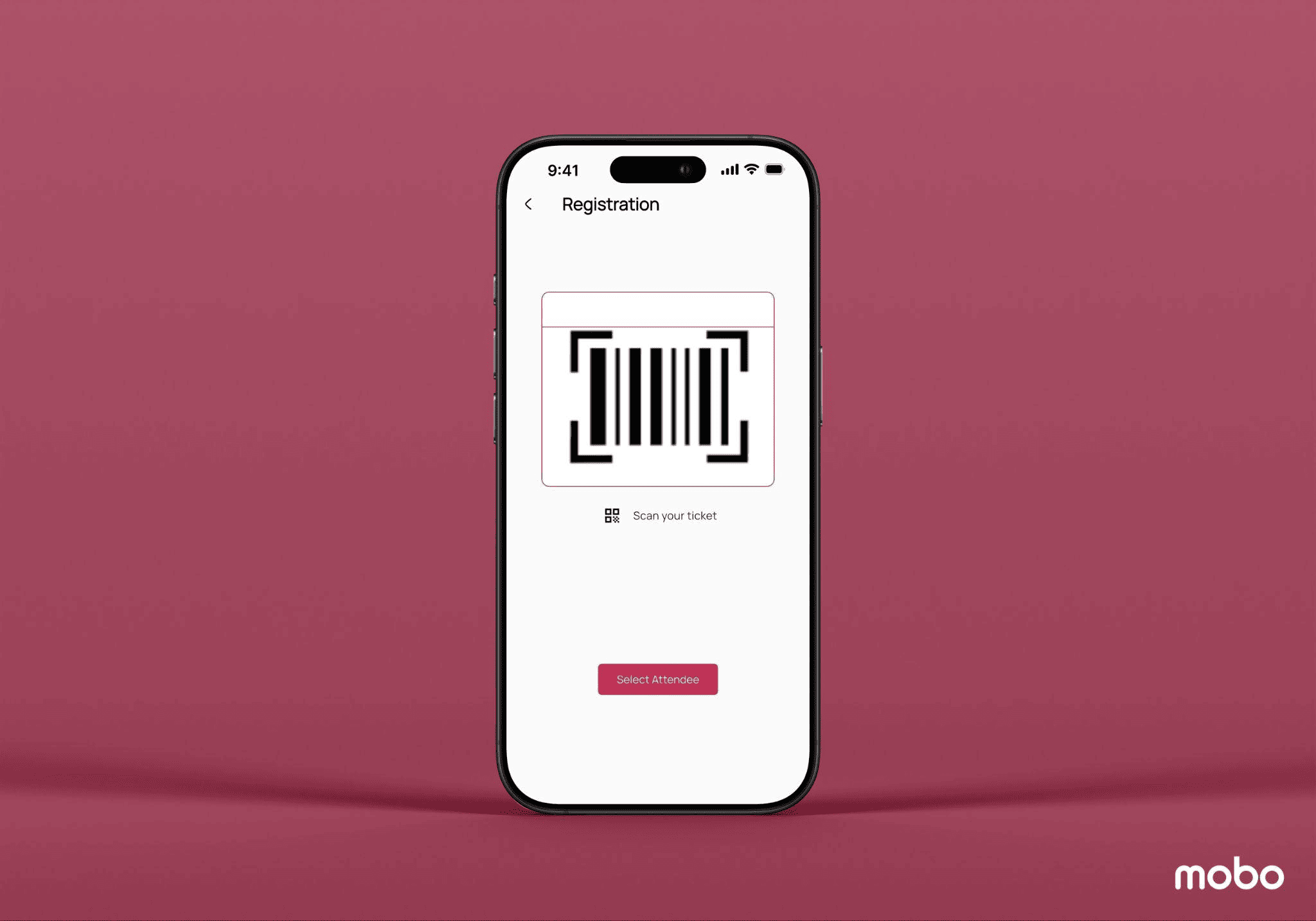
Check-ins are usually the busiest part of any event, but the Mobo Events app keeps it simple. You don't even need to open a specific event first—just look at the bottom of the Event Dashboard, tap the ticket scanner, and you're straight into the attendee management screen.
From there, you can choose between the scanner and the Select Attendee button when scanning isn't practical. Scan a ticket and the attendee is marked present right away, which keeps the line moving even when things get busy. Since the app stays synced with Odoo in real time, your attendee list is always current—you'll always know who's already inside.
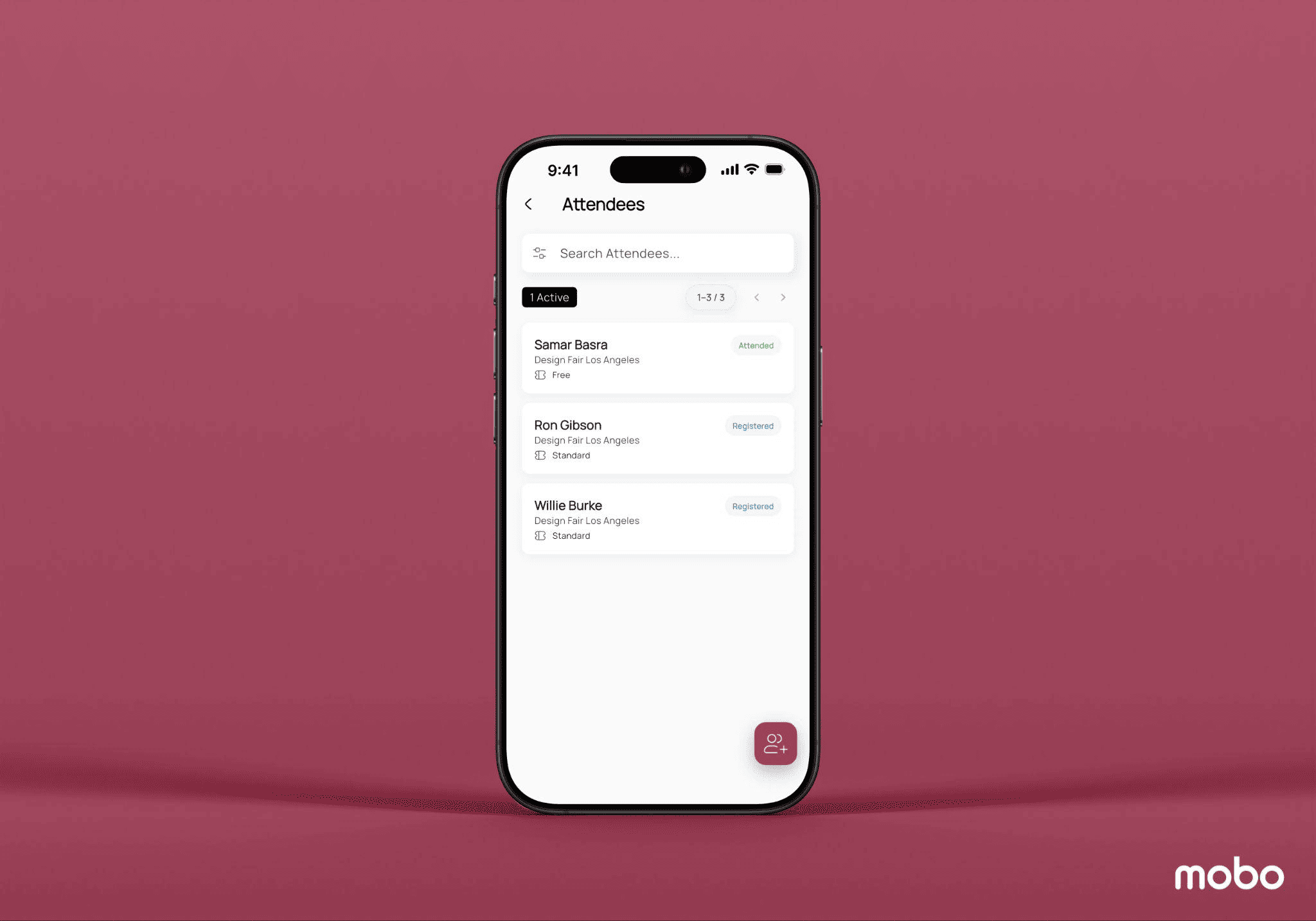
Of course, not every check-in goes smoothly. Sometimes a ticket won't scan, or a guest shows up without one. That's what Select Attendee is for — pull up the list of registered guests, find the name, and check them in manually. It's a quick backup option so your team isn't stuck if the scanner hits a snag.
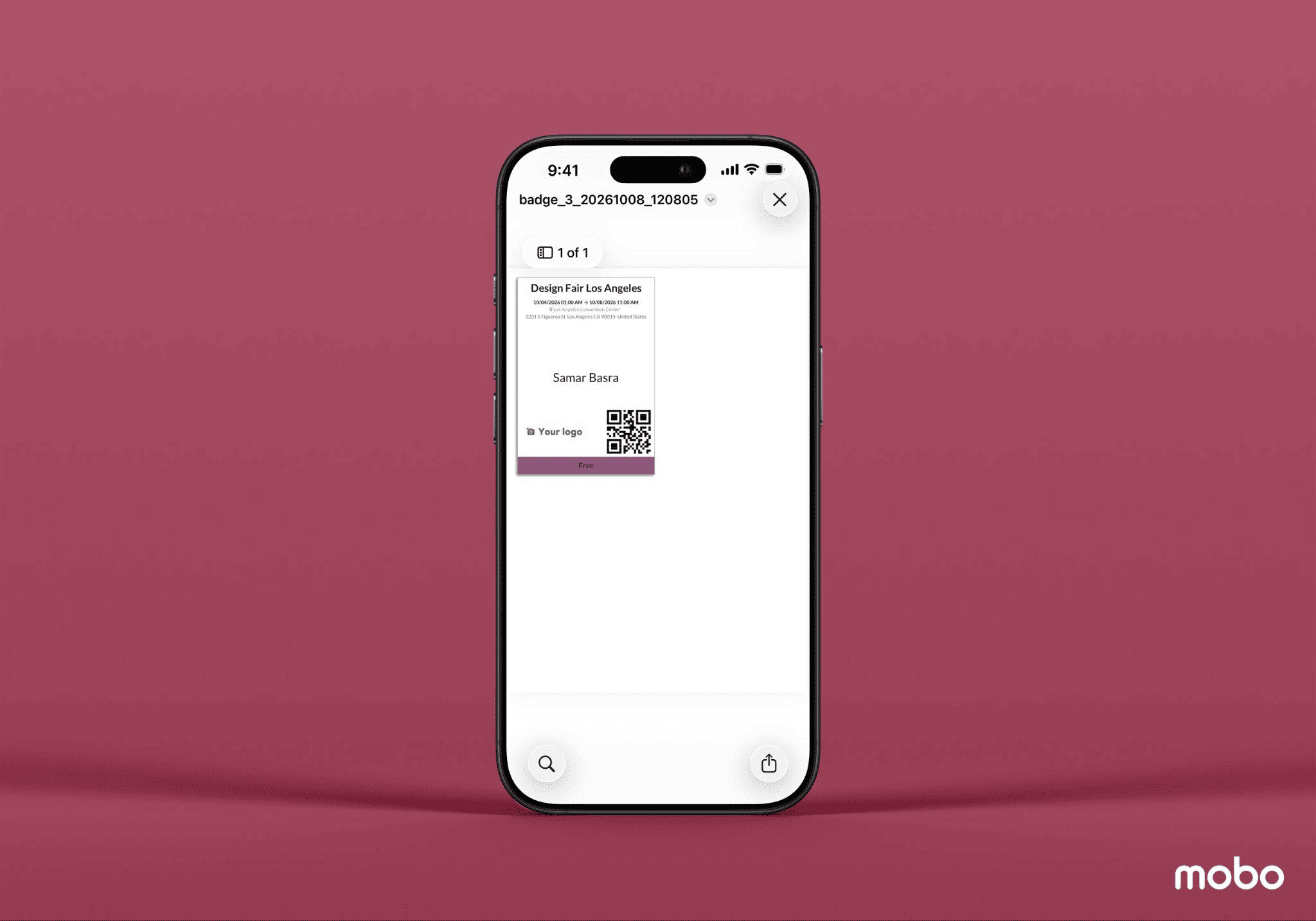
Tapping an attendee's name also brings up their full registration details and ticket, and you can download it as a PDF on the spot—useful if someone's lost their confirmation or just needs another copy.
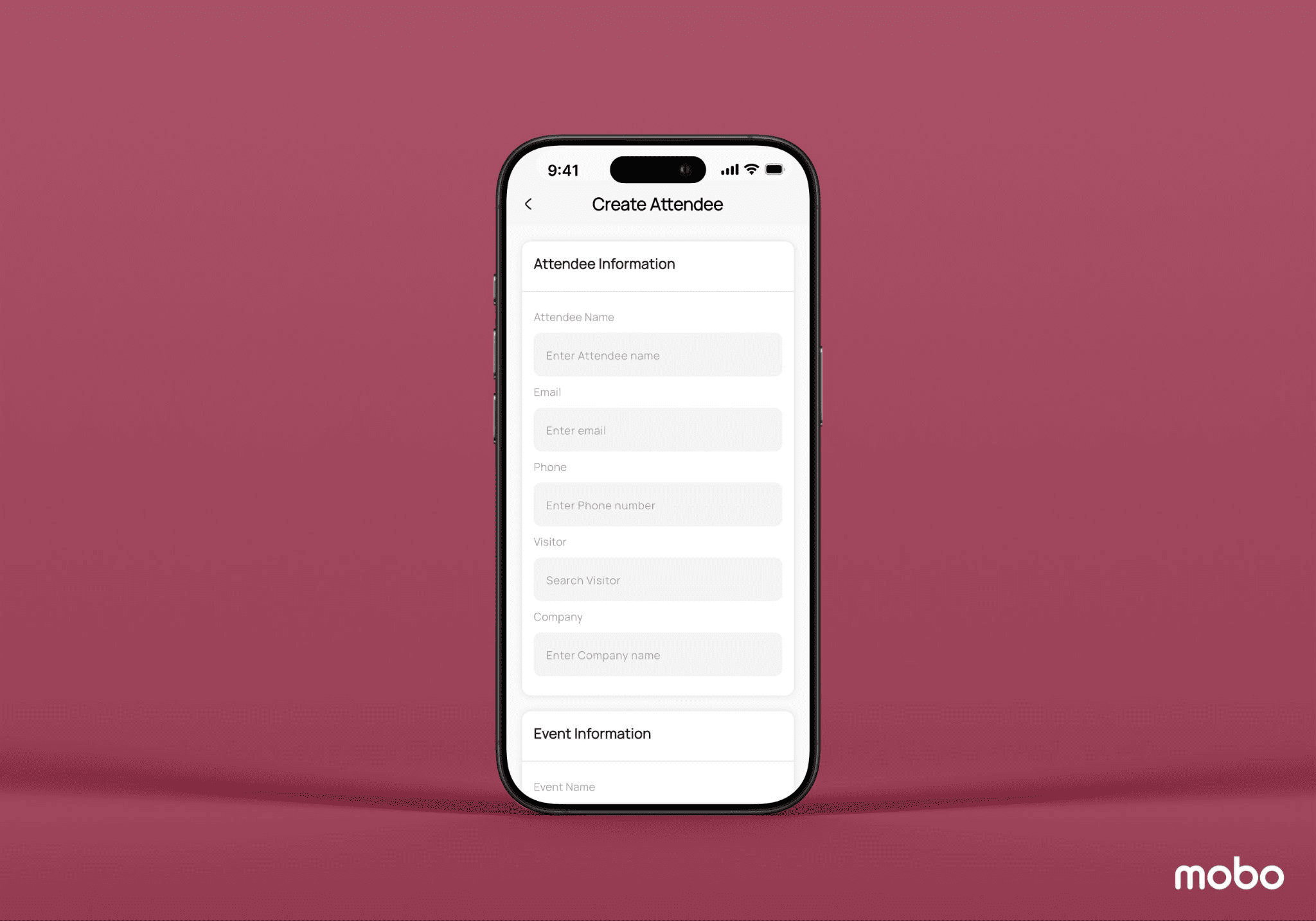
If someone arrives who isn’t on the list, the floating action button allows you to register them instantly, right on the spot. No laptop, no separate sign-up process — just add them and move on.
Between scanning, manual check-ins, ticket access, and on-the-spot registration, the Mobo Events app gives you what you need to manage the door without needing to sit at a computer.
Managing Event Details
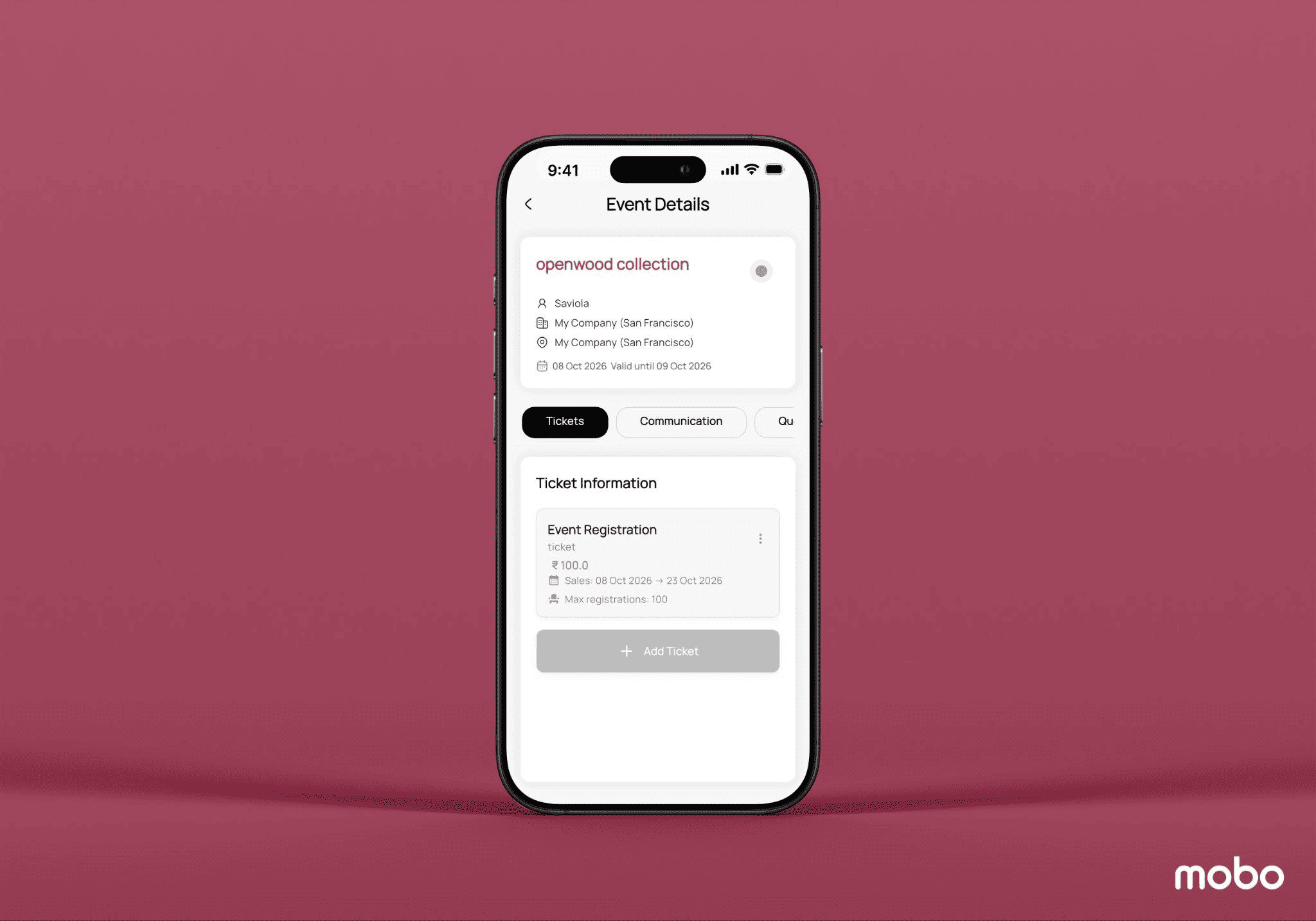
When you have an event, you can open it directly from the dashboard and manage every aspect of it right from your device.
At the top of the event screen you will see how many attendees have checked in. The ticket scanner is also there so you can register someone just by scanning their ticket. And if you need to do it manually, you can look at the attendee list and update the statuses yourself.
Below that is the event summary along with the state of the event, which you can change right from the event card. You can move the event to In Progress, Ready, Blocked, or Cancelled as things happen. This keeps everyone's view of the event's progress accurate and up to date.
To keep everything organized, the remaining event settings are divided into four sections:
You can see every type of ticket created for the event, look at the details, or add ones when you need to update the availability.
You can manage the scheduled emails and SMS notifications for the event. Set up new ones from the app to keep attendees informed.
You can add custom questions that attendees must answer when they register for a ticket so you can get the information you need before their registration is complete.
You can set up the badge dimensions and background, ticket instructions, and general event notes. Manage everything required to create and print your event badges and tickets.
The Mobo Events app puts everything event organizers need. Dashboards, event creation, ticketing, communications, attendee questions, and check-ins in your hands instead of at a desk. With event stages, tickets, and attendee data all synced live with Odoo, there is no gap between what's happening and what your database shows.
For anyone running events on the go. Like coordinating check-ins at the door, changing ticket availability during the event, or keeping communications on schedule. The Mobo Events app makes it possible to stay in control without ever needing to use a computer.
To read more about An Introduction to Stateful and Stateless Widgets in Flutter for Mobo Development, refer to our blog, An Introduction to Stateful and Stateless Widgets in Flutter for Mobo Development.