In Odoo 19, the dependence on OWL remains the same for developing a modern web client. The main benefit of using this library is the ability to make the interface interactive and, at the same time, be connected with the Odoo backend. Hooks are among the major benefits of using OWL, as they give reusable UI logic.
This blog will cover two of the helpful OWL hooks in Odoo 19:
- useEmojiPicker: for adding emojis to text inputs.
- useFileViewer: for previewing files in the Odoo interface.
Why Use OWL Hooks in Odoo 19?
OWL hooks in Odoo 19 allow developers to:
- Add advanced UI behavior with minimal effort.
- Reuse Odoo’s built-in components.
- Maintain visual and functional consistency.
- Avoid writing custom modals or widgets.
Emoji selection and document previews are common features, and Odoo already provides optimized solutions for them.
What does useEmojiPicker do?
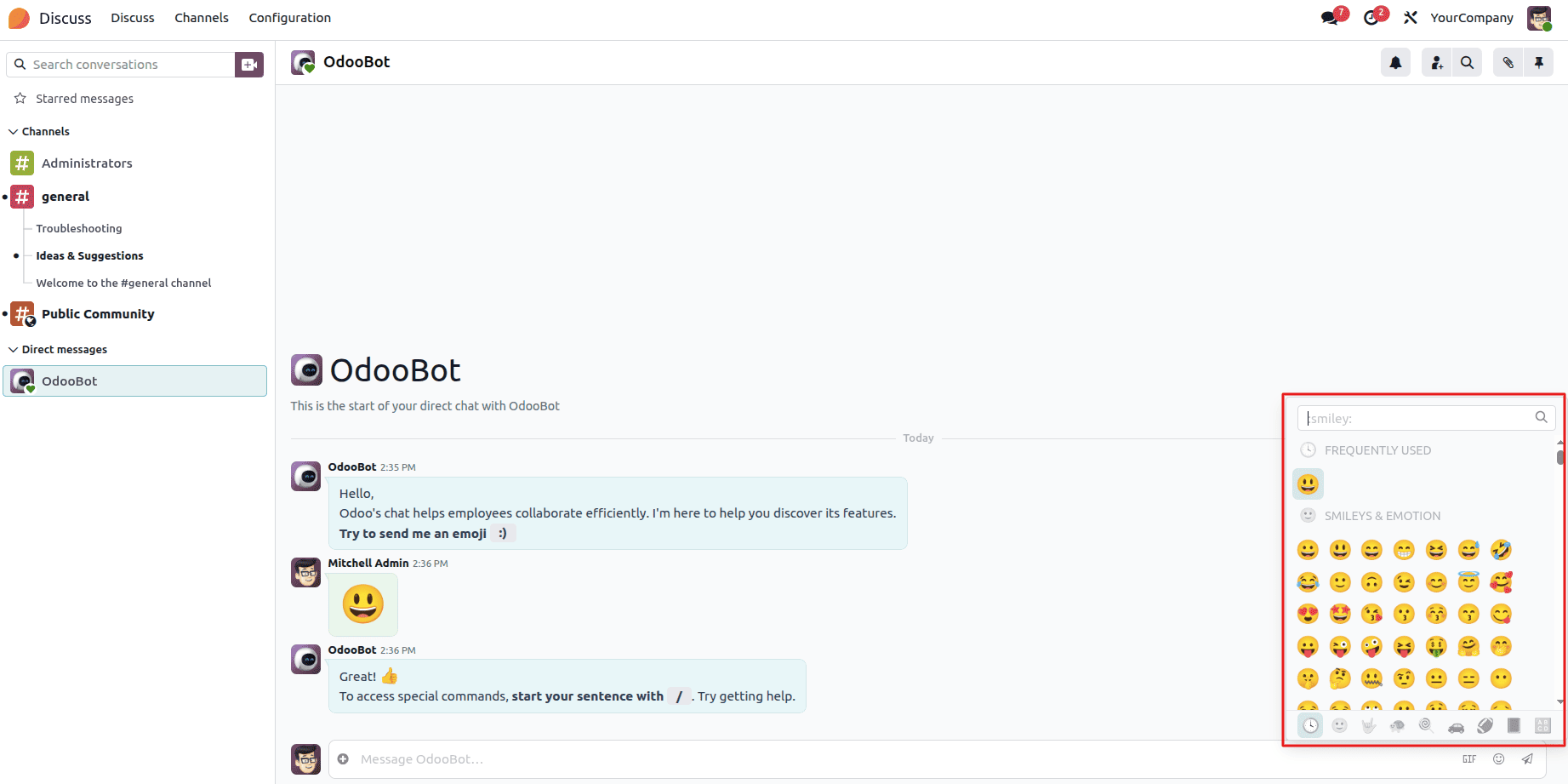
useEmojiPicker opens Odoo’s native emoji picker pop-up. Once an emoji is selected, it can be inserted into any input or textarea element.
Importing the Hook
/** @odoo-module **/
import { useEmojiPicker } from "@web/core/emoji_picker/emoji_picker";
The following implementation demonstrates a simple chat input field with emoji picker support using OWL and Odoo’s built-in utilities.
<?xml version="1.0" encoding="utf-8"?>
<templates>
   <t t-name="emojipicker.ChatInput">
       <div class="border-top bg-white chat-input d-flex align-items-center p-2">
           <input type="text"
                  class="form-control chatbox-inputbox ms-2"
                  placeholder="Enter message..."
                  t-ref="textarea"
                  t-on-keyup="composeMessage"/>
           <i class="btn border-0 rounded-pill fa fa-smile-o ms-2"
              aria-label="Emojis"
              t-ref="emojiButton"/>
       </div>
   </t>
</templates>
This template outlines a basic chat input screen that supports emojis through the Odoo templating language. This template offers a simple and clean design wherein the user is able to enter messages while gaining easy access to emojis through the input box itself.
The design includes a text input box and an emoji icon placed side-by-side in a flex container to ensure correct positioning and spacing. The text input box is used to compose messages, whereas the emoji icon can be used to select emojis easily.
/** @odoo-module **/
import {Component, useState, useRef } from "@odoo/owl";
import { useService } from '@web/core/utils/hooks';
import { useEmojiPicker } from "@web/core/emoji_picker/emoji_picker";
export class ChatInput extends Component {
   /* This function appears to initialize various properties and set up event listeners.*/
   static template = "emojipicker.ChatInput";
   setup() {
       this.inputRef = useRef('textarea')
       this.emojiRef = useRef('emoji-button')
       this.emojiPicker = useEmojiPicker(this.emojiRef, {onSelect :
       this.emojiSelect.bind(this)})
   }
   /* Click function emoji*/
   emojiSelect(ev){
       var inputText = this.inputRef.el.value
       var cursorPosition = this.inputRef.el.selectionStart;
       var updatedText = inputText.substring(0, cursorPosition) +
           ev + inputText.substring(cursorPosition);
       this.inputRef.el.value = updatedText
   }
}
Resulting chat input layout with integrated emoji picker:
Using useFileViewer in Odoo 19
Use of the useFileViewer hook ensures that the file is shown in a preview mode using a fullscreen window on the current screen. Unlike in the conventional method where the file is downloaded or the user redirected to a new page, this hook allows immediate opening of the file in the file viewer in Odoo.
It handles several file formats, including images, PDF files, and other files that can be viewed in a browser, thus enabling users to view the contents of the file instantly without disturbing the user flow. It can be used with file input elements, where the user views the file he just uploaded.
<input type="file"
      id="fileInput"
      accept=".txt,.pdf,.ppt,.doc,.xls,.docx,.pptx,.xlsx"
      t-ref="fileInput"
      style="display:none;"
      t-on-change="viewFilePreview"/>
If a file in PDF format is selected, it will open up in full-screen preview mode in Odoo 19. In such cases, the users can view the content without being disturbed by anything else. There are several helpful functions in the form of downloading, printing, zooming, presentation, and navigation modes that are available in the viewer.
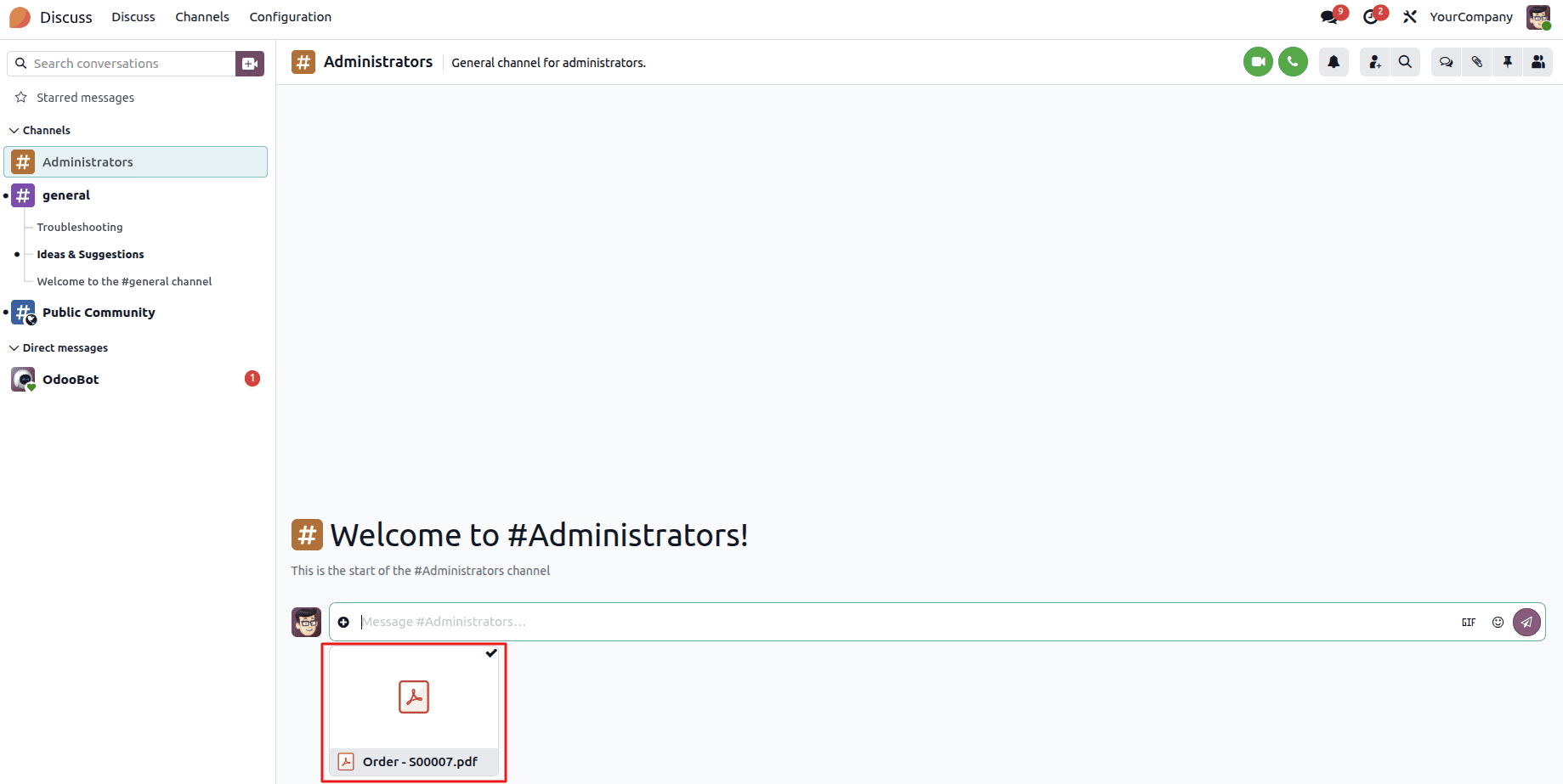
To develop this feature in the custom module, a UI button may be created in the Owl template. When the button is clicked, the file is opened with the useFileViewer hook.
<?xml version="1.0" encoding="utf-8" ?>
<templates id="template">
   <t t-name="your_module.ViewAttachment" owl="1">
       <div style="width: 200px;
                   display: block;
                   text-align: center;"
            t-on-click="() => this.viewDocument(data.attachment_id)">
           View Attachment
       </div>
   </t>
</templates>
The t-on-click event calls the viewDocument() function and passes the related attachment information.
/** @odoo-module **/
import { Component } from "@odoo/owl";
import { useService } from "@web/core/utils/hooks";
import { useFileViewer } from "@web/core/file_viewer/file_viewer_hook";
export class ViewAttachment extends Component {
   setup() {
       this.store = useService("mail.store");
       this.fileViewerInstance = useFileViewer();
   }
   async viewDocument(attachment) {
       let mimetype;
       let type = attachment[1].split('.').pop();
       if (type === 'pdf') {
           mimetype = 'application/pdf';
       } else if (type === 'png') {
           mimetype = 'image/png';
       } else if (type === 'jpeg' || type === 'jpg') {
           mimetype = 'image/jpeg';
       }
       const preview = this.store.Attachment.insert({
           id: attachment[0],
           filename: attachment[1],
           name: attachment[1],
           mimetype: mimetype,
       });
       this.fileViewerInstance.open(preview);
   }
}
ViewAttachment.template = "your_module.ViewAttachment";
In this case, the useFileViewer hook initializes itself within the component’s setup function. viewDocument() method determines the type of file and assigns the corresponding MIME type according to its extension.
Then the information about the attachment is stored within store. Attachment in order to prepare the file for previewing. Lastly, here is the method that will open the attachment in the Odoo 19 file viewer:
this.fileViewerInstance.open(preview);
This will boost the user-friendliness of the app since the users will be able to get a preview of the files immediately without having to switch screens.
Hooks like useFileViewer and useEmojiPicker in Odoo 19 have become an integral part of increasing frontend interactivity and making the entire application more user-friendly. The useFileViewer will ensure that users can preview PDFs, images, and other attachments in full-screen mode, while useEmojiPicker helps users to add emojis into the chat or input fields easily. This can help the developers build a highly interactive and user-friendly application using Odoo 19.
To read more about How to Use the EmojiPicker and FileViewer Hook in Odoo 18, refer to our blog How to Use the EmojiPicker and FileViewer Hook in Odoo 18.