Odoo 19's Manufacturing function is more powerful and user-friendly than before because of its seamless interface with the Inventory, Sales, Purchase, and Accounting modules. Subcontracting, make-to-order, and make-to-stock are just a few of the production methods it supports. With improved scheduling, real-time tracking, and quality control, businesses can efficiently manage production from start to finish. The module also offers comprehensive reporting for better decision-making, barcode support, and maintenance integration. All things considered, Odoo 19 provides a flexible and scalable solution for modern manufacturing operations.
In some production scenarios, changes in the raw material requirements may take place following the confirmation of a manufacturing order (MO). For instance, production teams may find that additional materials are needed due to unanticipated waste, design changes, or quality issues. An MO is locked in Odoo 19 after it has been validated to protect data integrity and prevent unauthorised changes. Administrators and authorized users can unlock the manufacturing order (MO) whenever changes need to be made. This unlock function ensures flexibility while maintaining control over critical production data. Even if changing the quantity of raw materials is required to complete the process, users cannot do so without unlocking. This control helps avoid inadvertent errors and maintains traceability. To ensure process consistency and meet real-time production demands, it is crucial to be able to unlock a validated MO.
It is therefore essential to permit a user to modify the quantity of raw materials in a validated manufacturing order. Allowing a user to modify the quantities of a confirmed manufacturing order in Odoo 19 is essential for the reasons listed below:
- Production Flexibility: Makes it possible to adjust material quantities in response to current production demands or unanticipated events.
- Error Correction: Enables users to fix mistakes made during the initial creation of a BoM or MO without having to start again.
- Material Variability: Helps manage changes in raw material size, quality, or usefulness that affect consumption.
- Reduced Downtime: Reduces delays by avoiding the need to reschedule and cancel production orders for small changes.
- Accurate Inventory Control: Better planning and procurement are made possible by precise inventory control, which ensures that stock levels match actual usage.
- Enhanced Traceability: Keeps track of all changes made after confirmation, which is essential for audits and compliance.
- Facilitates Customisation: This is advantageous for items that don't follow conventional material standards and are made to order or modified for a customer.
- Cost control: Helps reduce unreported expenses, monitor real material consumption, and improve overall budgetary control.
In this blog post, we'll explore how to lock a confirmed manufacturing order in Odoo 19. Once an order has been verified, locking ensures that crucial manufacturing information cannot be changed. This approach helps maintain uniformity, accuracy, and control throughout the manufacturing process.
Let's first examine the Odoo 19 Manufacturing module's access privileges. Access rights in Odoo 19 define a user's ability to create, edit, remove, and read records within the system. These rights are assigned based on user roles or groups to provide data protection and suitable workflow control. Odoo 19 Manufacturing has two access rights: User and Administrator.
From the Users & Companies menu, select Settings and then select User. There is a list of users displayed.
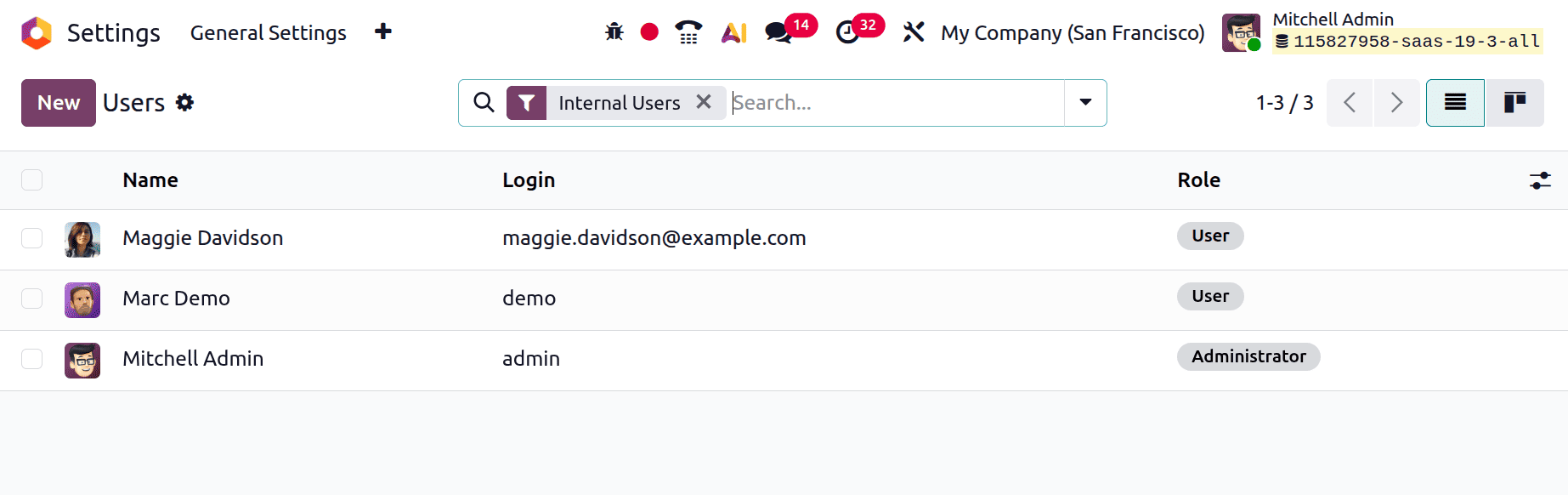
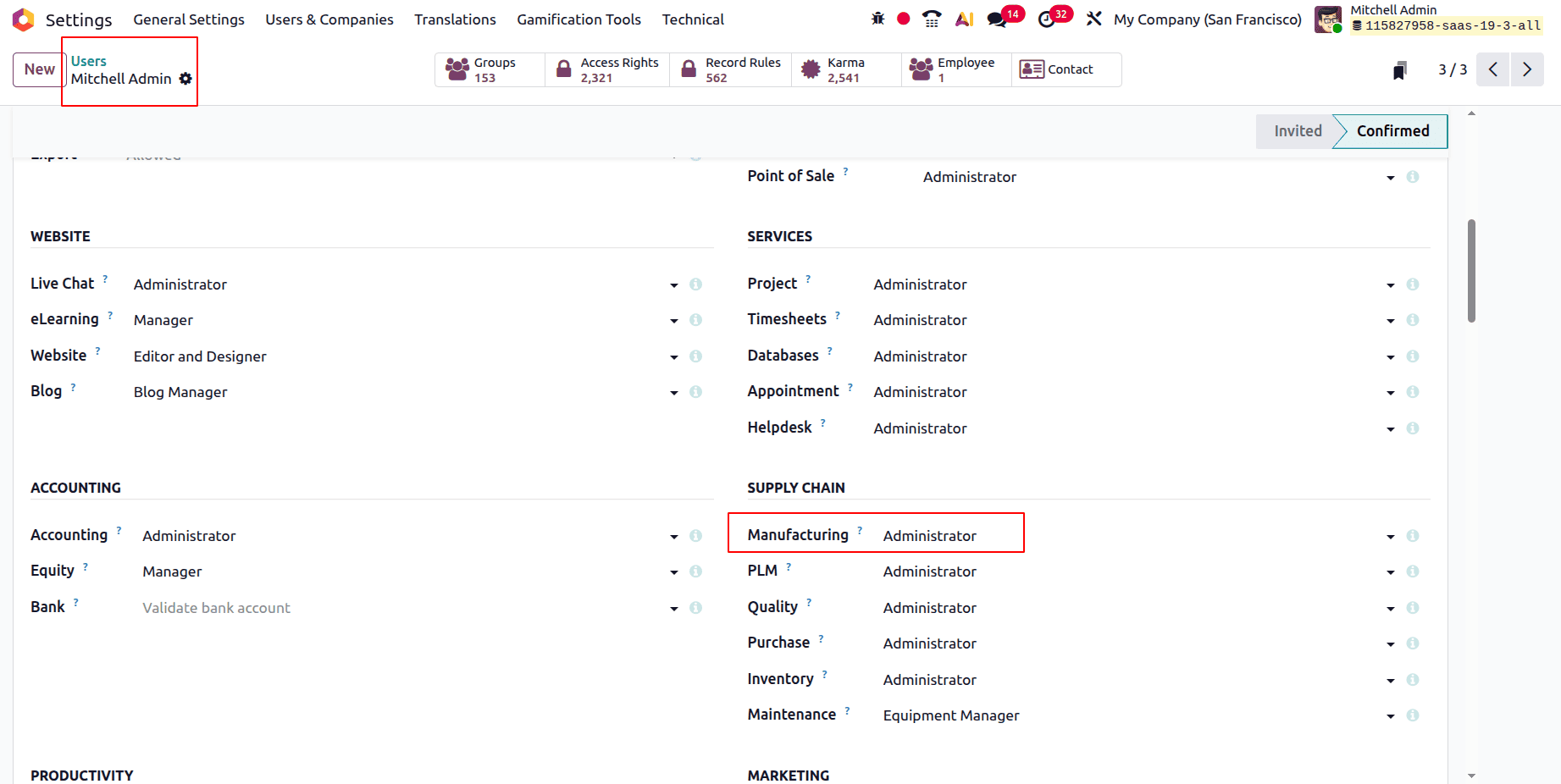
Mitchell Admin is the initial user in this instance. Mitchell Admin is an administrator. An administrator with total control can establish the manufacturing module, set up routings, handle bills of materials, and modify confirmed orders as necessary. These two roles enhance security by ensuring that major changes to the manufacturing process can only be made by authorised personnel.
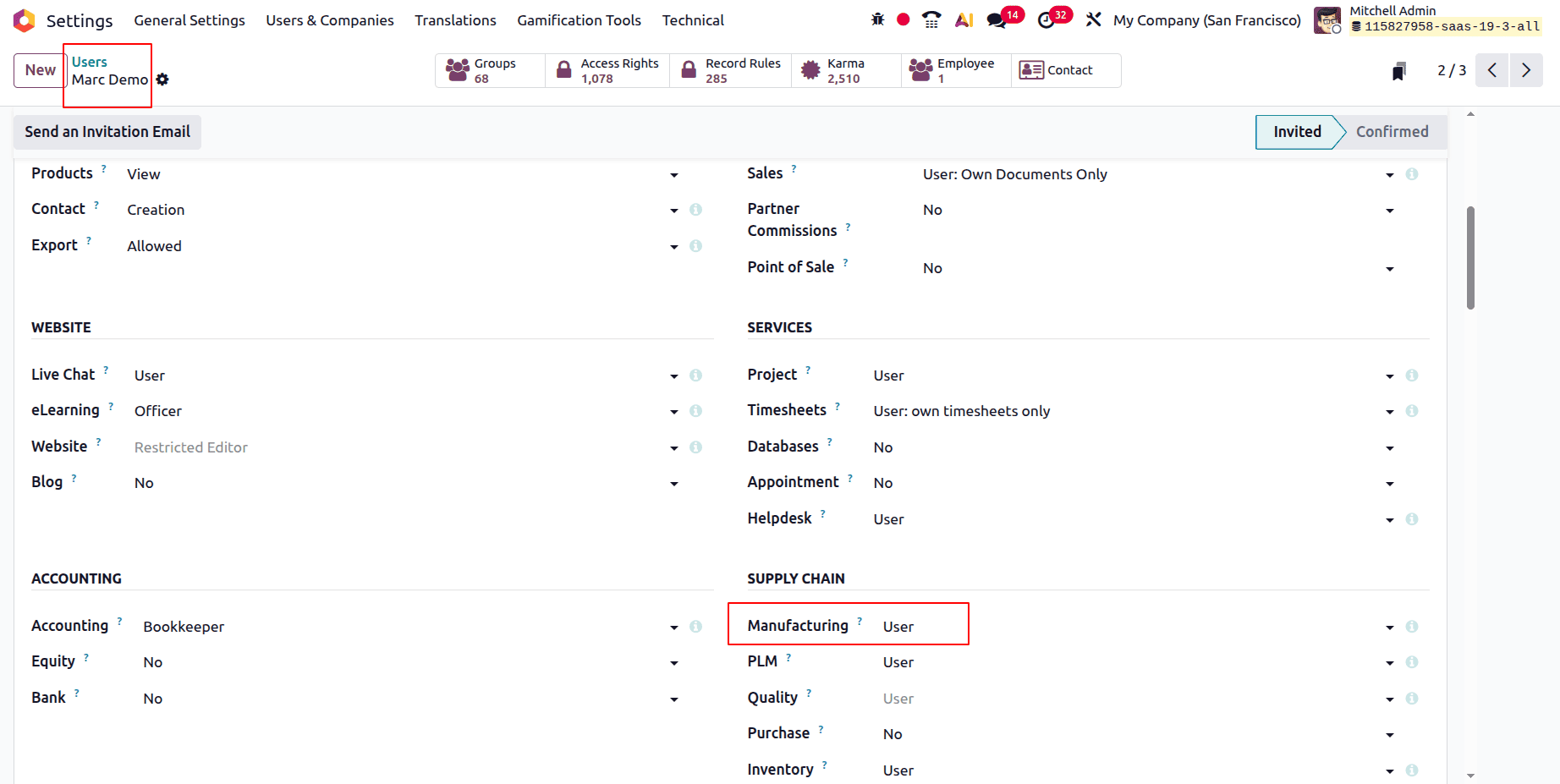
Marc Demo, who has user access permissions, is the second user. With basic access, a user can browse, create, and process manufacturing orders, but they are unable to modify system settings or utilise additional features. This role is ideal for production workers or shop floor staff who oversee daily operations.
Imagine that Mitchell Admin, a Production Planner, uses Odoo 19 to prepare and verify a manufacturing order (MO) for a company that wants to make 100 units of shirts. The Bill of Materials (BoM) used in this MO specifies 400 units of the raw ingredient, Buttons. Later, due to a change in supplier batch quality, shop floor supervisor Marc Demo finds that 500 units of Buttons are actually needed for proper manufacturing.
However, since the MO has already been validated and locked, Marc Demo cannot directly change the raw material quantities. Since they only have "User" access permissions, Marc Demo needs to approach the Manufacturing Administrator to unlock the MO or make the required changes. This configuration maintains production process control and traceability by restricting access to important modifications to permitted individuals.
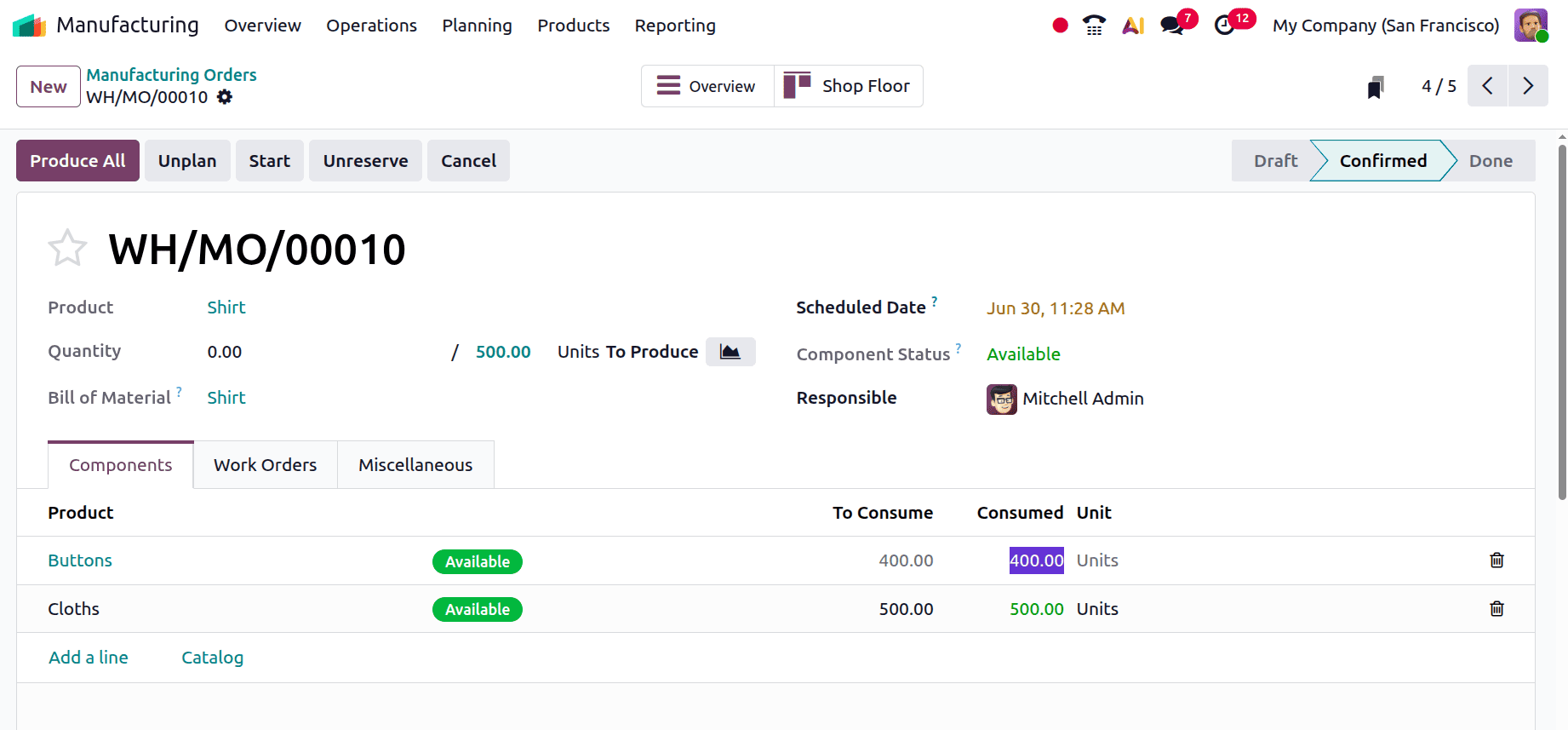
To create a new manufacturing order, click the Operations button and select Manufacturing Orders from the drop-down menu. Make a fresh production order and validate it. In this instance, the administrator made a manufacturing order to produce a shirt. In this example, the components are Clothes and Buttons.
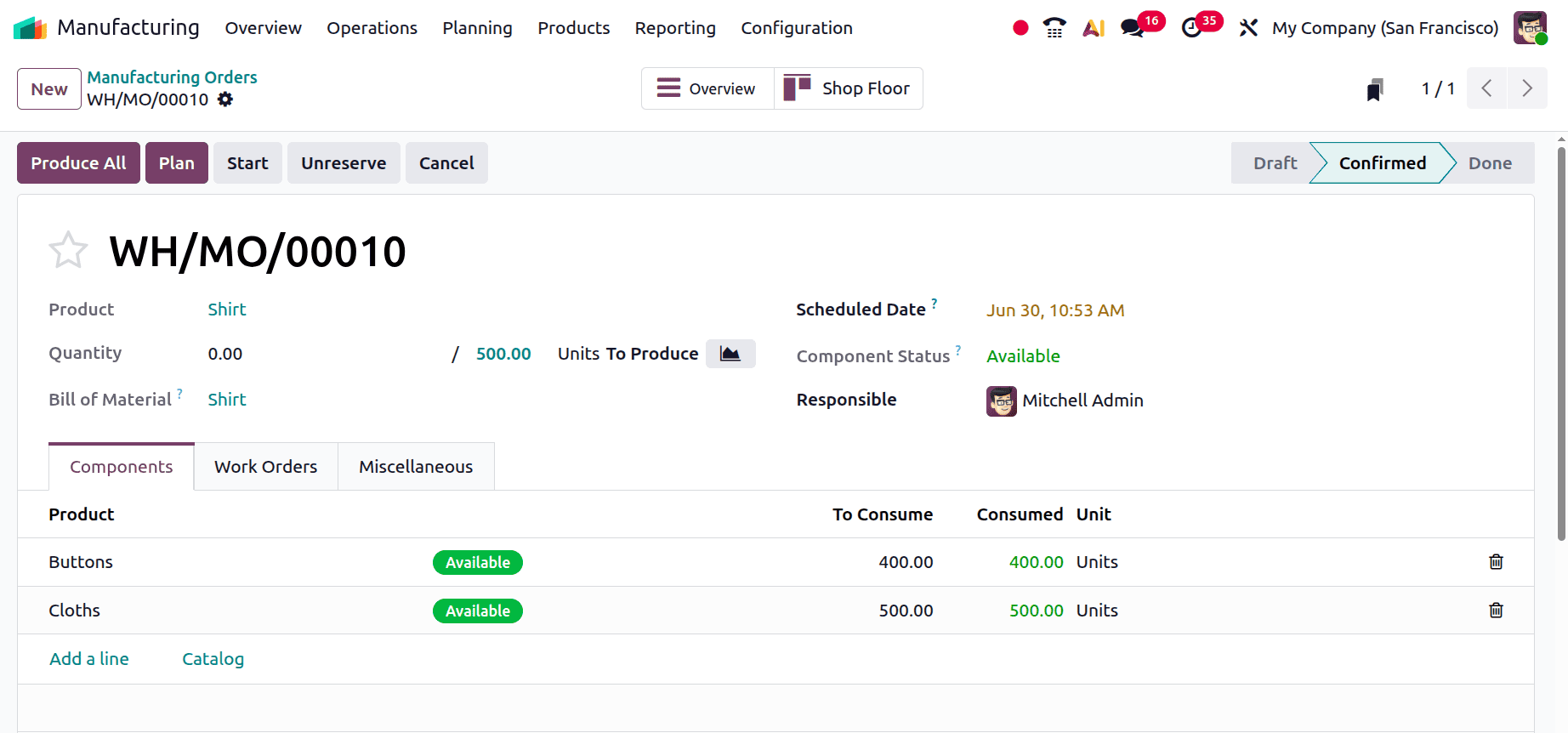
Although the manufacturing order was created by Mitchell Admin, it is also visible to Marc Demo when he logs in, allowing him to access the same manufacturing order. However, there are situations in which the user needs to make changes to a manufacturing order that has been confirmed, in which case Marc Demo cannot change the raw material quantities at all.
In these cases, Odoo 19 Manufacturing has a feature called Unlock Manufacturing Orders. Navigate to Settings and verify that you are logged in with Administrator access rights, as only Administrators can access the Configuration menu. In the Configuration section, enable the Unlock Manufacturing Orders option and click Save to apply the changes.
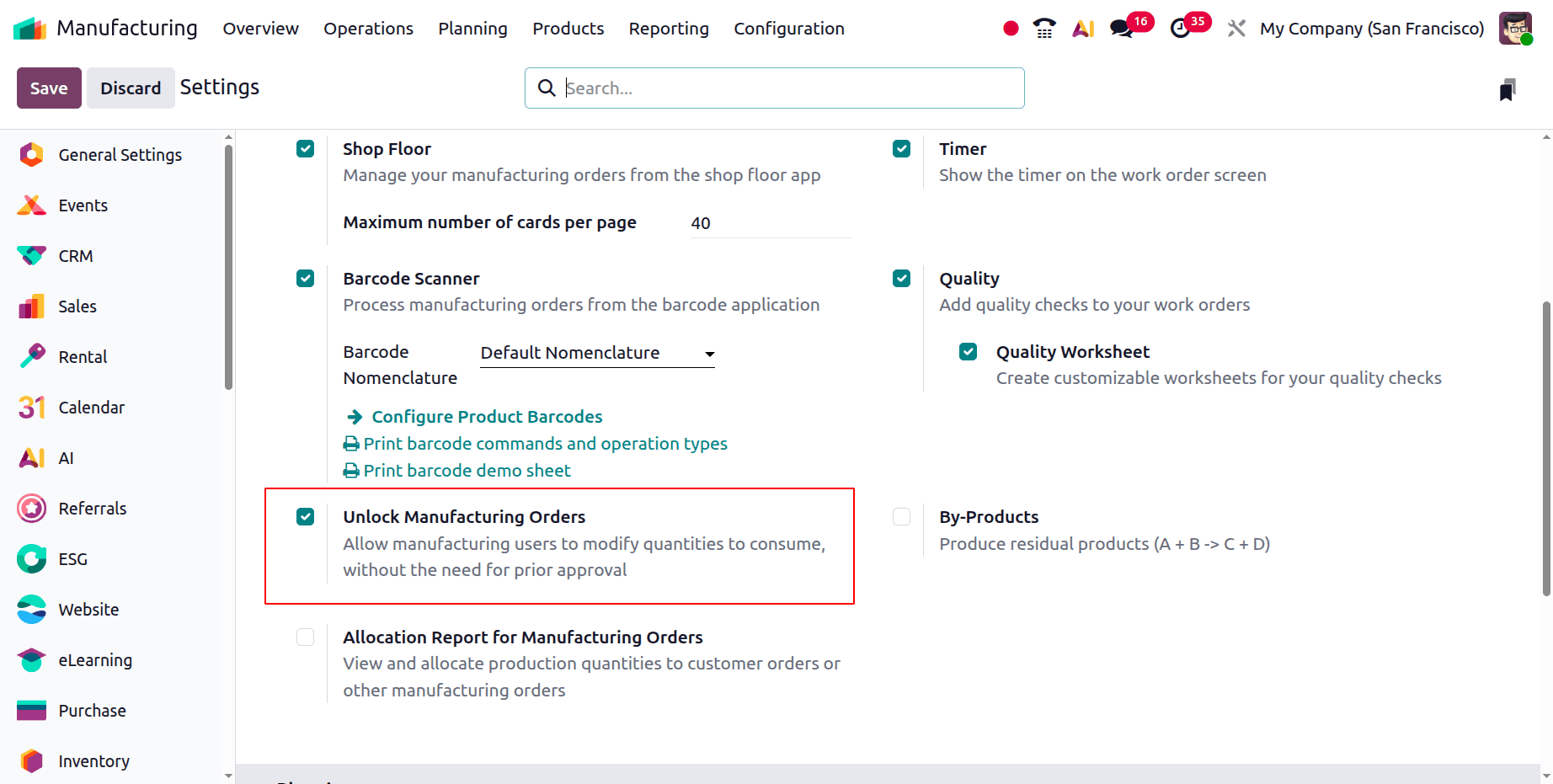
By activating the Unlock Manufacturing Orders feature, ordinary manufacturing users can alter the quantities they wish to utilise without needing prior authorisation.
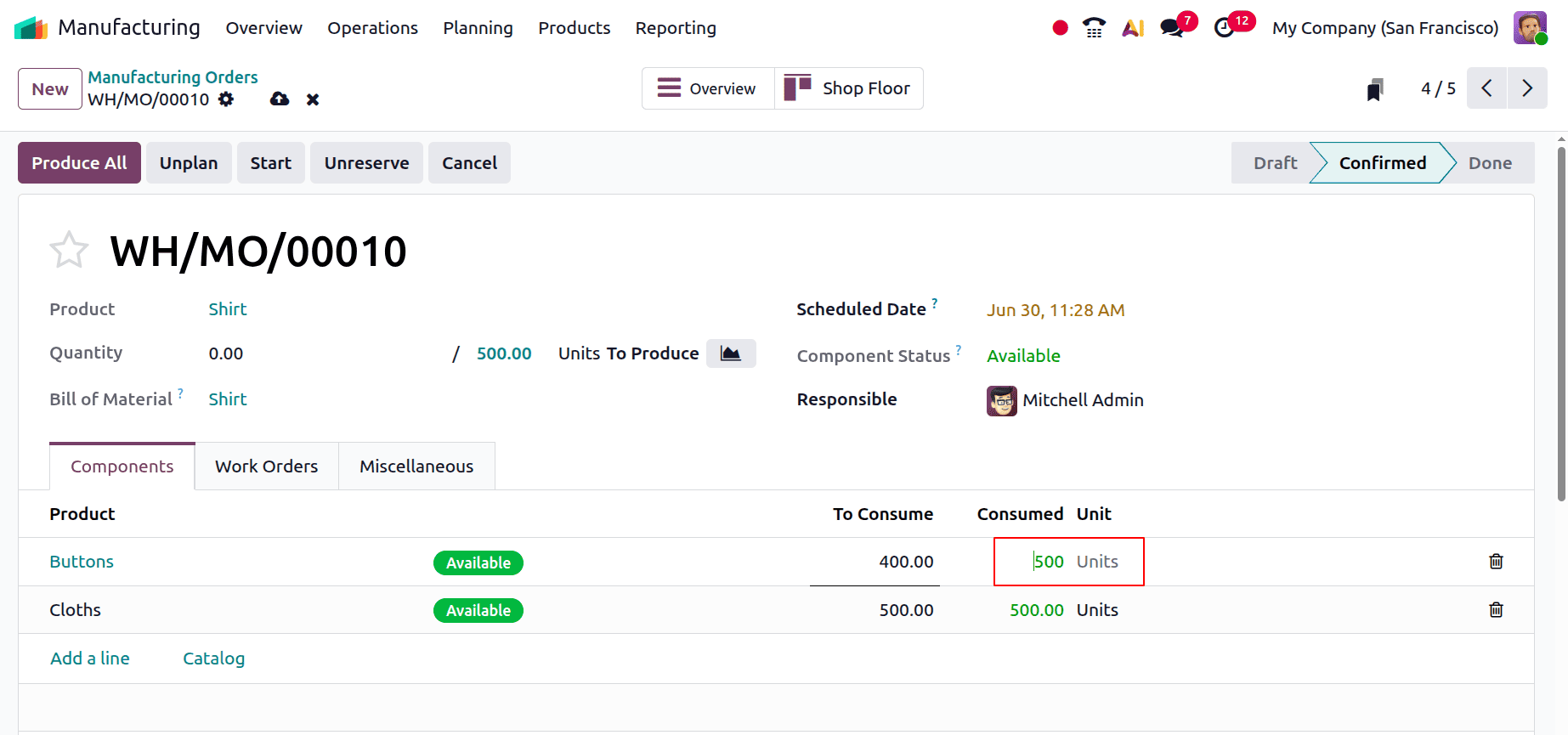
After enabling the Unlock Manufacturing Orders setting, I logged out of the Mitchell Admin account and signed back in as Marc Demo. Next, reopen the manufacturing order that was previously created.
As seen in the screenshot above, the Marc Demo may now change the quantities by just clicking on them.
In conclusion, the Unlock Manufacturing Orders feature of Odoo 19 offers greater flexibility and control over the production process. It allows authorised users to make necessary modifications to confirmed orders without affecting business operations. This is very useful in dynamic industrial situations where last-minute changes may be unavoidable. Odoo 19 empowers manufacturers with a secure and flexible platform for precise and efficient operations management.
To read more about How to Manage Manufacturing Orders with Odoo 18, refer to our blog How to Manage Manufacturing Orders with Odoo 18.