As far as the development with Odoo is concerned, choosing the right Integrated Development Environment (IDE) matters. Many users have preferred PyCharm; however, Visual Studio Code has emerged as a top choice for many developers for very good reasons.
Firstly, VS Code is a very lightweight and free editor that has an open-source nature. Its functionality is greatly increased with numerous extensions available in the marketplace. In particular, as far as the Odoo development is concerned, VS Code has the following pros over PyCharm:
- A Python extension by Microsoft provides first-class IntelliSense, auto-completion, and linting capabilities.
- Better syntax highlighting of JavaScript code – this is especially important in the case of Odoo, since OWL (Odoo Web Library) and other custom JavaScript modules are widely used in the platform.
- Odoo Snippets and XML Tools allow the developer to configure the editor for handling XML files related to view definitions and QWeb templates.
- Excellent support of ESLint allows for better linting support of JavaScript files in Odoo.
- GitLens, another VS Code extension, adds excellent git blame and history functionality.
- The ability to work in a console without leaving the editor.
Finally, Visual Studio Code is absolutely free as opposed to the paid PyCharm Pro version.
From writing custom modules to debugging business logic and even working with the frontend views, you have an extremely efficient, adaptable, and extendable platform with VS Code to do all these things. So let us dive right into setting up VS Code for Odoo 19.
Pre-IDE Setup Steps for Odoo 19 on Ubuntu
1. Install Python 3.12
Python 3.12 isn't in Ubuntu's default repos, so you need the deadsnakes PPA:
sudo add-apt-repository ppa:deadsnakes/ppa
sudo apt-get update
sudo apt-get install python3.12
Once Python is installed, grab the required development and system libraries that Odoo's dependencies rely on:
sudo apt-get install python3.12-dev build-essential libjpeg-dev libpq-dev libjpeg8-dev libxml2-dev libssl-dev libffi-dev libmysqlclient-dev libxslt1-dev zlib1g-dev libsasl2-dev libldap2-dev liblcms2-dev
2. Install Web Dependencies
Odoo requires Node.js and the LESS CSS preprocessor for compiling frontend assets. Install them with the following commands:
sudo apt-get install -y npm
sudo ln -s /usr/bin/nodejs /usr/bin/node
sudo npm install -g less less-plugin-clean-css
sudo apt-get install -y node-less
3. Install wkhtmltopdf
Odoo uses ‘wkhtmltopdf’ to generate PDF reports. Download and install the appropriate .deb package for Ubuntu 24.04:
sudo wget https://github.com/wkhtmltopdf/wkhtmltopdf/releases/download/0.12.5/wkhtmltox_0.12.5-1.bionic_amd64.deb
4. Install OpenSSL Dependency
If your Odoo 19 installation requires SSL support, make sure the OpenSSL library is installed:
sudo wget http://archive.ubuntu.com/ubuntu/pool/main/o/openssl/libssl1.1_1.1.1f-1ubuntu2_amd64.deb
sudo dpkg -i libssl1.1_1.1.1f-1ubuntu2_amd64.deb
5. Install PostgreSQL
Odoo uses PostgreSQL as its database backend. Install both the server and client with:
sudo apt install postgresql postgresql-client
6. Configure a PostgreSQL User for Odoo
Switch to the postgres system user and create a dedicated database user for Odoo 19:
sudo su - postgres
createuser --createdb --username postgres --no-createrole --no-superuser --pwprompt odoo19
Next, open the PostgreSQL shell and grant superuser privileges to the newly created user:
psql
ALTER USER odoo19 WITH SUPERUSER;
\q
exit
7. Clone the Odoo 19 Source Code
Install Git if it isn't already on your system, then clone the Odoo 19 branch. Using --depth 1 and --single-branch keeps the download size minimal by fetching only the latest snapshot of that branch:
sudo apt-get install git
git clone https://www.github.com/odoo/odoo --depth 1 --branch 19.0 --single-branch odoo19
8. VS Code Setup
Download the latest VS Code .deb file from the official website Visual Studio
Navigate to the downloaded location and run the command
sudo dpkg -i <.deb>
Open the cloned Odoo Project in PyCharm
Open the cloned Odoo folder in VS Code. Use Ctrl + Shift + ` to open the integrated terminal, then run the following to install pip and set up a Python virtual environment
curl -sS https://bootstrap.pypa.io/get-pip.py | python3.12
sudo apt install python3.12-venv
python3.12 -m venv your_venv_name
If the virtual environment does not activate automatically, run the following command to activate it manually:
source your_venv_name/bin/activate
While the virtual environment is activated install the required python packages
pip install -r requirements.txt
If any errors occur, open the requirements.txt file and install each package individually with the following command:
pip install requirement_name
Create the Odoo Configuration File
[options]
admin_passwd = admin
db_host = localhost
db_port = 5432
db_user = odoo19
db_password = your_password
addons_path = /home/user/odoo19/addons
http_port = 8019
VS Code Configuration
First, install the Python extension by Microsoft

Start by installing the Python extension by Microsoft from the Extensions marketplace (Ctrl + Shift + X). This enables IntelliSense, debugging support, and virtual environment detection for your project.
Next, set up the debugger. Go to Run > Add Configuration, select Python Debugger, then choose Python File With Arguments. Replace the generated config with the following:
{
   "version": "0.2.0",
   "configurations": [
       {
           "name": "Odoo 19",
           "type": "debugpy",
           "request": "launch",
           "console": "integratedTerminal",
           "program": "${workspaceFolder}/odoo-bin",
           "args": [
               "--config=${workspaceFolder}/odoo.conf"
           ],
           "cwd": "${workspaceFolder}"
       }
   ]
}
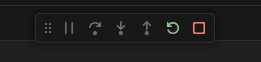
To start Odoo, go to Run > Run Without Debugging or press Ctrl + F5. Use Shift + F5 to stop the server and Ctrl + Shift + F5 to restart it. You can also use the floating debug toolbar that appears at the top of the editor.
To verify everything is working, open localhost:8019 in your browser. If the setup is correct, you'll be greeted by the Odoo database management page.
Configuring Visual Studio Code (VS Code) for Odoo 19 development in Ubuntu may appear to be many steps, but each step is important in building a rock-solid professional environment. Having successfully configured Postgres SQL, having Python 3.12 installed within a separate virtual environment, and connecting VS Code's debugger to odoo-bin, you have created a professional setup that can take care of all aspects of development.
But the benefits will become apparent when you move ahead – adding some useful extensions like Odoo Snippets for quick XML creation, ESLint for clean code and GitLens for viewing Odoo’s huge commit history. Unlike big IDEs, VS Code doesn’t slow down even when you add more custom modules.
To read more about How to Install Odoo 19 on Ubuntu 24 LTS Server, refer to our blog How to Install Odoo 19 on Ubuntu 24 LTS Server.