When a customer clicks "Add to Cart" on your online store, what happens next matters more than you might think. Does the page stay where it is so they can keep browsing? Or does it take them straight to the cart so they can check out right away? This might seem like a small detail, but it can have a real impact on how your customers shop and how many of them actually complete a purchase.
Odoo 19 gives you direct control over this through a simple setting called "Add to Cart." It lets you decide what happens the moment a customer adds a product to their cart, and switching between options takes just a few seconds. No coding, no extra modules, just a quick change in your store settings.
This blog covers what this feature does, where to find it in Odoo 19, and how each option works on the storefront, with real examples to make it easy to follow.
The "Add to Cart" setting controls what your store does right after a customer clicks the Add to Cart button on a product page. There are two options:
- Stay on Product Page: After clicking Add to Cart, the customer stays right where they are on the product page. A small cart pop-up appears to let them know the item has been added, and they can either go to the cart from there or continue browsing other products. This works really well for stores where customers tend to buy more than one item at a time, since it keeps them in the shop rather than pulling them away every time they add something.
- Go to Cart: As soon as the customer clicks Add to Cart, they are taken directly to the cart page. This is a good fit for stores where customers usually buy just one item per visit, since it moves them quickly toward checkout without any extra steps.
Choosing the right option depends on the nature of your store and how your customers usually shop. A store that sells multiple related products benefits more from keeping customers on the product page, while a store focused on single purchases might prefer sending them straight to the cart to keep things moving.
To get to this setting, go to Website > Configuration > Settings.
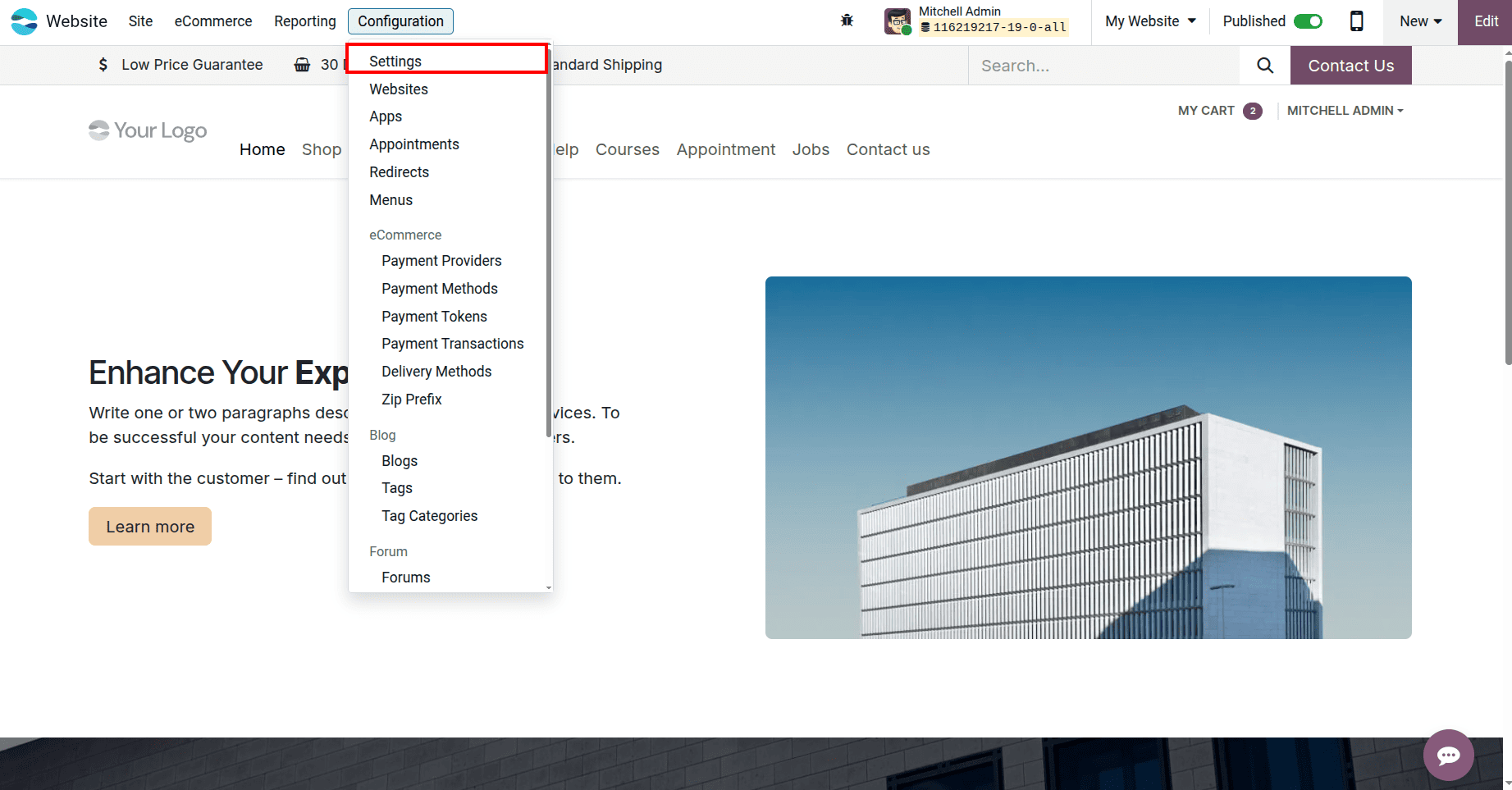
On the Settings page, look for the eCommerce section. On the right side, you will see the “Add to Cart” option with two choices: Stay on Product Page and Go to Cart. Pick the one that works for your store and click Save. The change goes live on your store straight away.
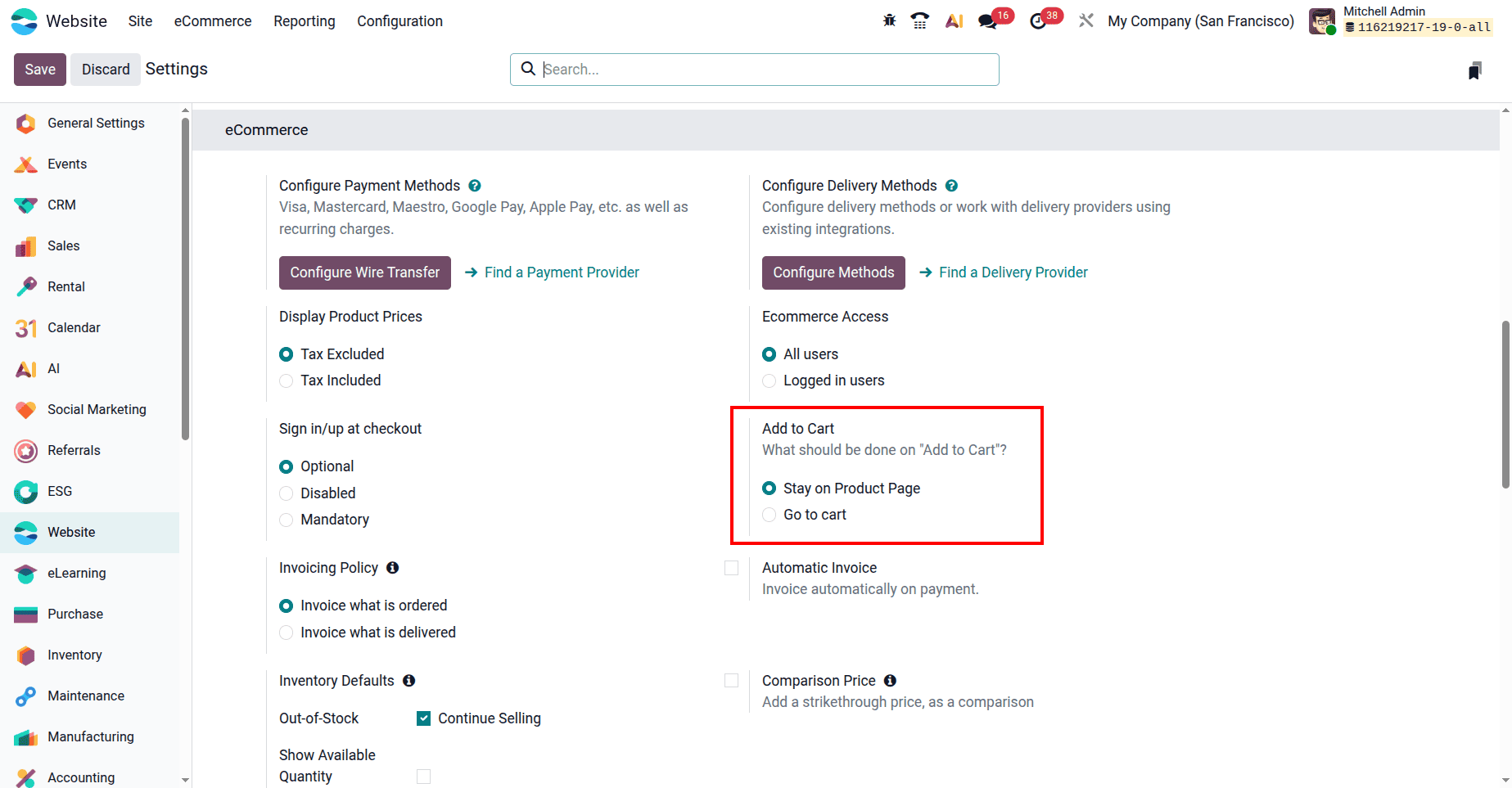
1. Stay on Product Page:
With Stay on Product Page selected, the customer lands on a product page, picks what they want, and clicks the Add to Cart button. Instead of being taken away from the page, they stay right where they are. A small pop-up appears at the top of the page showing the item that was just added, along with a View Cart button.
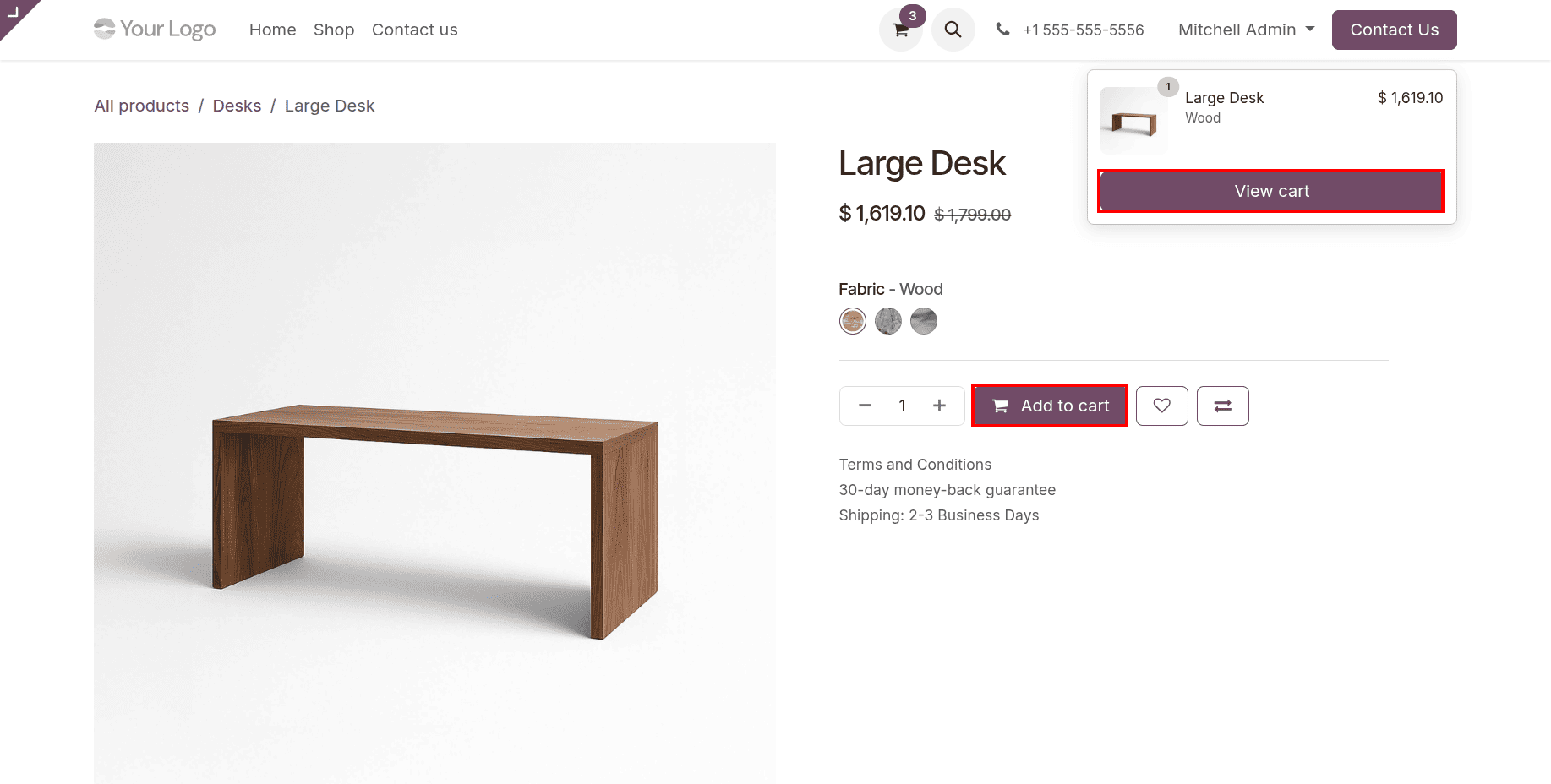
This means the customer can either click View Cart to head over to their cart, or simply close the pop-up and keep shopping. This is a great option for stores that sell items people like to browse through one by one, such as furniture, clothing, or accessories. It lets customers build up their cart without losing their place in the shop every time they add something.
2. Go to Cart:
When Go to Cart is selected, the experience is a little different.
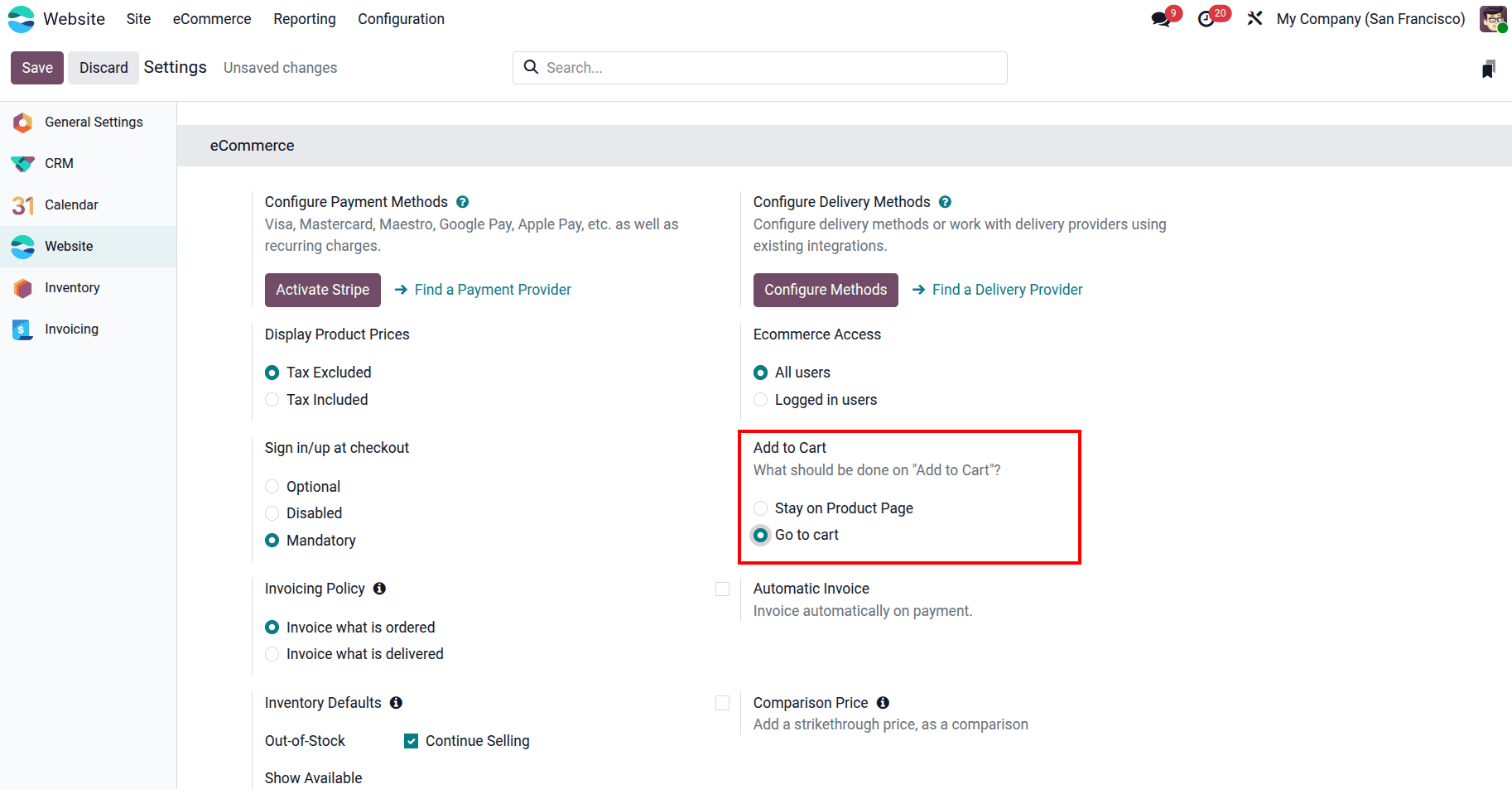
Go to the shop, the customer finds a product they want, selects their options, and clicks Add to Cart.
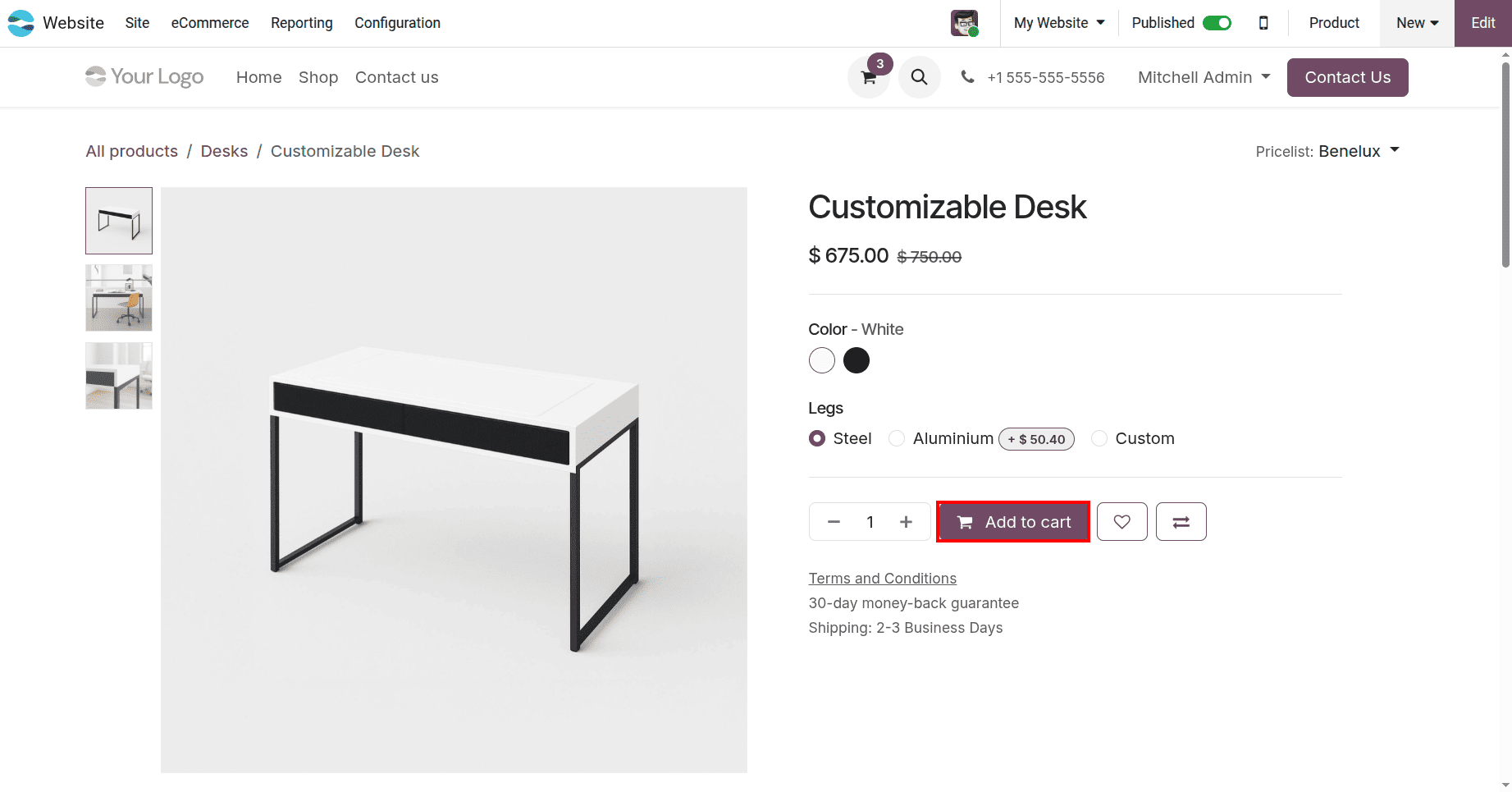
Instead of staying on the product page, they are taken directly to the cart, which shows their full order summary including the product, price, taxes, and total. From here, they can go straight to checkout.
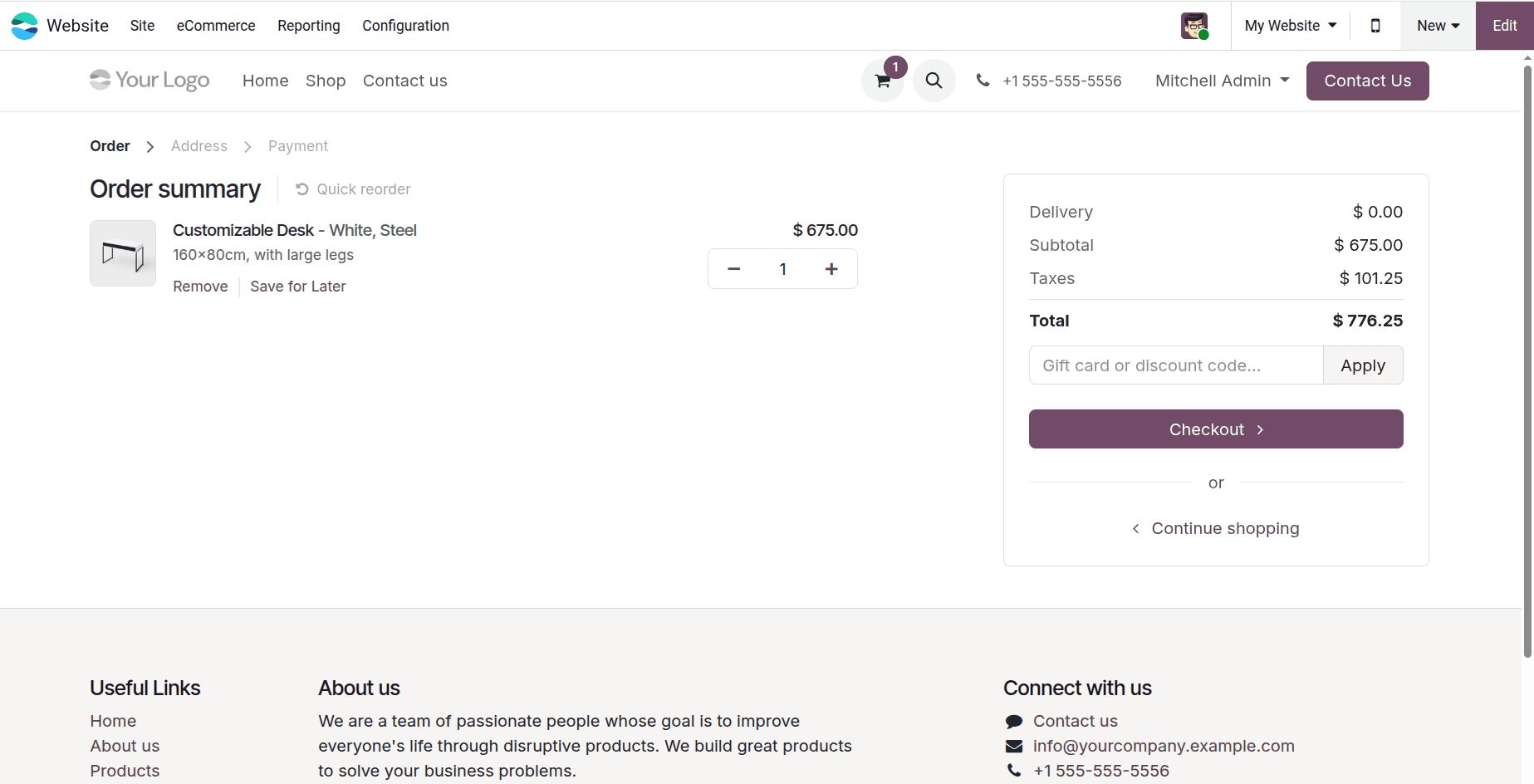
This flow is quick and direct. It works well when your customers are likely to buy just one or two items and want to move through the process as fast as possible. By taking them to the cart right away, there are fewer clicks between them and completing the purchase.
Both options have their strengths, and neither is the wrong choice. It really comes down to how your customers shop.
If your store sells products that people usually buy together, like desk accessories, clothing sets, or home decor items, Stay on Product Page makes more sense. It keeps customers in shopping mode and lets them add more to their cart before heading to checkout.
If your store is more focused on single purchases, or if customers usually know exactly what they want when they visit, Go to Cart is the better pick. It moves things along quickly and gets customers to the checkout page faster. The good news is that you can switch between the two options at any time in the settings and see which one works better for your store.
The “Add to Cart” setting in Odoo 19 is a simple but useful tool that lets you shape how your customers move through your store. Whether you want them to keep browsing after adding a product or head straight to the cart, Odoo gives you that control without any technical setup. Small changes like this can make the shopping experience feel smoother and more natural for your customers, which in turn can help more of them complete their purchase. It is one of those quick settings that is worth trying out to see what makes the biggest difference for your store.
To read more about Overview of Analyzing Online Sales Performance in Odoo 18 Website, refer to our blog Overview of Analyzing Online Sales Performance in Odoo 18 Website.