Efficient approval management is necessary to ensure that business functions run smoothly. Regardless of whether the approval is related to a purchase request, leave request, expense claim, or some other type of business request, an effective approval process will increase efficiency and remove the need for follow-ups. In Odoo 19, the approval module provides a centralised system for creating, managing, and tracking approval requests. Businesses can configure approval categories, assign one or more approvers, define mandatory request fields, and monitor the status of each request throughout the approval process. In this blog, we use odoo 19 approval steps to manage and track approvals efficiently.
Let's take an example where an employee wants approval for a purchase request, a leave request, or even an expense. So instead of manual approvals odoo allows you to manage everything in a structured way.
So, first you need to install the Approval module. This module will help you to manage all the approval requests in one place.
Go to the Approval module and first create an approval category. Approval category can be created from the Configuration menu.
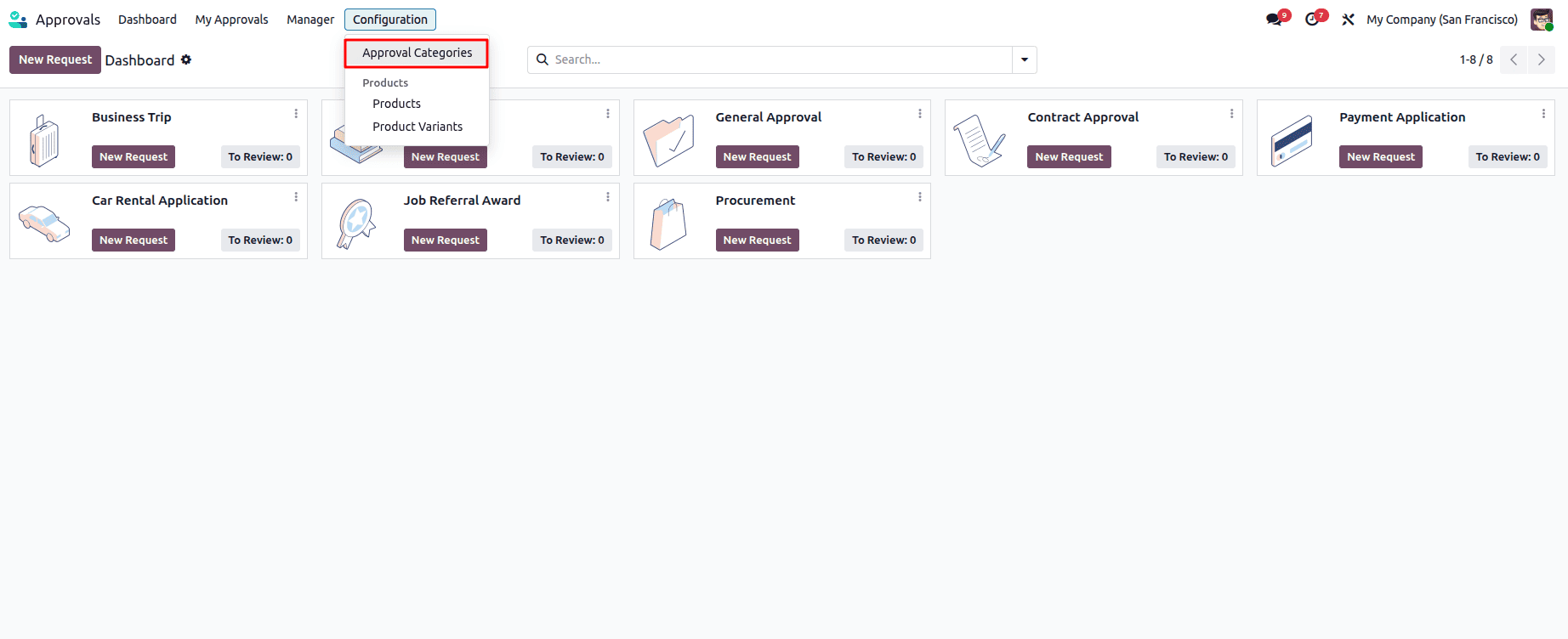
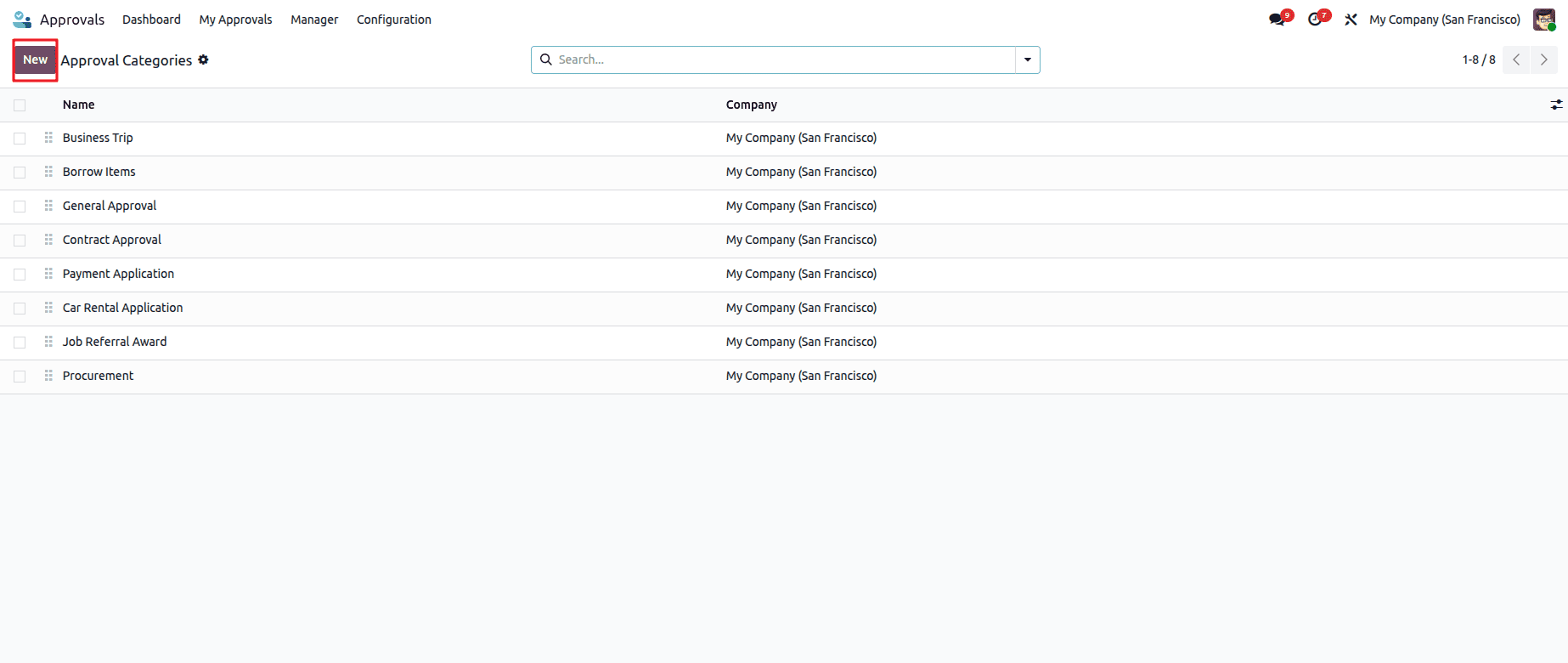
Now, we can create one approval category for Purchase Approval. For that, go to Approval Categories and click on the New button.
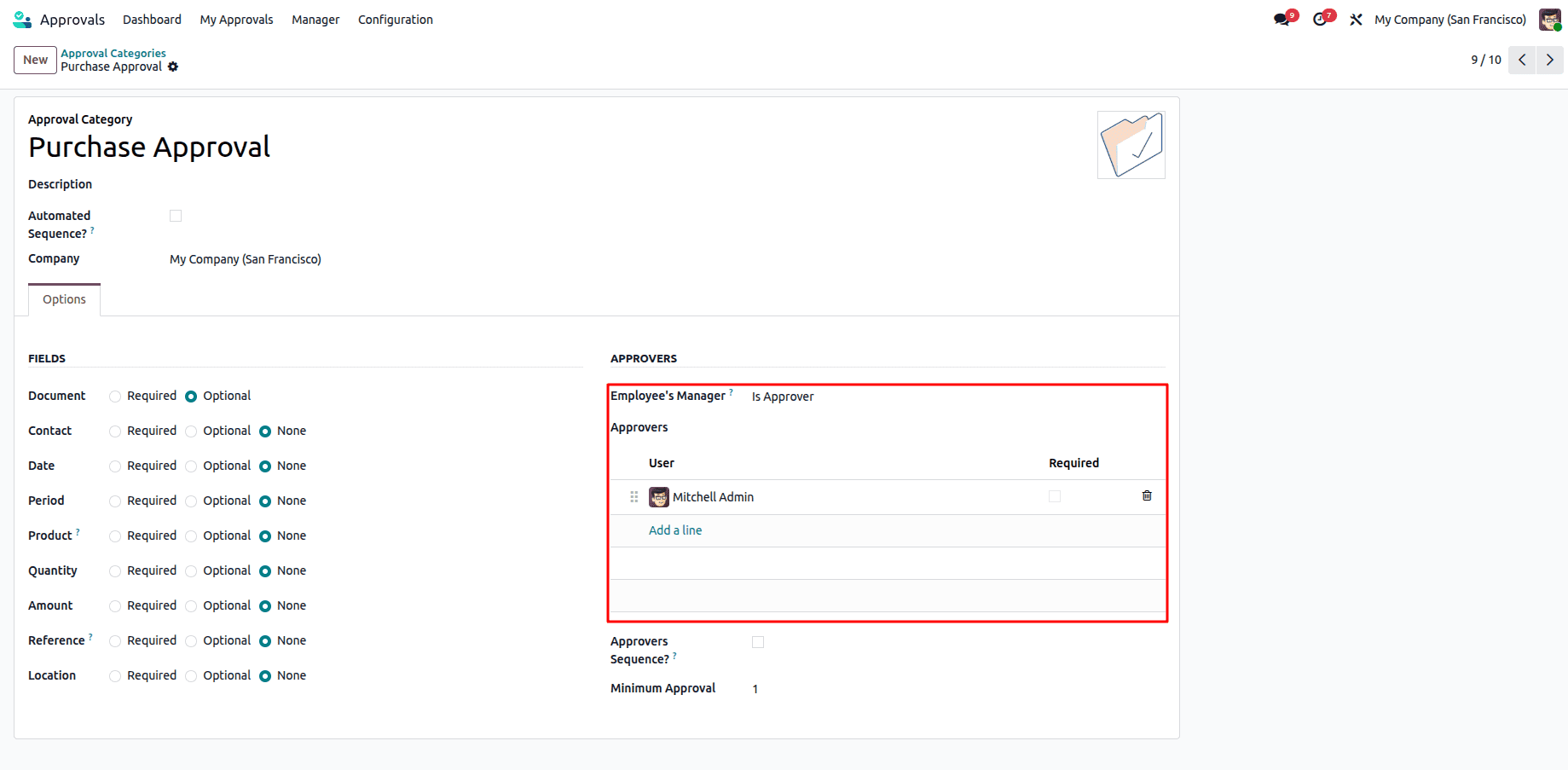
Add the Approval Category as Purchase Approval and set the Approvers as Mitchell Admin.
Here we can see fields that are now given none. Those fields that are required for the approval should be marked as required or optional based on the requirement. Here we can configure multiple approvers, and the minimum number of approvers is 1.
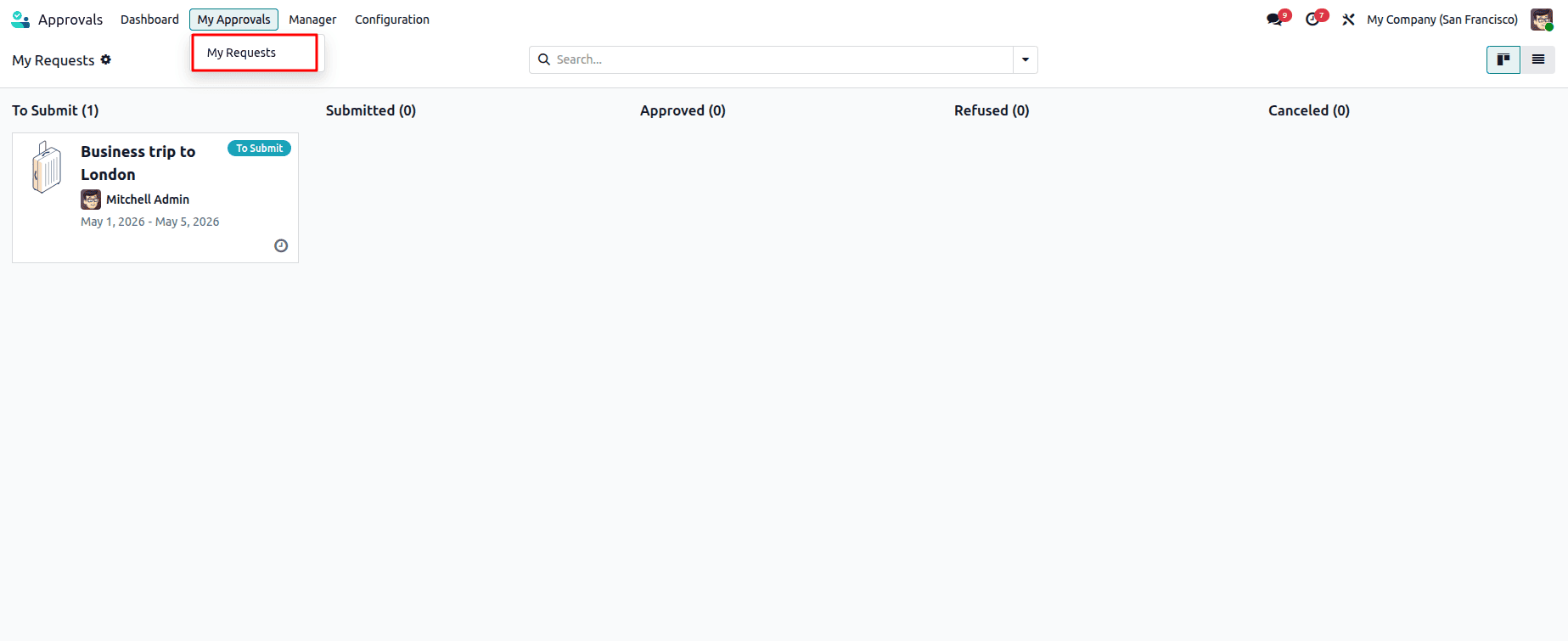
Now, let's create an approval request. For that, go to the My Approvals > My Requests.
Here, we can see the approval requests that have been created and in which state they are.
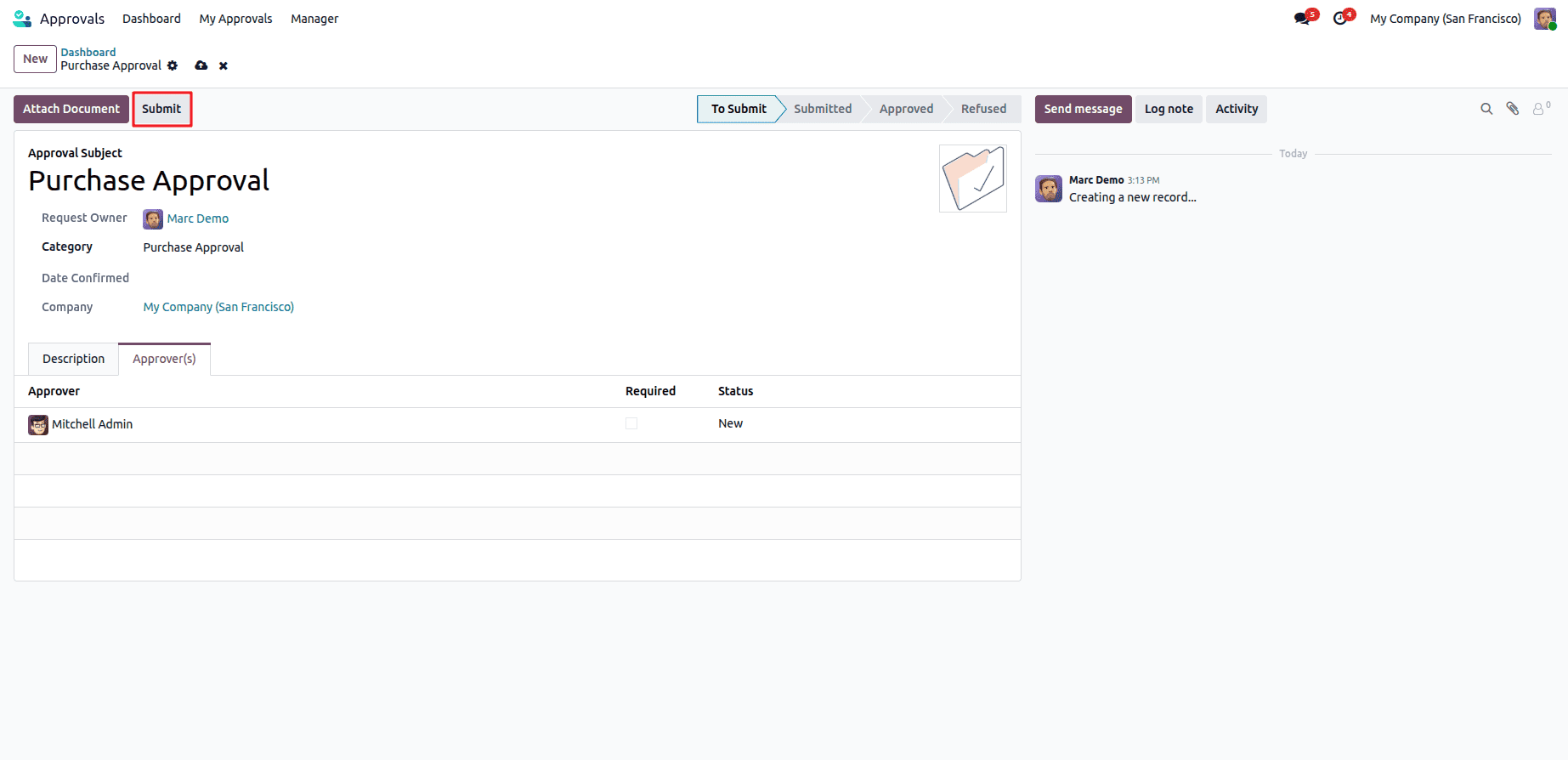
Now, go to the dashboard and click on New Request. From here, you can see a new approval request. Create a new purchase request by giving the approval category, and under approvers, the approver will automatically be updated. In this case, Mitchell Admin is the approver. If we enable the fields in the category, they will appear here. Now, click on submit.
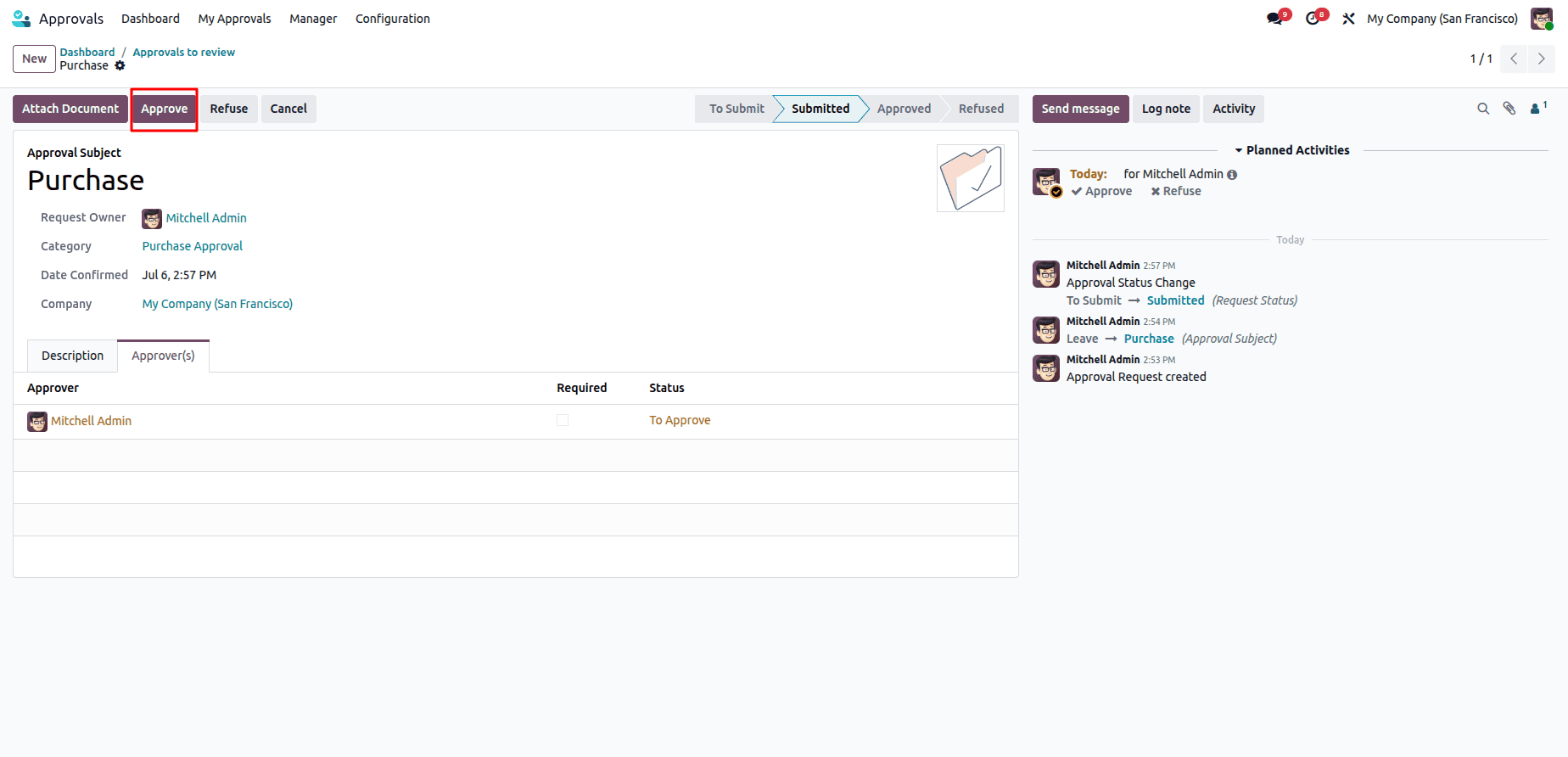
Here, the Approve button is active as we have logged in as Mitchell admin.
The approver can either approve or refuse, which will automatically move to that particular state. Once the approver approves the state, he can also be able to withdraw the request if it has to be. All the decisions can be made by the approver.
If we go to My Request under My Approvals, you can see the status of the approvals whether it is in Submitted, Approved, Refused, or Cancelled.
Lets logout as Mitchell Admin and log in as Marc Demo. Now lets create a request from Marc Demo.
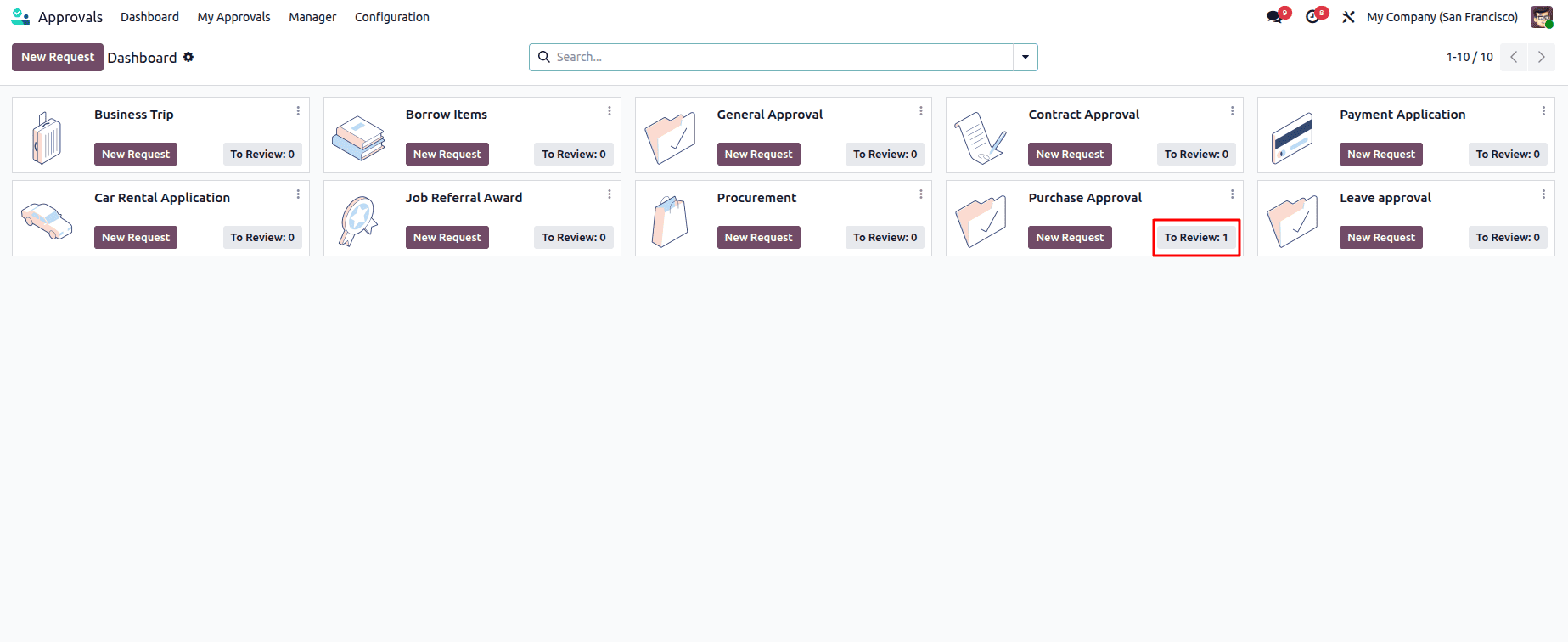
Now, log in as Mitchell Admin, and we can see that the purchase request is in the To Review state. The request will be there.
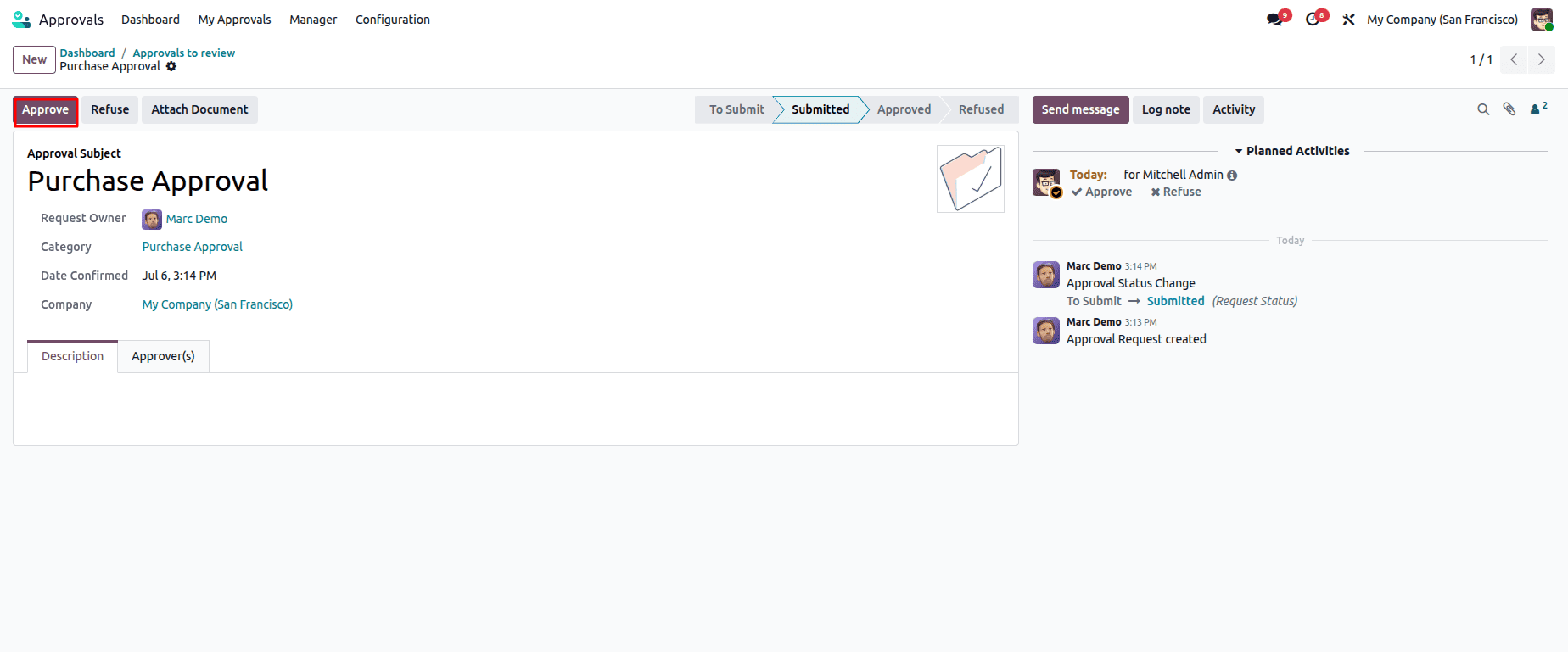
From here, the approver can either approve or refuse the request.
So there are certain mistakes that you need to avoid, which include not defining the proper approvers, missing approval levels, ignoring the notifications, and unclear request details. So with Odoo’s approval workflow, you can actually streamline the approvals, improve controls, and reduce delays, which also increases transparency. The approval module provides an efficient way to manage approval requests across different business processes such as purchases, expenses, and leave requests.
To read more about How to Optimize Approvals in Odoo 18 for Better Efficiency, refer to our blog How to Optimize Approvals in Odoo 18 for Better Efficiency.